






消息通讯
插件

Use ChatGPT (Codex), Claude, and Grok (X Premium) subscriptions as DeepSeek Harness LLM providers — OAuth login in the web UI, no API keys
PROJECT TOPICS
INSTALL REFERENCE
dsh plugin --profile web add github:xmanrui/dsh-im
该命令指向仓库当前默认分支;尚无绑定当前 commit 的完整验证结果。
PROJECT README


[!NOTE] DSH-IM 已获得 DeepSeek Harness 官方 Token 赞助,价值人民币 2,000 元。感谢官方对本项目的支持!
本项目由社区开发者独立开发与维护。
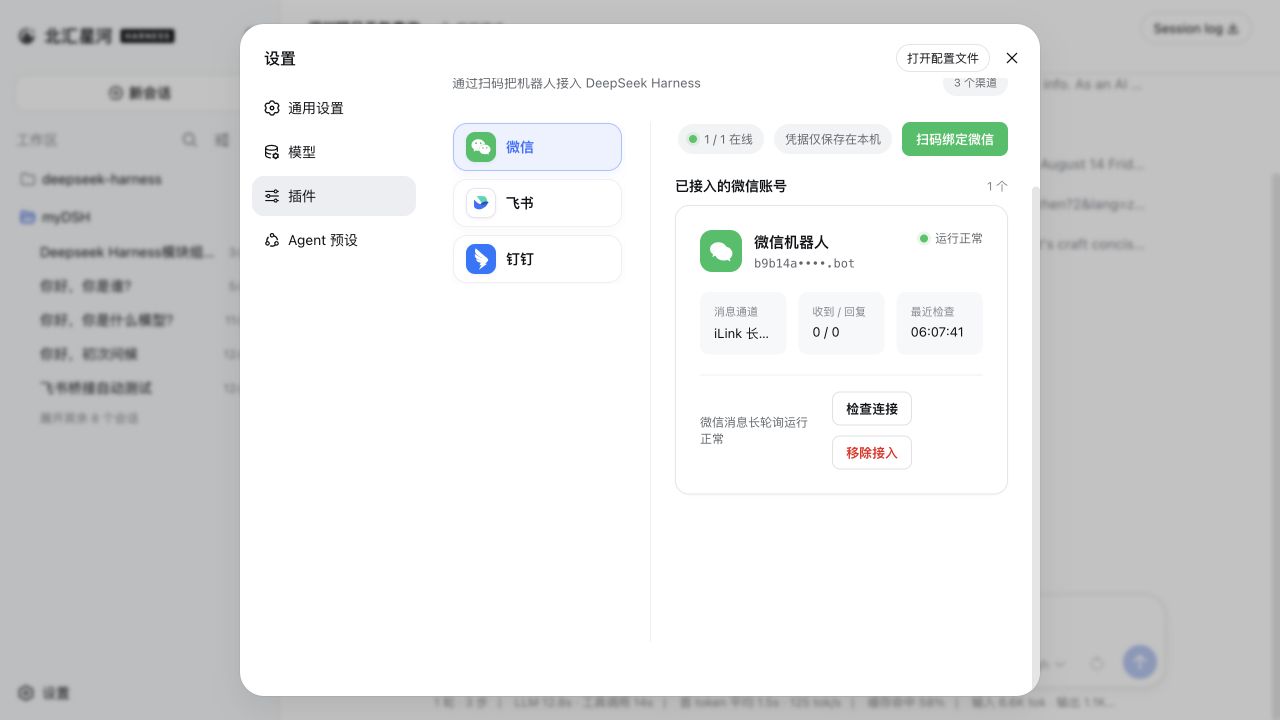
通过扫码、App Manifest 或已有机器人凭据把 IM 机器人接入 DeepSeek Harness,并让本机 Harness 主动连接公网 AI Office。一个插件、一个设置入口,统一管理内置 IM 渠道和 AI Office Connector。每个 IM 渠道都支持接入多个机器人,各机器人的连接状态、工作区、模型和会话绑定彼此独立;iMessage 是本机 Messages.app 身份接入的例外,详见iMessage 渠道说明。
Connect IM bots to DeepSeek Harness by scanning a QR code, using an App Manifest, or entering existing bot credentials, and let the local Harness connect outward to a public AI Office. One plugin and one settings entry manage the built-in IM channels and the AI Office Connector.
| 渠道 | 接入方式 | 消息与回复 |
|---|---|---|
| 飞书 | 扫码创建机器人,或使用 App ID + App Secret 手动绑定 | 长连接接收消息;可选择飞书原生“实时直播”、单张实时过程卡或逐步消息展示任务过程;每机器人可开启语音交互(可选渠道能力,默认关闭):语音消息转写为文字走正常流程,答案同时以语音回复 |
| 微信 | 使用微信扫码绑定机器人 | 腾讯 iLink 长轮询收发消息;等待 Harness 回答时显示“正在输入”,最终回复按 1,800 字符分段发送 |
| 钉钉 | 扫码创建机器人,或使用 Client ID + Client Secret 手动绑定 | 钉钉 Stream 长连接;通过 AI Card 流式显示回答 |
| 企业微信 | 使用企业微信 App 扫码创建智能机器人,或使用 Bot ID + Secret 手动绑定 | 官方 WebSocket 长连接;原生显示“正在思考中”、工具执行进度和流式回答 |
| 企业微信应用 | 在企业微信管理后台创建自建应用,填写企业 ID、AgentId、Secret、Token、EncodingAESKey(可选代理地址) | HTTP 回调接收;私聊支持流式回复(微信端不支持时自动改为分段文本),支持图片输入与结果文件回传;成员的微信关注该企业的微信插件后可在微信中直接使用 |
| 使用手机 QQ 扫码创建机器人,或使用 AppID + AppSecret 手动绑定 | WebSocket 长连接;私聊显示“正在输入”并以单条 Markdown 回复,群聊被 @ 后只发送最终答案 | |
| Slack | 使用预置 App Manifest 创建应用,再填写 Bot Token(xoxb-)和 App Token(xapp-) |
Socket Mode 长连接;私聊直接回复,频道被 @ 后响应,优先使用官方流式消息 API |
| Telegram | 使用 @BotFather 生成的 Bot Token | Bot API 长轮询;默认私聊直接响应、群聊被提及或回复时响应,也可为每个机器人独立启用私聊白名单安全模式;关闭思考过程留痕时,私聊、群聊和 Topic 均通过占位消息编辑展示进度并原位完成富文本回复,避免 Android 私聊 Draft 占用发送入口,平台不支持富文本时回退为普通文字 |
| Discord | 使用 Developer Portal 生成的 Bot Token | Gateway v10 长连接;私信直接回复;服务器文字/公告频道首次 @ 后创建原生 Thread,后续在线程中无需重复 @,并通过编辑消息流式显示回答 |
| 使用手机 WhatsApp 扫码关联设备 | WhatsApp Web 长连接;默认仅响应账号自聊,也可切换到指定联系人或开放响应模式;显示已读和“正在输入”,通过每秒编辑同一条消息显示工具进度和逐步生成的回答,长回复自动分段,编辑失败时回退为完整文字回复 | |
| iMessage | 在 macOS Messages.app 中登录 iMessage,并按渠道说明授予本机权限 | 使用 macOS 原生 Messages.app 收发文本私聊;不依赖 BlueBubbles;每个 macOS 用户账户使用一个本机 iMessage 身份 |
| Matrix(实验功能) | 填写 homeserver 地址,并提供访问令牌,或用户 ID 与密码 | CS API 长轮询接收;私聊直接回复,房间被 @ 后响应,支持线程回复、HTML 白名单富文本与编辑式流式输出,可回传图片和结果文件;包含实验性房间消息加解密,限制见下文 |
Matrix 加密目前仅供非敏感测试:默认 optional 模式尝试启动加密引擎,失败时跳过收到的加密消息;required 模式在引擎启动失败时拒绝连接。尚未实现交互式设备验证、密钥备份、SSSS 或媒体附件内容加密,本次发布未验证真实 homeserver/Element 互通,请勿将其视为完整的端到端保密保障。
企业微信自建应用的回调基址、代理地址和企业可信 IP 配置,见企业微信自建应用接入说明。
其他 IM 平台可继续按同一渠道适配器结构接入。
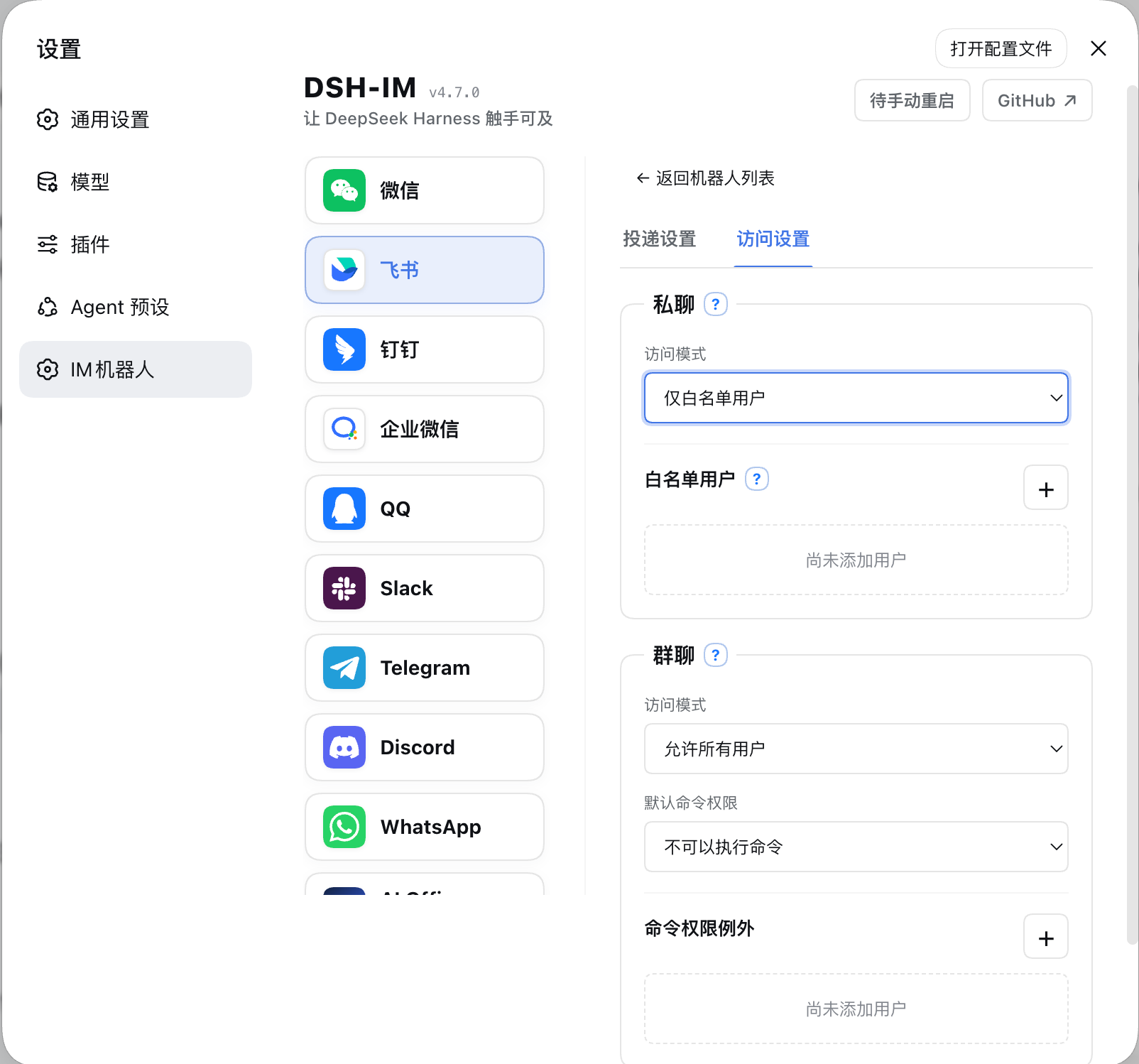
扫码新建的飞书和 QQ 机器人,默认允许所有用户在私聊和群聊中聊天及执行内置命令;可在机器人的访问设置中调整白名单和命令权限。已有机器人的访问设置保持不变。
飞书群聊默认接收其他机器人明确 @ 当前机器人的消息,无需额外开关;未 @、仅 @ 其他成员或全体、机器人自身发送的消息和机器人私聊消息仍会忽略,即使群聊响应方式设为“全部”。消息仍受群聊白名单与命令权限约束。飞书应用需要租户权限 im:message.group_at_msg.include_bot:readonly(“获取群组中其他机器人和用户@当前机器人的消息”);扫码新建应用会默认申请,已有或手动绑定的应用可点击“补全权限”或私聊执行 /repair,扫码并完成飞书要求的发布审批后生效。详见飞书接收消息权限说明。
支持图片输入的内置渠道均支持把 JPEG、PNG、WebP 图片,以及以图片文件方式发送的 GIF,连同可选文字说明发送给 Harness;默认每张原图最多接收 30 MB、每条消息最多 20 张;原图保存到会话工作区,模型副本自动缩放或压缩到单张 5 MB、总计 20 MB 以内,仍超限或模型不支持图片时按文件交给模型处理。这四项限制可在「通用设置 → 附件 → 图片输入」调整,对后续消息生效;原图沿用附件保留时长。调高模型输入上限会增加请求体积、处理耗时和模型成本,也仍受平台及宿主限制。iMessage 首版仅支持文本私聊,不包含在图片能力中。飞书下载用户消息中的图片或文件需要租户权限 im:message:readonly,确认页将其显示为“获取单聊、群组消息”;飞书目前没有为该下载接口提供仅限图片的更窄权限。扫码新建的应用会默认申请;已有或手动绑定的应用可私聊机器人执行 /repair,或在「IM机器人」设置页点击“补全权限”,扫码增量补全该权限、上传机器人图片或文件所需的 im:resource、原生命令面板所需的 application:app_slash_command:read / write,以及卡片回调。
已接入的 IM 渠道共用超时任务跟踪:收到“等待模型回复超时”后,插件会继续检查原任务,完成后向原聊天或线程补发最终文字;插件重启或连接恢复后也会继续检查。/stop 只停止当前聊天提交的对应回合,切换会话后不再向该聊天补发旧会话的结果。无需新增设置,正常回复流程保持原样。
补发仍受渠道发送权限和配额限制。明确发送失败最多尝试三次;发送结果不确定时保留记录并停止自动重试,避免重复消息。此机制恢复文字结果和终态通知,不重放问题、审批或文件工具调用。详见延迟交付说明。
支持文件回传的内置渠道均可把 Harness 可读取的文件作为渠道原生附件回传。已有文件和当前任务新生成的文件都可以直接发送;该能力对所有已连接机器人默认可用,无需开关或机器人白名单,原有文字、图片、流式回复、命令和会话行为保持不变。iMessage 首版不支持文件或附件回传。
模型调用文件回传工具后,插件把指定文件交给当前渠道的原生接口。图片会优先以原生图片消息呈现;渠道不支持或明确拒绝图片发送时自动回退为文件附件,发送结果不确定时不会补发文件造成重复消息。插件不额外设置文件来源、创建时间、工作区边界、扩展名、内容、数量、大小或有效期规则;文件只需真实存在且可读取。渠道平台仍可能依据自身权限、配额、文件能力或账号等级拒绝发送,插件会按平台返回结果提示。
| 渠道 | 平台要求 |
|---|---|
| 微信 | 当前绑定协议和会话需支持原生文件消息,实际可发送范围以微信接口返回为准。 |
| 飞书 | 飞书文件上传接口要求文件非空且不超过平台 30 MB;应用需有租户权限 im:resource(“读取与上传图片或文件资源”)。内置扫码流程新建应用时默认申请该权限;已有或手动绑定的应用可通过“补全权限”或私聊 /repair 增量补全并完成飞书要求的审批。飞书开发者后台当前没有单独的 im:resource:upload 权限。 |
| 钉钉 | 应用需开通 qyapi_base,机器人需具备文件消息能力;实际格式和大小以当前 OAPI 与机器人能力返回为准。 |
| 企业微信 | 应用需具备素材上传和文件消息能力,实际可发送范围以企业微信接口返回为准。 |
| 机器人需具备文件消息能力,并受 QQ 当日文件上传配额约束;额度耗尽时会明确提示稍后重试。 | |
| Slack | Bot Token 需有 files:read、files:write 和 reactions:write;实际文件大小上限由 Workspace 当前策略决定。已有 App 新增或变更 Scope 后,必须重新授权/安装 App 并重新连接机器人。 |
| Telegram | 机器人必须能在当前聊天发送文档,实际可发送范围以 Bot API 返回为准。 |
| Discord | Developer Portal 的 Bot 设置中需启用 Message Content Intent;机器人需有 Send Messages、Create Public Threads、Send Messages in Threads 和 Read Message History 权限;发送结果文件还需 Attach Files。实际附件额度由当前账号与服务器能力决定。 |
| 当前绑定会话需支持 Document Message,实际可发送范围以 WhatsApp/Baileys 返回为准。 | |
| Matrix | homeserver 需允许媒体上传,单文件实际上限由其媒体仓库配置决定;被拒绝时插件会明确提示检查媒体大小限制与上传权限。 |
推荐从 npm 安装已发布的稳定版本:
dsh plugin --profile web add -w @xmanrui/dsh-im重启 dsh web、刷新浏览器,然后打开「设置 → IM机器人」。IM机器人使用 order: 21,尽量排在一级设置菜单的「Agent 预设」之后;插件页面不再保留旧入口。从旧版升级不会改变已有机器人、凭据、工作区、Agent Preset 或会话绑定。
本机 dsh web 和 DSH Desktop 默认直接复用当前 Host 的内部服务:旧版 Harness 使用 apiProxy,新版 Harness 自动使用 Typert Gateway、Session Controller 和 Workspace Controller,不需要配置 Harness 地址,也不绕行本机 HTTP 端口。Desktop 的兼容模式、扩展窗口和增强模式均无需开启“允许在浏览器中打开”或局域网访问。渠道配置中显式设置的 harnessBaseUrl 仅保留给旧版远程 HTTP/WebSocket Harness;内部调用失败不会自动改连其他 Host。
如需试用尚未发布到 npm 的最新代码,可以改用 GitHub 源安装器:
npx -y github:xmanrui/dsh-im installGitHub 源安装会直接拉取并构建 Git 依赖;pnpm 10 及以上版本可能要求先在 profile 的 pnpm-workspace.yaml 中允许该依赖执行构建脚本。普通用户建议优先使用 npm 稳定版。
安装后,在对应渠道页面按照内置引导完成扫码或凭据配置。所有 Secret 和 Token 只提交给本机 Harness Host,并写入受保护的凭据存储;状态接口和机器人列表不会回传这些凭据。
如果本机必须通过正向代理访问飞书,请在启动 dsh web 前把 HTTPS_PROXY 设置为包含协议的 HTTP 代理 URL(例如 http://proxy:8080;也支持小写 https_proxy,并兼容使用 HTTP_PROXY 作为回退),修改后重启 Host。飞书注册和凭据验证会复用 SDK 的代理感知 HTTP 客户端,消息长连接会显式通过这个代理建立 WebSocket;长连接目前不读取 ALL_PROXY 或 NO_PROXY。
如果本机无法直连 Telegram Bot API,请使用 Node.js 22.21 或更高版本,并在启动 dsh web 前启用 Node 的环境变量代理支持:
NODE_USE_ENV_PROXY=1 \
HTTPS_PROXY=http://proxy:8080 \
HTTP_PROXY=http://proxy:8080 \
NO_PROXY=localhost,127.0.0.1 \
dsh web
代理地址按本机网络环境填写;修改代理后需要重启 Host。绑定 Telegram Bot Token 时,如果页面提示无法访问 Bot API,请优先检查代理地址、Node.js 版本和 NO_PROXY 配置。
| 默认行为 | 说明 |
|---|---|
| 机器人别名 | 点击机器人名称旁的铅笔设置别名,保存后立即显示,无需重启或重连。原名称始终保留,可点击“恢复原名称”或清空别名后保存;仅影响本机设置页中的显示名称。 |
| 机器人工作区 | 每个机器人独立保存工作区。新机器人默认使用 $DSH_HOME/im(未设置时为 ~/.dsh/im),机器人或对话实际选用该目录时自动创建;全部使用其他工作区时,不会仅因启动插件而创建该目录。新会话显示在「未分组」;之后可在机器人卡片中修改。显式配置的 workspace 优先,dshHome 可覆盖环境变量 DSH_HOME。 |
| 模型 | 每个 IM 渠道的每个机器人都可在工作区下方独立选择模型;未选择时跟随 Host 默认。切换只影响之后新建的会话;当前聊天先发送 /new,再发送普通消息才会使用新选择。 |
| 思考强度 | 在模型下方显式选择该模型支持的思考强度,或跟随模型默认。档位、说明和默认值来自 DSH;切换模型后恢复新模型默认强度。每个机器人独立保存,只影响之后新建的会话。 |
| Agent Preset | 每个机器人可在设置页卡片中选择 Agent Preset。未选择时跟随 Host 的 agent-presets.default;渠道级 config.agentPreset 只作为该渠道之后新接入机器人的默认值。切换不会修改或清空已有会话;若当前聊天已有会话,需先发送 /new,再发送一条普通消息,才会按新选择创建会话。 |
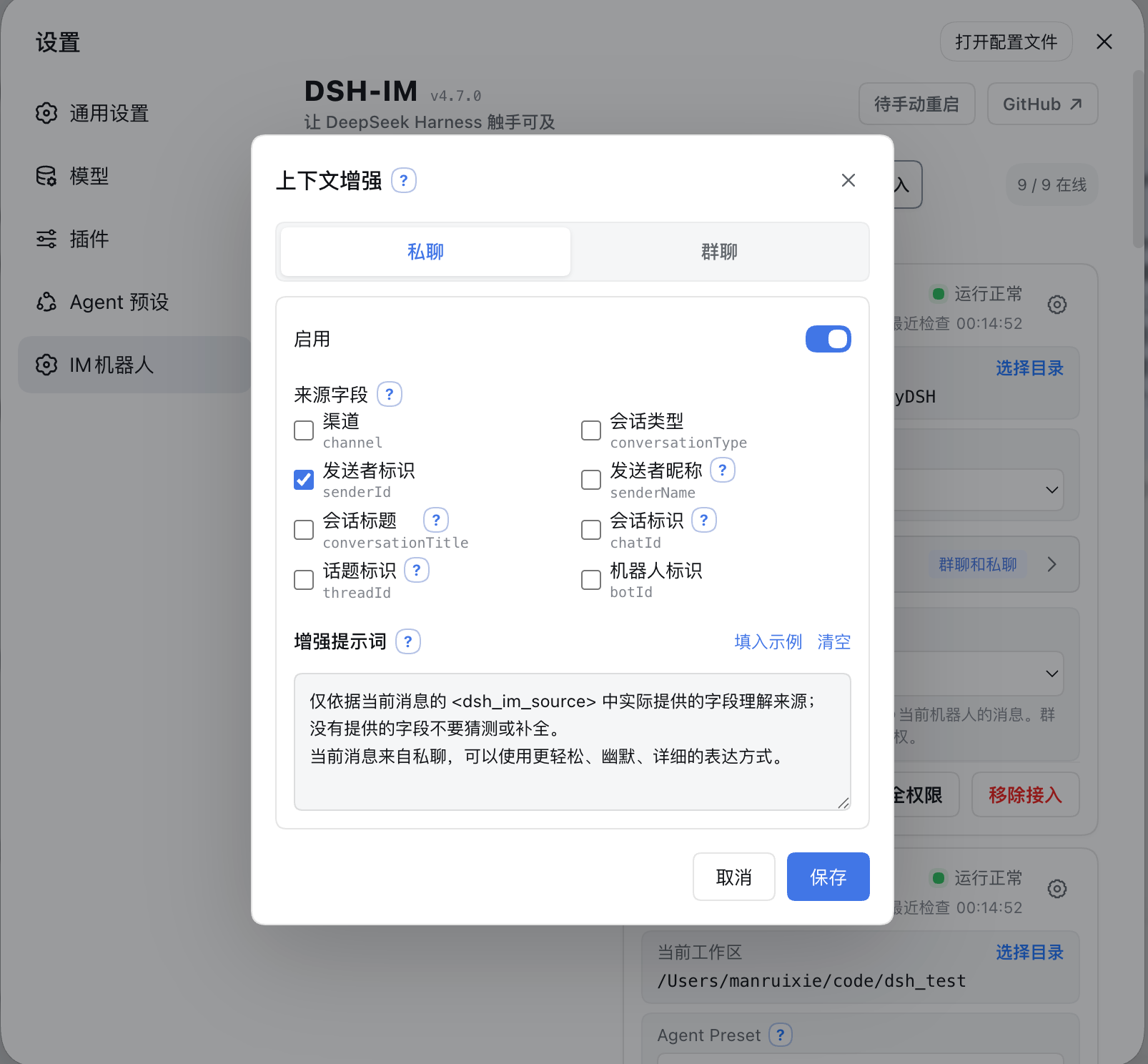
| 上下文增强 | 从机器人卡片打开设置,分别决定群聊、私聊是否增强;两个开关默认均关闭,旧机器人升级后也不会自动开启。 |
| 飞书指令面板 | 每个飞书机器人可在「更多设置 → 指令面板」里决定聊天输入框打 / 时列出哪些指令、按什么顺序:「跟随默认」使用插件自带的 31 条清单(随插件版本更新),「自定义」则恰好是所选指令和所选顺序。隐藏只是不在候选里出现,手动输入同一命令照旧可用;清单之外手工添加的指令不会被删除。配好一个机器人后,可用「保存并同步到其他机器人」一次写到该渠道的其他所有机器人(会覆盖它们各自的面板设置;离线机器人下次启动时生效)。保存后由机器人后台同步,指令较多时需要一点时间。 |
| 飞书被 @ 时开话题 | 默认开启。在群聊或私聊里 @机器人 提问时,机器人会在那条消息下新建一条飞书话题,问答都落在话题内;该话题是 dsh 会话列表里一条独立会话,话题里的后续消息属于同一个会话。只发一个 @机器人(打开菜单)不会新建话题,没有 @机器人 的消息仍留在原会话。可在机器人卡片的「群聊」设置里关闭,关闭后群聊与私聊都恢复平铺回复。 |
| 飞书任务过程展示 | 每个飞书机器人可选择不显示过程、实时直播、实时过程卡或逐步消息。实时直播使用飞书原生思考过程展示推理、工具调用和结果,最终答案单独发送;需要飞书 PC 7.70、移动端 7.74 或更新版本。飞书原生思考过程目前无法发到话题内,因此话题中的回合会改用实时过程卡,过程与答案都留在话题里。 |
| 会话渠道标识 | 本机 Host 的 IM 渠道与 AI Office 会话自动标记来源。Web 会话列表和搜索结果将「微信 ·」等前缀显示为渠道 Logo;保留 DSH 原有的自动标题生成与更新。已有会话在下次加载时补上。 |
渠道前缀在 DSH 生成标题后追加,完整保留原始标题与自动/手动来源,不会将自动标题锁定为手动命名,也不会额外调用模型。重复生成、刷新或重启不会叠加前缀;真实的手动命名仍遵循 DSH 原有的锁定规则。此功能由当前 Host 的会话事件驱动,显式连接远程 harnessBaseUrl 时需在目标 Host 上安装该插件。
Logo 由 dsh-im 的浏览器适配显示,无需修改 DSH。适配保留原始文字节点和点击、菜单、拖拽操作;复制、读屏及其他界面仍保留文字渠道名。DSH 页面结构不匹配、浏览器不支持或图标加载失败时,自动保留文字前缀;插件卸载后恢复原始显示。
支持主动投递的 IM 渠道可以使用稳定的 botId + targetId 主动发送文字消息。机器人设置页支持从已聊会话选择或手工填写目标、保存前测试当前路由,以及复制调用参数;HTTP POST、同 Host 插件和 Connection RPC 共用同一目标配置与投递核心。
已保存的私聊目标还可以开启默认关闭的「会话双向同步」。开启后,DSH Web/CLI 在该私聊当前 Session 中发送的用户文字和最终助手文字会同步回私聊,定时任务成功完成后的最终助手文字也会同步;IM 侧原有提问与 /steer 不会重复。开关自动跟随 /session、/new 和工作区切换后的当前 Session。首版仅支持当前 Host 的私聊文字;群聊、Topic、Thread 与显式远程 harnessBaseUrl 不支持。
设置步骤、各渠道字段、完整调用示例、管理端点、错误码与排错说明请查看《主动投递使用指南》(English)。
宿主可通过可选客户端服务 dshImClient 嵌入完整 IM 管理面板,并按需隐藏或恢复设置入口。dsh web 默认仍使用原来的「设置 → IM机器人」。接口、兼容要求与接入示例见客户端接入文档。
| 命令 | 作用 |
|---|---|
/help |
显示机器人支持的命令和用法。 |
/menu、/m |
飞书、钉钉和企业微信打开交互菜单。钉钉的会话、工作区、预设和模型按两列排列,选择后立即生效,并在原卡片更新结果。企微下拉选择后点击应用;菜单仅通过 /m 或 /menu 手动打开,进入单聊时不自动展示,按钮执行后仅反馈结果,不自动补发菜单。菜单还提供新会话、停止、压缩、状态与帮助等按钮。 |
QQ /menu、/m |
打开按钮与数字菜单:会话选择、工作区、模式/预设、模型、新会话、会话列表、停止、压缩、补充指令、归档显示切换、状态和帮助。列表支持分页;按钮不可用时回复数字选择。菜单按聊天和操作者隔离,15 分钟或重启后失效;普通消息退出数字选择,审批、提问和批量输入保留原有优先级。 |
/new |
解除当前聊天的会话绑定,让下一条普通消息开启全新 Harness 会话。 |
/status |
检查当前机器人与 DeepSeek Harness 的连接状态。 |
/version |
查看当前运行的 dsh-im 插件版本。 |
/models |
按序号列出当前配置的全部可用模型。 |
/model |
查看当前聊天绑定会话正在使用的模型和推理等级。 |
/model <序号或 Provider/模型ID> [推理等级ID] |
切换当前会话模型,并可同时指定目标模型支持的推理等级。 |
/reasoninglist、/reasonings |
等价命令;列出当前模型支持的推理等级。 |
/reasoning |
查看当前会话的模型和推理等级。 |
/reasoning <序号或等级ID> |
切换当前模型的推理等级。 |
/reasoning --default |
恢复当前模型的默认推理等级。 |
/presetlist、/presets |
两个等价命令;按序号列出 Host 当前可用的 Agent Preset,并标记 Host 默认项和当前机器人的选择。 |
/preset |
查看当前机器人的新会话 Agent Preset 设置。 |
/preset <序号或 Preset ID> |
设置当前机器人的 Agent Preset;纯数字 ID 使用 /preset id:<ID>。 |
/preset --default |
清除当前机器人的显式选择,让后续新 Session 跟随 Host 默认。 |
/permissionlist |
飞书、QQ:按序号列出当前绑定会话的可用权限档位。 |
/permission [序号或完整ID] |
飞书、QQ:查看或直接切换当前会话权限;纯数字 ID 使用 /permission id:<ID>。 |
/stop |
立即停止当前聊天正在运行的任务,并保留尚未开始的排队消息。 |
/steer <补充指令> |
把补充指令立即加入当前聊天正在运行的任务。 |
/batch |
在私聊中开启批量输入,最多收集 10 条纯文字消息。 |
/send |
将已收集的消息按原顺序作为一次输入提交。 |
/cancel |
取消批量输入并丢弃已收集的消息。 |
/repair |
在飞书私聊中增量修复卡片回调,并补全媒体、群聊机器人 @ 消息与原生 Slash Command 面板所需的权限。 |
/compact |
立即压缩当前聊天绑定会话的较早上下文。 |
/workspace <工作区序号或绝对路径>、/ws <工作区序号或绝对路径> |
按 /workspacelist 序号或绝对路径切换当前机器人的 Harness 工作区。 |
/workspacelist、/workspaces、/wsl |
列出当前 Harness Host 上仍然存在的工作区绝对路径。 |
/sessionlist [工作区序号或绝对路径]、/sessions [...] |
两个等价命令;列出指定工作区的会话 ID 和标题,默认 IM 目录也包含其中的未分组会话;省略参数时使用当前工作区。 |
/sessionlist --limit N、/sessions --limit N |
列出当前工作区现有顺序中的前 N 个会话;N 必须是正整数。 |
/session <Session ID> |
将当前聊天绑定到指定的已有 Harness 会话。 |
/history [数量] |
在私聊中查看当前绑定会话的最近历史消息,默认 3 条,最多 5 条。 |
| 交互式提问 | 回复选项序号、选项文字或自定义文字;多选时用逗号分隔。飞书中,提问发起人发送图片或图文消息会结束本轮追问,并在同一会话继续处理图片,无需答完剩余问题或重新发图。 |
| 远程审批 | 回复 批准 / 拒绝 / 同意 / 不同意 / yes / no。 |
Web 与机器人可同时处理同一审批,先提交的「批准一次」或「拒绝」生效,另一端随即失效。支持微信、飞书、钉钉、企业微信机器人/应用、QQ、Telegram、Slack、Discord、WhatsApp、Matrix;iMessage、邮箱和 AI Office 暂不参与。机器人发起时使用原聊天;Web 或其他 Host 任务发起时,需要该 Session 恰好绑定一个已开启双向同步的私聊。同一私聊的目标别名按一个入口计算,多个私聊只发 Web 处理提醒。审批复用当前绑定与权限,绑定变更后不能继续提交;不提供永久批准。Slack 从 Web 投递审批还需 im:read 权限,可更新应用 Manifest 后重新安装应用;缺少权限时保留 Web 处理入口。
钉钉菜单使用插件内置的共享卡片模板,无需逐个机器人创建或配置模板。卡片打开后可操作 30 分钟;超时或 Host 重启后重新发送 /m。模板源文件保存在 assets/dingtalk-menu-template.json,供维护者导入卡片平台更新。
$DSH_HOME/im,但各自保存聊天与会话的绑定。插件不会为该目录创建工作区分组;/sessions 可以列出该目录的未分组会话,/session <Session ID> 或 /session N 可以绑定普通会话。切换到其他目录后,新会话按现有机制加入对应工作区分组;切回默认目录后新会话归入「未分组」。已有机器人的目录不会自动迁移。qwen3-asr-flash 转写为文字,按正常文字流水线处理(命令识别、会话、模型与回传均一致),同一回合的答案同时经 qwen3-tts-flash 合成为语音回复原消息;转写失败时明确降级为原有的“仅支持文字、图片和文件”提示,不影响其他能力。凭据在插件凭据库中以环境变量名(secretRef,默认 DASHSCOPE_API_KEY)管理,密钥本身不进入机器人配置;转写模型、合成模型、回复音色和 ffmpeg 路径可按机器人调整,音色支持 qwen3-tts-flash 官方音色(如 Cherry、Serena、Bella、Chelsie、Momo、Katerina)。需要本机可用 ffmpeg 与可访问 DashScope 的密钥。微信、飞书、钉钉、企业微信、QQ、Slack、Telegram、Discord、WhatsApp、企业微信应用、iMessage、邮箱和 AI Office 的绑定、连接或移除失败时,可展开页面中的「诊断详情」并点击「复制诊断信息」。反馈时附上操作步骤、Desktop/Web 运行方式和实际 DSH 版本;使用页面中的 WX-CONN-…、DT-CONN-… 或 IM-CONN-… 参考号查找同一次故障的渠道 Host 日志。诊断会保留失败阶段、已识别的底层原因、HTTP 状态及可用的耗时等安全信息;多个原因会一并列出,无法识别时明确标为「暂未识别」,不包含登录令牌、二维码或原始响应内容。账号已移除但本机清理未完成时,页面会保留清理警告。消息故障沿用 MF-… 参考号;若页面提示 DSH 管理接口无法访问且没有 Host 参考号,请检查 DSH 管理连接。网络排查应以运行 DSH 的机器为准。
微信启动配置校验失败时,诊断还会提供 file、field、issue,定位 config.json 或 workspaces.json 中第一个未通过校验的位置。字段中的序号从 0 开始,按文件条目顺序计数,例如 workspaces[0].value 表示第一条工作区配置的值,不包含真实账号标识。默认目录为 DSH_HOME/integrations/dsh-weixin(未设置 DSH_HOME 时为 ~/.dsh/integrations/dsh-weixin),自定义路径以插件配置为准。修复后需要重启 DSH;页面「重新读取」仅查询状态,不会重新加载配置文件。
bot_token、钉钉 client_secret、企业微信 Secret、QQ app_secret、Slack Bot/App Token、Telegram/Discord Bot Token、WhatsApp 关联设备密钥、Matrix 访问令牌与密码、AI Office Device Token,或从平台消息中观察到的其他原始用户标识。最新版 dsh-im 跟随最新版 DSH,本次支持基线为 DSH 0.2.0-rc.2(Session 格式 v4)。后续功能和修复不再增加旧版 DSH 的兼容分支,已有其他兼容逻辑暂时保留;旧宿主请使用对应的历史插件版本。package.json 只声明当前实际验证的宿主版本,不承诺未经验证的未来版本。升级插件后重启 Host 并刷新设置页,使 Host 和客户端使用同一版插件。
上下文增强中的来源信息、引导词和引用回复使用 v4 的 plugin:dsh-im 来源字段,修复了它们触发的 SessionFormatError: format v4 message requires a producer-owned source kind。消息顺序、用户正文和会话级引导词去重沿用原有机制,历史会话由宿主负责迁移。
npm install
npm run check
node bin/dsh-im.mjs install --source .
npm run check 运行单元测试、构建 Host/Client 产物,并验证发布包不包含凭据或独立渠道设置页注册。
构建后运行 node scripts/verify-injected-context.mjs /path/to/built/deepseek-harness,验证发布产物中的上下文钩子能通过真实 DSH v4 JSONL 持久化,覆盖普通消息、来源信息、引导词、引用、组合和多段文本,以及关闭后重新读取、继续写入下一轮。脚本从指定宿主加载组件,使用并清理临时会话目录,无需机器人凭据或模型请求。
IM 管理接口默认沿用 Harness 的浏览器认证和 Host/Origin 信任检查。只要 Harness 已允许并认证当前局域网访问,便可直接查看和配置 IM 机器人,无需额外修改 dsh-im 配置。
通过自定义域名访问时,如果 IM 设置页出现 transport failure for /api/dsh-im/...: HTTP 403,请在原 DSH 启动命令中添加浏览器访问的域名,并重启 DSH:
dsh web --trusted-host dsh.example.com将 dsh.example.com 替换为实际访问域名,不带 http://、https:// 或路径。只写域名允许该域名的任意端口;如需限制到指定访问端口,使用 --trusted-host dsh.example.com:8443。多个域名可重复传入 --trusted-host。这个参数属于 DSH;dsh-im 的 rpcAuthority: trusted-host 本身不会把域名加入 DSH 信任列表。本机通过 localhost 或 127.0.0.1 访问通常不需要额外配置。
使用反向代理时,代理传给 DSH 的 Host 应保留浏览器访问的域名及端口;浏览器携带的 Origin 解析出的 host(含非默认端口)必须与该 Host 一致,仅将两者分别加入信任列表仍会返回 403。--trusted-host 只配置访问校验,浏览器仍需通过有效启动链接完成认证。
如需将 IM 管理额外限制为仅本机访问,可在当前 Web profile 的 cordis.patch.yml 中设置:
- id: xmanrui-dsh-im
  config:
    rpcAuthority: loopback
rpcAuthority 默认为 trusted-host;显式设置 loopback 会额外要求回环 Host 和 Origin。更新与入站 TTL 管理始终仅允许回环访问。
局域网管理的 HTTP 集成测试可在构建插件后运行 node scripts/verify-lan-management.mjs /path/to/built/deepseek-harness。脚本启动原版 DSH CLI,使用独立临时 profile 和空机器人配置,检查默认访问、登录认证、Host/Origin 检查以及显式 loopback 策略,结束后停止服务并清理临时目录。测试通过回环 TCP 发送局域网 Host/Origin,不替代跨设备浏览器验收;原版 0.1.5-alpha.1 CLI 本身拒绝 --host 0.0.0.0,跨设备测试需使用支持局域网访问的 Harness 环境。
无需配置。 机器人发出的聊天消息、命令帮助和 Telegram 命令菜单跟随 DeepSeek Harness 的界面语言。在 设置 → 通用 → 语言 中把 DSH 切换为 English,机器人即以英文回复;切换即时生效,无需重启 Host,也无需重连机器人。
语言按以下顺序取第一个有效值:
language 配置(或环境变量 DSH_IM_LANGUAGE)。这是下文的运维级固定值;一旦设置,就不再跟随 DSH 的界面语言。~/.dsh/integrations/dsh-im/interface-language.json,这样 Host 重启后、尚无浏览器连接时机器人仍以该语言回复。中文始终是兜底语言,任何未收录到英文词典的文案都会原样以中文输出,因此该功能不会改变现有中文用户的行为。
聊天消息从下一条起即切换语言。Telegram 命令菜单会立即重新下发,但 Telegram 客户端会缓存 / 菜单,因此即使 Telegram 侧已保存新语言,你自己的客户端仍可能在一段时间内显示切换前的语言;重开客户端即可刷新,getMyCommands 始终反映实际存储的内容。
输入框旁的蓝色 Menu 按钮不受机器人控制,也不会跟随该设置:dsh-im 将其设为 MenuButtonCommands,而 Bot API 中该类型没有文本字段,因此按钮文案由 Telegram 按阅读者客户端自身的语言渲染。只有 MenuButtonWebApp 带有文本字段,但它需要一个 Web App URL。
端到端验证可运行 node scripts/verify-interface-language.mjs /path/to/deepseek-harness:脚本使用原版 DSH CLI 与独立临时 home,通过真实 /api 通道逐层校验语言解析顺序,并验证重启后与运维固定 language 时的行为。设置 DSH_IM_TELEGRAM_TOKEN 可额外接入真实机器人,断言 Telegram 侧实际存储的命令菜单,检查结束后会恢复其原有菜单。
如需固定一种语言、不随阅读者的界面语言变化,可在插件配置中设置 language(也接受 en-US、english),或设置环境变量 DSH_IM_LANGUAGE=en:
- id: xmanrui-dsh-im
  config:
language: en欢迎加入企业微信群,或通过邮箱、微信、小红书或 WhatsApp 联系我。
| 邮箱 | 企业微信群 | 微信 | 小红书 | |
|---|---|---|---|---|
| longmanr307@gmail.com |

|

|

|

|
感谢每一位帮助 dsh-im 成长的贡献者!本项目采用 All Contributors 规范,认可代码、文档、测试、问题反馈、想法和其他形式的贡献。
以下名单以 GitHub Contributors 中的用户账号为基础,排除 GitHub 标记为 Bot 的账号,并按用户名排序;贡献类型依据 Git 提交记录标注,点击 emoji 可查看对应记录。
贡献类型说明:💻 代码 · 📖 文档 · ⚠️ 测试 · 🚇 基础设施 · 🌍 翻译 · 🤔 想法与规划。
名单和贡献类型统一维护在 .all-contributorsrc 中。若有遗漏,欢迎通过 Issue 或 PR 补充,非代码贡献同样欢迎。
维护者可运行 npx --yes --package=all-contributors-cli@6.26.1 all-contributors add <username> <type[,type...]> 添加贡献者及贡献类型;手动修改配置后,运行 npx --yes --package=all-contributors-cli@6.26.1 all-contributors generate 同步更新中英文 README。也可在仓库安装 All Contributors Bot 后,通过 Issue 或 PR 评论中的 @all-contributors please add @username for code, doc, test 更新名单。
CLASSIFICATION EVIDENCE
系统优先读取 GitHub Topics,再与站内分类词典和词根规则比对。当前命中: chatbot、dingtalk-bot、discord-bot、feishu-bot、im-bot、slack-bot、telegram-bot、wechat-bot、whatsapp-bot。
Use ChatGPT (Codex), Claude, and Grok (X Premium) subscriptions as DeepSeek Harness LLM providers — OAuth login in the web UI, no API keys

wenbin-wb
🚀 DeepSeek Harness 多通道远程访问与安全守护插件 | 局域网扫码直连、Cloudflare / 自建公网隧道、微信 / QQ / 飞书 / Telegram 机器人全生命周期对话 | 内置全协议访问安全认证、后台防篡改与容灾保命体系

yyh-001
DeepSeek Harness 的表情包插件——找得到、发得出、学得会,纯文本斗图、情绪主动发图、像 QQ/微信 一样发图、AI 自动学图、自定义表情包 、多种风格随意切换。