消息通讯
插件

Invoice-Downloader
EthanYoQ
电子发票整理与报销准备工具:从邮箱批量收集 PDF/OFD/XML 发票,OCR 识别、分类归档并生成 Excel 汇总;提供 Windows/macOS 桌面版与 DSH 插件。

liaoshaohua123/dsh-plugin-taskbar-flash
Windows-only DeepSeek Harness plugin: reminder sounds on turn completion, questions and approvals, plus taskbar flashing while DSH runs in the background. Ten built-in sounds, your own audio files, and a built-in trim studio.
PROJECT TOPICS
INSTALL REFERENCE
dsh plugin --profile web add github:liaoshaohua123/dsh-plugin-taskbar-flash
该命令指向仓库当前默认分支;尚无绑定当前 commit 的完整验证结果。
PROJECT README
A local Host + Client plugin for DeepSeek Harness (DSH) on Windows: it plays a reminder sound when a session finishes, when the agent asks you something, or when it waits for your approval, and it flashes the taskbar while DSH sits in the background.
No toast windows, no background service, no registry edits, no changes to DSH's approval policy.

| OS | Windows 10/11 (os: win32 in the manifest) |
| Host | DSH desktop app — the taskbar flash needs a real window in the Host process |
| Shell | PowerShell 7 (pwsh.exe) — see Why pwsh |
| Node | 18+ (tests and the sound generator only; the plugin has no build step) |
The plugin is a plain package: index.js (Host), client.js (browser half), flash-window.ps1 (window helpers), sounds/*.wav, plus a cordis.patch.yml that the plugin manager applies for you.
With the plugin manager
taskbar-flash) in the Plugins page.By hand
// <profile>/package.json
{
  "dependencies": {
    "dsh-plugin-taskbar-flash": "link:C:/path/to/dsh-plugin-taskbar-flash"
  }
}
The bundle ships its own patch entry, so cordis.patch.yml in your profile gets:
- insert:
    - id: taskbar-flash
      name: 'dsh-plugin-taskbar-flash'
Keep the source directory in place: a linked plugin is loaded from its checkout.
Settings → Plugins → Taskbar Flash & Sounds holds two sound menus, Completion and Pending approval. Pick, Save, done. Questions use the approval sound. There is a preview button next to each menu, and both menus list built-in and custom sounds separately.
| Value | Name | Notes |
|---|---|---|
chime |
Classic chime | the original 0.55 s two-note reminder |
bright |
Bright ascending | C6–E6–G6 rising triad |
soft |
Soft descending | G5–E5 two soft notes |
triple |
Triple blip | default for approvals, three short identical beeps |
deep |
Deep bell | 392 Hz bell |
velvet |
Warm low bell | D3–A3–D4 stacked, 2.3 s tail |
ember |
Deep hum | default for completion, C3–G3–C4, 2.5 s |
resolve |
Low completion | A2–E3–A3 slow rise, 2.2 s |
system |
Windows system sound | the Asterisk sound from the current scheme |
none |
Silent | flash only |
All built-in sounds are synthesised from scratch; the generators are in tools/generate-chime.py, and the browser preview recomputes the same waveforms with the Web Audio API, so nothing is fetched from the network.
custom-sounds/ and appear in both menus immediately. Existing names are never overwritten (mine.wav lands as mine-2.wav).custom-sounds/ next to the plugin (created on first load), drop audio in, then Refresh list.wav mp3 m4a ogg flac wma, up to 12 MB each.Trim studio — expand Make a reminder sound, pick or drop a local file, drag the start/end handles (the selection starts as the whole file), preview just the selection, name the clip and save it as WAV into custom-sounds/. Source files may be up to 32 MB / 10 minutes; the exported selection is capped at 15 s. Saved clips appear in both menus immediately.
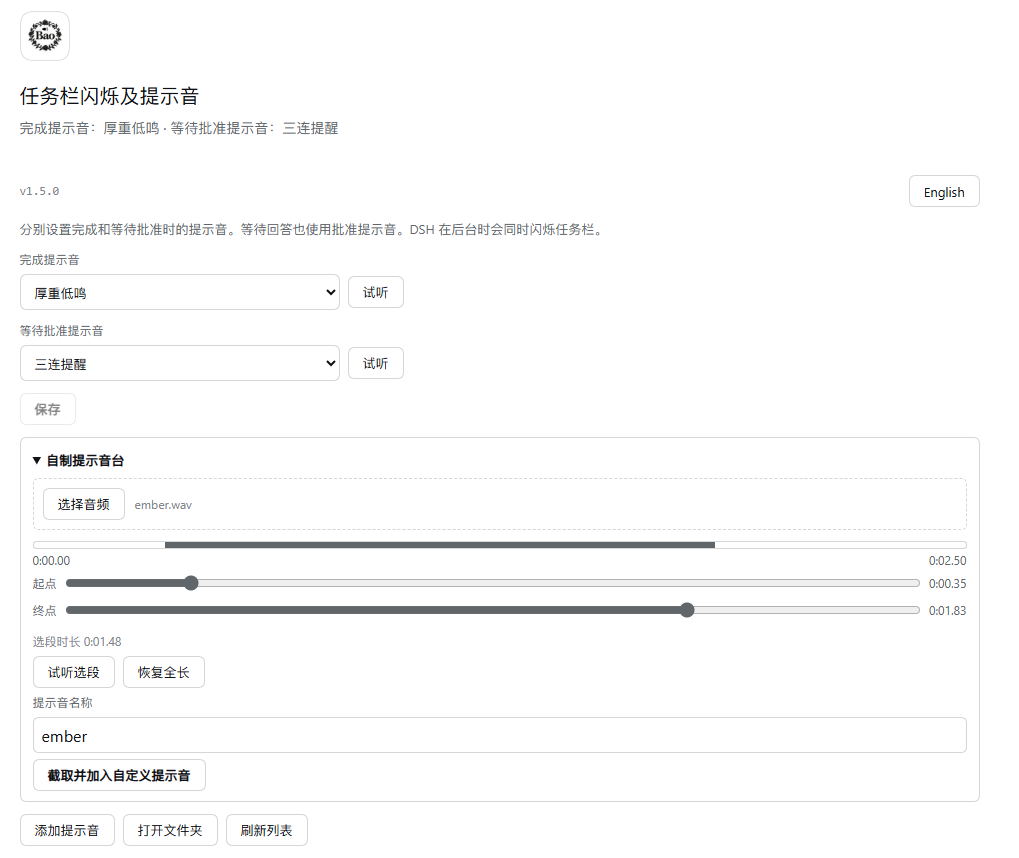
The picture above is the studio working on a 2.50 s file: the darker stretch of the bar is the selection, Start sits at 0.35 s and End at 1.83 s, so the clipped clip is 1.48 s — the line under the handles always shows that number, which is what you are really choosing. Saving adds the clip to Your own sounds in both menus and confirms it in green right there.
The configuration stores file:<bare name> and only accepts ordinary audio files inside the sound folder. If a file disappears, the affected reminder falls back to its default sound and the settings page says so.
Host routes (only registered when the deployment has a webServer; the reminders work without them):
| Method | Path | Purpose |
|---|---|---|
| GET | /plugins/taskbar-flash/sounds |
{ dir, sounds: [{ name, bytes }] } |
| GET | /plugins/taskbar-flash/sound/<name> |
streams the file, honours Range |
| POST | /plugins/taskbar-flash/open-folder |
creates and reveals the sound folder |
| POST | /plugins/taskbar-flash/add?name=<file> |
copies an uploaded audio file into the folder, returns the stored name |
| POST | /plugins/taskbar-flash/trim |
writes the trimmed PCM WAV, returns its name |
Playback — wav goes through PlaySoundW (synchronous, most reliable); every other format goes through mciSendString with the system decoders and is capped at 15 s so a long file cannot hold the reminder process. The flash request is issued before the sound, so a 2.5 s tail never delays the taskbar cue.
Window target — FlashWindowEx with FLASHW_TRAY | FLASHW_TIMERNOFG, applied to the window whose executable is an ancestor of the Host process. It is never guessed from the window title, so other applications are not flashed.
Events — session/event is dispatched through a scoped carrier, so the listener is registered with { global: true }; a normal ctx.on can be filtered out by scope and miss completion, question, and approval events.
DSH's subprocess sandbox rejects Windows PowerShell 5.1 (spawn EPERM). The plugin looks for %ProgramFiles%\PowerShell\7\pwsh.exe first, then falls back to 5.1 and warns in the console.
# unit tests (run the files directly; a bare `node --test test` needs subprocess spawns)
node test/reminders.test.mjs
node test/sounds.test.mjs

# sound only, no flashing — step through the built-in sounds
pwsh -NoProfile -File flash-window.ps1 -HostPid $PID -Sound bright -SoundOnly

# one custom file (wav -> PlaySound, others -> MCI)
pwsh -NoProfile -File flash-window.ps1 -HostPid $PID -Sound custom -SoundFile "C:\path\to\mine.mp3" -SoundOnly

# inspect the target window, then flash / clear it
pwsh -NoProfile -File flash-window.ps1 -HostPid <host pid> -ProbeOnly
pwsh -NoProfile -File flash-window.ps1 -HostPid <host pid> -Sound deep
pwsh -NoProfile -File flash-window.ps1 -HostPid <host pid> -ClearAn independent implementation; it only uses public Windows APIs and public DSH events. When researching the idea we found dsh-notify-win by Andyqwe44 — no code or artwork was copied from it.
MIT © 2026 Mr Bao. Not affiliated with or endorsed by DeepSeek.
CLASSIFICATION EVIDENCE
系统优先读取 GitHub Topics,再与站内分类词典和词根规则比对。当前命中: notification。
EthanYoQ
电子发票整理与报销准备工具:从邮箱批量收集 PDF/OFD/XML 发票,OCR 识别、分类归档并生成 Excel 汇总;提供 Windows/macOS 桌面版与 DSH 插件。

Bytedesk
Open Souce IM with AI powered live-chat, email, ticket support, omni-channel customer service,alternative to slack + zendesk

wenbin-wb
🚀 DeepSeek Harness 多通道远程访问与安全守护插件 | 局域网扫码直连、Cloudflare / 自建公网隧道、微信 / QQ / 飞书 / Telegram 机器人全生命周期对话 | 内置全协议访问安全认证、后台防篡改与容灾保命体系