dsh-quick-actions
Keyboard shortcuts for DeepSeek Harness — pull the latest code, start a session in the workspace you pick, run your own shell commands, and open the action menu from the composer, on any screen.


中文简介:给 DSH 用的快捷键插件。在任意界面(包括新会话页)按一下就能拉取当前工作区的代码、或者选一个工作区直接开新会话;也可以自己添加任意 shell 命令并绑定快捷键;输入框左边还有一个可点击的入口,点开就是分组动作菜单。快捷键和自定义命令都在设置里维护,存在浏览器本地。
Why
DSH is keyboard-driven, but running something against the current workspace — git pull, a build, a deploy script — means leaving the conversation. This plugin puts those operations behind a keystroke:
- the listener is installed once and works on the blank New Session page and inside a conversation;
- "current workspace" is resolved from the session you are looking at, not from a guess;
- the directory is validated on the Host before anything runs;
- everything the UI needs to change (shortcuts, custom commands) lives in the browser, so a tweak never restarts the Host.
Features
- Global shortcuts. A capture-phase
keydown listener runs while the caret sits in the composer: plain typing stays with the field, while any Mod / Ctrl / Alt combination is treated as a command.
- Default binding
⌘⇧P (Ctrl+Shift+P elsewhere) → git pull --ff-only in the current workspace, result in a transient notice. It follows the git-GUI "pull" convention and avoids the browser-reserved ⌘T / ⌘⇧T / ⌘W.
- Workspace picker on
⌘⇧N. Opens from any screen — New Session, a running conversation, even behind an open Settings dialog, because the palette is portalled to document.body rather than the slot layer (shell.overlay is a z-index:20 stacking context, so a slot-mounted overlay would paint under any dialog). Type to filter, ↑ ↓ to move, Enter starts a session in the highlighted workspace. The search field is an ordinary text field: typing, an input method's composition, selection and caret movement all behave the way they do anywhere else (see Workspace picker).
- Clickable entry point. A keycap button in the composer tool row opens the same grouped actions — one click instead of a keypress — and shows which directory the run will use.
- Grouped settings page (
Settings → Quick actions): Git, Session & layout, and your own Custom commands group, each row with a recordable shortcut chip, reset, edit and delete.
- Custom commands. Add a name plus a shell line; it is immediately available in the menu and can be bound to any combination. Runs through a login shell, so
nvm / Homebrew / pyenv PATH entries are available.
- Global, not per-session settings. One preference: a fallback directory used only when no current workspace can be identified.
- Self-diagnosing. The settings page shows the last key the page actually received (plus
key / code / modifier flags), so a combination swallowed by the OS or browser is obvious instead of looking like a broken plugin.
- Calm notices. Success dismisses itself after 6 s (3.2 s without output), failures stay 12 s, hovering pauses the countdown so the output can be selected.
- Bilingual UI (English / 简体中文), following the Harness locale.
Requirements
- DeepSeek Harness with the Web UI (
dsh web, the Desktop app, or any profile that mounts @deepseek-ai/dsh-web-app).
- Tested against DSH 0.2.2-rc.3 (the client slot ids and service shapes used here are stable across 0.2.x).
Install
git clone https://github.com/Sunshow/dsh-quick-actions.git
Then install the directory as a bundle in the current profile — in a DSH session:
plugin_manager action=install_bundle target=/absolute/path/to/dsh-quick-actions
Or from a shell with the profile's dsh on PATH — this is the command the plugin list offers:
dsh plugin --profile web add github:Sunshow/dsh-quick-actions # profile name as in your install
Inside the Desktop app you can also use Settings → Plugins → Local bundle and point it at the cloned directory. A directory install is a link: git pull updates the code without reinstalling, and there is no build step — client.js is committed.
After installing, refresh the page once (the Client half is loaded at boot) and press ⌘⇧P.
Usage
| Where |
What |
| Any screen |
Press a bound shortcut, e.g. ⌘⇧P |
| Any screen |
⌘⇧N (Ctrl+Shift+N) → workspace picker → Enter starts a session there |
| Composer tool row |
Click the keycap button → grouped action menu |
| Settings → Quick actions |
Record, reset, add or edit actions |
Recording a shortcut: click the chip, press the combination (Esc cancels, Backspace clears). A combination already used by another action is taken over and the previous owner is unbound with a notice.
Workspace picker
⌘⇧N opens a palette over whatever is on screen:
| Key |
Action |
| type |
Filter by workspace title, then directory name, then full path |
↑ ↓ / Tab / Shift+Tab |
Move the highlight |
PageUp PageDown |
Jump five rows |
← → / Home End |
Move the caret in the field, as usual |
Ctrl+A Ctrl+E (macOS) |
Jump to the start / end of the line; Ctrl+B / Ctrl+F step a character, Ctrl+K / Ctrl+U kill to the end / start, Ctrl+D / Ctrl+H delete forward / backward |
Enter |
Open (or reuse the draft of) a blank session in that workspace |
⌘V / Ctrl+V |
Paste a name — any script works |
⌘C / Ctrl+C |
Copy the selected text, as usual |
Esc / click outside |
Close |
A pick reports its outcome only once uiWorkspace.openWorkspace settles, so a refused request says so instead of claiming success.
The search field is an ordinary text field. The palette claims only the strokes that mean something to it — ↑ ↓ Tab, PageUp / PageDown, Enter, Esc — and keeps every other stroke from reaching the app's shortcut layer without cancelling the browser's default action. An active Chinese, Japanese or Korean input method therefore behaves normally: composition is never intercepted, so its first character lands once, and typing, selection, Backspace / Delete and the caret keys are the browser's own.
Chromium does not implement the emacs-style editing strokes that macOS text views offer inside a page, so on macOS the palette provides the common ones for its own field: Ctrl+A / Ctrl+E (line start / end), Ctrl+B / Ctrl+F (one character back / forward), Ctrl+K / Ctrl+U (kill to line end / start) and Ctrl+D / Ctrl+H (delete forward / backward). A bare Control modifier is required, which keeps Ctrl+A as select-all on Windows and Linux.
Because the palette is mounted on document.body above every body-portalled dialog, it stays visible and usable with Settings or a primitive Modal open; closing it hands the caret back to the field it took it from.
Pressing ⌘⇧N again does not re-open the palette; Esc closes it first. Because ⌘⇧N is Chrome's New Incognito Window shortcut, a web tab hands the stroke to the browser and the page never sees it — use the Desktop app, or record another combination on Settings → Quick actions. The settings page's key probe shows whether a combination reaches the page at all.
Custom commands
Open Settings → Quick actions → Custom commands → + Add a custom command:
Name      Update dependencies
Command   npm install && npm run build
Save, then click its chip to bind a combination. The item appears in the action menu immediately. Commands run in the current workspace directory through $SHELL -lc (PowerShell on Windows) with a 120 s timeout; output is shown in the notice.
Built-in actions
| Action |
Default |
What it runs |
| Pull latest code |
⌘⇧P / Ctrl+Shift+P |
git pull --ff-only |
| Fetch remote updates |
— |
git fetch --all --prune |
| New session in a workspace |
⌘⇧N / Ctrl+Shift+N |
Client-side: workspace picker |
| New session |
— |
Client-side |
| Toggle sidebar |
— |
Client-side |
How it works
| File |
Role |
index.js |
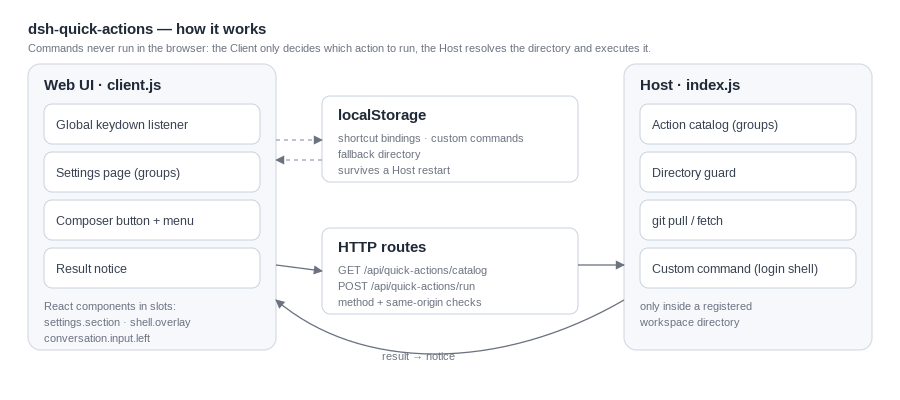
Host half: action catalog, /api/quick-actions/catalog, /api/quick-actions/run, directory guard, git + custom-command execution |
client.js |
Browser half: keydown listener, workspace picker (portalled to document.body), composer button + menu, settings page, key probe, notice |
cordis.patch.yml |
Inserts the quick-actions Host row |
locale/*.json, icon.svg |
Plugin Manager metadata |
The two halves talk over ctx.webServer.register({ kind: 'exact' }) routes rather than a package RPC: the host.call builtin is only available to dynamically defined Cordis packages, not to installed bundles.
Directory resolution — on-screen session's workspace (sessions.list → workspace sessionIds → path) → that session's cwd → the configured fallback directory → the last workspace this browser resolved → the DSH default directory.
Extending
Groups and built-in actions are data in index.js:
const GROUPS = [
  { id: 'git', order: 10, title: { zh: 'Git', en: 'Git' } },
  // …
]

const ACTION_DEFINITIONS = [
  {
    id: 'git.status', group: 'git', order: 30, target: 'host',
    title: { zh: '查看状态', en: 'Status' },
    hint: { zh: '执行 git status --short', en: 'Runs git status --short' },
    commandLabel: 'git status --short',
    defaultShortcut: { mac: '', other: '' },
    command: { bin: 'git', args: ['status', '--short'], timeoutMs: 30000 },
  },
]
target: 'host' runs a fixed command on the Host; target: 'client' is handled by runClientAction in client.js (it can use any Client service, e.g. ctx.get('layout')).- Both the settings page and the action menu render from the same catalog, so a new action appears in both.
- User-defined actions need no code at all — they are stored in localStorage and merged into the catalog as
target: 'custom'.
Security
- Every action runs only inside a registered workspace directory; a request aimed anywhere else is refused.
- Routes check the HTTP method and reject cross-origin requests; request bodies are size-capped.
- Built-in actions are a fixed command table. Custom commands are validated for shape and length before reaching a
login shell — they run with your user's privileges, so only add commands you trust.
- Bindings and custom commands never leave the browser (localStorage).
Development
A directory install is a link, so the loop is short:
# Host change (index.js): reload the row
plugin_manager action=set_plugin target=include:quick-actions enabled=false
plugin_manager action=set_plugin target=include:quick-actions enabled=true

# Client change (client.js): refresh the page
node --check index.js client.js before shipping, then run the smoke test:
node test/client-flow.test.cjs # or: npm test
It builds a throwaway window/React host around the real client.js and drives the palette through the listener the plugin installs — default stroke, native typing and IME composition, caret/editing keys including the macOS Ctrl+A family, ranking, Enter/Escape, a recorded binding outranking a new default, and both fixed layers reaching document.body — without a browser or a rendering layer.
License
MIT © Sunshow
Not affiliated with DeepSeek. DeepSeek Harness is a DeepSeek product; this is a community plugin.


