
模型与 MCP
待识别

rea
morluto
Reverse engineer anything with agents, from app behavior down to native binaries.
PROJECT TOPICS
INSTALL REFERENCE
dsh plugin --profile web add github:shamanjin/dsh-image-studio
该命令指向仓库当前默认分支;尚无绑定当前 commit 的完整验证结果。
PROJECT README
DSH(DeepSeek Harness)插件:在 DSH 里管理多套图片生成服务,并在对话中直接出图。
界面中显示为图片工作台。不绑定厂商——只要接口兼容 OpenAI 的 /images/generations,都能接进来。
/models,下拉选择或直接输入模型 ID插件出现在「插件 → 已安装」列表里:
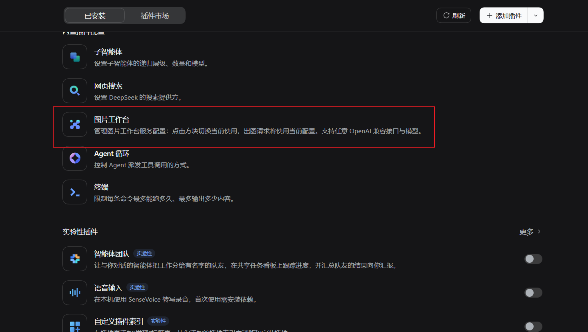
进入后每套配置是一个方块,点一下就切换为当前使用:
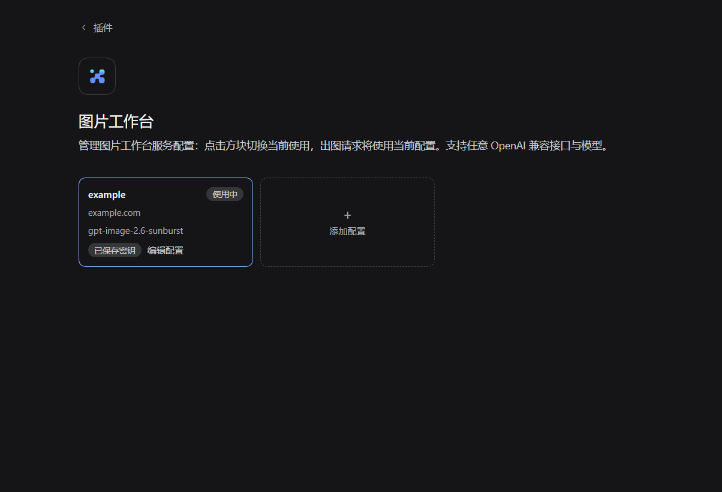
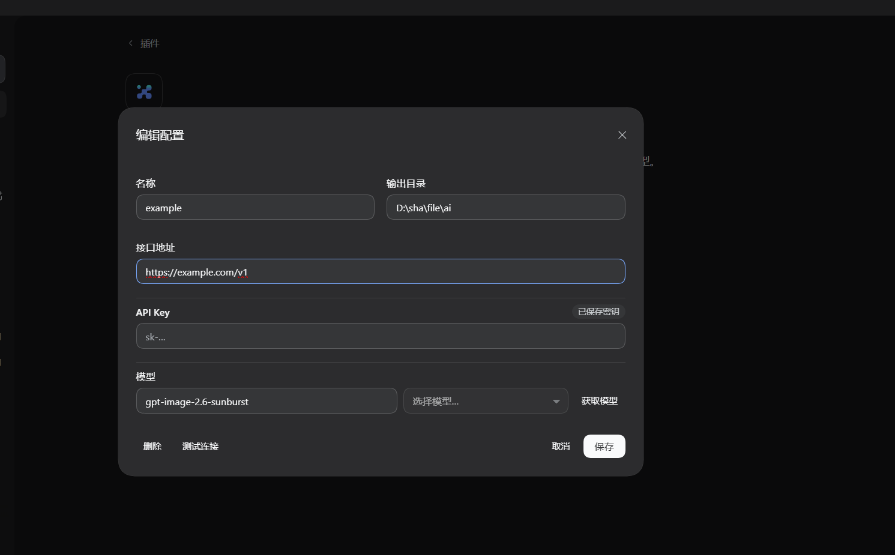
点方块里的「编辑配置」或 + 添加配置 打开配置弹窗:
有 dsh CLI 时(把 desktop 换成你的 profile 名,通常是 desktop 或 web):
# 从 npm 装(推荐,预构建、无需构建授权)
dsh plugin --profile desktop add @shamanjin/dsh-image-studio

# 或直接从 GitHub 仓库装
dsh plugin --profile desktop add github:shamanjin/dsh-image-studio
也可以装 Release 里的包:
dsh plugin --profile desktop add "https://github.com/shamanjin/dsh-image-studio/releases/download/v1.0.0/dsh-image-studio-1.0.0.tgz"只有桌面版、没有 dsh CLI 时(桌面应用不带 CLI,dsh 会提示命令不存在):
下载 Release 里的 dsh-image-studio-1.0.0.zip,解压到任意目录,例如 C:\dsh-plugins\dsh-image-studio
把它链接进 profile 的 node_modules(注意包名带作用域,目录嵌在 @shamanjin 下):
New-Item -ItemType Directory "$env:USERPROFILE\.dsh\profiles\desktop\node_modules\@shamanjin" -Force
New-Item -ItemType Junction `
  -Path "$env:USERPROFILE\.dsh\profiles\desktop\node_modules\@shamanjin\dsh-image-studio" `
  -Target "C:\dsh-plugins\dsh-image-studio"
打开 %USERPROFILE%\.dsh\profiles\desktop\package.json,在 dsh.profile.bundles 数组里加一项 "@shamanjin/dsh-image-studio"
重启 DSH
两种方式装完都重启 DSH,然后侧栏 → 插件 → 图片工作台。
命令里的
<profile>是占位符,要替换成实际 profile 名再执行;PowerShell 里<是保留字符,原样粘贴会报「<运算符是为将来使用而保留的」。
1. 配置一套服务
侧栏 → 插件 → 图片工作台 → + 添加配置:
/v1 层,例如 https://api.example.com/v12. 对话里出图
配好后回到对话,直接说要什么:
D:\images\a.png,把背景换成雪夜」出图后返回本地图片路径,并以图片形式展示。
| 项 | 说明 |
|---|---|
| 输出目录 | 留空时保存到当前工作目录下的 dsh_outputs/images |
| 密钥存放 | ~/.dsh/.credentials.yaml,配置文件里只有引用名 |
| 生效范围 | 只使用当前选中的那套配置,模型侧无法改地址、Key 或模型 |
MIT
CLASSIFICATION EVIDENCE
系统优先读取 GitHub Topics,再与站内分类词典和词根规则比对。当前命中: deepseek-harness、openai-compatible。
morluto
Reverse engineer anything with agents, from app behavior down to native binaries.

deepseek-ai
DeepSeek Harness: Everything is a Plugin.

nexu-io
The 1st Collaborative AI Design Agent Workspace. Local-first and open source. Create motion, prototypes, websites, apps, dashboards, presentations, images, and videos with your team and AI agents. Share work, exchange feedback, and iterate together in one workspace.