
模型与 MCP
待识别

rea
morluto
Reverse engineer anything with agents, from app behavior down to native binaries.
PROJECT TOPICS
INSTALL REFERENCE
dsh plugin --profile web add github:qzhqzh/dsh-quickstart
该命令指向仓库当前默认分支;尚无绑定当前 commit 的完整验证结果。
PROJECT README

Launch DeepSeek Harness from a
desktop icon — dsh web starts without a console window, then the browser
opens automatically once the web UI is ready.
Status: implemented and tested on Windows. macOS and Linux are in the codebase but not yet tested — see Roadmap.
No more typing npx @deepseek-ai/dsh web and waiting for the page by hand — this
double-click-and-go wrapper handles startup, readiness polling, and browser opening.
The desktop shortcut you get — double-click the icon to launch:
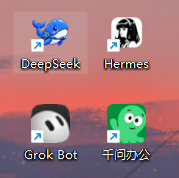
dsh web blocks a terminal window and gives no feedback on when it is ready.dsh-quickstart starts dsh web detached and hidden, polls http://127.0.0.1:<port>
until it answers, then opens your default browser. A desktop shortcut created with
dsh-quickstart shortcut shows no console window at all.
# the launcher
npm i -g dsh-quickstart

# the harness itself (required)
npm i -g @deepseek-ai/dsh# start dsh web, wait for readiness, open the browser
dsh-quickstart
# custom port / timeout
dsh-quickstart --port 3000 --timeout 120000
# wait but do not open the browser
dsh-quickstart --no-open
# spawn and exit immediately (no polling)
dsh-quickstart --no-wait
# pass extra args to dsh
dsh-quickstart -- web --port 3000Install a desktop shortcut — the primary way to use it on Windows. Double-click to launch, no console window, and it uses the bundled DSH icon by default:
# Windows (.lnk)
dsh-quickstart shortcut --name "DeepSeek" --working-dir "D:\your\workdir"
macOS (
.command) and Linux (.desktop) shortcuts are implemented but untested (TODO) — Windows is currently the only fully verified platform.
| Option | Default | Description |
|---|---|---|
--port <n> |
3080 |
Port to poll |
--timeout <ms> |
90000 |
How long to wait for readiness |
--command <cmd> |
dsh |
Command used to start dsh (e.g. npx @deepseek-ai/dsh) |
--no-open |
— | Do not open the browser |
--no-wait |
— | Exit immediately after spawning |
--watch |
— | Enable watchdog mode (overrides config) |
--no-watch |
— | Disable watchdog mode (overrides config) |
--max-restarts <n> |
10 |
Give up after n restarts (watchdog) |
--restart-delay <ms> |
3000 |
Delay between restarts (watchdog) |
Shortcut-only: --name, --icon, --working-dir, --output.
By default dsh-quickstart is a plain launch: it starts dsh web, waits,
opens the browser, and exits — the dsh process keeps running on its own. To have
dsh auto-restart when it exits (for example after installing a plugin that
needs a restart), opt into the watchdog explicitly:
# one-off
dsh-quickstart watch

# or make it the default for every bare `dsh-quickstart` run
# ~/.dsh-quickstart.json
{ "watch": true, "maxRestarts": 10, "restartDelayMs": 3000 }
The watchdog stays alive, restarts dsh up to maxRestarts times on exit, opens
the browser on the first ready, and keeps the URL. --watch / --no-watch on the
command line override the config. Stop it with Ctrl-C (or SIGTERM).
The watchdog deliberately stays off by default — it must be enabled by an explicit
watchcommand,--watch, or"watch": truein the config.
startDsh spawns dsh web so it inherits the launcher's (hidden) console.waitForServer polls the port every second until the server answers (or times out).openBrowser opens the URL with the platform default (start / open / xdg-open).shortcut writes a tiny .vbs that runs the launcher inside a
hidden console, plus a .lnk pointing at it — so double-clicking shows nothing
but the browser.The project ships its icon assets in assets/:
| File | Description |
|---|---|
assets/dsh.png |
Source icon — transparent background, 1254×1254 |
assets/dsh.ico |
Multi-size Windows icon (256/128/64/48/32/16) generated from dsh.png |
assets/desktop-icon.png |
Real screenshot of the desktop shortcut (shown in the Preview above) |
dsh-quickstart shortcut uses the bundled icon by default, so a shortcut created
on Windows already carries the DSH look. Override it with --icon <path> if you
want your own. More icon assets (alternate sizes, variants) can be dropped into
assets/ following the same dsh.png / dsh.ico convention.
Linux already runs the same commands; only the "desktop double-click" surface differs. Three layers, from simplest to most "always-on":
# 1. Command line (cross-platform, works today)
dsh-quickstart

# 2. Desktop / app-menu icon (.desktop file)
dsh-quickstart shortcut --name "DeepSeek"
#    writes ~/.local/share/applications/deepseek.desktop — double-click it,
#    or find "DeepSeek" in the desktop app menu (GNOME/KDE)

# 3. Watchdog (opt-in auto-restart; see above)
dsh-quickstart watch
For a systemd user service (crash-restart + optional login auto-start, the Linux equivalent of a Windows service), a minimal unit is:
# ~/.config/systemd/user/dsh-web.service
[Unit]
Description=DeepSeek Harness web GUI
Wants=network-online.target
After=network-online.target

[Service]
Type=simple
ExecStart=dsh web
Restart=always
RestartSec=3

[Install]
WantedBy=default.target
systemctl --user daemon-reload
systemctl --user enable --now dsh-web.service # start + auto-start on login
loginctl enable-linger $USER # optional: run before login toowatch command + watch: true config (all platforms)dsh-quickstart-plugin (快速开始 card in 设置 → 插件 → 插件配置).command shortcut flow.desktop shortcut flow欢迎贡献!请先阅读 贡献指南 了解开发流程、提交规范与 PR 检查清单。
安全漏洞请勿在公开 Issue 提交,请走仓库页 Security → Report a vulnerability。详见 安全政策。
MIT
CLASSIFICATION EVIDENCE
系统优先读取 GitHub Topics,再与站内分类词典和词根规则比对。当前命中: deepseek、deepseek-harness。
morluto
Reverse engineer anything with agents, from app behavior down to native binaries.

deepseek-ai
DeepSeek Harness: Everything is a Plugin.

nexu-io
The 1st Collaborative AI Design Agent Workspace. Local-first and open source. Create motion, prototypes, websites, apps, dashboards, presentations, images, and videos with your team and AI agents. Share work, exchange feedback, and iterate together in one workspace.