
模型与 MCP
待识别

rea
morluto
Reverse engineer anything with agents, from app behavior down to native binaries.
PROJECT TOPICS
INSTALL REFERENCE
dsh plugin --profile web add github:mhlywxl/dsh-split-workspace
该命令指向仓库当前默认分支;尚无绑定当前 commit 的完整验证结果。
PROJECT README
中文(默认) · English
把 DeepSeek Harness 的对话区拆成原生多窗格工作区——左右分屏、上下分屏、田字 2×2 或自动网格,窗口放得下多少会话就开多少。每个窗格都是真实会话,拥有自己的输入框、流式输出、停止、队列、待办、附件、/ 命令、ask_user_question、审批与视图页,桌面端(dsh-app://)同样可用。还可以把任意会话变成可拖动、可缩放的浮窗,在分屏与浮窗两种模式之间来回切换;或把它放进应用内独立窗口(关闭 / 最小化 / 最大化 / 全屏),macOS 桌面版还可以把它放进真正的系统窗口(系统 WebView,独立于 DSH 主窗口,不经过浏览器);并支持从侧边栏菜单和系统设置两个入口操作。版本历史见 CHANGELOG.md。
| 方式 | 适用场景 | 插件安装位置 |
|---|---|---|
Web(dsh web,浏览器打开) |
先在浏览器里试用、远程机器 | web profile |
桌面端 DSH Desktop(dsh-app://) |
日常使用,支持完整桌面能力,推荐 | desktop profile,由桌面端管理 |
lib/client.js 已预构建,无原生依赖、无安装脚本;macOS / Windows / Linux 行为一致。dsh plugin --profile web add dsh-split-workspace
dsh --profile webdsh --profile web 会启动 Web 服务并打印带 token 的地址;如果服务已在运行,安装后重启它,再硬刷新页面。
在联网机器上打包,或从 GitHub Release 下载 .tgz,然后拷到目标机器:
# 联网机器
npm pack dsh-split-workspace
# 目标机器:.tgz 绝对路径
dsh plugin --profile web add /absolute/path/dsh-split-workspace-<version>.tgz
# 或者解压后安装目录
dsh plugin --profile web add /absolute/path/dsh-split-workspace
dsh --profile weblib/client.js,通常不需要再构建。仓库根目录必须能直接看到 package.json。dsh-split-workspace 并安装;或进入 插件 → 添加插件 → 安装第三方插件,填入包名。dsh-split-workspace。桌面端的
desktopprofile 由 Electron 应用独占管理。不要在终端执行dsh plugin --profile desktop add ...,该命令会拒绝执行;桌面端请用上面的插件市场 / 添加插件界面。
npm pack dsh-split-workspace,或从 Release 下载 .tgz,拷到目标机器。.tgz 的绝对路径(安装器会识别为「压缩包」);.tgz 解压,再填解压后的目录路径(目录根下要有 package.json)。dsh-split-workspace 已启用。DSH 0.2.x 会通过 HMR 热加载新安装的插件;如果没有出现界面,见下方「更新、重载与重启」。window.__dshSplitWorkspace.health(),可看到版本、窗格数和几何状态。插件内的 分屏帮助(菜单里的「分屏帮助」、窗格标题栏的 ?,或设置页的「分屏帮助」)现在已经带三张界面指引截图,点击缩略图可以查看大图:
| 会话右键菜单(分屏插件) | 左下角分屏按钮菜单 | 设置 → 分屏工作区 |
|---|---|---|
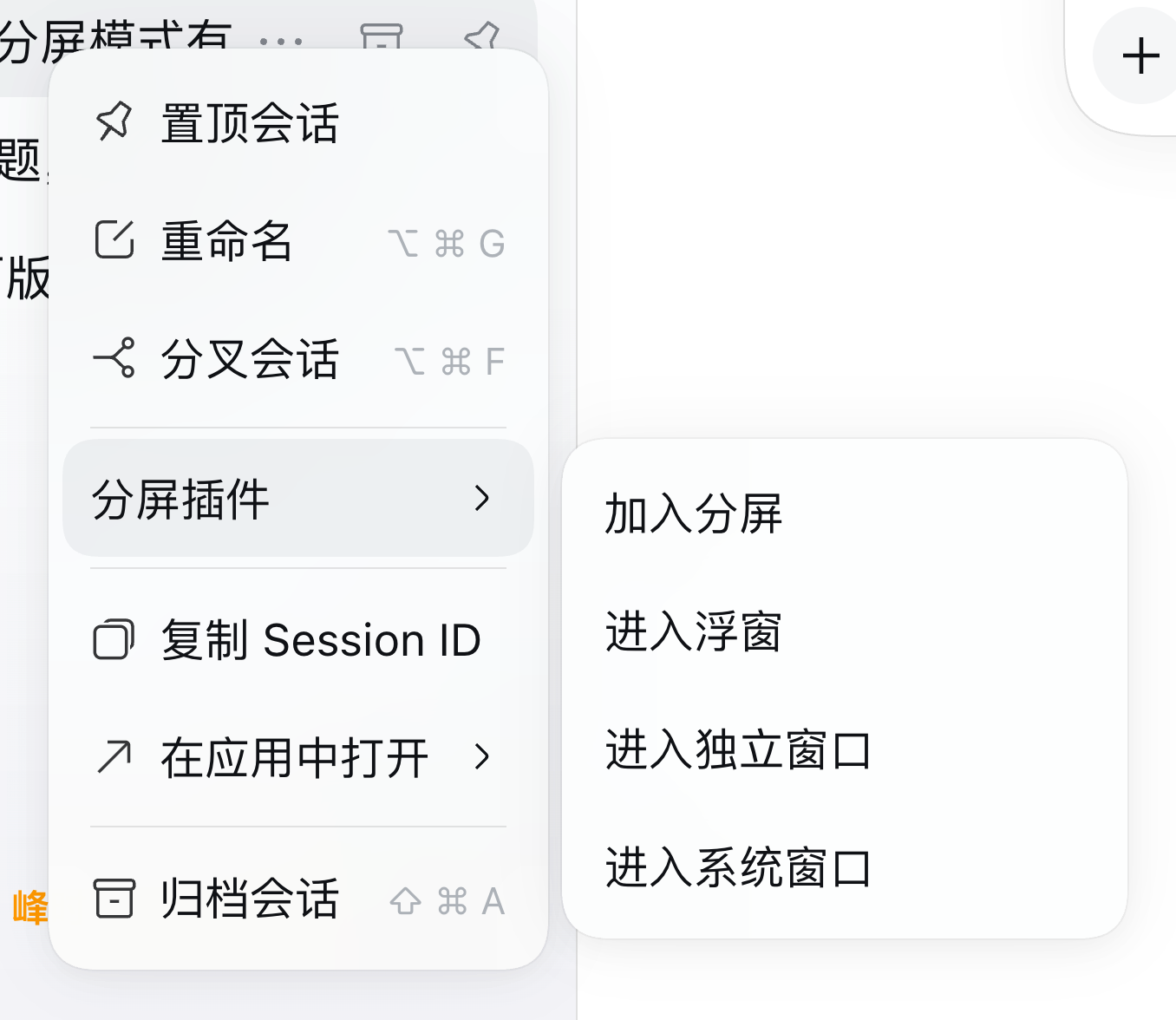 |
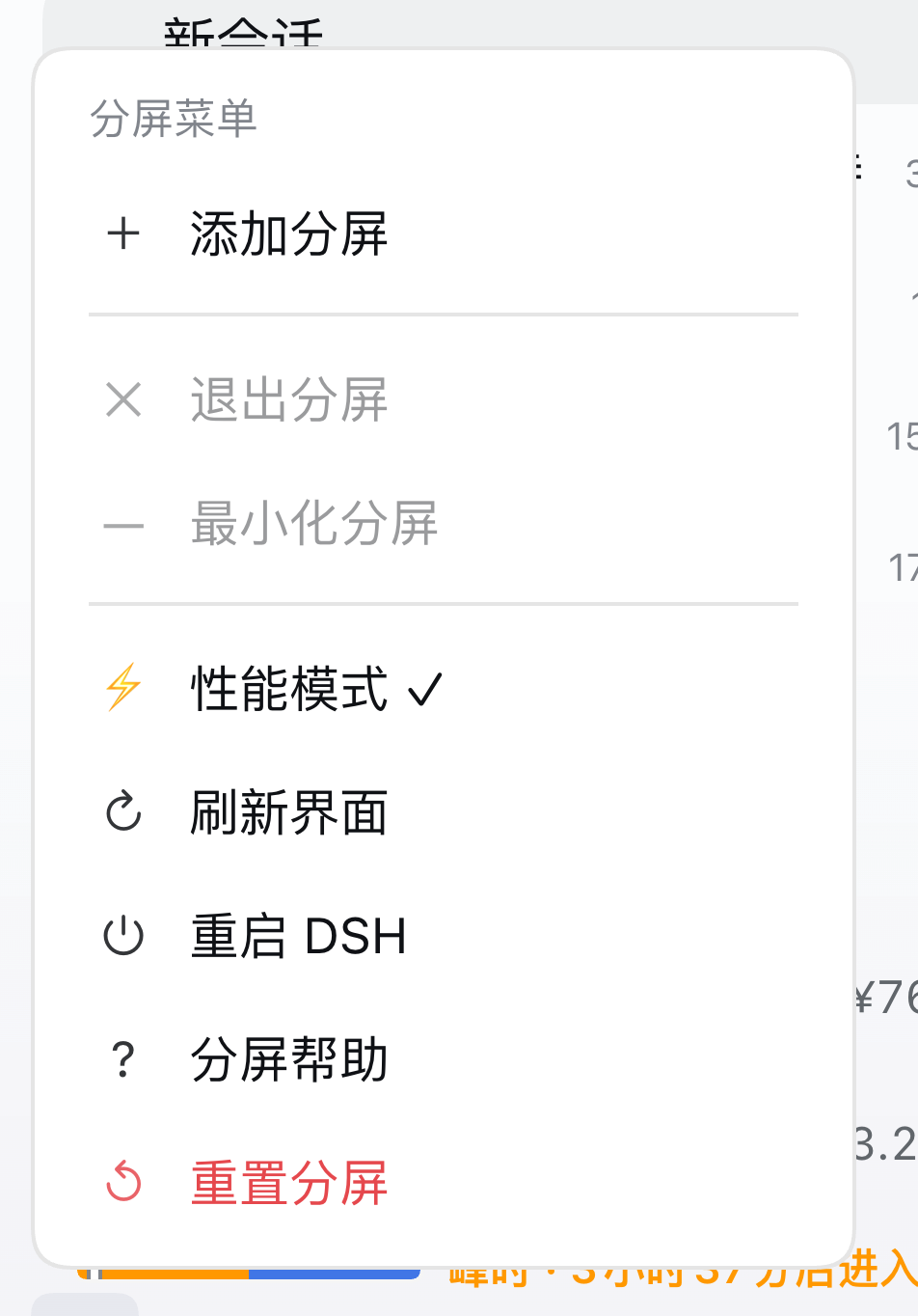 |
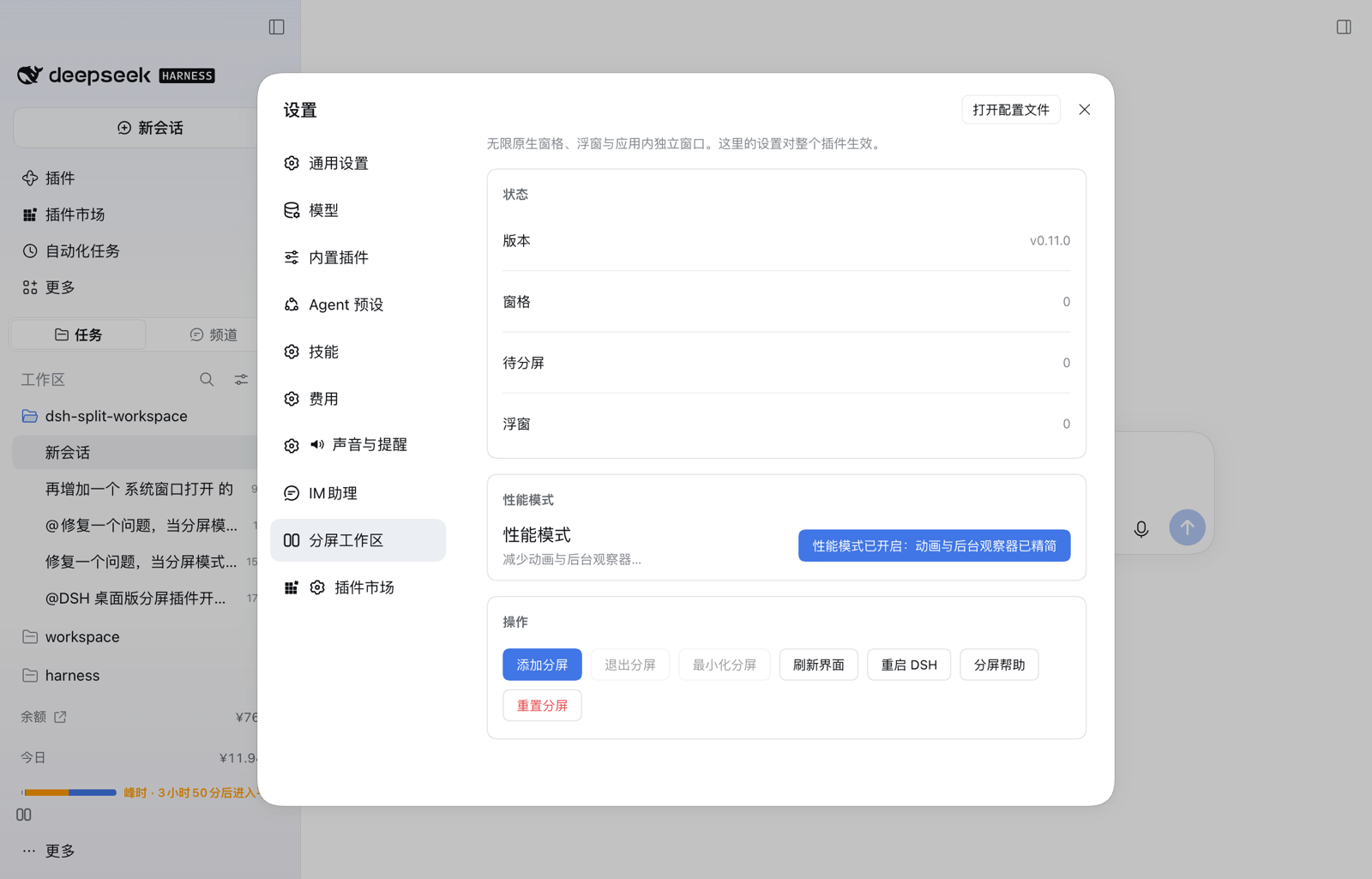 |
截图由插件 Host 从 docs/screenshots/ 以同源路径 /dsv/help/... 提供,因此桌面端(dsh-app://)和 Web 客户端都能直接显示,无需外网。
分屏和浮窗是同一个工作区的两种形态,可以随时互相切换:
这不是偷懒,而是当前 DSH 宿主没有提供第二个原生窗口:
setWindowOpenHandler 对 window.open 一律返回 { action: "deny" }(仅把 http/https 链接交给系统浏览器打开),也没有按会话开窗的 IPC 或菜单项。?session= 之类的会话深链路由;会话切换由 uiWorkspace.openSession 在页面内完成,不存在“打开一个只显示某会话的新窗口”的 URL。BrowserWindow;因此浮窗实现为 shell.overlay 之上的应用内窗口:它可以移动、缩放、置顶、持久化,并且宿主是真实的 ChatPane,但与主窗口共享同一个客户端和页面。如果 DSH 未来开放原生多窗口能力,浮窗层可以直接换成原生窗口,而“分屏 ⇄ 浮窗”的会话切换逻辑不需要改。
setWindowOpenHandler 拒绝用 window.open 创建第二个原生窗口(http/https 只交给系统浏览器);插件的 Host 进程是 Node 子进程,没有 Electron BrowserWindow API。所以 0.10.0 把这一层做成应用内独立窗口(不再打开浏览器、没有地址栏,窗口控制由插件自己绘制);macOS 上另见下一节的「系统窗口」,用系统 WebView 实现真正的独立窗口。BrowserWindow,所以插件 Host 用系统自带的 AppKit NSWindow + WKWebView(osascript 运行 native/system-window.jxa)打开窗口,并让这个 WebView 加载 Host 的本机认证 Web 客户端。认证 URL 由 Host 在进程内生成,只传给本机 Helper,不会返回给渲染层;哈希标记让同一份客户端代码在窗口内切换成「系统窗口模式」。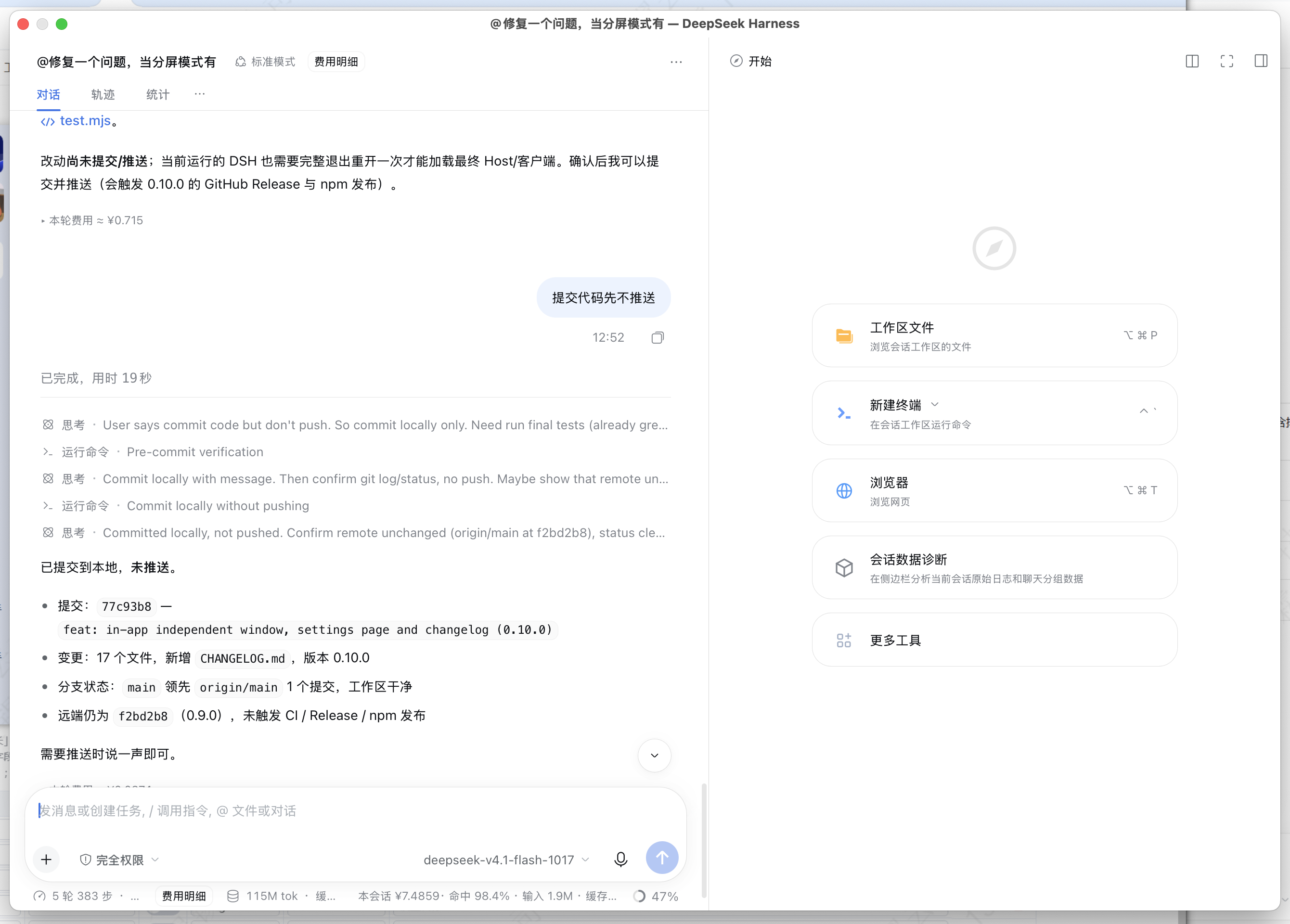
除了侧边栏底部的分屏按钮,插件还在 设置 → 分屏工作区 注册了一个设置页(settings.section),方便在菜单不可见时进入。页面包括:
设置页里的“添加分屏”会先关闭设置面板再打开多选弹框,避免弹框被设置面板遮挡;其余操作就地执行并实时刷新状态。
性能模式默认开启(从 0.9.0 起;显式关过一次的保留关闭状态)。在侧边栏底部分屏按钮的菜单里点 性能模式 可切换(也可用 window.__dshSplitWorkspace.setPerformanceMode(true/false),设置会持久化)。开启后:
getBoundingClientRect + 样式读取),窗格越多越明显;性能模式改为 ResizeObserver + 1.5s 轮询。dsh-prompt-history 的 ☰ 定位)、压缩结果监听、浮窗位置巡检、右侧栏 800ms 轮询(保留 resize 监听),几何测量从 1s 降到 3.5s,侧栏会话扫描从 200ms 降到 1s。仍然可能卡的原因:每个窗格都是一个完整的原生对话视图,N 个会话同时流式输出就是 N 份 React/DOM 渲染与滚动更新,这是 DSH 客户端本身的主要成本,插件无法消除(除非上游支持离屏暂停/虚拟化)。在 Windows + 低单核性能的机器上,建议同时保持 2–3 个活动窗格、少开浮窗、把不用的分屏最小化;输入框可切到紧凑 TUI 模式;如果装了 dsh-prompt-history,它的 TOC 同步在性能模式下会被暂停。
诊断入口:window.__dshSplitWorkspace.health() 查看 performance、panes、geometry、active;用 DevTools Performance 对比开启性能模式前后的长任务。
DSH 0.2.x(含 Desktop 0.2.2-rc.3)带 HMR:新安装的插件会被热加载,重建后的客户端 bundle 也会自动替换,大多数安装/更新不需要重启 DSH。以下情况才需要重启:
restart-required(Host 半边、被链接包的宿主模块发生变化,或包目录被移动);0.11.1 修复:重建客户端 bundle 后不再需要重启。 之前每次重建 lib/client.js 后分屏按钮、右键菜单和「设置 → 分屏工作区」都会消失,必须刷新页面或重启 DSH 才回来——原因是插件工厂重复定义只读诊断接口 __test 时抛出 Cannot redefine property,整次加载被中断(DSH 会把它记为“本页面的插件未能完成同步”)。现在每次 bundle 执行都会创建一个新的公开对象,所以热替换重建后的 bundle、在设置 → 插件里禁用后再启用、以及从 0.11.0 热升级到 0.11.1,都在同一个页面内就地生效,不需要刷新或重启。
DSH 生产版没有内置的“重启”菜单项(开发版才有 Restart App and Host)。从本插件的 0.9.0 起:
window.__dshSplitWorkspace.restartApp(),或按老办法手动退出后重新打开:Windows 从托盘/开始菜单彻底退出,macOS 用 ⌘Q。⌘⌥I,Windows Ctrl+Shift+I,或菜单 View → Toggle Developer Tools);在开发者工具里点刷新按钮、按 ⌘R / F5,或在 Console 执行 location.reload(),都会重新加载页面并取回最新的插件图,通常无需重启 DSH。仍不生效再完全退出重开。dsh-app://)构建,preload 只在顶层框架运行。sqrt(n) 列的均衡行优先网格。没有模式菜单——增删窗格都会重新适配网格。想要上下堆叠,把第二个窗格的标题拖到第一个上,再移到底部边缘;手动拖拽的结果会被保留,自动网格只是起点。Esc 取消。预览只计算几何,不重新挂载正在运行的会话。⤢ 按钮)最大化/还原。dsh-prompt-history,它的可拖动 会话目录 (☰) 握把会在每个活动窗格的左边缘垂直居中显示一次。每次分屏调整(新增、关闭、重排、拖动分隔条、最大化或右侧栏推挤)都会把受影响的握把重新放回窗格左边缘与垂直中心;没有变化的窗格保留手动拖动的位置。隐藏的原生会话和非窗格视图里的副本会被隐藏,握把不再堆叠。桌面端从 dsh-app://app/ 提供客户端,并通过 Electron preload 注入启动图(__DSH_BOOT__、__DSH_TRANSPORT__ 等)。preload 只在顶层框架运行,所以同源 iframe 会永远停在 “Loading plugins…”。因此窗格引擎在顶层客户端运行,按会话重新挂载原生对话组件——与上游插件相同的架构。
window.__dshSplitWorkspace.health():版本、宿主、窗格、几何、持久化树、崩溃保护。window.__dshSplitWorkspace.split(sessionId):把会话加为窗格。window.__dshSplitWorkspace.addToSplit(sessionId) / removeFromSplit(sessionId):加入 / 退出分屏(未分屏时先进入待分屏)。window.__dshSplitWorkspace.float(sessionId):把会话变成浮窗(自动从分屏/待分屏移出)。window.__dshSplitWorkspace.dockFloat(sessionId):把浮窗放回分屏(没有分屏时进入待分屏)。window.__dshSplitWorkspace.closeFloat(sessionId):关闭浮窗(不放回分屏)。window.__dshSplitWorkspace.floats():当前浮窗的会话 id 列表(按创建顺序)。window.__dshSplitWorkspace.openSystemWindow(sessionId):在应用内独立窗口打开该会话(openIndependentWindow 是同一功能的别名)。window.__dshSplitWorkspace.openNativeWindow(sessionId):在 macOS 系统窗口(原生独立窗口)打开该会话;其他平台会提示不支持。window.__dshSplitWorkspace.closeNativeWindow(sessionId):关闭该会话的系统窗口。window.__dshSplitWorkspace.nativeWindows():当前已打开系统窗口的会话 id 列表。window.__dshSplitWorkspace.appWindow():当前独立窗口状态({ id, minimized, maximized } 或 null)。window.__dshSplitWorkspace.setPerformanceMode(true/false):开关性能模式(持久化)。window.__dshSplitWorkspace.performanceMode():当前是否处于性能模式。window.__dshSplitWorkspace.reloadClient():刷新页面。window.__dshSplitWorkspace.restartApp():退出并重新打开 DSH 桌面版(需要完整重启时使用)。window.__dshSplitWorkspace.pending():当前待分屏的会话 id。window.__dshSplitWorkspace.openAddSplitDialog():打开多选添加分屏弹框。window.__dshSplitWorkspace.arrange("auto"):重新适配自动布局(旧模式名会被接受并忽略)。window.__dshSplitWorkspace.focusChat()、closeFocused()。window.__dshSplitWorkspace.reflow():拖动预览状态(排查占位/闭合行为用)。window.__dshSplitWorkspace.setEnabled(false):总开关。window.__dshSplitWorkspace.reset():清除已保存布局。window.__dshSplitWorkspace.resetAll():连同 localStorage / sessionStorage 与临时缓存一起彻底重置(等同菜单里的「重置分屏」)。lib/client.js 是构建产物,不要直接编辑;源码在 src/client/,按模块拆成 18 个有序片段,由 scripts/build-client.mjs 拼回单文件:
| 片段 | 内容 |
|---|---|
00-preamble / 01-constants |
module-loader 入口、React/P、常量、存储、性能/版本键、独立窗口检测 |
02-styles |
全部 dsv-* CSS(含性能模式与浮窗样式) |
03-runtime |
runtime store、健康诊断、会话列表源 |
04-tree |
分屏树 store、布局算法、持久化 |
05-pending-float-store |
待分屏状态、浮窗 store 与模式切换 |
06-drag-reflow |
窗格拖动预览/reflow、拖拽工具 |
07-faces |
root standard faces、session bindings |
08-pane-kit |
slot 捕获与原生组件 re-host |
09-pane-renderers |
原生/降级对话与输入框渲染器 |
10-pane-frame |
窗格标题栏、关闭/浮窗按钮、composer 测量 |
11-canvas-navigation |
画布/分隔条、会话选择器、键盘导航、公共 API 前置 |
12-chrome |
安全模式/帮助/提示、性能模式提示、更新通知、座位 |
13-drag-bridge |
未激活时的拖入分屏桥 |
14-launcher |
底部菜单、多选添加分屏弹框、会话菜单集成 |
15-float-window |
浮窗组件与图层 |
16-standalone |
应用内独立窗口组件、窗口层与恢复胶囊,以及系统窗口的模式切换与请求 |
17-api-apply |
window.__dshSplitWorkspace API、apply() 与导出 |
native/system-window.jxa |
macOS 系统窗口 Helper(AppKit NSWindow + WKWebView,由 Host 通过 osascript 启动) |
npm run build:重新生成 lib/client.js;npm test 会先跑 build:check,源码/产物不一致会失败。<plugin>/client.js,片段共享同一个 module-loader 闭包,按顺序拼接即可;这样发布包保持零依赖、无构建依赖。src/client/ 对应片段,然后 npm run build;lib/client.js 顶部有一行 GENERATED 标记。Alt+T:切换聚焦窗格里的紧凑 TUI 输入框。Alt+Shift+←/→/↑/↓:在窗格间移动焦点。| 左右两列 · Side by side | 上下两列 · Stacked | 田字 · 2×2 grid |
|---|---|---|
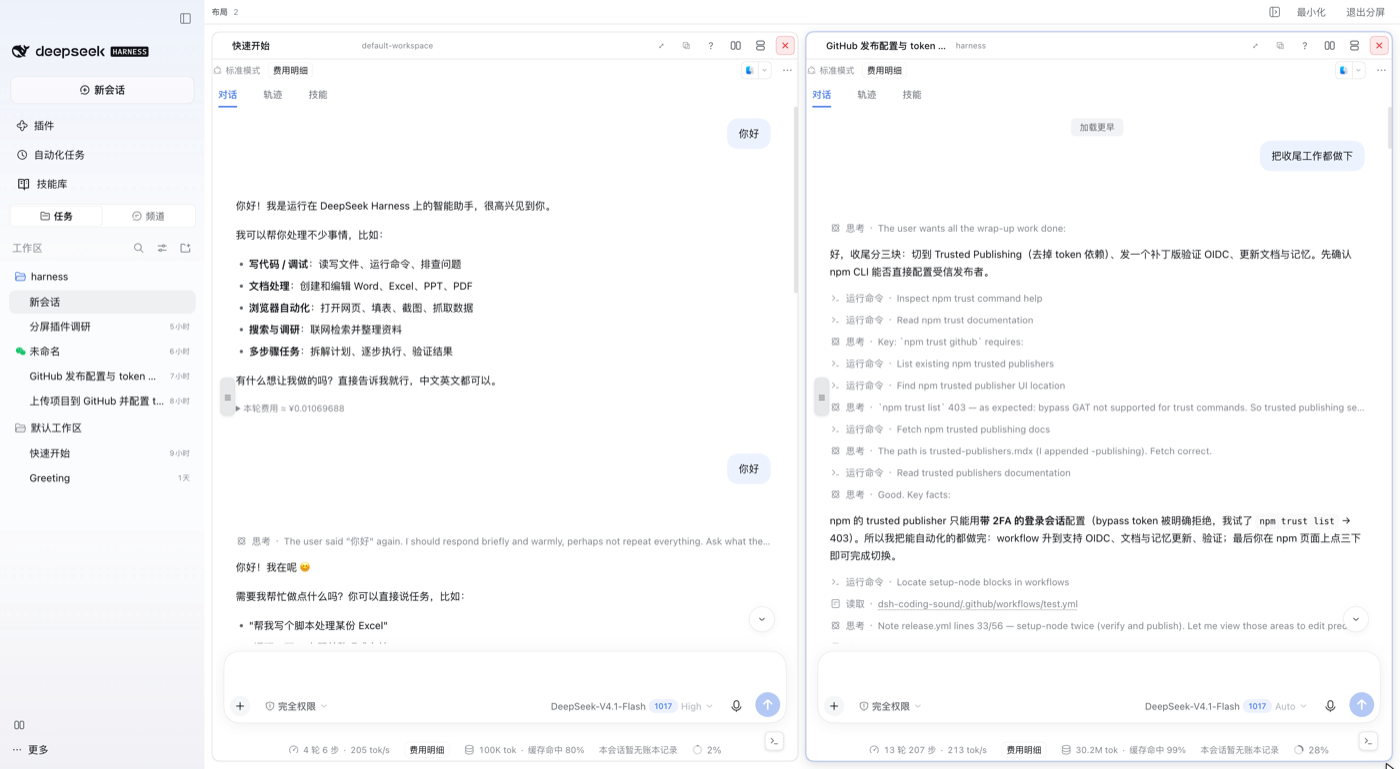 |
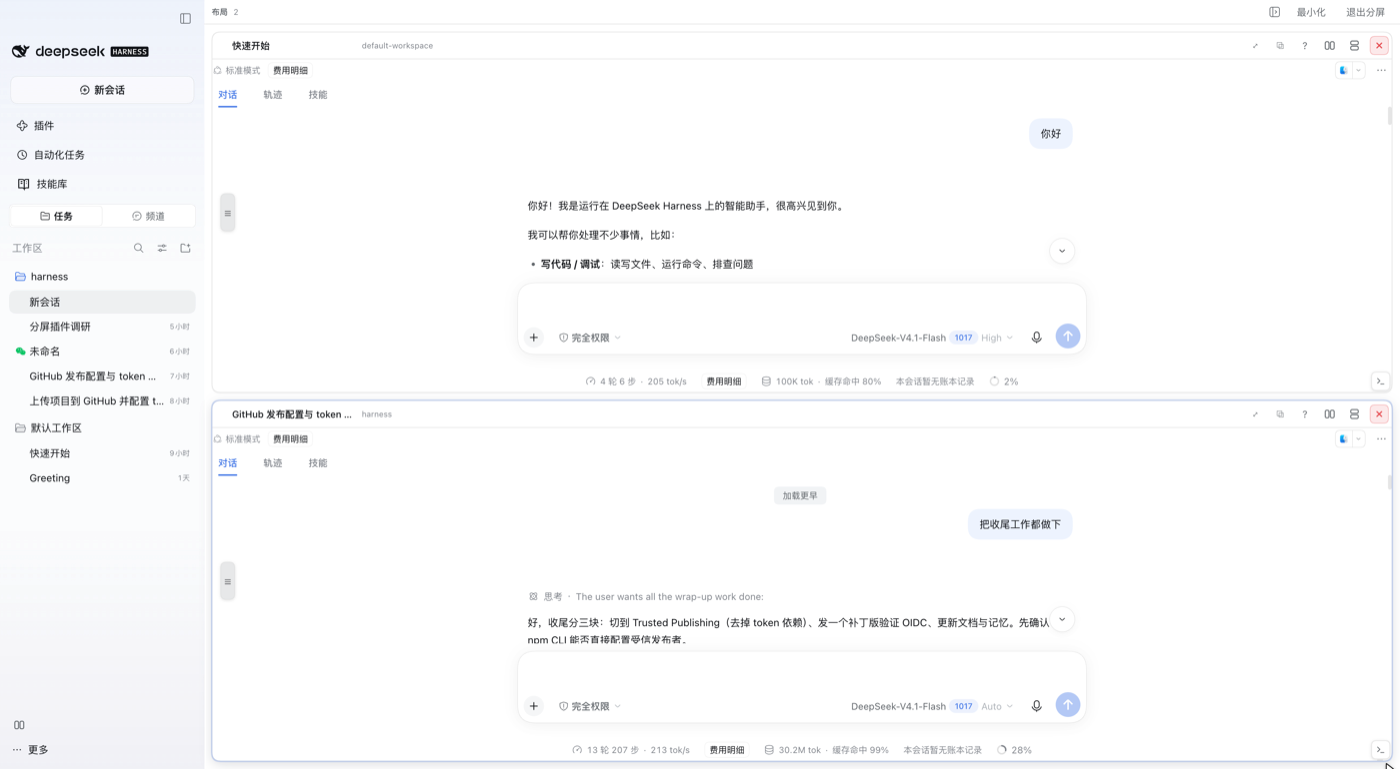 |
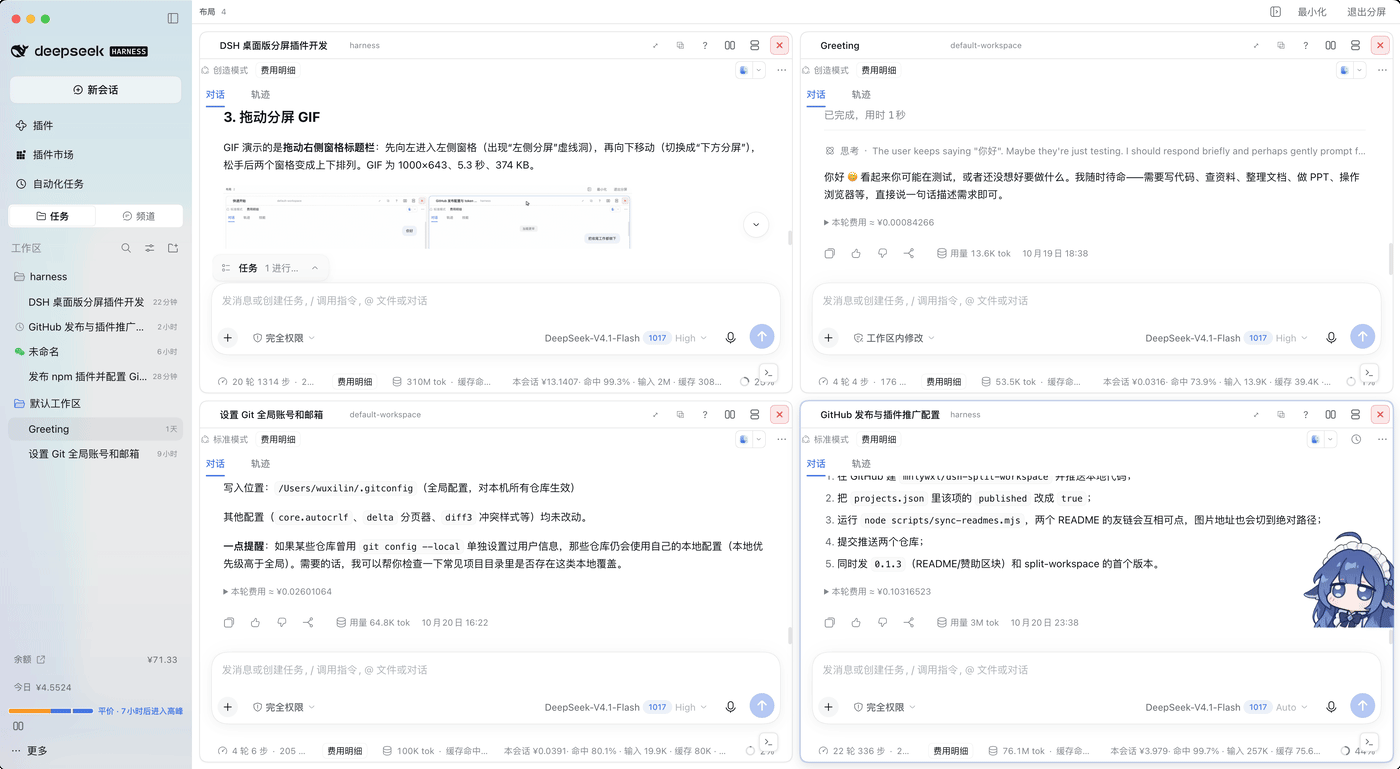 |
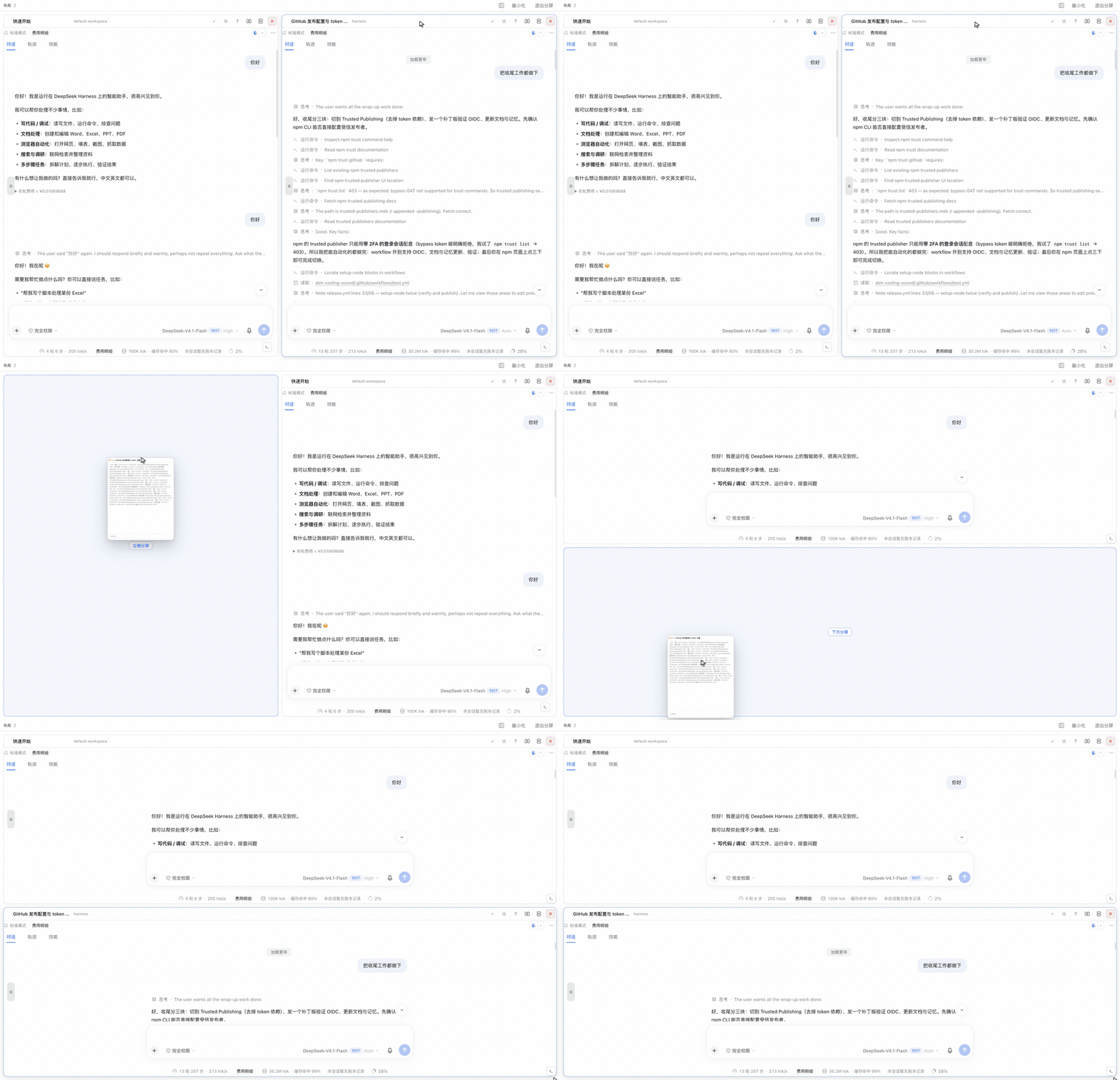
| 2 panes · automatic columns | 2 panes · dragged into rows | 4 panes · automatic 2×2 田字 |
Drag a pane by its header to re-arrange it — the dashed hole previews where it will land:
window.open,Web 客户端也没有会话深链;浮窗复用真实会话组件、可拖动缩放,但仍在 DSH 主窗口内渲染(详见上面的「为什么浮窗不是系统级独立窗口?」)。BrowserWindow。独立窗口内的会话同样互斥于分屏和浮窗。data-composer-card,隐藏的原始输入框和非聚焦窗格不会抢走全局选择器;每个窗格仍挂载自己的输入浮层,切换窗格时非聚焦窗格的浮层隐藏但状态保留。dsh-tweaks-prompt-history 的历史角标、dsh-prompt-history 的候选提示、斜杠/模型菜单因此都定位在当前窗格。dsh-prompt-history)按活跃窗格隔离:预测上下文只读活跃窗格的对话行,隐藏的原始页不再抢输入焦点;非活跃窗格的草稿被外部写入时会回滚,Tab/→ 只把预测写入当前窗格。MIT。见 THIRD-PARTY-NOTICES.md。
Split screen for DeepSeek Harness (DSH) Desktop — open as many conversations
as you need, side by side, stacked, or in a 2×2 / automatic grid. Any
conversation can also become a movable, resizable floating window, switch
between the two modes at any time, move into an in-app independent window
(close / minimize / maximize / fullscreen), or — on macOS Desktop — open a real
native OS window (system WebView, no browser, no left sidebar) for one
conversation. The session menu's Split plugin submenu holds the
Join split / Leave split toggle together with all three window surfaces,
each showing Exit … while that surface is open.
Both the sidebar menu and the system Settings page expose the controls.
Version history: CHANGELOG.md.
dsh-split-workspace turns the DeepSeek Harness conversation area into a native
multi-pane workspace, including in the Desktop app (dsh-app:// shell). Each
pane is a real session with its own composer, streaming, Stop, queue, todos,
attachments, / commands, ask_user_question, approvals and view tabs.
中文简介:把 DeepSeek Harness 的对话区拆成任意数量的原生窗格,支持左右分屏、 上下分屏、田字 2×2 和自动网格;每个窗格都是真实会话,拥有自己的输入框、流式输出、 停止、队列、待办、附件、斜杠命令、审批和视图页。适用于 DSH 桌面端;侧边栏菜单与 系统设置均可操作,版本历史见 CHANGELOG。
Search terms / 搜索关键词:split screen, split view, split pane, multi-pane, multi-session, multi-window, tiled workspace, unlimited panes, DSH Desktop, 分屏, 分屏插件, 多窗格, 多窗口, 多会话, 左右分屏, 上下分屏, 并排, 田字布局, 系统窗口, 原生窗口, macOS system window, native window.
The pane engine is derived from dsh-split-screen 1.7.0 (MIT). This package adapts it for the Desktop shell and adds the automatic layout, the unlimited pane count, rename/copy/maximize and the compact toolbar.
Pick where to run it
| Mode | Best for | Plugin profile |
|---|---|---|
Web (dsh web, browser) |
Trying it in a browser or on a remote machine | web |
DSH Desktop (dsh-app://) |
Daily use with full desktop features (recommended) | desktop, managed by the app |
lib/client.js, has no native modules and no install scripts, and is identical on macOS / Windows / Linux.Web: online install
dsh plugin --profile web add dsh-split-workspace
dsh --profile web
dsh --profile web prints the tokenized URL. If the server is already running, restart it after installing and hard-refresh the page.
Web: offline install
Pack on a connected machine (or download the .tgz from a GitHub Release), copy it to the target, then:
npm pack dsh-split-workspace                      # connected machine

dsh plugin --profile web add /absolute/path/dsh-split-workspace-<version>.tgz
# or, after extracting:
dsh plugin --profile web add /absolute/path/dsh-split-workspace
dsh --profile webpackage.json (release tarballs already include lib/client.js).Desktop: online install
dsh-split-workspace, and install it. Or use Plugins → Add plugin → Install a third-party plugin and enter the package name.dsh-split-workspace.The
desktopprofile is owned by the Electron app. Do not rundsh plugin --profile desktop add ...in a terminal; it is rejected. Use the in-app plugin market / Add plugin UI instead.
Desktop: offline install
npm pack dsh-split-workspace, or download the .tgz from a Release, and copy it to the target..tgz (the installer recognises it as a tarball);.tgz and enter the extracted directory (its root must contain package.json).Enable and verify
dsh-split-workspace enabled. DSH 0.2.x hot-loads newly installed plugins through HMR; if the UI still does not appear, see “Updates, reload and restart”.window.__dshSplitWorkspace.health() in the browser/desktop console to see the version, pane count and geometry.Start splitting
⋯ button) and pick Add to split / Leave split. Outside split mode the first pick is parked as a pending split; adding a second conversation starts the split. Inside split mode the conversation joins the current split immediately. Leaving removes it, and dropping to one conversation exits split mode.⋯ button) → Enter floating window to detach it into a movable window. Drag its title bar to move it, drag any edge to resize, use ⇲ Dock to split to put it back into a split, or ✕ to close the float. A conversation is never hosted in both modes: entering a float removes it from the split / pending split first.The in-app Split help card now carries three annotated screenshots — the
session right-click menu, the bottom-left split button menu, and Settings →
Split workspace — with click-to-enlarge thumbnails. The Host serves them
same-origin from docs/screenshots/ under /dsv/help/....
Split panes and floating windows are two shapes of the same workspace, and a conversation can switch between them without a reload:
This is a host limitation, not a shortcut:
setWindowOpenHandler returns { action: "deny" } for every window.open
(http/https links are handed to the system browser), and there is no
per-session window IPC or menu action.?session=; session switches happen in-page through uiWorkspace.openSession,
so there is no URL for "open one conversation in a new window".BrowserWindow.The float is therefore an in-app window rendered on the shell.overlay
layer: movable, resizable, persistent, and backed by the real ChatPane, but
inside the same DSH page. If DSH later exposes native multi-window support, the
float layer can be swapped for real windows while the split⇄float switching
logic stays unchanged.
setWindowOpenHandler refuses window.open
(http/https is handed to the system browser); the plugin Host runs in a Node
child process with no Electron BrowserWindow API. Current DSH exposes no
plugin-facing native multi-window API, so the 0.8.0 “system window” had to use
the browser. 0.10.0 replaces it with an in-app independent window: no
browser, no address bar, all window controls drawn by the plugin.Besides the sidebar-footer split button, the plugin registers a Settings → Split workspace page (settings.section) so the controls remain reachable when the footer entry is hidden. The page shows:
“Add split” closes the Settings panel before opening the multi-select dialog so the dialog is never hidden behind it; the other actions run in place and refresh the status live.
Performance mode is ON by default since 0.9.0 (an explicit off choice is
kept). Open the sidebar-footer split menu and pick Performance mode, or run
window.__dshSplitWorkspace.setPerformanceMode(true/false); it persists. It
turns off:
MutationObserver. This is the most suspicious
cost: streaming mutates a pane's DOM on every token and the old path queued a
measurement (getBoundingClientRect + style reads) for each change, multiplying
with pane count. Performance mode keeps ResizeObserver plus a 1.5 s poll;dsh-prompt-history ☰ placement), compaction-watch, float
position polling and the 800 ms right-sidebar poll (resize listeners stay);
geometry polling drops from 1 s to 3.5 s and sidebar session scraping from
200 ms to 1 s;Real conversations, composers, approval flows, split/float/system-window features all stay available.
What can still lag: every pane is a full native conversation view, so N panes
streaming at once means N independent React/DOM render and scroll pipelines —
the dominant upstream cost, which a renderer plugin cannot remove (that would
need upstream offscreen pausing/virtualization). On Windows machines with weak
single-core throughput, keep 2–3 active panes, close or minimize unused splits,
avoid stacking floats over a split, and use the compact TUI composer. Check
window.__dshSplitWorkspace.health() (performance, panes, geometry) and
compare DevTools Performance long tasks with the mode on/off.
DSH 0.2.x (including Desktop 0.2.2-rc.3) ships HMR: a newly installed plugin is hot-loaded, and a rebuilt client bundle is swapped into the open page. Most installs/updates therefore need no restart. A restart is only needed when:
restart-required (Host-half or linked-package
host modules changed, or the package directory moved);Fixed in 0.11.1: rebuilding the client bundle no longer needs a restart. A
rebuild of lib/client.js used to make the footer button, the session menus and
Settings → Split workspace disappear until the page was reloaded, because the
plugin factory re-defined the read-only __test seam on the inherited
window.__dshSplitWorkspace object and threw Cannot redefine property — DSH
reported the entry as a failed page synchronization. Each bundle execution now
publishes a fresh public object, so a rebuilt bundle hot-swaps, a disable →
enable cycle and the 0.11.0 → 0.11.1 hot upgrade all apply in place without a
reload or restart.
Production DSH has no built-in Restart menu item (development builds do). Since dsh-split-workspace 0.9.0:
window.__dshSplitWorkspace.restartApp() does the same. Manually: Windows —
quit from the tray/Start menu; macOS — ⌘Q; then open DSH again.⌘⌥I, Windows Ctrl+Shift+I, or View → Toggle Developer Tools).
Use the reload button in Developer Tools, press ⌘R / F5, or run
location.reload() in its Console to reload the page and fetch the current
plugin graph — usually no DSH restart is needed. Quit and reopen only if that still fails.dsh-app://), where the
preload only runs in the top frame.sqrt(n) columns. There
is no mode menu — adding or closing a pane simply re-fits the grid. For a
stacked pair, drag the second pane's header over the first, then move down
to the bottom edge; a deliberate drag is kept, and the automatic grid is
only the starting point.dsh-prompt-history is installed, its draggable 会话目录 (☰) grip is
shown once per live pane, on the pane's left edge and vertically centered.
Every split adjustment (add, close, re-arrange, divider drag, maximize or a
right-sidebar push) re-homes the affected grips to the left edge and the
vertical center of their pane; a pane whose box did not change keeps a
deliberate vertical drag. The copies mounted by the hidden stock conversation
and by non-pane views are hidden, so the grips no longer stack on top of each
other.The Desktop app serves the client from dsh-app://app/ and injects the boot
graph (__DSH_BOOT__, __DSH_TRANSPORT__, …) through the Electron preload.
That preload runs only in the top frame, so a same-origin iframe stays at
“Loading plugins…” forever. The pane engine therefore runs in the top
client, re-hosting the stock conversation primitives per session — the same
architecture the upstream plugin uses.
window.__dshSplitWorkspace.health() — version, host, panes, geometry,
persisted tree, crash guard.window.__dshSplitWorkspace.split(sessionId) — add a session as a pane.window.__dshSplitWorkspace.addToSplit(sessionId) /
removeFromSplit(sessionId) — add to / leave the split (the first pick
outside split mode waits in the pending split).window.__dshSplitWorkspace.float(sessionId) — detach the conversation into
a floating window (removed from the split / pending split first).window.__dshSplitWorkspace.dockFloat(sessionId) — put a floating window
back into the split (or the pending split when no split is running).window.__dshSplitWorkspace.closeFloat(sessionId) — close a floating window
without docking it.window.__dshSplitWorkspace.floats() — current floating-window session ids,
in creation order.window.__dshSplitWorkspace.openSystemWindow(sessionId) — open the
conversation in the app-internal independent window (openIndependentWindow
is an alias).window.__dshSplitWorkspace.appWindow() — current independent-window state
({ id, minimized, maximized } or null).window.__dshSplitWorkspace.setPerformanceMode(true/false) /
performanceMode() — toggle/inspect the persisted performance mode.window.__dshSplitWorkspace.reloadClient() — reload the page.window.__dshSplitWorkspace.restartApp() — close and reopen DSH Desktop
(for the rare changes that need a full restart).window.__dshSplitWorkspace.pending() — conversations waiting for a second
pick before the split starts.window.__dshSplitWorkspace.openAddSplitDialog() — open the multi-select add
dialog.window.__dshSplitWorkspace.arrange("auto") — re-fit the automatic layout
(legacy mode names are accepted and ignored).window.__dshSplitWorkspace.focusChat(), closeFocused().window.__dshSplitWorkspace.reflow() — live pane-drag preview state
(diagnostics for the hole/collapse behaviour).window.__dshSplitWorkspace.setEnabled(false) — kill switch.window.__dshSplitWorkspace.reset() — clear the saved layout.window.__dshSplitWorkspace.resetAll() — also wipe the plugin's split
localStorage / sessionStorage keys and temporary caches (same as the menu's
Reset split; the performance-mode preference is preserved).lib/client.js is a generated artifact; do not edit it. The source lives in
src/client/ as 18 ordered sections, assembled by scripts/build-client.mjs:
| Section | Responsibility |
|---|---|
00-preamble / 01-constants |
module-loader entry, React/P, constants, storage, perf/version keys, standalone detection |
02-styles |
all dsv-* CSS (including performance mode and floats) |
03-runtime |
runtime store, health diagnostics, session-list source |
04-tree |
split tree store, layouts, persistence |
05-pending-float-store |
pending split, float store, split⇄float helpers |
06-drag-reflow |
pane drag preview/reflow and drag utilities |
07-faces |
root standard faces and session bindings |
08-pane-kit |
slot capture and native component re-hosting |
09-pane-renderers |
native/fallback transcript + composer renderers |
10-pane-frame |
pane header, close/dock buttons, composer measurement |
11-canvas-navigation |
canvas/dividers, pickers, keyboard navigation, early API |
12-chrome |
safe mode/help/tips, performance notice, update notice, seat |
13-drag-bridge |
inactive drag-to-split bridge |
14-launcher |
footer menu, multi-select add dialog, session menu integration |
15-float-window |
floating window components/layer |
16-standalone |
system-window standalone page |
17-api-apply |
window.__dshSplitWorkspace API, apply() and exports |
npm run build regenerates lib/client.js; npm test runs build:check first
and fails when the source and artifact disagree.<plugin>/client.js, the sections
share one module-loader closure, and ordered concatenation keeps the published
package dependency-free.src/client/ section and run npm run build; the generated
file starts with a GENERATED marker.Alt+T — toggle the compact TUI composer in the focused pane.Alt+Shift+←/→/↑/↓ — move focus between panes.window.open and the Web client has no
per-session deep link, so the float re-hosts the real conversation inside the
same DSH page (see “Why not a real OS-level window?” above).BrowserWindow API. It opens no browser and has no address
bar, but it cannot leave the DSH main window; a conversation in it is likewise
detached from split and float.data-composer-card; the hidden stock composer and inactive panes no longer
win global selectors. Every pane still mounts its own composer overlays, and
inactive panes hide (without unmounting) those overlays, so
dsh-tweaks-prompt-history history pills, dsh-prompt-history suggestion
ghosts, and slash/model menus stay anchored to the pane being typed in.dsh-prompt-history) are scoped to
the active pane: prediction context reads only that pane's transcript, an
external write into an inactive pane's draft is rolled back, and Tab/→
inserts the prediction into the pane being typed in.MIT. See THIRD-PARTY-NOTICES.md.
dsh-coding-sound)— 用声音盯住 Agent:按输出文字演奏生成式背景音乐,完成、等待审批与工具执行各有可配置的提示音。
dsh-coding-sound) — Generative background music and notification chimes for DeepSeek Harness: hear whether the agent is thinking, still working, or waiting for you.如果这个项目帮你省下了盯屏幕的时间,欢迎请作者喝杯咖啡 ☕,或者给作者「充充电」⚡。金额随意,心意最重要。
If this project saved you some screen time, you can buy the author a coffee ☕ or top up the author's battery ⚡. Any amount is welcome — the thought counts.


支付宝 · 微信支付 / Alipay · WeChat Pay
CLASSIFICATION EVIDENCE
系统优先读取 GitHub Topics,再与站内分类词典和词根规则比对。当前命中: deepseek-harness。
morluto
Reverse engineer anything with agents, from app behavior down to native binaries.

deepseek-ai
DeepSeek Harness: Everything is a Plugin.

nexu-io
The 1st Collaborative AI Design Agent Workspace. Local-first and open source. Create motion, prototypes, websites, apps, dashboards, presentations, images, and videos with your team and AI agents. Share work, exchange feedback, and iterate together in one workspace.