
模型与 MCP
待识别

rea
morluto
Reverse engineer anything with agents, from app behavior down to native binaries.
PROJECT TOPICS
INSTALL REFERENCE
dsh plugin --profile web add github:louisremi/dsh-always-on
该命令指向仓库当前默认分支;尚无绑定当前 commit 的完整验证结果。
PROJECT README
A DeepSeek Harness plugin for running your Harness in a container, where it has no access to your local file system.
Run the Harness in a Docker container — on a NAS, a server, anywhere — and it lives on a machine of its own: the stock "show file location" and "Open in app" buttons would have to reach a desktop that isn't there, and nothing inside the container can read or write your computer's files. Your browser is the only connection between you and your files. This plugin makes it enough, replacing the dead buttons with things that work through it:
dsh plugin --profile web add @louisremi/dsh-always-onUse the name of the profile your Harness runs with. The plugin loads live; restart the Harness only if the command says a restart is required.
Installing from a git URL builds the plugin on install (prepare runs npm run build). If your profile is managed by pnpm it may block build scripts until you approve them (allowBuilds); a skipped build leaves the plugin without its dist/.
Nothing to configure.
The download button appears wherever the folder button used to be: file cards under an agent reply (present) and in the changed-files review tab, the toolbar of a file open in the sidebar preview, and the empty state of a file the preview can't render.
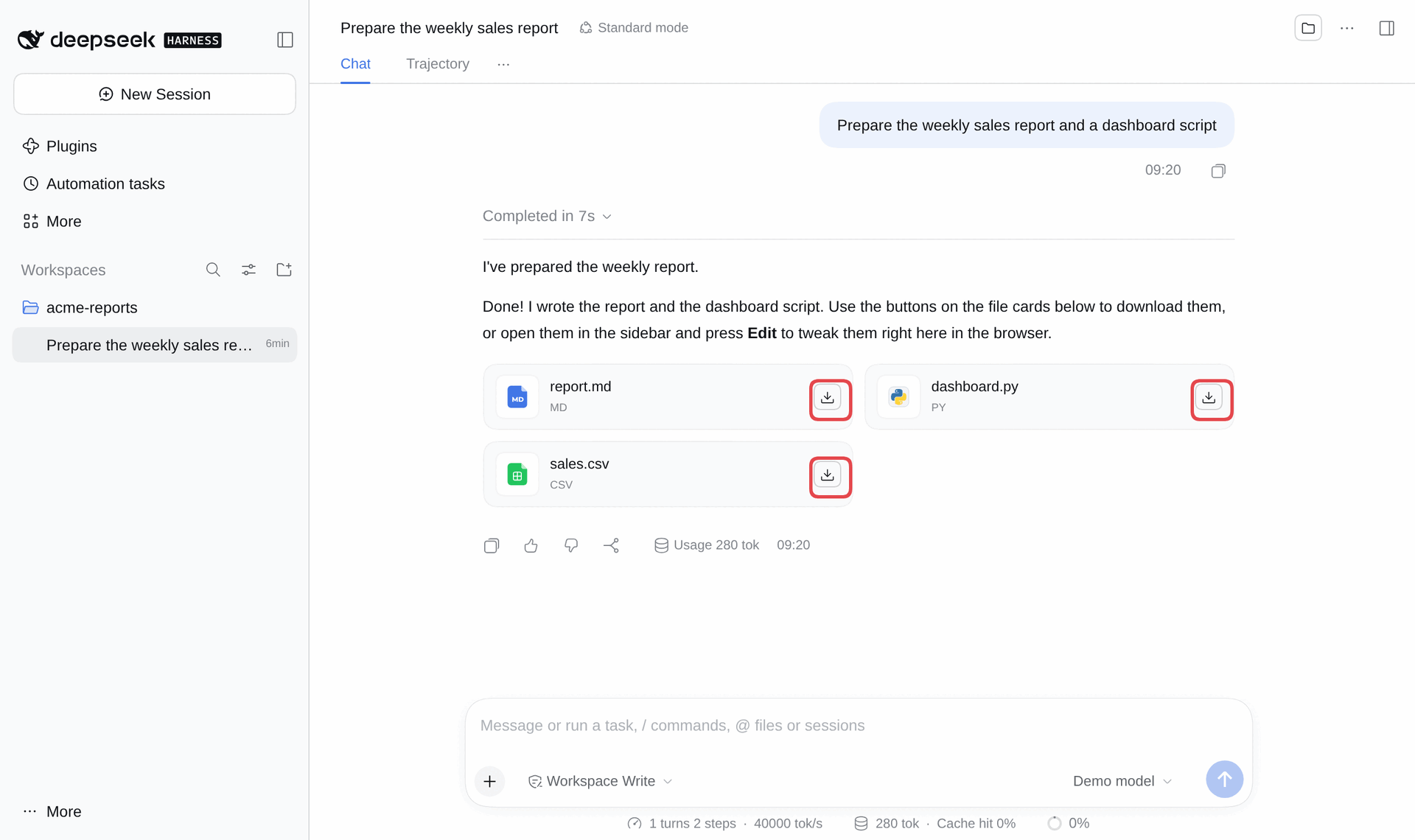
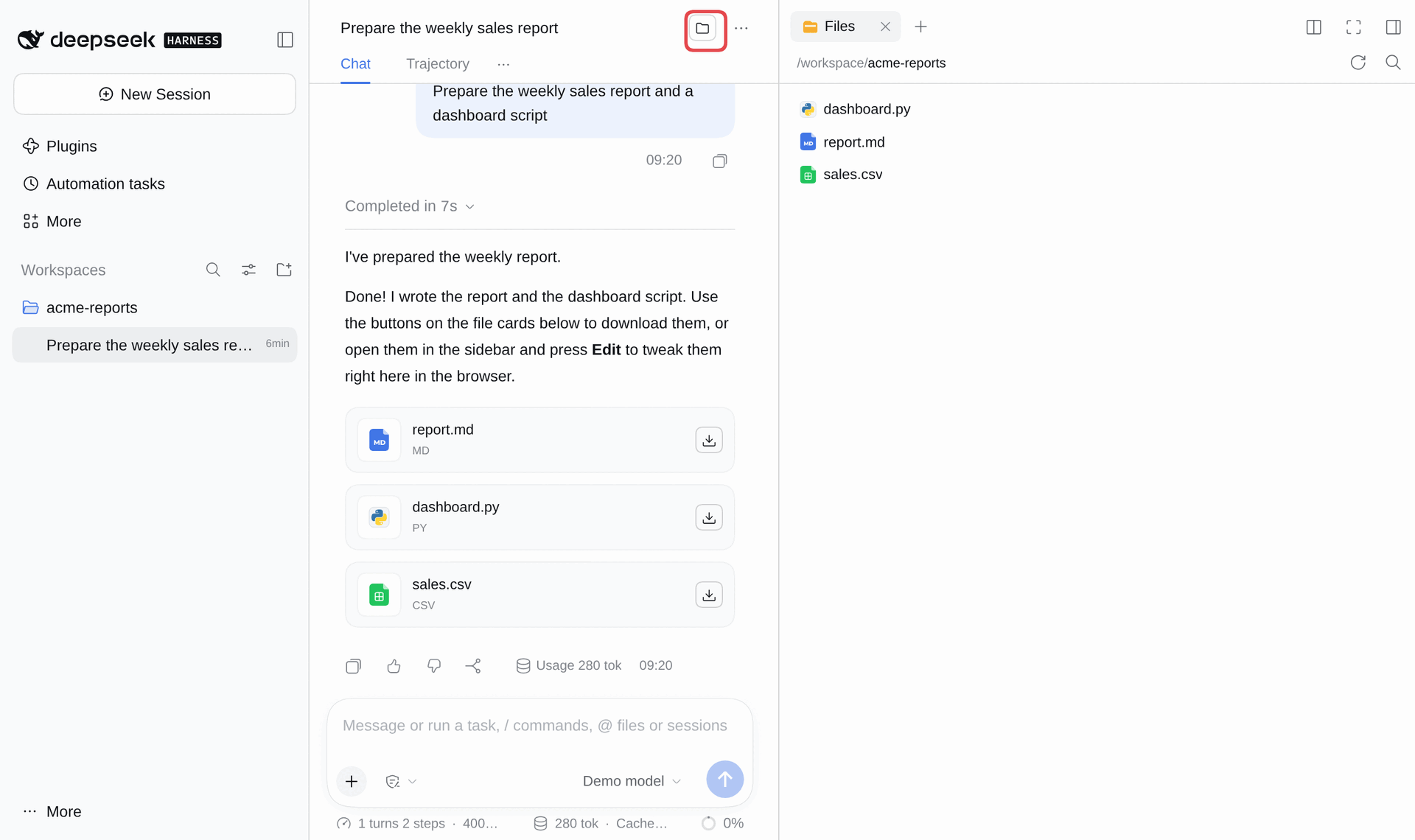
The workspace folder button in the session header becomes a single Show files button. It opens (or focuses) the sidebar's Files tab. Inside that tab the button is hidden, since it would do nothing.
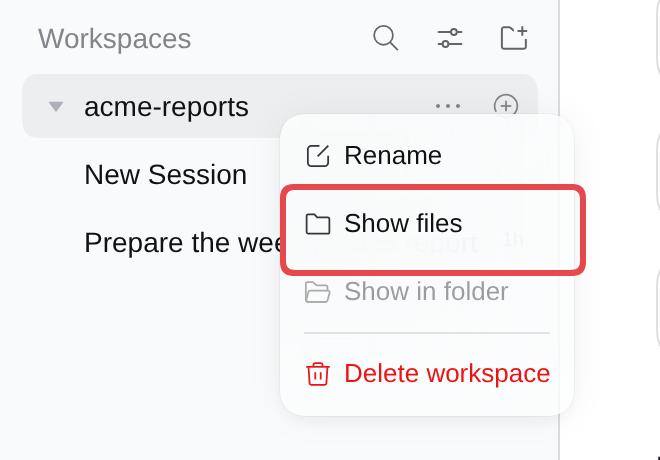
In the left sidebar, the menu of each workspace (the … button on its row, or a right-click) gets a Show files entry above the stock "Show in folder", which stays greyed out. It opens the Files tab on that workspace: for the session on screen if it belongs to the workspace, else for the workspace's most recently updated session (archived and subagent sessions don't count), else for a new session, which is what opening a workspace with no session does anyway.
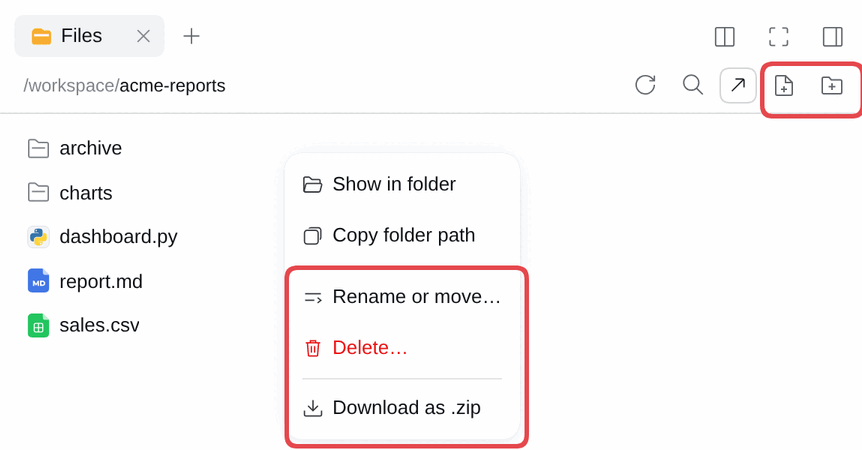
New file. In the sidebar's Files tab, the new-file button (next to Reload) asks for a name and creates an empty file in the folder the tab shows, then opens it in the editor. Type notes/todo.md to create missing folders on the way. It never overwrites anything: if the name is taken, it says so. It follows the session's sandbox mode like saving does, and is stricter in one way: in workspace-write mode it only creates inside the workspace (and any extra writable directories), never in temp areas.
New folder. The button next to New file creates a folder (docs/drafts creates both levels) in the folder the Files tab shows. Same rules: it never replaces anything and follows the sandbox mode. Since the Harness filesystem layer has no "make directory" operation, the plugin calls mkdir itself, after the same sandbox check. That is only possible when the Harness files live on the Harness host, which is also what downloads need.
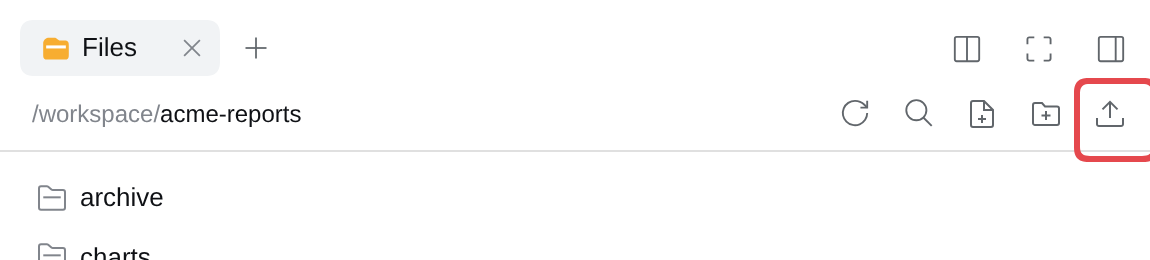
Upload files. The upload button in the Files tab toolbar (and Upload files… in a folder's right-click menu, including the workspace folder) opens your computer's file picker; pick one or more files and they are uploaded into the folder the tab shows, or the folder you right-clicked. Files stream to the Host as they arrive, up to 2 GiB each, so a large file is not held in memory. It never overwrites: a name that is taken is skipped and the other files still go. It follows the session's sandbox mode like New file. A file's bytes go to a hidden temporary file in the target folder, which is given the real name only if that name is free: a hard link where the filesystem has them, so it lands whole or not at all, or an exclusive copy where it does not. An error, a cancelled upload or a request the browser gave up on leaves nothing behind, with two exceptions: if the Harness crashes mid-upload, the hidden temporary file stays (or, on the copy fallback, a truncated file under the final name), and if the folder is swapped for a symlink while the bytes arrive, the temporary file stays in the folder it was made in. A progress toast shows the file and percentage, with Cancel, then what was uploaded and what was skipped, too large, refused or failed. Only the file name is used, never a path from the browser. A temporary file that a crash left behind is removed at the plugin's next start, once it is an hour old, so an upload another Harness process is making in the same folder is never pulled from under it.
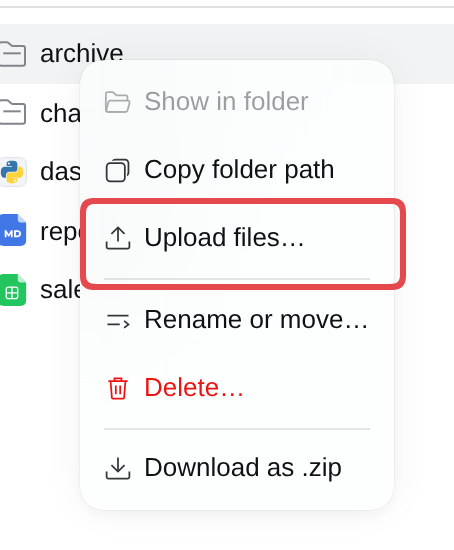

Rename / move, Delete and Restore. Right-click a file or folder in the sidebar's Files tree (or use its … menu) for Rename or move… and Delete…:
Rename or move asks for a new name, with the stem pre-selected. A plain name renames in place, folder/name moves it into a (possibly new) sub-folder, and an absolute path moves it there. It never replaces anything: if the name is taken (even by an empty folder), it says so. A folder can't be moved into itself. Open tabs follow the file, or the files of the folder, to the new place.
Delete asks for confirmation (for a folder, with what is inside: "12 files, 3 folders (48 KiB)") and moves the file or folder to the trash, .tmp/deleted/ in the workspace. If the folder holds a mounted volume, the dialog names it, since everything on it goes to the trash too. Its tabs are closed.
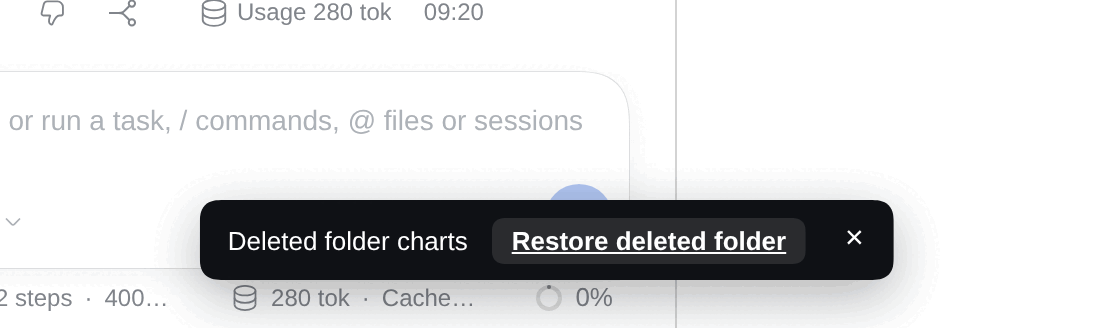
Restore. For 10 seconds after a delete, a Restore deleted file/folder button at the bottom of the page puts it back where it was and reopens its tabs. Hovering it pauses the countdown, and Dismiss closes it. Only the last deletion can be restored this way. Older ones stay in .tmp/deleted/<date>-<id>/ for 30 days, then they are removed for good.
Both are refused while an editor tab has unsaved changes to the file, or to any file in the folder. Both follow the sandbox mode like New folder. The workspace folder itself can't be renamed or deleted.
They act on regular files and real folders. A symlink is never followed. A folder's symlinks are moved as links; what they point to is never touched.
Download as .zip. The same menu on a folder (including the workspace folder, from the Files tab header) downloads it as one .zip, streamed as it is built. Symlinks and special files are left out and listed in a DOWNLOAD-SKIPPED.txt inside the archive. Up to 20,000 entries and 2 GiB.
Open a text file in the sidebar preview and press Edit (pencil icon, next to Download).
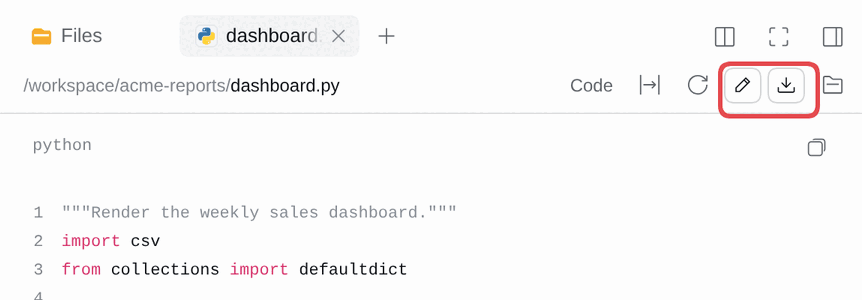
The file opens in its own editor tab:
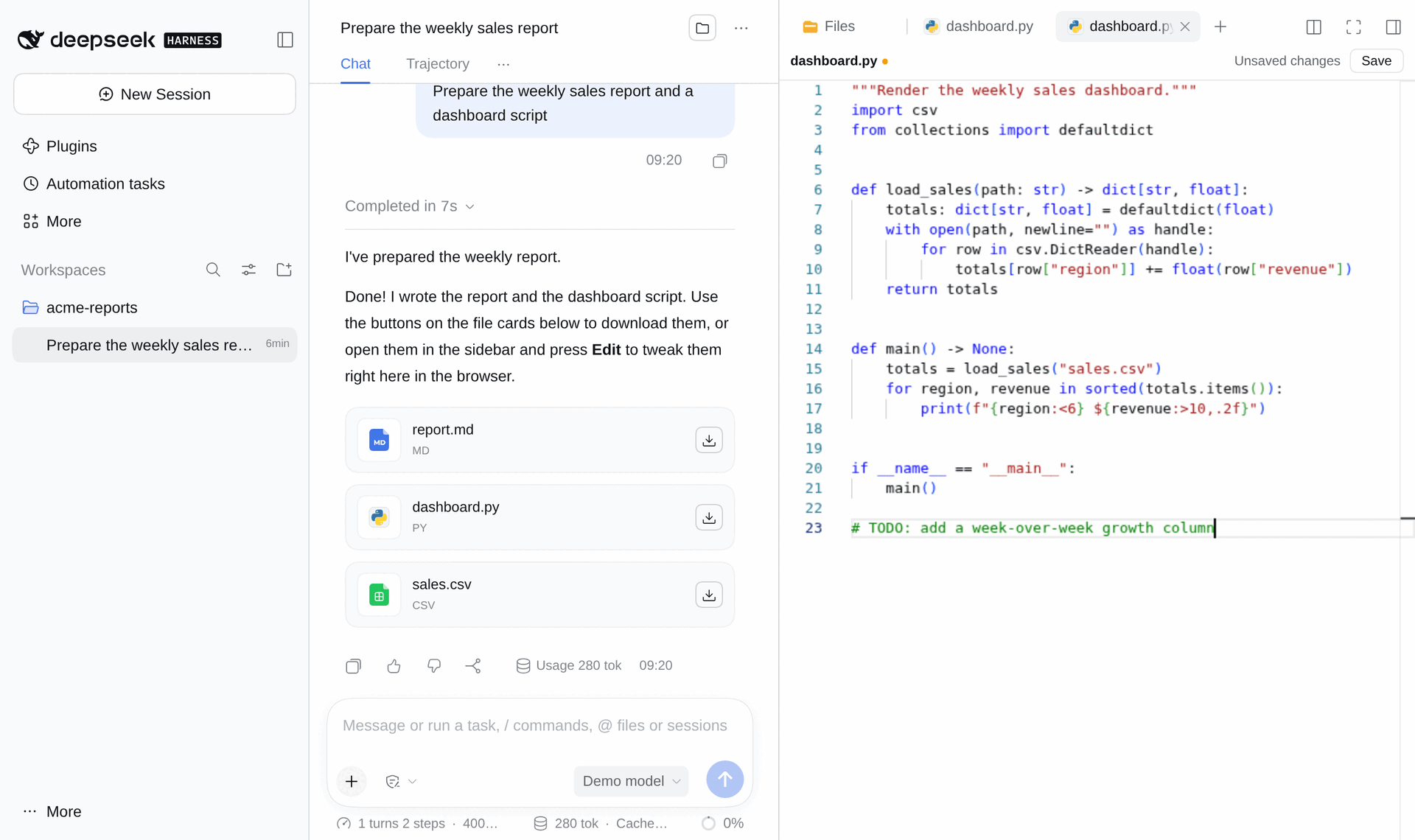
Ctrl/Cmd+S or the Save button writes the file; a dot on the tab and filename marks unsaved changes.
The header shows the file's size and when it was last modified, refreshed after each save.
If the file changed on disk after you opened it, saving is refused and you choose Reload from disk, Overwrite, or Keep editing. Nothing is overwritten silently.
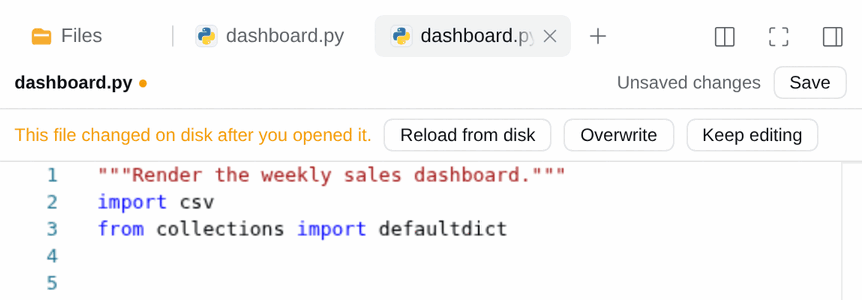
Closing a tab (or the browser page) with unsaved changes asks for confirmation.
Line endings (LF/CRLF) and a leading UTF-8 byte-order mark are preserved.
Text files up to 1 MiB. Binary files and invalid UTF-8 are refused, not corrupted.
Saving follows the session's sandbox mode: it fails in read-only mode and outside the workspace in workspace-write mode, exactly like the agent's own file tools.
The plugin adds authenticated routes to the Harness:
GET /api/download.file, GET /api/download.folder and GET /api/folder.summary;POST /api/save.file, /api/create.file, /api/create.folder, /api/upload.file (the only streaming one), /api/rename.file, /api/rename.folder, /api/delete.file, /api/delete.folder and /api/restore.entry.It adds its buttons to the same UI slots as the stock ones, and its file and folder actions to the stock context menu (ctx.contextMenus, DSH ≥ 0.2.2-rc.1).
No desktop. Its bundle patch tells the Harness it has no desktop to open things on: nativeOpen: false on the session-controller row, and the Host open-in-app row disabled. A Harness in a container may well have an X display (e.g. a virtual one for a headless browser), but whatever it opened there would never reach your screen. So:
"Open in sidebar", "Open in floating panel", the copy-path entries and Download keep working. The stock "This Host has no desktop…" note above presented files is hidden, since that is the expected state here. Disabling the plugin restores all of it.
"Show files" calls the sidebar's public openTab('files'); the editor is a sidebar tab type registered through the public sidebar API. Downloads stream straight to disk, so large files are fine. Saves go through the Harness's own filesystem layer with the session's sandbox policy and a version check, after the plugin's own sandbox check.
The Harness filesystem layer has no folder operations, so the rest acts on the Host paths directly:
mv --no-copy --no-clobber -T. Node can't rename a folder without risking replacing an empty one at the destination; mv can, through renameat2(RENAME_NOREPLACE) (see #24 for the tradeoffs)..tmp/deleted/ in the workspace root, or in the extra writable directory the entry lives in. An entry on another filesystem than that directory (a volume mounted inside the workspace) gets the trash at the top of its own mount instead, so deleting it stays an instant rename rather than a silent copy of everything onto the workspace's disk; a folder that is itself a mount point is refused, since it can move nowhere. Each delete gets its own <UTC date>-<id> folder there. Restoring uses a token kept in the Harness's memory for 10 minutes, so the browser never names the path to restore. The plugin removes trash folders older than 30 days when it starts, after each delete, and once a day, in the workspace of every stored session (running or not), the deployment's extra writable directories, and every trash a delete used since it started (a mounted volume's trash is found that way). It removes only folders with that exact name pattern, never follows symlinks, and never crosses into another mounted filesystem.zlib, no dependency). Nothing is written to disk, so an abandoned download leaves nothing to clean up. A download that sends nothing for 5 minutes (the browser stopped reading) is ended, which closes the file being read; a 24-hour cap is a safety net (2 GiB in a day is 25 KB/s).To keep the package small (~116 kB), Monaco is not bundled. On the first Edit it is loaded from jsDelivr at a pinned version (monaco-editor@0.52.2).
sandbox="allow-scripts", no allow-same-origin) with a Content-Security-Policy that only permits the CDN. The CDN's code therefore cannot read the Harness page, your session cookie, local storage, or call the Harness API; it only exchanges messages with the editor wrapper.cdn.jsdelivr.net (the Harness host does not). If it is unreachable or blocked, the editor falls back to a plain <textarea> with the same save, conflict and dirty-state behaviour, and says so.This plugin lets anyone who can use your Harness download and change files through the browser. It is built not to give them anything they could not already do there.
/api/ on the Harness's own connection layer (ctx.connection.fetch). Requests without a valid session cookie are rejected (401) before the plugin sees them, and only the Harness owner reaches the routes. Requests from foreign hosts or other sites are rejected too: cross-site Sec-Fetch-Site or a foreign Origin gets a 403. Nothing is served from a plain, unauthenticated web route.read-only mode nothing is written. In workspace-write mode the target must be inside the session's writable roots (its workspace, any extra writable directories, the temp areas). Only danger-full-access allows writes anywhere, exactly as for the agent's own file tools. The plugin never widens a session's mode. For a session that is not running, it uses that session's saved workspace and the deployment's default mode.workspace-write mode the check is stricter than for the agent: only the workspace and its extra writable directories count, never temp areas, and the workspace root itself can't be renamed or deleted, nor can a folder that holds the workspace or one of its extra writable directories (in every mode). These actions never replace an existing entry, and a rename is all or nothing: if it fails, the entry keeps its old name and no new folders are left behind. Rename and Delete act only on regular files and real folders: symlinks are refused rather than followed. A delete is a move into the trash inside the same root, so it stays within what the session may write, and the trash itself can't be deleted through the plugin. A restore is checked against the session's sandbox mode again, and refused if its old name is taken. The trash is purged without following symlinks or crossing into a mounted filesystem, and a mounted volume's trash is one of the plugin's own too.sessionId, directory and name as query parameters, since a raw file body cannot carry a JSON envelope with it; they show up in the Harness's request logs like any other URL, never the file's bytes. They are checked like the same fields in a JSON body, and the request still has to pass the session cookie and the fence.application/octet-stream and folders as application/zip, both as attachments with X-Content-Type-Options: nosniff, so the browser never renders them inline.What it does not protect against: anyone you let into your Harness can already run shell commands and agent tools, which are far more powerful than these buttons. Keep the Harness behind a trusted boundary: localhost, a VPN or tailnet, or an authenticated reverse proxy. Mount only the directories you want it to touch, and rely on version control or backups for recovery.
Found a security problem? Please open an issue, or contact the maintainer privately for anything sensitive.
0.2.2-rc.1 for Rename, Delete and Download as .zip (they live in its context menu); tested with 0.2.2-rc.2. It depends on the stock sidebar-right, deliverables, sidebar-documentpreview and context-menu plugins' slot names and public API, and on the session-controller and open-in-app row ids it patches.open-in-app app list on page load, so the browser console shows one harmless 404.mv ≥ 9.0 on the Harness host (as in the Docker images). Elsewhere (Alpine/BusyBox, macOS, Windows) they are refused with a message; files still work. See #24..tmp/deleted/ at the top of the mount, so the trash can appear inside a volume. A folder that is itself a mount point can't be deleted: unmount it first. A file deleted in danger-full-access mode from outside every workspace is copied into the workspace's trash (the only trash the plugin knows about there), which can be slow for a large file..tmp/deleted/ folder in your workspace. Version control and the agent can see it; add .tmp/ to your .gitignore if needed. It is purged by the running Harness, so only while the Harness runs. A trash at the top of a mounted volume is only known after a delete there since the Harness started. A mounted volume that was inside a deleted folder stays in the trash: the purge never crosses into another filesystem, so remove it by hand..tmp/deleted/ until they are 30 days old.The source is TypeScript; npm run build compiles it to dist/ (it also runs automatically via prepare on install and pack). The tests run .ts files directly through Node's native type stripping. Both developing and running the plugin need Node ≥ 24.9, the same as DSH itself.
npm ci
npm run check      # TypeScript typecheck of src, tests and e2e
npm run build      # compile src/ to dist/
npm test           # host route tests, incl. the real Harness fs + sandbox stack (no browser needed)
npm run test:e2e   # opt-in: real headless Chromium + real Monaco from the CDN (builds first)
test:e2e needs Chromium, playwright-core and React 18 UMD builds; see the header of e2e/browser.e2e.mts.
dsh plugin --profile web remove @louisremi/dsh-always-onChanges land on main as pull requests, so each GitHub Release can describe itself: create a release with an empty description and the Release notes workflow fills it from everything merged since the previous release (.github/release.yml controls the categorization).
version in package.json and push (via PR).gh release create vX.Y.Z.package.json, lints, type-checks, tests, and publishes to npm with provenance through trusted publishing — no tokens stored in the repo. If the version is already in the registry (the very first publish of a package has to be done manually, since trusted publishing is configured on the package page), the workflow skips the publish.MIT
CLASSIFICATION EVIDENCE
系统优先读取 GitHub Topics,再与站内分类词典和词根规则比对。当前命中: deepseek-harness。
morluto
Reverse engineer anything with agents, from app behavior down to native binaries.

deepseek-ai
DeepSeek Harness: Everything is a Plugin.

nexu-io
The 1st Collaborative AI Design Agent Workspace. Local-first and open source. Create motion, prototypes, websites, apps, dashboards, presentations, images, and videos with your team and AI agents. Share work, exchange feedback, and iterate together in one workspace.