其他
完整应用

deepseek-harness
deepseek-ai
DeepSeek Harness: Everything is a Plugin.

liguobao/ds-harness-remote
一个基于 DeepSeek Harness 插件机制构建的多端远程访问方案,通过安全、低延迟、端到端加密的 P2P 优先网络,支持从 PC、Android 和 Web 随时访问并操作远程 Harness 和 CodeX。 (A multi-device remote access solution built on the DeepSeek Harness plugin system, enabling PC, Android, and Web clients to securely access and operate remote Harness and CodeX over a low-latency, end-to-end encrypted, P2P-first network.)
PROJECT TOPICS
PROJECT README

English · 中文 · Documentation · Self-hosting · Download: Windows · macOS · Linux · Web · Android
Continue using your DeepSeek Harness instance from a phone, computer, or browser.
Return to the same Harness session from whichever device is with you. Harness keeps running on your work computer, with the same workspaces, tools, and project setup. Remote is simply another window into that environment.
dsh-v0.1.1-rc.2 through dsh-v0.1.6-alpha.1dsh-file-viewer pluginInstall DSH Desktop on Windows, macOS, or Linux. Remote is included and enabled by default, so no separate plugin installation is required.
macOS / Linux:
curl -fsSL https://dsh.r2049.cn/app/install.sh | bashWindows PowerShell (Run as administrator):
irm https://dsh.r2049.cn/app/install.ps1 | iexFollow Quick start to sign in. See the installation guide for configuration, service management, and uninstallation.
Add the exact package version through DSH's plugin manager for the web profile:
dsh plugin --profile web add -w ds-harness-remote@0.4.16-w targets the profile's own workspace root. It is required on pnpm below 11, which
otherwise refuses the add with ERR_PNPM_ADDING_TO_ROOT.
Restart Harness after installation.
Do not install this package directly with npm. Only dsh plugin updates the selected profile and
adds the bundle's configuration layer.
For terminal Host setup with dsh-TUI, see the dsh-TUI Remote guide.
The public service uses the hosted Remote relay. For a minimal single-account deployment, see the self-hosted Server; its Web page shows device status only.
Each running Host needs its own device identity. Profiles sharing the same DSH_HOME
share Remote credentials; use a separate DSH_HOME and authorize each instance if
both must stay online. When another connection replaces this Host (CONNECTION_REPLACED),
automatic reconnect stops to prevent the two instances from repeatedly disconnecting each other.
Expired credentials refresh under a cross-process lock. If the Server rejects a
handshake, the Host can refresh and retry it once. If refresh is rejected, use
/remote login [github|zhihu] or authorize the Host again in Remote settings.
The log marks refresh failures with phase: credential_refresh without exposing credentials.
SERVER_CREDENTIALS_BUSY means another process holds the refresh lock. After an
abnormal exit, stop all instances sharing that DSH_HOME, remove only the
server-credentials.json.refresh-lock directory beside the affected credentials
under remote/servers/<serverHash>/<role>/, then authorize again and restart.
Locks are never taken over based on age: a suspended process could still use the old token.
Enable Allow control of this device in Remote settings to make the current computer available as a Host.
On another computer, select an online Host and open one of its workspaces.
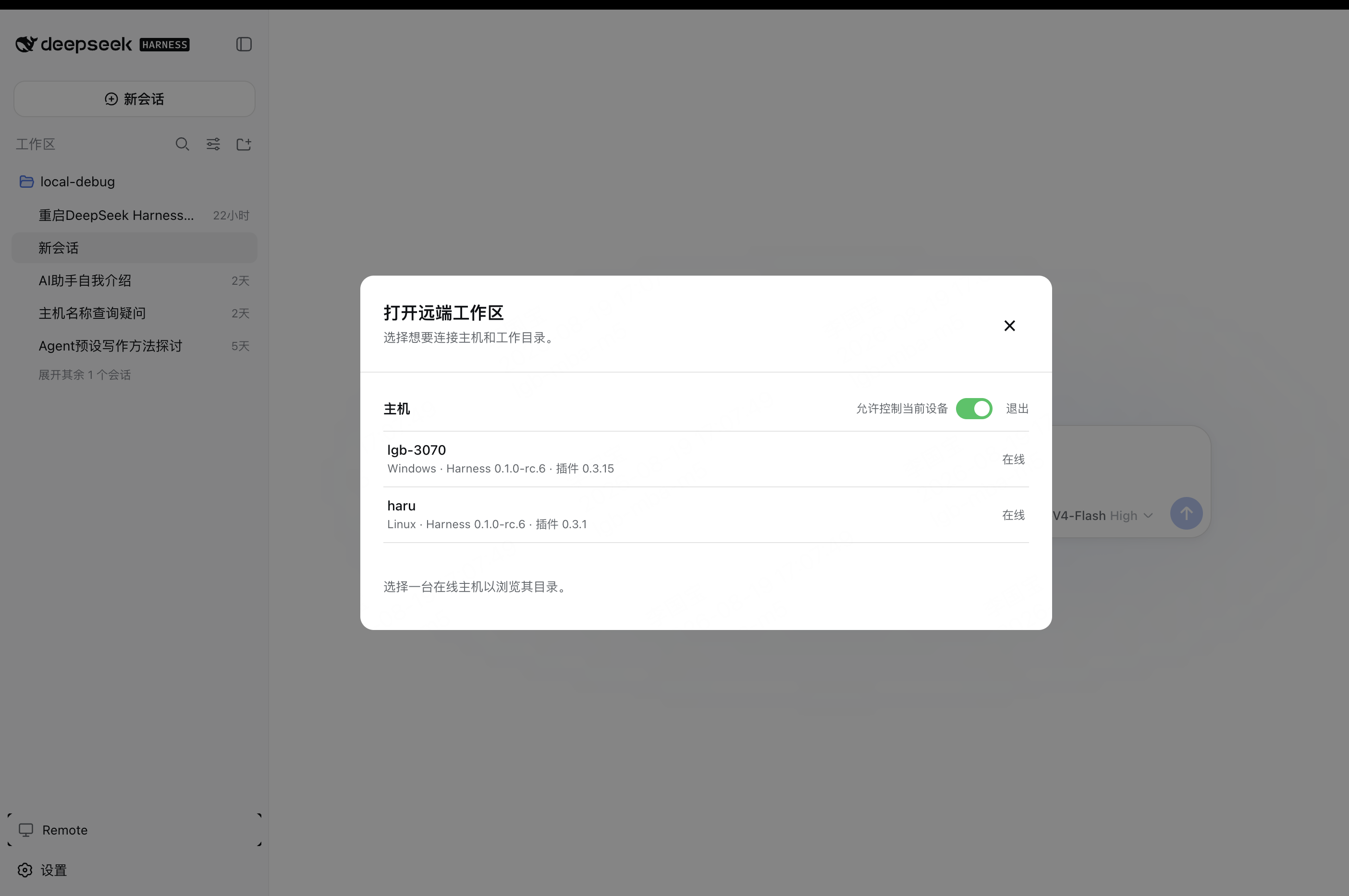
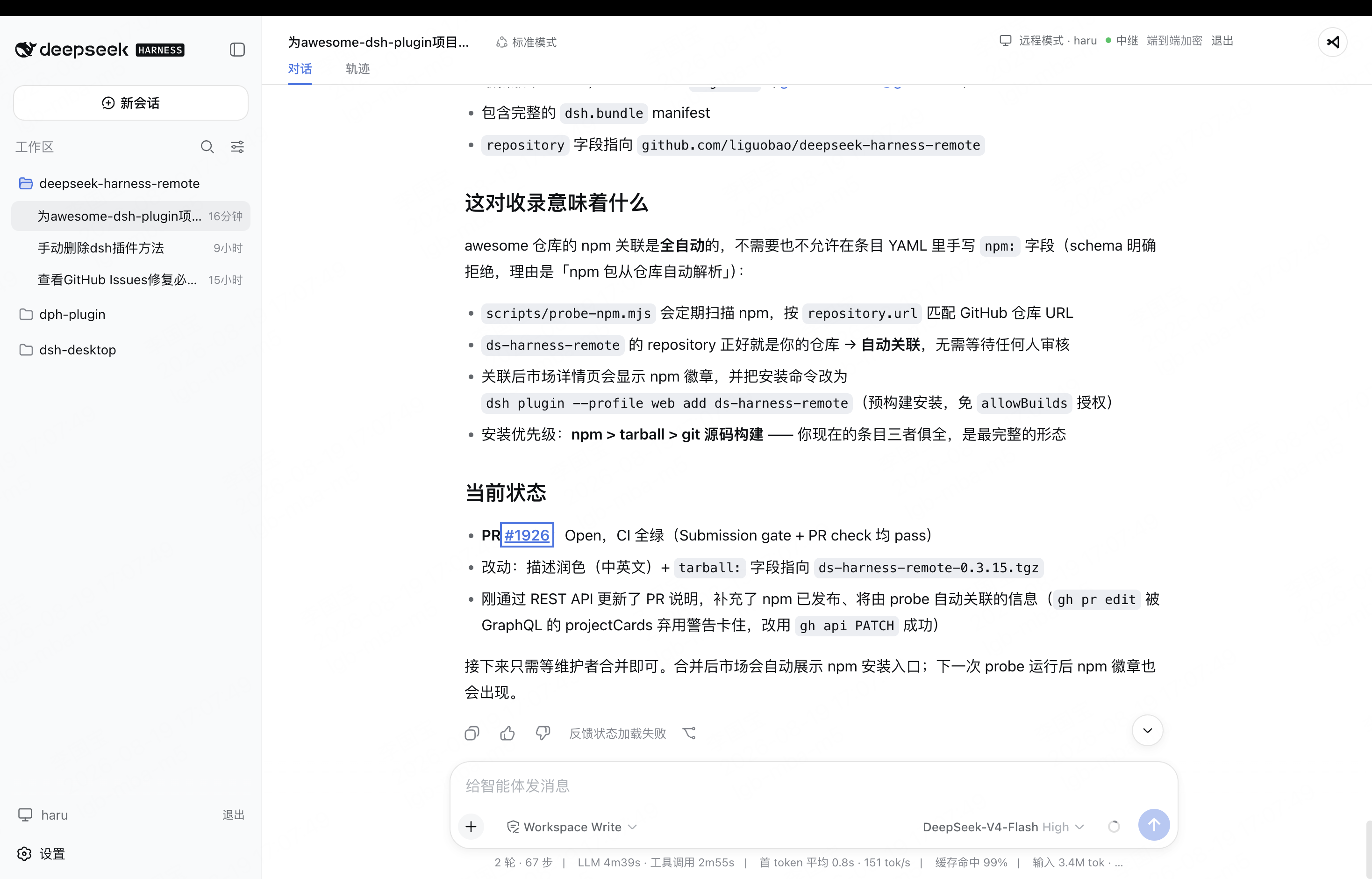
The workspace opens in the native Harness interface, with the active Host and encrypted connection status shown in the header.
Download the latest Android APK from GitHub Releases.
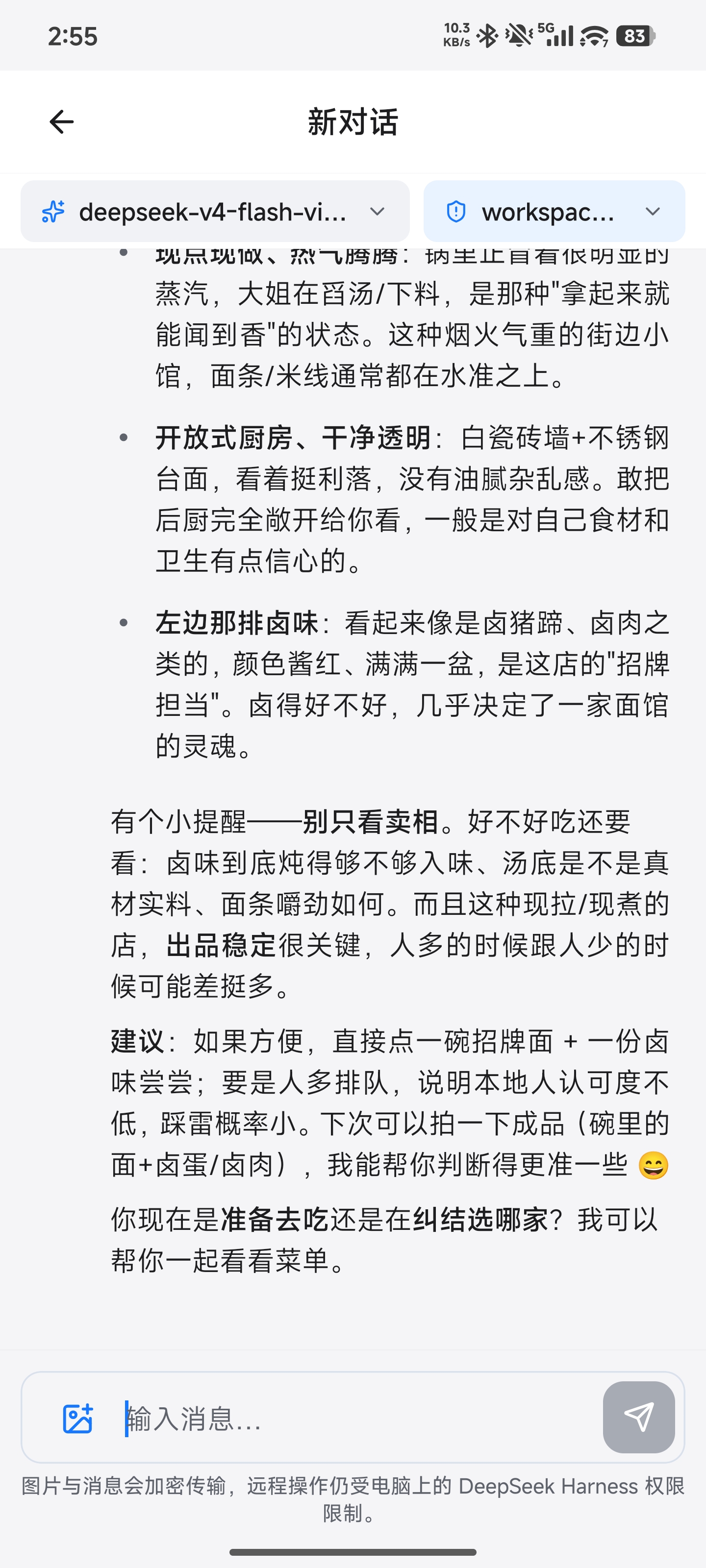
Sign in to the Android client with your existing account, select an available computer, open a workspace, and continue the conversation with text or image prompts. The conversation toolbar also lets you switch the active model and choose any reasoning effort declared by it.
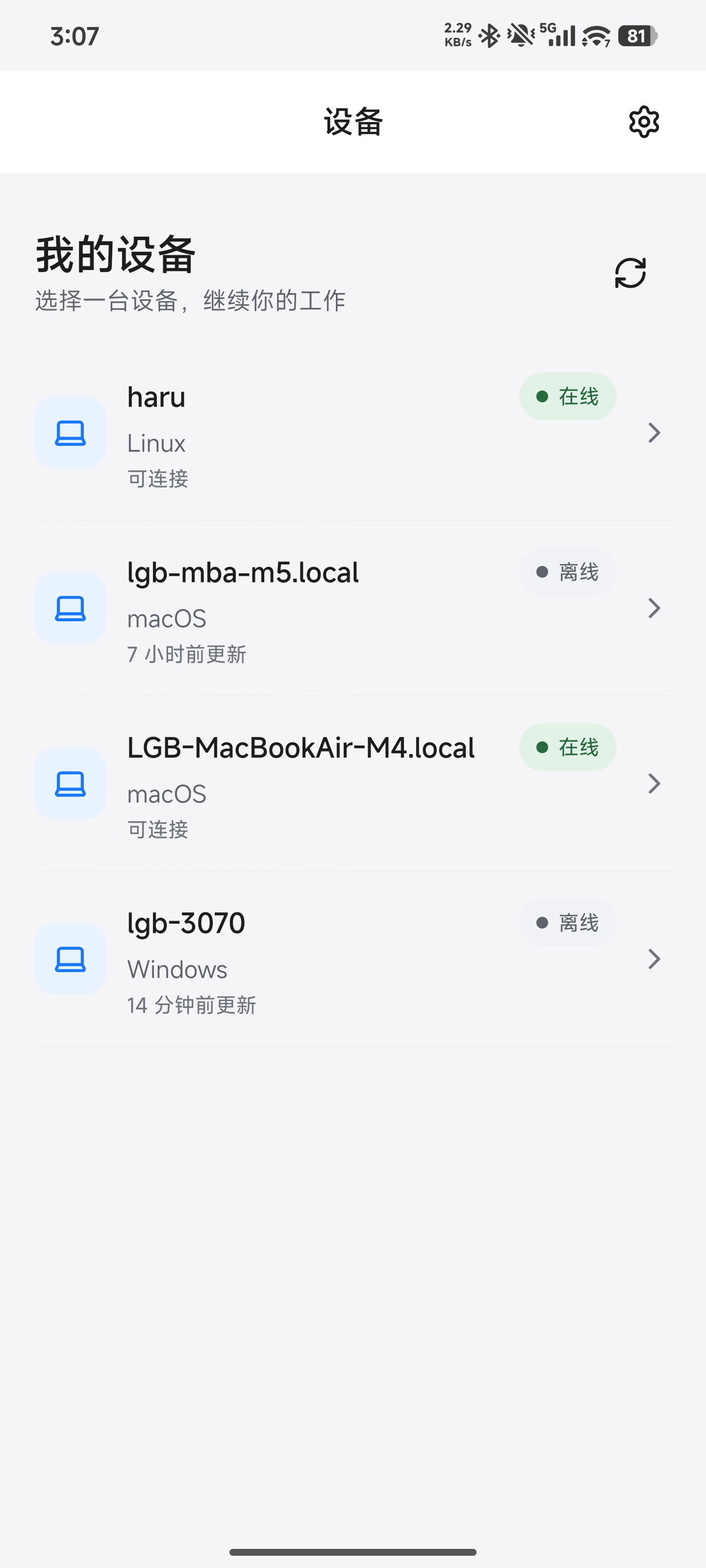
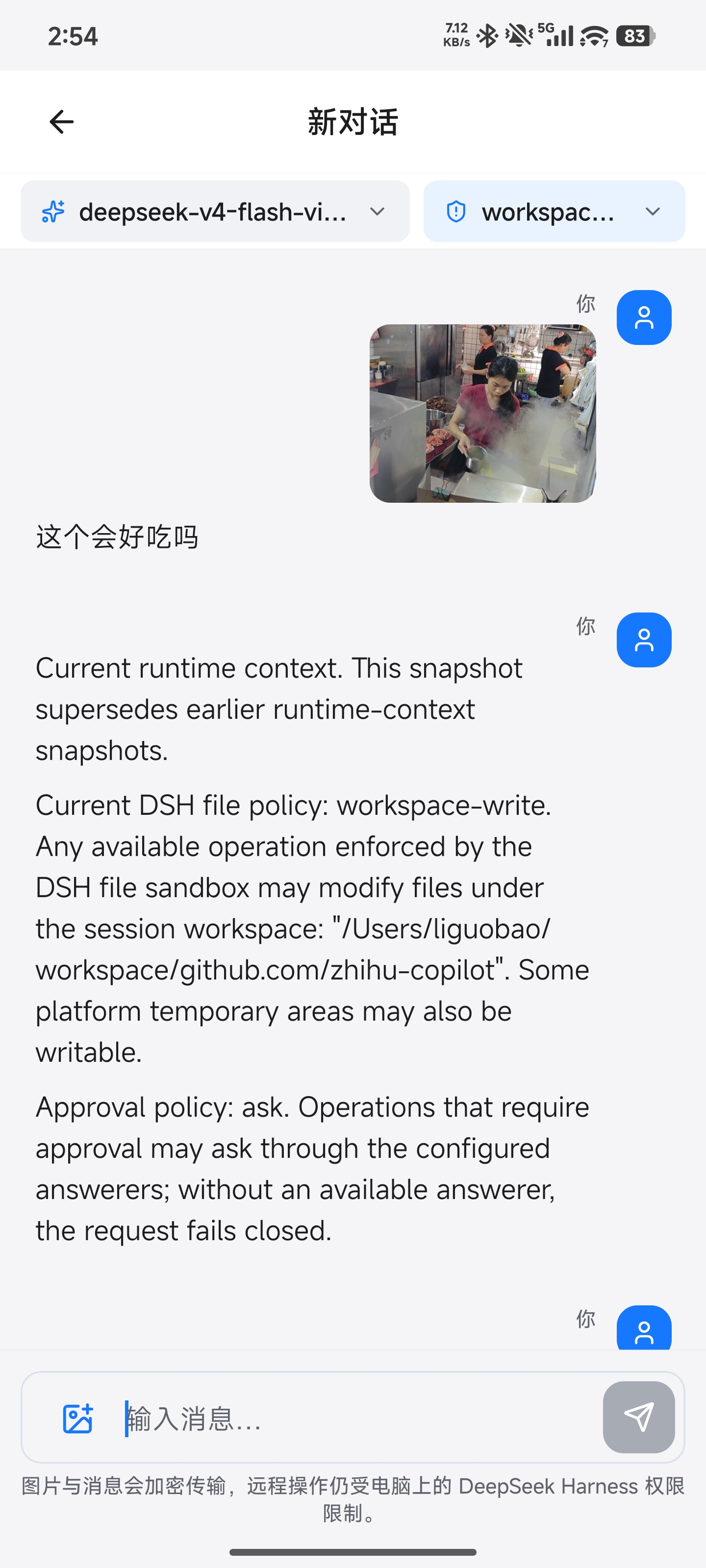
DSH Desktop / Remote Web / Android
  ↔ authenticated, end-to-end encrypted channel
Remote Plugin on the Host
  ↔ supported Harness or optional Codex workspace support
Harness sessions/workspaces or Codex projects
The Harness Host does not need a public listening port. You can connect from anywhere with internet access, and Remote communicates over a bidirectional end-to-end encrypted channel. It switches the client to the selected Host's native Harness API, so the original workspace, tools, and permission flow remain on that computer. Every settings namespace currently registered by the Host can also be configured remotely through the official Harness settings API. Credential values remain write-only, and Host-local document/open actions are never exposed.
Remote can also show Codex projects from an authorized Host. Pick one from the normal workspace chooser and continue in the existing Harness or Android interface; there is no separate Codex screen to learn. The Desktop chooser and Android workspace page can also add a Host directory to the Codex project catalog without importing it into Harness storage.
Codex Remote is meant as a convenience layer for your own devices. It supports text prompts, image prompts where available, model and permission controls, interrupt, and approvals. It is still published as experimental while long-running recovery and compatibility work continue.
Web and Desktop approval controls show the Host-confirmed mode for the selected Codex session. If it has not been reported, they indicate that Host settings are inherited. Changing the mode requires Host confirmation; sending a prompt preserves the session's current policy.
Codex is enabled by default and can be turned off in the DeepSeek Remote settings card. Advanced configuration and implementation notes live in Codex Remote technical notes.
Harness business traffic is encrypted on the Client and decrypted only by the selected Host using
the fixed Noise_IK_25519_ChaChaPoly_SHA256 suite. Account membership and locally pinned device
identity keys must both authorize a connection. The service can route connections and observe
network metadata, but it cannot read session messages, prompts, tool output, workspace paths, or
File Viewer content. See End-to-end encryption for the handshake,
key lifecycle, visible metadata, replay protection, and security limits.
The Host opens outbound connections only; it does not listen on a public port or require router
port forwarding. Remote negotiates LAN -> P2P -> TURN -> Relay, falling back to the encrypted
WebSocket Relay when WebRTC is unavailable or cannot connect. Every path carries the same Noise
ciphertext and keeps the same Host/Client identity boundary. See Network and transport
for the topology, control and data planes, NAT behavior, fallback, reconnect semantics, and current
validation status.
terminal.enabled switch (off by default). They run as the Host user, independently of Agent approvals. General tool RPC and remote desktop remain unavailable.Breaking change notice: Plugin 0.4.1 removes the earlier experimental
Remote business RPC surface (sessions.*, session.*, permissions.respond,
sync.from). Harness session traffic now only uses the official rc.2
ApiProxy or the v0.1.2 Typert Remote Gateway, and this plugin does not provide
an adapter or wire-format translation for the old RPC surface.
Plugin 0.4.16 supports DeepSeek Harness dsh-v0.1.1-rc.2 through the legacy
official ApiProxy, and dsh-v0.1.2-alpha.1–rc.1 through the
official Typert Remote Gateway. It also supports
dsh-v0.1.5-rc.1 and dsh-v0.1.6-alpha.1 Session V3 through the official Typert Remote
Gateway; a 0.1.6 Host reports patch 6 and therefore selects the same Session V3
profile with no wire-format adapter. A 0.4.13 Client running rc.2 remains compatible
with older rc.2 Hosts through the legacy capability fallback.
Remote Web/Desktop and the Android app also normalize released sessions that
still report the retired code agent preset to ptc, so old sessions can
resume on dsh-v0.1.5-rc.1 or dsh-v0.1.6-alpha.1 without changing DeepSeek Harness itself.
Desktop endpoints must use a compatible Harness carrier. Plugin 0.4.16 selects the legacy
ApiProxy path for rc.2 Hosts when that Host exposes it, and Session V3 Desktop clients can open
legacy v0.1.2 Typert Remote Hosts through Remote-side history and event normalization. Legacy
Typert clients still reject Session V3 Hosts before switching the native UI or mutating a Workspace.
This is an independent community project and is not an official DeepSeek product. DeepSeek and related names and marks belong to their respective owners.
Run the optional single-account Relay Server in apps/server. Set DSH_SERVER_ACCOUNT and DSH_SERVER_PASSWORD; its small Web page offers login and device status. Point both Host and Client at your Server URL and sign in with the same account. Device credentials survive restarts.
Harness 0.1.6-alpha.2 workspace files and read-only previews use the official APIs; the existing dsh-file-viewer bridge remains available.
Reads follow the Host Session filesystem permissions, including authorized files outside cwd; directory listings stay within the workspace.
These native sidebar features target Harness Sessions, not the CodeX in-memory projection.
On the Host computer → Remote plugin settings, toggle Remote terminal (it saves and applies immediately), then enter Remote preview ports and use the adjacent Save access settings button. Both runtime access controls apply without restarting the Host.
Terminal access defaults off and reports how to enable it when attempted. This switch does not fix ordinary login or connection errors. Terminals run as the Host user independently of Agent approvals. Only terminals created by the current Remote device are exposed; input is never replayed after disconnect.
In Desktop or a browser connected to Harness on the same computer, choose Preview service in the Remote header and enter an authorized port.
The native browser sidebar opens the Host's IPv4 127.0.0.1 HTTP service through P2P or Relay, including WebSocket and same-origin hot reload.
Relative asset paths are preserved. IPv6-only services must also listen on 127.0.0.1.
Previews use separate random local origins and close on disconnect or leaving Remote. Remote Web pages, Android and VS Code preview UIs are not included.
No ports are allowed by default. Authorized services may accept writes: this is not read-only HTTP access.
Arbitrary network destinations, CONNECT, HTTPS upstreams, cross-origin redirects and hard-coded remote localhost URLs are unsupported.
Request bodies are capped at 1 MiB and responses at 64 MiB. Access settings can only be changed locally on the Host.
CLASSIFICATION EVIDENCE
系统优先读取 GitHub Topics,再与站内分类词典和词根规则比对。当前命中: 无有效分类标签。
deepseek-ai
DeepSeek Harness: Everything is a Plugin.

anywhere-labs
为 DeepSeek Harness (DSH) 插件生态打造的现代化桌面端解决方案。万物皆「插件」,桌面本身也是「插件」。

awesome-dsh-plugin
A curated list of plugins for DeepSeek Harness (dsh) · DeepSeek Harness 插件精选列表