

其他
完整应用

deepseek-harness
deepseek-ai
DeepSeek Harness: Everything is a Plugin.
PROJECT TOPICS
INSTALL REFERENCE
dsh plugin --profile web add github:feiyang-dev/DeepSeek-Harness-Desktop
该命令指向仓库当前默认分支;尚无绑定当前 commit 的完整验证结果。
PROJECT README
English · 简体中文
A Windows desktop client for the official DeepSeek Harness Web UI — automatically detects your environment, installs dependencies, and starts the service. Works out of the box.


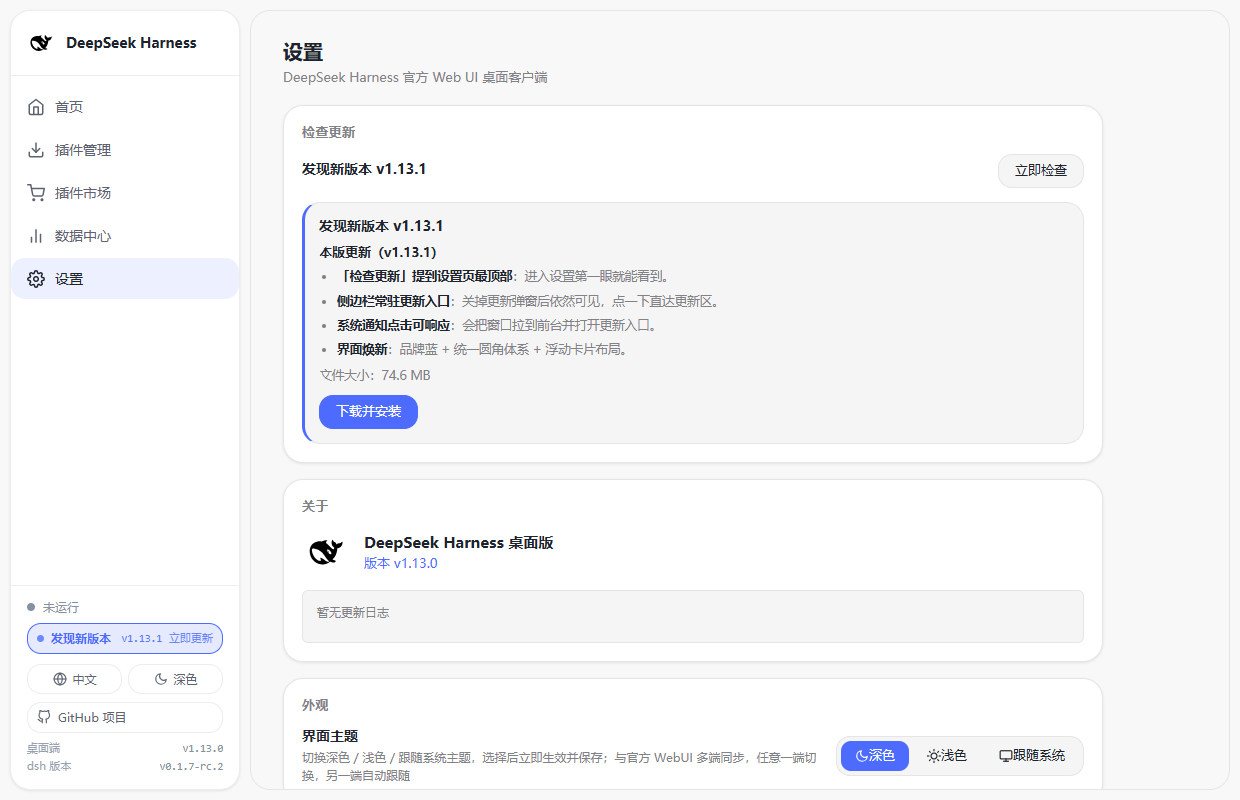
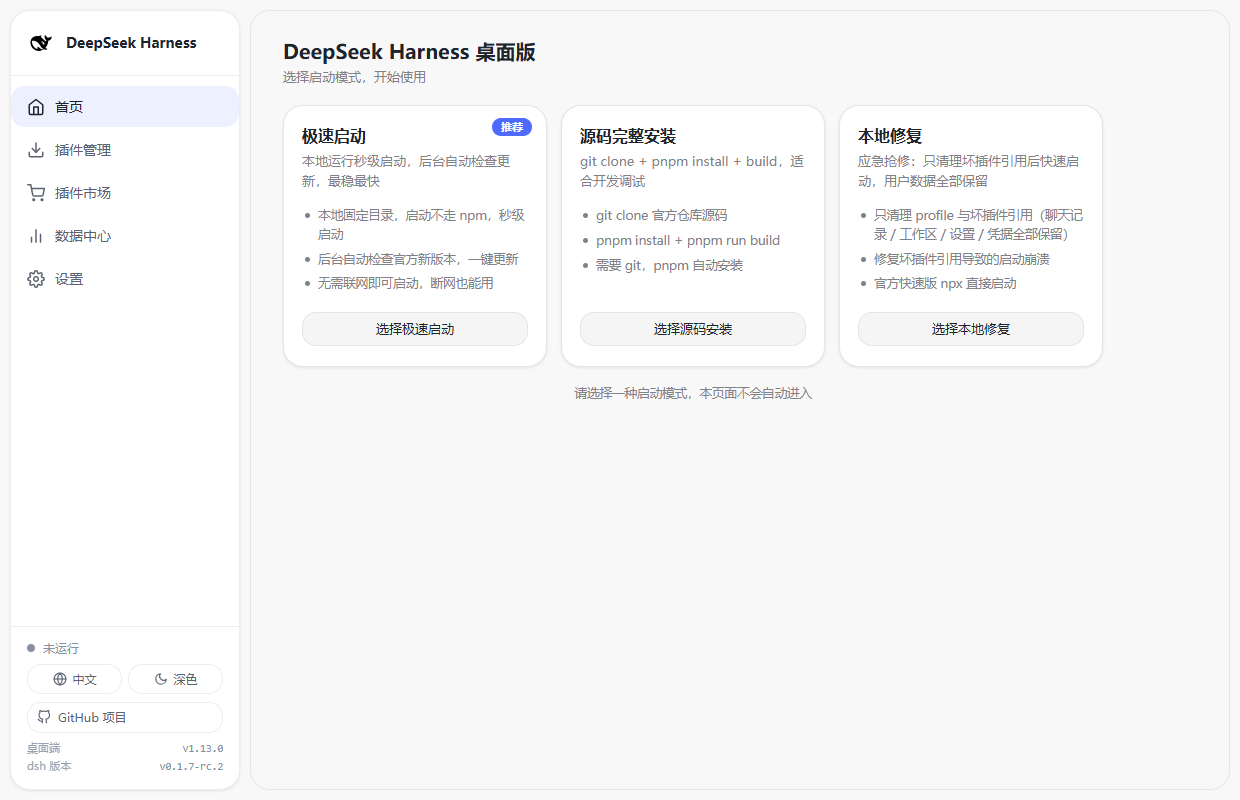
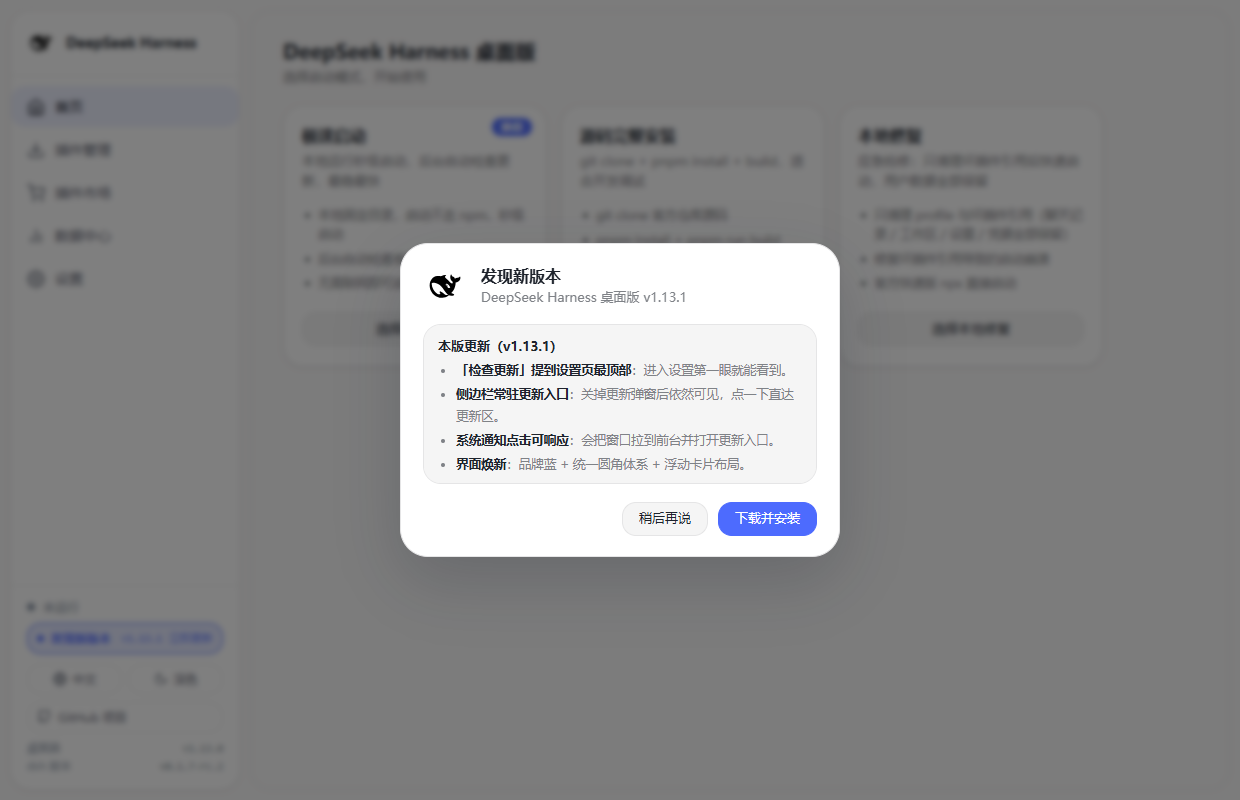
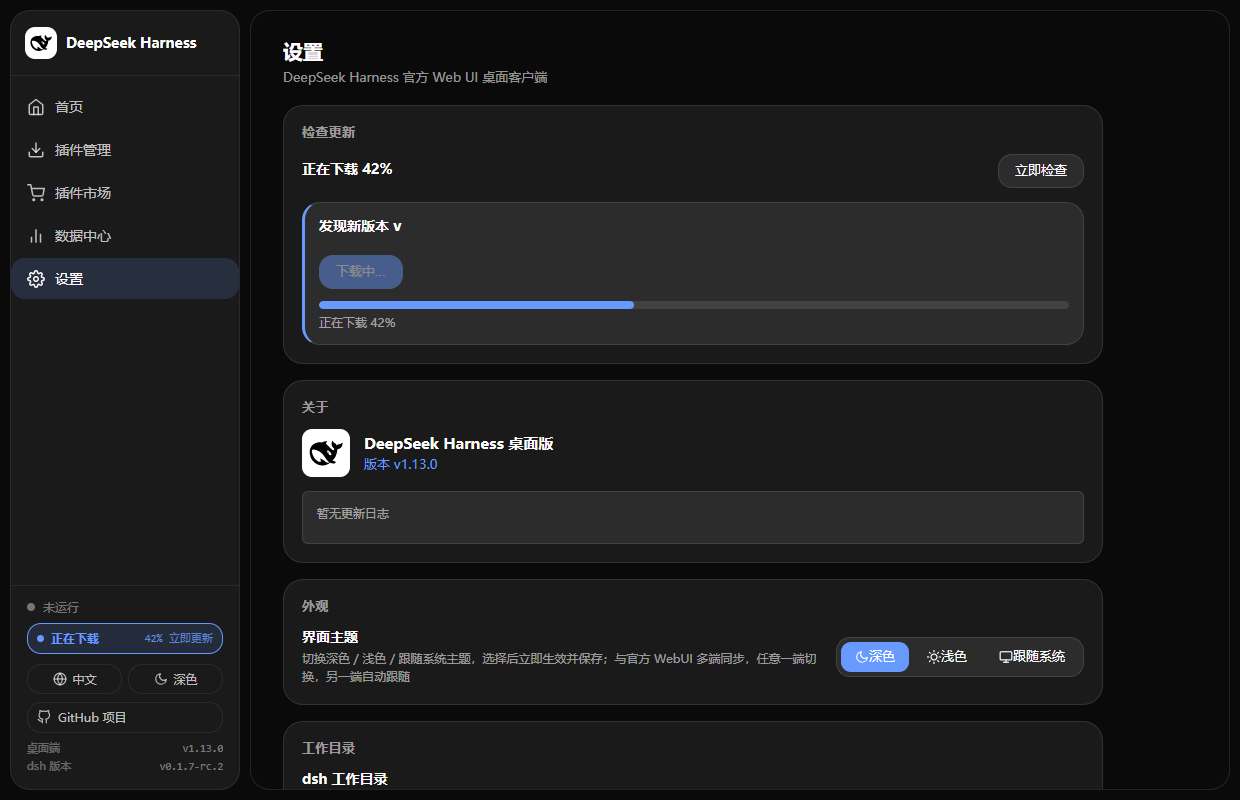
Taken from v1.13.1. The control panel follows the official DeepSeek design language (brand blue, unified corner radius, floating-card layout) and ships with refreshed dark and light themes.
| Settings · "Check for updates" on top | Home · startup & mode picker |
|---|---|
 |
 |
| New version · update dialog | Dark theme · downloading (progress in the sidebar) |
|---|---|
 |
 |
An Electron desktop shell that embeds the official DeepSeek Harness Web UI. On startup it lets you pick an installation mode, then automatically handles environment detection, installation, and service startup — with a percentage progress bar for every stage. When the service is ready, the main UI opens automatically.
No command-line memorization, no manual service startup — just double-click and go.
New-dsh auth fully auto-adapted (v1.11.0): dsh
0.1.2-rc.1+enforces browser-session auth on the Web UI. The desktop app automatically captures the access token dsh prints at startup and uses it to open the main window (exchanges a 30-day cookie, then returns to the clean bare URL) — no manual?token=handling. Mobile remote access also supports bare-URL direct entry with plugin@feiyang666/dsh-mobile-remote >= 1.8.0. See RELEASE_NOTES.md and CHANGELOG.md.DeepSeek V4.1 Flash supported (v1.12.0): update the runtime to the latest official dsh (Instant Start "Update Now" / Settings → "Runtime (dsh)") and the official Web UI offers the new model
deepseek-flash(DeepSeek-V4.1-Flash) alongsidedeepseek-v4-pro; also upgrade the Usage & Cost plugin to ≥ 1.17.0 so costs are billed with the new peak/off-peak prices effective 2026-09-10 12:00 Beijing time. The desktop app itself needs no model configuration changes.dsh v0.1.7 adapted (v1.13.0): official dsh v0.1.7-rc.1 moved user settings into the current Profile's plugin configuration (
~/.dsh/profiles/<profile>/cordis.patch.yml, entry- id: ui-theme; the legacy~/.dsh/settings.yamlis imported only once and then renamed tosettings.yaml.imported), added plugin ↔ dsh version compatibility checks (with profile-local exact-version exemptions incompatibility.json) and made empty/comment-only profile patches fail startup. The desktop app now reads/writes/watches the new settings storage, performs the same peer-range compatibility check (with a one-click "Allow this version" exemption), recognizes official startup diagnostics, and preserves settings/agent presets across "Local Repair". None of the other v0.1.7 breaking changes (ptc-runtime,workflow-ptc, E2B removal, Ralph off by default, Node PTC env, Messages API,maxInlineBytes→maxInlineTokens,agent/created,readBytes,spawn_teammate) are referenced by the desktop app.
Choose an install method when the app launches:
| Mode | Description | Best For |
|---|---|---|
| Instant Start | Local fixed-directory runtime, second-level launch, auto-checks official updates with one-click update (replaces Quick Start) | Most users, recommended |
| Full Source Build | git clone + pnpm install + pnpm run build |
Developers who want to modify/debug the source |
| Local Repair | Uninstall global @deepseek-ai/dsh, clean residue, reinstall |
Fix broken installs, version issues, or koffi load failures |
The home screen has a "Plugin Management" entry (left navigation) that opens a dedicated plugin page:
deepseek-flash and the new peak/off-peak prices effective 2026-09-10 12:00), a usage calendar heatmap, balance query, and CSV/JSON/PNG export.~/.dsh data to ~/.dsh-backups, detects data wipe, and restores chat history and workspace data with one click.@scope/plugin-name or npm install @scope/plugin-name); the client installs it and registers it in the runtime profile. Command-line output is shown live in the custom-install card.dsh plugin add (npm into profile + register dsh.profile.bundles); restart the service to take effect.Prefer the command line? The equivalent commands work too:
dsh plugin --profile web add @feiyang666/dsh-usage-plugin
dsh plugin --profile web add @feiyang666/dsh-vault
dsh plugin --profile web add @feiyang666/dsh-mobile-remote
A dedicated "Data Center" section in the left navigation (on par with Home / Plugin Management / Settings) shows real-time data from installed plugins while the service is running:
All data comes from the plugins' own HTTP APIs — the desktop app only "bridges and consumes" it; cards/blocks auto-hide or show "Not installed" when a plugin is missing, not running, or unreachable. Data changes are pushed in real time over each plugin's SSE event stream, no manual refresh needed; the section hides automatically when the service stops.
A "Plugin Market" entry in the left navigation scans GitHub public repos tagged with dsh-plugin (the officially recommended way to discover community plugins):
package.json, you can install it with one click (reuses the custom-install flow with automatic mirror switching); repos without a detectable npm package are marked "Not an npm package" for reference.The "Settings" entry (left navigation) opens the settings page:
~/.dsh/profiles/<profile>/cordis.patch.yml, entry - id: ui-theme); the legacy ~/.dsh/settings.yaml is imported once and renamed to settings.yaml.imported. The desktop app resolves the effective value with the official precedence (home patch → profile patch → settings.yaml → .imported) and writes to both the profile patch and the still-present settings.yaml, so the two-way sync works on both dsh generations#4d6bfe light / #6799fe dark), a unified radius scale (panels 20px · modals 28px · cards & list rows 18px · buttons & inputs 14px · pill badges), and a floating-card layout for the sidebar and the content area. The official Web UI is left untouchedAfter enabling "Developer options mode", choosing "Quick Start" no longer runs a single-process npx; instead it splits startup into two processes for easier iteration on the DSH browser side:
| Process | Description |
|---|---|
| Service backend | Starts dsh web from the source repo (%APPDATA%/dsh-desktop/deepseek-harness), serves the API and hosts the frontend at the same address |
| Browser-side hot-reload watcher | pnpm run dev:web, watches all dsh.client plugin sources; rebuilds the bundle automatically on changes, hot-reloads in the browser without refresh |
http://127.0.0.1:3080; the home console shows a "Developer Mode" badge, and stop/restart manages both processesnode, no console popupsdsh web. If the port is held by something this app did not start (dsh 0.1.7 supports multiple coexisting DSH instances), the occupant (process name + PID) is reported before it is ended, instead of being killed silently@deepseek-ai/dsh / @deepseek-ai/dsh-* (pre-install registry pre-check, post-install re-check for tarball/directory installs); incompatible plugins are flagged in both the recommended cards and the installed list, and can be allowed through a one-click exact-version exemption written to the profile's compatibility.json (equivalent to dsh plugin allow-version; applies to that exact version only)settings.yaml not migrated, a patch entry that does not exist) get an actionable Chinese/English hint in the log panel; a startup timeout also reports the recognized diagnosticui-theme / preset-* entries and version exemptions before deleting profiles/, and merges them back once the service starts successfully againtaskkills the dsh process tree on quitelectron-builder generates a Windows installer| Dependency | Notes |
|---|---|
| Windows 10 / 11 (x64) | Runtime platform |
| Node.js ≥ 18 | Required for Instant Start mode; the client guides installation if missing |
| git | Only needed for source mode (pnpm auto-installs if missing) |
| Network | First install downloads dependencies (~hundreds of MB) |
The client guides you through installing anything missing — no manual setup required.
start.batOr manually:
npm install
npm start
Custom port: npm start -- --port 8090 (default 3080; reuses an existing dsh web service on that port if present).
dsh-desktop/
├── main.js              # Main process (mode selection/progress state machine/install/start/window/tray/cleanup/update service/plugin market IPC)
├── preload.js           # Secure bridge (mode/progress/log/status/settings/update/plugin market IPC)
├── plugin-manager.js    # Plugin manager (install/uninstall/status, pure Node logic)
├── plugin-compat.js     # Plugin ↔ dsh version compatibility (peer ranges + compatibility.json exemptions, pure Node logic)
├── plugin-market.js     # Plugin market (scans GitHub topic:dsh-plugin, pure Node logic)
├── plugin-bridge.js     # Plugin data bridge (consumes plugin HTTP APIs / SSE, pure Node logic)
├── boot/                # Bootstrap page (home + left nav + plugin management + plugin market + settings + progress bar + log panel)
│   ├── boot.html
│   ├── boot.css
│   └── boot.js
├── assets/              # Packaging resources (icons, etc.)
├── pack.js              # Interactive packaging script
├── start.bat            # Dev startup script
└── package.json # Dependencies & build config[Home: Mode Selection] --user chooses (no auto-enter)-->
Quick: detect node → npx downloads deps → start service
Quick + Developer mode: detect node → check source repo → start service backend + browser hot-reload watcher (two processes)
Source: detect git/pnpm → clone → pnpm install --ignore-scripts → pnpm run build → start service (with dev mode on, also starts the watcher)
Repair: stop service → stash user preferences → clear broken plugin refs (history / workspaces / settings / credentials kept) → official quick-start launch
│
▼
[Progress] 8% detect env → 25-90% install/build/repair → 60-95% start service → 100% ready
│
▼
[Home: Running] --opens WebUI in a separate window (http://127.0.0.1:3080)-->
[Stop] → home shows "Stopped"; re-run or switch mode
[Restart] → re-runs the startup flow with the last chosen mode
[Plugin Management] left nav → recommended one-click install / custom package install / uninstall from installed list
[Plugin Market] left nav → scans GitHub topic:dsh-plugin → search / browse / one-click install
[Settings] home → Check for updates (top of the page: auto-check + download & install) / About / Notifications / Developer optionsKey implementation details:
Why was the old "Quick Start" slow? Quick Start ran npm exec --yes -- @deepseek-ai/dsh web (npx). The official dsh package is split into 150+ interdependent sub-packages (@deepseek-ai/dsh-*), and npm exec does the following on every startup:
latest from the registry (one HTTP round-trip);cache revalidated), even when the local cache already exists;Serializing the validation + unpacking of those 150+ packages takes 100~200 seconds even with a fully warm cache (especially on domestic networks) — that is the root cause of a 200+ second service startup. It is not a slow network; npm is re-resolving the whole dependency tree every time.
What Instant Start does: it fully separates "install" from "launch" — install once, launch many times:
npm install @deepseek-ai/dsh --prefix <userData>/dsh-local --ignore-scripts, fully unpacking dsh and all 150+ dependencies into a local fixed directory (%APPDATA%\dsh-desktop\dsh-local\node_modules), forming a "ready" dependency tree on disk. Uses the domestic mirror (npmmirror) with automatic fallback.spawn(node, [<dsh-local>/node_modules/@deepseek-ai/dsh/lib/bin.js, 'web', ...]) — the Node.js process loads the locally unpacked bin.js entry directly. No npm involved: no latest resolution, no HTTP requests, no tarball validation, no unpacking. Node's require hits the local node_modules directly, and the service is ready within seconds.resolveWorkspaceDir()), so session-history ownership is unchanged.How do updates work? Instead of forcing "latest on every start", Instant Start silently checks in the background: about 8 seconds after startup (avoiding first-load bandwidth contention), it runs npm view @deepseek-ai/dsh version to query the latest official version. When a new version is found, the home status bar shows a "Update Now" banner — click to auto "stop service → reinstall the local runtime to the latest → auto restart", all through the domestic mirror with automatic fallback. When offline the check is skipped and startup is unaffected.
Mirror speed-test skip when local runtime is ready: ensureRegistrySelected() (concurrent mirror speed test) in run() only executes for Instant Start when the local runtime is not yet installed — once installed it starts directly, so fully-offline scenarios need no network probing.
%APPDATA%/dsh-desktop/deepseek-harness (keeps the workspace clean); pnpm install --ignore-scripts then pnpm run build; starts via node --import tsx/esm apps/cli/src/bin.ts webcmd.exe — no terminal popupsQ: Installation stuck at a percentage? A: Click the "command-line log" panel to see the real output. Usually it's just slow network downloads — be patient. If it makes no progress for a long time, use "Local Repair" mode to reinstall.
Q: koffi load failure / version issues? A: Pick "Local Repair" mode on the startup page. The client uninstalls the global package, cleans residue, and reinstalls the latest version automatically.
Q: Port 3080 is already in use?
A: The client reuses a running dsh web service first; alternatively use npm start -- --port <port> to specify another port.
Q: Want to debug or modify the source?
A: Choose "Full Source Build" mode. The source is cloned to %APPDATA%/dsh-desktop/deepseek-harness and starts automatically after building.
Q: How do I use Developer Options mode?
A: Enable "Developer options mode" in Settings (a "Full Source Build" must be done first), then choose "Quick Start". The client runs the "service backend" and the "browser-side hot-reload watcher (pnpm dev:web)" as two processes; the browser still opens on 3080. Changes to dsh.client plugin sources rebuild automatically and hot-reload without a refresh.
Q: How does the desktop app update when DeepSeek releases a new official version? A: Instant Start auto-checks for updates in the background: after startup it silently queries the latest official version, and when a new version is found the home status bar shows a "Update Now" banner — click to auto "stop service → reinstall the local runtime to the latest → auto restart", all through the domestic mirror with automatic fallback. The home screen shows the current dsh version; Settings → "Runtime (dsh)" can compare "current version vs latest version" with one click. When offline the check is skipped and startup is unaffected.
Q: DeepSeek released V4.1 Flash (deepseek-flash) — what do I need to do in the desktop app?
A: Two steps; the desktop app itself needs no model configuration changes:
deepseek-flash (DeepSeek-V4.1-Flash) and deepseek-v4-pro; the legacy ids deepseek-v4-flash / deepseek-v4-flash-vision-exp stay callable on 0.1.5 and earlier (they are routed to V4.1 Flash and billed at the Flash price), so nothing has to be renamed manually. Note: since dsh 0.1.7 the official default model list no longer contains V4 Flash / V4 Flash Vision Exp — the picker keeps only the new ids. The desktop app never handles the model catalog, so whatever the Web UI shows after the runtime update is authoritative.deepseek-flash with the official peak/off-peak prices effective 2026-09-10 12:00 Beijing time (off-peak cache hit 0.02 / input 1 / output 4 CNY, peak at twice that; deepseek-v4-pro unchanged); each call is billed with the price version in force at its own time. Without the upgrade new-model calls are still counted, but their cost shows 0.Q: After upgrading to dsh 0.1.7, does theme syncing with the Web UI break?
A: No. Since 0.1.7 the official settings moved from ~/.dsh/settings.yaml into the current Profile's plugin configuration (~/.dsh/profiles/<profile>/cordis.patch.yml, entry - id: ui-theme); the legacy file is imported once and renamed to settings.yaml.imported. Desktop v1.13.0 adapts to this: it resolves the effective value with the official precedence (home patch → profile patch → settings.yaml → .imported), writes to both the profile patch and the still-present settings.yaml, edits at the text level (comments, other entries and other fields such as the body font size are left untouched), and watches both directories for reverse sync.
Q: The installed list says a plugin is "incompatible with this dsh" — what now?
A: That is the version compatibility check official dsh 0.1.7 introduced: both installation and startup verify a plugin's peerDependencies on @deepseek-ai/dsh / @deepseek-ai/dsh-*, and an incompatible plugin is refused (its bundle is skipped, or its row becomes disabled). The desktop app performs the same check and offers two ways out: (1) upgrade the plugin to a compatible version (recommended); (2) click "Allow this version" to grant an exact-version exemption — equivalent to dsh plugin allow-version, written to the profile's compatibility.json, applying only to that exact version on the current runtime and lapsing as soon as the plugin or dsh is upgraded. The confirmation dialog states the risk (crashes or data loss) explicitly.
Q: Anything to know about the new Web sidebar terminal in dsh 0.1.7? A: Yes — it runs with system-user permissions and is not constrained by the Agent sandbox mode. Since the desktop app embeds the official Web UI, that means a system-level shell is available inside the app: never expose the service port to an untrusted network, and always set an access password when enabling Mobile Remote Control.
Q: Does the desktop app hard-code the model list?
A: No. The desktop app only "installs / launches / bridges for display": the model catalog comes from the dsh runtime, and usage costs are computed by the plugin — plugin-bridge.js only does pure math aggregation and contains no local pricing. So when DeepSeek ships new models, no desktop-app code change is needed: just update the runtime and the plugins.
Q: Main window shows "dsh web authentication required"?
A: That's the browser-session auth enforced by new dsh (0.1.2-rc.1+). Desktop v1.11.0 adapts automatically: it captures the access token dsh prints at startup and opens the main window with it (exchanges a 30-day cookie, then returns to the bare URL). If the prompt still appears, upgrade the desktop app to v1.11.0 and make sure the dsh runtime is the official version supporting this auth.
Q: Does phone remote access need a long ?token= link?
A: No. Desktop v1.11.0 with plugin @feiyang666/dsh-mobile-remote >= 1.8.0 enables bare-URL direct entry: open http://192.168.x.x:3080 directly on the phone (the Settings page shows the clean bare URL), the first visit auto-completes connection authorization, and afterwards it works directly. Older plugin versions fall back to showing tokenized URLs.
Q: Is "Local Repair" still available in Developer Options mode?
A: Yes. "Local Repair" always runs the official quick-start single process (via pnpm dlx) and is unaffected by Developer Options (repair also cleans up any leftover watcher processes).
MIT © dsh-desktop
| Project | Description | Installation |
|---|---|---|
| Usage & Cost Tracker (dsh-usage-plugin) | Per-call token/cache-hit stats, peak/off-peak billing, balance query, CSV/JSON/PNG export | One-click from the desktop app's recommended plugins, or dsh plugin add @feiyang666/dsh-usage-plugin |
| Data Vault (dsh-vault) | Auto backup / wipe detection / one-click restore — protects chat history and workspace data | One-click from the desktop app's recommended plugins, or dsh plugin add @feiyang666/dsh-vault |
| Mobile Remote Control (dsh-mobile-remote) | Control your PC's DeepSeek Harness from your phone via QR / LAN / internet — password gate, tunnel status, real-time device & runtime stats | One-click from the desktop app's recommended plugins, or dsh plugin add @feiyang666/dsh-mobile-remote |
| DeepSeek-Harness | Official CLI / Web service | — |
If you find this helpful, feel free to Star this repo.
CLASSIFICATION EVIDENCE
系统优先读取 GitHub Topics,再与站内分类词典和词根规则比对。当前命中: 无有效分类标签。
deepseek-ai
DeepSeek Harness: Everything is a Plugin.

anywhere-labs
为 DeepSeek Harness (DSH) 插件生态打造的现代化桌面端解决方案。万物皆「插件」,桌面本身也是「插件」。

walkinglabs
Harness engineering beginner tutorial, from 0 to 1