

模型与 MCP
待识别

rea
morluto
Reverse engineer anything with agents, from app behavior down to native binaries.
PROJECT TOPICS
INSTALL REFERENCE
dsh plugin --profile web add github:aldveylor/dsh-intellisense
该命令指向仓库当前默认分支;尚无绑定当前 commit 的完整验证结果。
PROJECT README
English | 简体中文
dsh-intellisense helps you organize and discover tools in DeepSeek Harness. Group tools, give them clear names and descriptions, and save reusable profiles for different tasks. The agent can look up the tools it needs on demand.
Read the usage guide for tool grouping, agent visibility and interface operations. You can also open it from the plugin configuration page.
Official DSH Desktop: Open Settings → Plugins in the app, search for @aldveylor/dsh-intellisense, and install it through the app's plugin manager. No command line is needed.
Regular dsh web: Run this command, then restart dsh web:
dsh plugin --profile web add @aldveylor/dsh-intellisenseCustom profile: Replace web in that command with your host's actual profile name:
dsh plugin --profile <profile> add @aldveylor/dsh-intellisenseFollow your host's restart instructions.
The bundle includes Intellisense Preset (intellisense/preset, entry @aldveylor/dsh-intellisense/preset), which registers the Intellisense and Intellisense PTC agent presets. The main component provides namespace services and execution; preset registration is handled separately.
Read the development guide for agent preset config.mode / config.profile settings and builtin tool interfaces.
Requires Node.js >=24 and DeepSeek Harness >=0.2.1-rc.2.
Start DeepSeek Harness once to initialize the profile you want to use, then stop it. In that profile's directory (the directory containing its package.json), run:
npm install @aldveylor/dsh-intellisenseIn the same package.json, append "@aldveylor/dsh-intellisense" to the existing dsh.profile.bundles list, keeping the other entries. Restart DeepSeek Harness with that profile.
Ctrlernatively, open Plugins in the DeepSeek Harness sidebar and install @aldveylor/dsh-intellisense from the npm registry, with the bundle enabled. This handles installation and activation for the current profile.
From the project root, with pnpm installed, run:
pnpm install --frozen-lockfile
./run.sh
This starts a separate development profile for trying the plugin locally.
Select an exact DSH version to test against a different host:
./run.sh --dsh-version 0.2.1-rc.2
node run.mjs --dsh-version 0.2.2-alpha.2
The first run installs that host under build/dsh_versions/<version>; later runs reuse it and refresh copies of the local plugins. Each version uses a separate development profile. The project dependencies and lockfile stay unchanged. Both entry points accept --plugin <directory> and forward other arguments to DSH; use -- to end launcher options.
Read the usage guide, also available from the configuration page. Screenshots below use light mode.
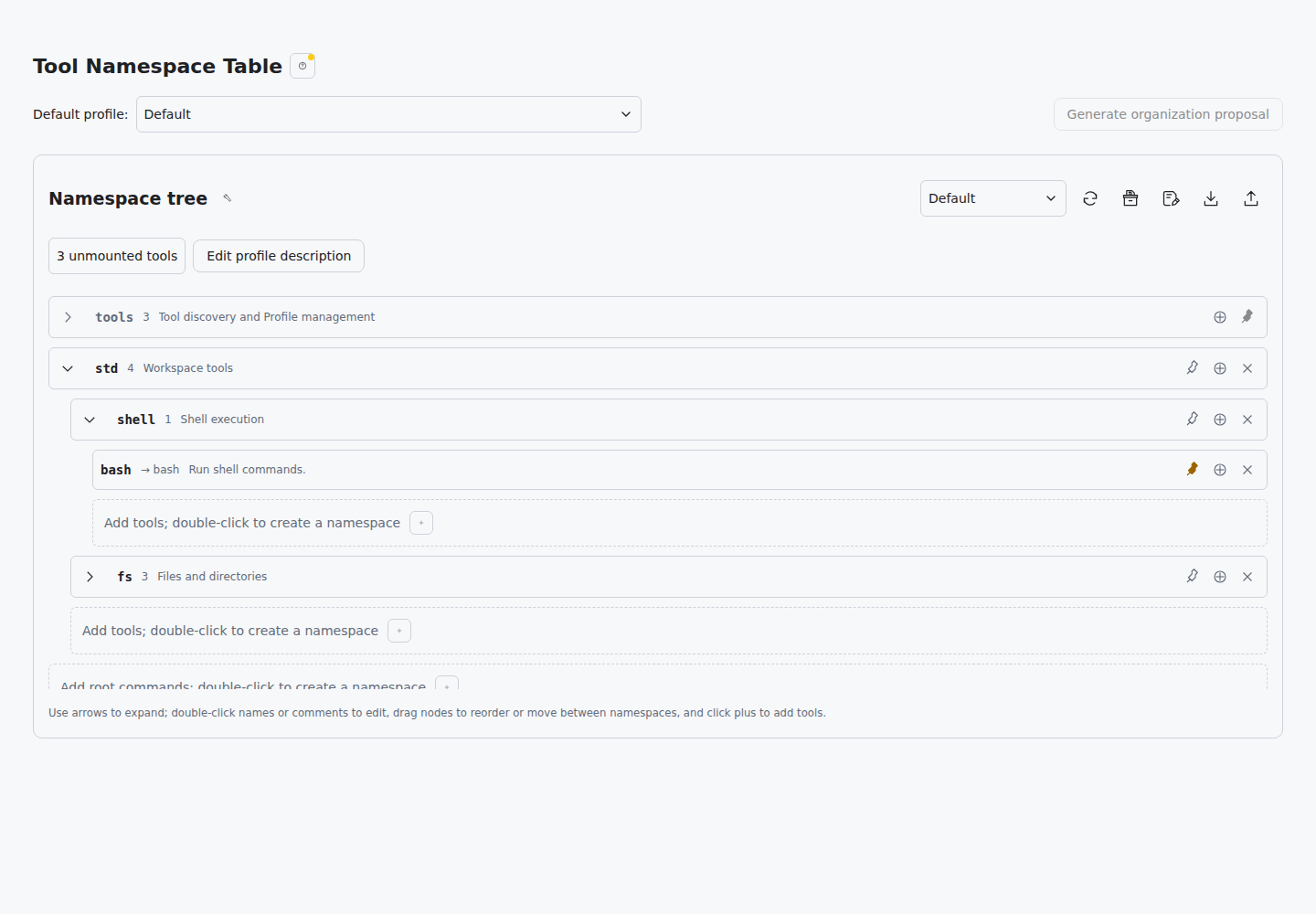
The namespace tree shows tool groups, call names, and descriptions. Hover a namespace for its name, full path, and notes; hover a command for its summary, full documentation, and call totals. Its original command name opens a second tooltip with tool details. Expand groups, double-click names or comments to edit them, drag sibling entries to reorder them, and set pinned hint levels. Use the controls above the tree to switch, save, or save a copy of a profile for reuse across different tool configurations.
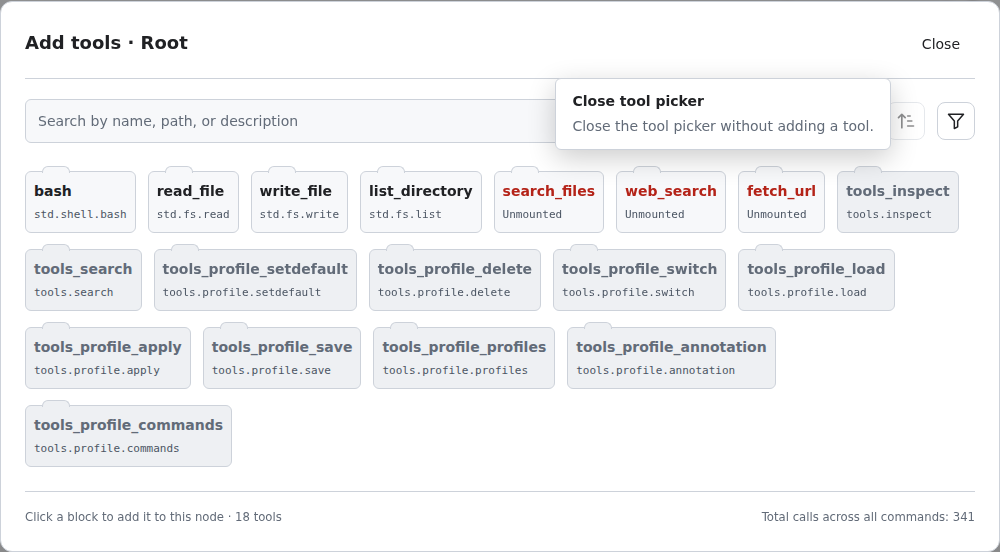
Click the tool icon beside “Namespace tree” to open the tool picker. The unmounted count opens a filtered list. Search by name, path, or description, then click an ordinary tool card to add it to the current node. Built-in plugin commands appear as disabled gray cards.
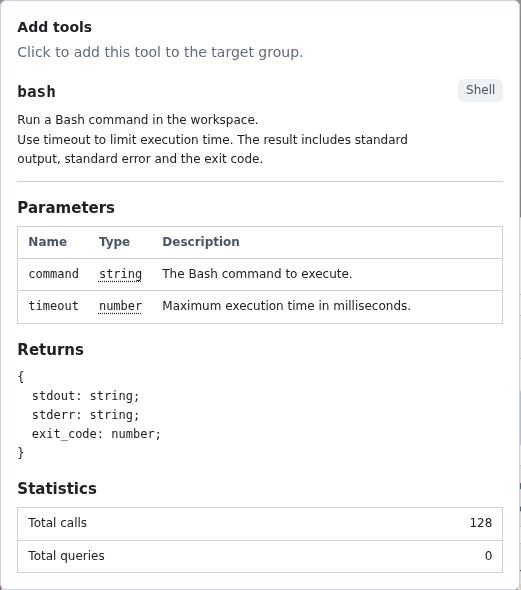
Hover a card for its original name, description, parameters, return type, and call totals. Parameter types have nested tooltips showing the type expression directly. Table titles sit outside their tables, and columns size to content. Hold Ctrl to keep a tooltip in place, then move into it to scroll manually.
CLASSIFICATION EVIDENCE
系统优先读取 GitHub Topics,再与站内分类词典和词根规则比对。当前命中: deepseek。
morluto
Reverse engineer anything with agents, from app behavior down to native binaries.

deepseek-ai
DeepSeek Harness: Everything is a Plugin.

nexu-io
The 1st Collaborative AI Design Agent Workspace. Local-first and open source. Create motion, prototypes, websites, apps, dashboards, presentations, images, and videos with your team and AI agents. Share work, exchange feedback, and iterate together in one workspace.