
模型与 MCP
待识别

rea
morluto
Reverse engineer anything with agents, from app behavior down to native binaries.
PROJECT TOPICS
INSTALL REFERENCE
dsh plugin --profile web add github:XINY11451/dsh-wsl
该命令指向仓库当前默认分支;尚无绑定当前 commit 的完整验证结果。
PROJECT README
A model-facing WSL tool plugin for DeepSeek Harness (DSH). It lets an agent run
Linux commands through wsl.exe directly — no hand-written .sh scripts or pwsh
wrappers — and for command execution it essentially matches a native Linux DSH: a
real Linux kernel and bash, exit codes and signals, timeouts, truncation with spill
files, background jobs the built-in job tools read back, stdin, and automatic
Windows/WSL path translation.
It can also work the way you would, in a shell that keeps its state: one shell per piece of work, every command recorded with its exit code, a compact count of that work above the composer, and — when you name one of your own terminals — the keyboard back in your hands with one click.
Two limits are worth knowing before you rely on it. A wsl call runs below DSH's
sandbox, so a file policy does not confine it (see Sandboxing); and a
project kept on a Windows drive keeps Windows filesystem semantics — no POSIX
permissions, case-insensitive names, no file-change notifications — at a fraction
of the speed (see Notes).
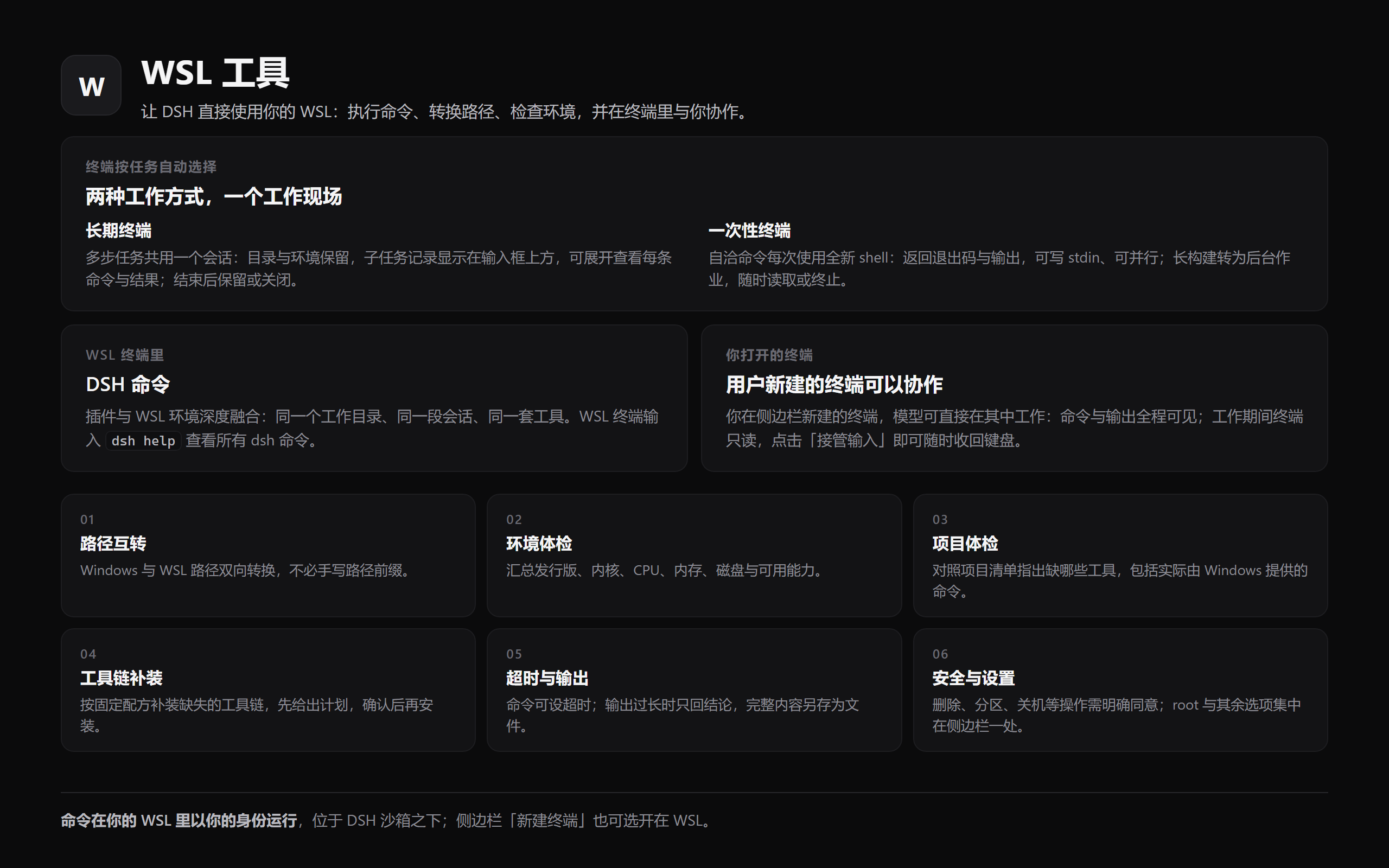
The plugin registers ten tools. Each has a switch of its own except wsl-term, and
wsl-doctor and wsl-bootstrap are OFF by default:
| Tool | Purpose |
|---|---|
wsl |
Run a Linux command and return stdout/stderr with exit-code, timeout and truncation markers. |
wsl-path |
Convert between Windows and WSL paths via wslpath. |
wsl-env |
Summarize the WSL environment (distros, kernel, cpu, mem, disk). |
wsl-doctor |
Compare what a project needs with what the distribution has — including commands that are really Windows binaries. Read-only. Off by default (turn it on when diagnosing a project). |
wsl-bootstrap |
Install the missing toolchain inside the distribution, from a fixed recipe list, plan first. |
wsl-term |
Work in the session's terminal: one shell per piece of work, with a record of each above the composer. |
wsl-read |
Read a text file inside the distribution, whole or by line range. Binary and non-UTF-8 files are refused. |
wsl-write |
Write a text file inside the distribution, atomically, creating parents. |
wsl-edit |
Replace one unique string in a text file inside the distribution. |
wsl-grep |
Search file contents inside the distribution with a regular expression, grouped by file with line numbers. |
wslRuns:
wsl.exe [-d <distro>] -e bash -lc "cd <workdir> && <command>"and returns stdout/stderr with [exit code: N] / [killed by signal: ...] /
[timed out after Nms; the command was killed] / [output truncated: ...] markers.
<distro> is the caller's distro argument, else DSH_WSL_DISTRO, else omitted
entirely so wsl.exe uses the system default distribution — that is what makes
the package portable to a machine that has no Ubuntu-22.04.
A script longer than the Windows command-line limit (32767 characters) is fed to
wsl.exe [-d <distro>] -e bash -ls on stdin instead, so long commands work
without any size ceiling.
Pass stdin to write text into the command (the default is /dev/null, so an
interactive command gets EOF), and runInBackground: true for work that outlives
the call: the command becomes a job in the host's registry, which the model then
reads with the job_output tool and stops with job_kill — no extra tool
is involved. Background jobs need @deepseek-ai/dsh-tool-jobs in the preset's
composition; without it the call fails with that instruction instead of silently
running in the foreground.
wsl-pathConverts a path in either direction: C:\Users\me\a.txt -> /mnt/c/Users/me/a.txt
or /home/me/a.txt -> \\wsl.localhost\Ubuntu-22.04\home\me\a.txt. Direction is
auto-detected from the path, or forced with direction: 'win' | 'linux'.
wsl-envReturns the distribution list, the probed distro, kernel and architecture, CPU count, memory and disk usage, and what the machine can actually do:
distro: Ubuntu-22.04 (system default)
Linux 6.6.87.2-microsoft-standard-WSL2 x86_64
nproc: 24
Ubuntu 22.04.5 LTS · WSL2 · cgroup v2
systemd: yes · docker: not installed
GPU: /dev/dxg present (GPU passthrough enabled) · nvidia-smi: GPU 0: NVIDIA GeForce RTX 5070 Laptop GPU
drives: /mnt/c /mnt/d
/etc/wsl.conf: [boot];systemd=true;[user];default=xiny; · .wslconfig: not set
launcher: WSL 版本: 2.6.3.0 · 内核版本: 6.6.87.2-1 · WSLg 版本: 1.0.71 · Windows: 10.0.26200.9457
so an agent can decide what is available before running commands: WSL1 vs WSL2,
whether systemd manages services, the cgroup version (matters for containers),
GPU passthrough, docker (installed / cli-only / daemon version), which drives are
mounted, and how /etc/wsl.conf and the Windows-side .wslconfig are
configured. Takes an optional distro.
Every fact is optional and degrades honestly: a probe that cannot run leaves its
line out, an empty value is stated (docker: not installed, .wslconfig: not set), a failed probe is reported in the summary instead of being dropped, and an
unknown distro is an error rather than a partial answer. Note that wsl --version
is localized, so its labels are passed through as the launcher printed them
rather than parsed by name; the Direct3D/MSRDC/DXCore versions are omitted.
wsl-doctorAnswers the question a project's own README cannot: will the tooling this
checkout expects actually work inside this distribution? It reads the manifests
in the directory (package.json and lockfiles, .nvmrc, tsconfig.json,
Cargo.toml, go.mod, pyproject.toml, requirements.txt, Dockerfile,
docker-compose.yml, Makefile, CMakeLists.txt) and reports, per need, whether
it resolves on the Linux side:
distro: Ubuntu-22.04 (system default)
workspace: /mnt/d/proj (Windows drive mount /mnt/d — builds, installs and git are much slower here; …)
project: package.json, pnpm-lock.yaml

needs (from the project): node, npm, pnpm
  MISSING node — not on PATH in this distribution (from package.json)
  WINDOWS npm — resolves to /mnt/c/Program Files/nodejs/npm, a Windows binary reached through interop; …
  MISSING pnpm — not on PATH in this distribution (from pnpm-lock.yaml)

usable on the Linux side: python3 3.10.12, gcc 11.4.0, make 4.3, git 2.34.1, curl, rsync, tar, sudo
Windows binaries on the Linux PATH (interop): npm -> /mnt/c/Program Files/nodejs/npm, npx -> …
privileges: uid=1000 (xiny) · sudo: requires a password (unusable from a tool call) · root: switched off

next: node, npm are not usable — wsl-bootstrap({ recipes: ["node", "pnpm"] }) installs them …
That WINDOWS row is the reason the tool exists. WSL appends the Windows PATH
to the Linux one, so npm resolves on a machine whose distribution has no node
at all — measured here as /mnt/c/Program Files/nodejs/npm — and the errors a
model gets from running it against a Linux directory name neither cause. Overall
it is read-only, cheap, and worth running before blaming a failed command on the
command. Takes an optional workspace (a Linux directory; default: the configured
directory, else the session workspace) and distro.
wsl-bootstrapInstalls the missing toolchain inside the distribution, from a fixed recipe
list and nothing else: node (Node.js LTS into /usr/local, checksum-verified,
with corepack), pnpm, python (python3 + pip + venv), build
(build-essential), tools (jq, rsync, curl, git, ca-certificates). Dependencies
are added when they are needed: pnpm brings node, and node brings tools
when curl is missing.
It is off by default, and its dryRun defaults to true, so the first call
prints the plan and changes nothing:
dry run — nothing has been installed (distro Ubuntu-22.04)

already present:
  python — python3, pip and venv (apt)

to install (python, tools):
  [tools] apt packages: ca-certificates curl git jq rsync — runs as root inside the distribution
      export DEBIAN_FRONTEND=noninteractive; apt-get update && apt-get install -y ca-certificates curl git jq rsync

apt would report:
  Inst libjq1 (1.6-2.1ubuntu3.2 Ubuntu:22.04/jammy-updates [amd64])
  …

run it for real with `dryRun: false`.
Recipes that are already satisfied are skipped, and the plan includes what apt itself would do, so you can see the exact changes before anything is installed. Installation runs as root; a failing step stops the run.
wsl-termEvery other tool here starts a fresh shell per call. That is what makes them
safe to run in parallel, and it stays the default. wsl-term is the other way
round: one shell for one piece of work. It is for the jobs where the shell's own
state is the point — a build worth watching, an interactive program, a directory or
an environment that has to survive between steps.
wsl-term works in that terminal:
wsl-term({ action: "list" })                                  → which terminals are open
wsl-term({ action: "read" })                                  → the current screen
wsl-term({ action: "run", command: "make sta", subtask: "跑通 sta 流程" })
                                                               → runs it there, returns output and exit code
wsl-term({ action: "input", data: "ls", submit: true })        → raw keystrokes
wsl-term({ action: "interrupt" })                              → Ctrl-C
wsl-term({ action: "close", id: "…" })                         → ends a terminal you name
wsl-term({ action: "subtask-done", subtask: "跑通 sta 流程", result: "三条连跑全通过" })
                                                               → writes the result and decides the shell
Which shell it drives. Two rules, and the difference is the subtask argument:
run with a subtask is tracked work. It uses a private WSL shell this tool opens:
one shell per piece of work, every command recorded above the composer, and subtask-done
closes it (or leaves it idle). It is not a sidebar tab and only the tool types into it —
tracking bookkeeping never touches a terminal you opened.subtask is collaborative. run, read, input and interrupt
use the newest terminal you have open, so you watch the command happen and can read the
screen afterwards. While the tool works, that terminal is read-only; press 接管输入 to type
again. The tool never closes a terminal you opened.id always wins, whichever kind of terminal it is.If you have no terminal open, an ad-hoc command opens a private shell instead — a normal shell
for that session, but not a sidebar tab. The bridge makes the collaborative case possible
on DSH 0.2.1: the host no longer lets a plugin attach to a browser terminal directly, but this
plugin's own browser half runs in the page, where that attachment is allowed, so the host
queues attach/write/detach commands for it over two same-origin routes (no extra port and
no extra service). Older DSH builds (≤0.2.0) are not supported by the terminal tool any more;
the other tools still run there.
Naming a subtask on run opens a record for that piece of work and logs every command
it ran with its exit code. The dock above the composer shows how many subtasks this
conversation ran (and how many are running); one click on 展开 lists them — running ones
first, then finished ones with their result — and clicking a row opens its detail: the
terminal's full description, the result, and the commands. subtask-done writes the
result and decides the shell: keepTerminal: true (the default) leaves it idle for a
follow-up step, false closes a shell the tool opened. A terminal you opened is never
closed this way, and close is the other way to end one (it also refuses terminals the
tool did not open). The dock also lists the terminals you opened, labelled
用户建立的终端: one shows 使用中 while it is open and flips to 已结束 only once you close
it yourself. The records live in memory for the current DSH run — they describe this
conversation's work, and a restart clears them along with the terminals.
Terminals belong to the current DSH run — restarting DSH ends them — and the app can re-create a browser terminal under a new id, so an id from an earlier answer may no longer exist. The tool then falls back to one of its own shells and says which one it used.
Five things worth knowing:
read returns the screen. Anything that has scrolled away is gone, and
full-screen programs (vim, htop) come back as their raw screen.run needs a POSIX-style shell (sh, bash, zsh). On cmd.exe or
PowerShell, use input.dsh reply still streaming is one such command — run waits
out its deadline and then declines instead of typing, so nothing is sent and the running
command is not disturbed. Wait for it, type the command yourself in that terminal, or use a
private shell for that work.Commands run as you, exactly as if you had typed them — and in a collaborative call you
see each one as a short, readable line (__dsh_term_run 'make syn'), because the first command
in that terminal defines the one-line helper there. What comes back is the output between its
two markers, plus the exit code. There is no switch for this tool: it is always available;
a tracked subtask runs in a private shell, a collaborative command runs in the terminal you
have open, and a named id decides explicitly. A destructive command still stops at the guard
unless the caller says it is intended.
Reach for it only when the work needs one shell across several steps — a long build worth
watching go by, an interactive program, a directory or environment that has to persist. For
everything self-contained the plain wsl tool is the better deal: a fresh shell per call runs
in parallel, needs no terminal at all, and never takes the keyboard away from you.
wsl-read, wsl-write, wsl-editA distribution's files are reachable from Windows through \\wsl.localhost\<distro>\..., but
that share cannot be written through the platform's file tools: they publish a write by
renaming a temporary file into place, and that rename fails on the 9p share (ENOTSUP), while
the DACL copy they do first fails with GetFileSecurityW EIO. The path looks like a normal
Windows path and is not one, so these three tools run the same operations inside the
distribution instead — through the same launcher wsl uses, so there is no second transport
and no SMB, and they work on /mnt/c/... too.
wsl-read({ path: '~/project/src/main.js' })                    → the whole file
wsl-read({ path: '/var/log/syslog', offset: 200, limit: 40 })  → lines 200-239, and says so
wsl-write({ path: '~/notes/today.md', content: '…' })          → creates parents, replaces the file
wsl-edit({ path: '~/app/config.json', oldString: '"port": 80', newString: '"port": 8080' })
                                                               → exactly one match, or it refuses
Ten things worth knowing:
read and write answer in the host's own words. wsl-read returns the
<path>/<type>/<content> envelope with numbered lines and the same (End of file - total N lines) and (Showing lines a-b of N. Use offset=c to continue.) footers as the platform's
own read; wsl-write returns its Created file / Updated file acknowledgement. A model
that has learned one format reads both without a second instruction. The parameters keep
this plugin's camelCase (path, oldString) rather than the host's file_path/old_string —
only the answer follows the host's shape. wsl-edit keeps its own one-line summary,
path [2 replacements, 1.2 KB → 1.2 KB], because for a replacement the count and the size
change are the two facts worth reporting.python, typescript, …), and stored with the result, so a client that renders
it can redraw a replayed read without touching the distribution again. Whether a card is drawn
is the client's decision: the bundled Web UI currently shows the plain numbered result, because
its tool cards are client plugins keyed by their own tool names. What the model reads is the
envelope above either way.wsl tool
(base64, od, cp), which is also what to use for anything these three do not cover.wsl-read returns up to
1 MiB per call and a window is line-based, so a single line over that budget (minified JSON, a
bundled script) cannot be paged: the call says so and points at the wsl tool (head -c,
fold, cut) instead of answering Showing lines 1-0 for the rest of the session.stat -c %a where chmod --reference is unavailable, and failing loudly rather than quietly tightening a 755 script),
and a write through a symlink changes the link's target instead of replacing the link. Only a
regular file is replaced: a FIFO, socket or device node is refused (is not a regular file)
instead of being turned into a text file by the rename.edit is not a regexp. oldString must appear exactly once (or replaceAll: true
must be given), and $&, $1 and backticks in newString are literal text. An edit reads
the file, checks that the bytes it holds match the size the shell reported, and only then
writes — a change made by someone else between that read and the write itself is not detected,
and the edit's content wins (last writer wins), so edit a file you are not racing.wsl can already write any file you can, so
these add no new power; what they add is that the model does not have to compose a shell
command, and that the result is structured instead of screen-scraped.presentCall/presentResult and
stored with the result, so a client that reads that metadata can redraw a replayed call without
the file. A UI that only draws cards for its own built-in tools — the bundled Web UI included —
shows the plain result instead. The model still reads the one-line summary, not the diff.asRoot is how a file you cannot open gets opened. A file the user has no read
permission for is refused with permission denied, not reported as an empty file; the same
call with asRoot: true — and 管理员模式 on in the panel — runs as root and reads it. An edit
as root copies the old owner onto the new file, so editing someone else's file does not
silently hand it to root.wsl-read, wsl-write, wsl-edit and
wsl-grep can each be turned off in the plugin panel like the older tools; the switch is live
and takes the tool away without a restart.wsl-grepSearches file contents inside the distribution and returns the matching lines grouped by file,
with line numbers — the same arguments and the same result shape as the platform's own grep
tool, pointed at a distribution instead of at Windows:
wsl-grep({ pattern: 'TODO', path: '~/project' })
wsl-grep({ pattern: 'listen\\(', path: '/etc/nginx', include: '*.conf' })
pattern is a regular expression, path is a Linux path (default: the session workspace), and
include is one positive glob of file NAMES (*.ts, *.{js,jsx}) — not a list, and negation
is not supported, because both engines take simple filters and a list would silently search the
wrong files. {a,b} alternation is the one list-like form accepted: it is expanded into one
simple filter per alternative, which is what the GNU grep fallback can actually run (it has no
brace shorthand, so passing the braces through would match no file at all). A glob with a path
separator (sub/*.ts, **/*.ts) is refused with a way forward: rg --glob reads it as a path
glob and grep --include looks at the base name only, so the same call would search different
files — narrow path instead. Results are capped at 250 matches with 2000 bytes per previewed
line; a capped result says how many were seen, and wsl-read on a matched file gives the
surrounding context. A result bigger than the 1 MiB body window is cut and reported as capped
rather than failing, and a tree where some files could not be read says the result is partial
instead of presenting what it found as complete. A single matching LINE longer than that window
is refused by name (one minified line can be a megabyte), because answering "no matches" there
would hide a real match — search that file with wsl (grep -o, rg -o) instead.
The engine is whichever the distribution has: rg when it is installed (it honours
.gitignore, skips binaries, and reports JSON), and GNU grep -E otherwise, which is what
Ubuntu images ship. That difference is visible in two places, and worth knowing before you
write a pattern:
\d is the one shared escape GNU grep -E reads differently — as a literal d
— so the fallback translates it to [0-9] (and \D to [^0-9]) before searching; \w,
\s and \b are GNU extensions that mean the same in both engines. Anything only ripgrep
understands (lookaround, backreferences) makes grep exit with an error, which is reported
as a search failure rather than as "no matches".rg skips what .gitignore excludes and grep does not, so the same
search can return different sets of files on two machines. Install ripgrep
(wsl-bootstrap will do it) when that difference matters — it is also what a distribution
whose grep is busybox needs, because busybox grep has neither -Z nor --include; the
tool probes for them and says so instead of failing with "invalid option".A path containing a colon is why the fallback asks grep for -Z: the file name and the line
number are separated by a NUL byte, so a:b.ts stays one path instead of becoming a on line
b.ts. Binary files are never returned — grep -I and rg's own default both skip them.
asRoot)WSL's root does not need a password, so a single call can run as root (that is
wsl -u root). It is gated by a panel switch (「管理员模式(root)」, off by default):
wsl({ command: 'apt-get install -y jq', description: 'install jq', asRoot: true })The switch is the authorisation, not the parameter: with it off, asRoot: true is
refused and told which switch to turn on, never quietly downgraded to your user
account. Every privileged result is marked ([ran as root: wsl -u root]), and the
destructive-command guard still applies on top: rm -rf needs allowDangerous: true
whether or not the call runs as root.
The four file tools take the same parameter and honour the same switch — asRoot on
wsl-read, wsl-write, wsl-edit and wsl-grep — so a file or a directory the user
cannot open is one argument away instead of one wsl call away:
wsl-read({ path: '/etc/ssl/private/site.key', asRoot: true })
wsl-grep({ pattern: 'PasswordAuthentication', path: '/etc/ssh', asRoot: true })The published npm package is dsh-wsl-tool, not dsh-wsl: the registry
refuses dsh-wsl as too similar to the existing package is-wsl, and no token
or setting overrides that. The repository, the plugin and the market listing keep
the dsh-wsl name. The bundle patch points at its own entry by relative path, so
the folder under node_modules is free to differ — what has to match is the
specifier you install under.
Add the package to your DSH profile (profiles/<profile>/package.json):
{ "dependencies": { "dsh-wsl-tool": "file:<path-to-this-repo>" } }or run dsh plugin add --profile <profile> dsh-wsl-tool to install from npm,
or dsh plugin add --profile <profile> file:<path-to-this-repo> from a
checkout (which names the dependency after this package).
Nothing else. The package's cordis.patch.yml inserts the tool-wsl row
itself when the bundle is loaded, process-wide, so the tools are
available to every agent preset without further wiring. There is no mode to
pick and nothing to add to a preset — the left-sidebar WSL panel arrives the
same way.
Do not also list tool-wsl in a preset: DSH registers tools by name, and
the second registration fails with
tool "wsl" is already registered in this scope. One row, from the bundle.
Restart DSH.
The settings panel is the one optional piece: its form needs
@deepseek-ai/schemastery, which most profiles already have (any plugin that
depends on it brings it in — add it to the profile's dependencies if yours does
not). Without it, the tools and the panel's 「WSL 终端启动路径」 field work
as usual and only the switches are absent — the panel says so instead of waiting
forever.
The manifest declares the DSH it needs — "engines": { "dsh": ">=0.2.1-rc.2" }.
Two readers act on that declaration: the plugin market shows it as a requirement on
the entry and warns before an install onto an older host, and the host's own
install gate refuses a release whose declared range excludes the running DSH.
Only 0.2.1 and newer is supported: the pre-bridge terminal generation (DSH ≤0.2.0,
where a plugin could drive a browser terminal through terminalController.follow /
write) was removed, so the terminal tool reports that it cannot drive a terminal
on those hosts instead of reaching into the user's shell. The other five tools are
plain subprocess calls and still run there, but the package itself does not claim
that support.
Verified against DSH 0.2.2-rc.1 (and 0.2.1-rc.5 before it): the tool schemas pass DSH's own
assertSupportedJsonSchema, the subprocess seam is exercised against the real
provider rather than a shim, and the background-job path is checked against the
real job registry, including the session-id ownership fence (0.2.1 hands out
kind-<16 hex> job ids, so the check reads the registry's own id instead of
assuming a shape). test/real-seam.mjs is that check and it re-verifies a host in
about a minute, so point it at any DSH installation after an upgrade:
DSH_SUBPROCESS_LOCAL=/path/to/dsh/node_modules npm run test:realA background job is owned by the calling session (owner: exec.agent.id), which
is what lets the model read it back with job_output/job_kill and what keeps
other sessions out; an execution with no agent starts the job unowned.
The terminal tool has two supported drives: the browser bridge (0.2.1: the
plugin's browser half joins a sidebar terminal the user opened, while the host
queues attach/write/detach over /dsh-wsl-tool/term-bridge/poll + /events
and the page answers with results, screen snapshots and output) and a private PTY
through subprocess.spawnTerminal for the tool's own work (same actions, same
records above the composer, a shell private to the tool, and a terminal you opened
left untouched). Both are checked by npm test.
The plugin ships a small client half: a WSL entry in the desktop app's left sidebar, whose panel carries one switch per feature, each with a one-line explanation.
| Switch | What it controls |
|---|---|
wsl 命令执行 |
registers the wsl tool |
wsl-path 路径转换 |
registers the wsl-path tool |
wsl-env 能力体检 |
registers the wsl-env tool |
wsl-doctor 项目体检 |
registers wsl-doctor. Off by default: the diagnostics tool is opt-in |
wsl-bootstrap 安装工具链 |
registers wsl-bootstrap, which may install into the distribution. Off by default, and its dryRun still has to be turned off per call |
| 后台任务 | whether wsl accepts runInBackground |
| 自动转换路径 | the default for the per-call translatePaths |
| 默认跟随会话工作区 | start in the session's directory instead of ~ when workdir is omitted. On by default: with it off, every relative path an agent writes lands in the Linux home, which is invisible from Explorer and grows the WSL disk image |
| Linux 默认工作目录 | a fixed Linux directory (for example /mnt/d/project) used when workdir is omitted. Filling it in wins over the switch above; clearing it falls back to DSH_WSL_WORKDIR when that is set, and otherwise to following the session |
| WSL 终端启动路径 | the optional sidebar terminal's startup directory — --cd <dir> on the terminal-controller row of your profile patch (see Optional: a WSL terminal in the sidebar). Empty clears it, and the panel reads the current value from the same file |
| 终端历史行数 | how many lines of output that terminal keeps (scrollback on the same row). The platform default is 1000; 0 keeps none and an empty box restores the default. Both fields take effect at the next DSH start |
| 危险命令守卫 | whether a destructive command needs an explicit allowDangerous |
| 管理员模式(root) | whether wsl and the four file tools accept asRoot: true (wsl -u root). WSL's root needs no password, so this switch is the authorisation itself; off by default |
| 显示输入框上方子任务栏 | whether the browser half renders the subtask row above the composer (this conversation's WSL subtasks, and the terminals you opened). On by default. Off means nothing is rendered and no height is reserved — not even the faint 「暂无子任务」 line — which keeps another plugin's composer-anchored UI where it belongs. It changes the display only: WSL tools, terminals and the subtask records keep working |
The panel edits the plugin's own configuration, so the same values can be written
by hand (- id: tool-wsl with config: in a profile patch) or by environment
variables. lib/config.js owns the precedence — plugin configuration, then the
environment, then the built-in defaults — and a switch left at its default lets
the layer below decide. That is why DSH_WSL_WORKDIR keeps working for someone
who never opened the panel, including when the follow-session switch is still at
its ON default: an environment variable is an explicit deployment decision, so it
speaks louder than a switch default.
「WSL 终端启动路径」 is the one exception: the sidebar terminal belongs to another
plugin, so that field edits your profile's patch layer instead — the file is backed
up before every write, only the terminal row's args line is rewritten, and the
result is read back and undone if it is not exactly that one line.
A change takes effect immediately, tool switches included: registering a tool
returns its own disposer, so every settings update is diffed into the tool registry
and a switch flips the tool on or off in place — no restart, which matters because
the panel is where these get flipped. The one exception is 「WSL 终端启动路径」: it
edits another plugin's startup arguments in your profile patch, which that plugin
reads at boot, so that field applies after a restart. Distro and timeout are values
rather than features — set them in the patch or with DSH_WSL_DISTRO /
DSH_WSL_TIMEOUT_MS, and the panel shows what is currently in effect.
The settings surface needs @deepseek-ai/schemastery, which the plugin declares as
an optional peer dependency: without it the tools still run on their defaults
and only the panel is missing.
At the bottom of the panel there is one feedback entry, next to it a short
submission guide, and — see Feedback — a 「复制插件信息」 button. The
button asks the host half on /dsh-wsl-tool/info for this plugin's own facts (name,
version and repository read from its manifest, Node, platform), the DSH build it is
running inside, and the WSL facts wsl-env reports (default distribution, kernel,
capability flags) — then copies the result together with the effective
configuration. Nothing here is a string a release has to remember to edit, and a
probe that fails says so instead of inventing a value.
The desktop app's sidebar terminal can open WSL instead of a Windows shell. It is
opt-in — installing this plugin does not change which shell your terminals
open — and the patch that enables it ships in the package as
extras/terminal-wsl.patch.yml.
To turn it on, copy that entry into your profile's own patch layer
($DSH_HOME/profiles/<profile>/cordis.patch.yml); a CLI launch can instead pass
--patch <path to the installed file>. It applies at the next app start.
The panel can set the startup directory for you: 「WSL 终端启动路径」 (beside 「默认
Linux 工作目录」) reads the current value out of that file and writes --cd <dir> onto
the row's args line — backing the patch up first, changing only that one line, and
checking what landed before it is kept. Clearing the field removes the flag, which puts
the terminal back on the session workspace (the Windows directory it is started from,
translated to /mnt/…); ~ pins it to the Linux home. It takes effect at the next app
start too.
Beside it, 「终端历史行数」 sets scrollback on the same row: how many lines of output
the terminal keeps, so long builds stay readable instead of scrolling away (the platform
default is 1000). 0 keeps none, and an empty box goes back to the default. A longer
history costs memory in both the app and the Host, which is why it is a number you
choose rather than a fixed large value. Same write rules and the same next-start rule.
- id: terminal-controller
  config:
    shell:
      path: 'C:\Windows\System32\wsl.exe'
      name: WSL
args: ['-e', 'bash', '-l']terminal-controller
row: it lists the configured shell first and keeps the shells it discovers
(powershell, cmd, bash, …) selectable. The picker is core UI, so overriding
that row is the supported way in — which is also why this cannot be a plain
plugin entry.wsl.exe follows the system default — the same
rule the tools use when DSH_WSL_DISTRO is unset. Add -d <name> to args to
pin one.wsl.exe translates, so the
terminal opens in /mnt/<drive>/… exactly like the Windows shells do; and it is
a real PTY (xterm-256color), so full-screen programs work.shellCandidates list).dsh command inside WSLThe desktop app can be reached from a WSL prompt:
dsh -- "帮我把 nemu 的编译错误修掉"The text goes into the DSH conversation the panel designates — the client shows the
same message and the same reply, live — and the terminal streams the turn back: a
thinking marker with its latency, the reasoning as the model produces it, the answer,
then a one-line summary (elapsed, steps, tokens). Ctrl+C stops waiting only; the
turn keeps running in the client.
The terminal is a second surface for that conversation: the text is forwarded verbatim, and the client streams the reply back — a thinking timer, but no reasoning text. When already answering, the line is steered into the live turn instead of queueing, so the same agent reacts immediately and nothing is dropped.
| command | does |
|---|---|
dsh -- "问题" |
send to the current session and stream the reply (-- marks a message; unquoted words after it work too) |
dsh <id> -- "问题" |
send to that session |
dsh list |
sessions, newest first; * marks the current one |
dsh new <id> |
create a session (it appears in the client) and switch to it |
dsh use <id> |
switch the current session |
dsh rm <id> |
archive a session — the client's own reversible remove |
dsh status |
current session and channel state |
A message needs the -- marker; a bare first word is read as a command, so a typo such as dsh statsu exits with 不存在此命令 (no such command) and the usage hint instead of being sent to the model. That is why the marker exists: the shell removes quotes before the shim runs, so "was it quoted" cannot be answered — -- can.
Messages typed in the terminal arrive in the conversation marked 【WSL 终端】, so a terminal turn is never mistaken for something typed in the client, and the ⏱ thinking clock keeps ticking while the model works instead of freezing at its first number — it reads in minutes and seconds (0分05秒, then 1分23秒). The shim resolves its transport once per channel start (it used to probe the blocked path on every command), and from the moment the Host accepts the request it shows a live … 已送达,等待模型 Ns clock — so the wait is visible instead of looking frozen. That wait is the model, not the channel: measured on the same machine the Host acknowledges in ~2–20 ms and the shim adds ~0.1 s, while one turn took ~1.8 s on a small conversation and ~4.8 s on the panel landing that carried ~182 k input tokens. When the turn finishes, the terminal prints the signed-in DeepSeek account balance (recharge and bonus wallets, formatted like the account panel). A signed-out or unavailable account is reported as such instead of ¥0.00, and the wallet is fetched in the background while the model works, so the line costs the reply nothing. If terminal chat feels slow, give it a dedicated lean conversation (dsh new terminal then dsh use terminal) instead of a large landing session, or compact that session. The subcommands that never touch the model are cheap: dsh use edits one local file (~15 ms, no channel access), dsh new/dsh rm are one round trip, and dsh list serves cached rows while refreshing them in the background (the first call after a channel start rebuilds them). The ~0.1 s floor on any command that talks to the Host is curl.exe's process start: WSL's own curl cannot reach the Windows host adapter here (the inbound traffic is dropped), so the shim uses the Windows client on purpose.
A dsh -- "…" aimed at the very conversation whose tool call is running it cannot be sent: the prompt would join that live turn, whose end waits for the command to return — a self-lock. The channel refuses it and says why instead of hanging until the deadline; wait for the turn, or type it in the client. The shim passes its caller session (x-dsh-wsl-caller) only when the plugin's terminal tool started that shell, so a person typing at a terminal is never affected.
While a turn streams, the terminal has no prompt — but it is still yours: press Enter once and the answer is held back (the live clock stops painting, the input line is clean), type the message, press Enter again and it is delivered to the same conversation as a steer, after which the answer resumes (已插入当前对话,继续输出). A second empty Enter cancels. Set DSH_WSL_NO_STEER=1 to turn that reader off (scripts and pipes never get it; only a real terminal does).
A terminal prompt is nothing but the message you typed — the screen never appears in the transcript. What you were looking at still reaches the model: the Host asks the page's terminal bridge which sidebar terminal is running that command, captures the newest hundred lines of its screen (read-only), and hands them to the model as hidden runtime context on its next request (the same systemPrompt context mechanism the working-directory and memory plugins use; it is consumed once and never stored in the conversation). Need more than that? The model can read the same terminal with this plugin's own terminal tool (wsl-term read, read-only). It is best effort and bounded — no open DSH window, no matching terminal, or a slow attach simply means no context, and the turn is never delayed by more than ~3 s. A prompt that came from a tool call gets no context: nobody typed it at a screen.
Set it up once in the panel: turn on 启用 dsh 命令 and click 安装 dsh 命令 — the default landing is the most recently active conversation — the one you are looking at (pick another from the list, or create one right there, if you want a different landing); the shim lands in ~/.local/bin/dsh. After that the plugin keeps it healthy by itself: on every start (and settings change) it reads the installed shim and, when it is missing or older than the running version, installs it again without asking — the check costs one cat, it never touches the distro while the channel is off or while a turn is streaming, and autoInstallShim: false in the plugin config turns it off. The plugin binds a small HTTP
server to the address WSL uses as its default gateway, on a random port, and demands
the token it generated at mount on every request. The desktop has to be running, and
the designated conversation is ordinary: the channel admits a normal user message (prefixed
with 「【WSL 终端】」), so
the same reply appears in the client.
wsl parameters| Param | Required | Type | Notes |
|---|---|---|---|
command |
yes | string | Linux command to execute |
description |
yes | string | short UI label |
workdir |
no | string | Linux path (/home/me, ~/src) or Windows path, default ~ |
timeoutMs |
no | number | timeout in milliseconds, default 600000 (10 min); the process is killed and the result marked as timed out |
distro |
no | string | WSL distribution; defaults to the system default distribution |
env |
no | object | extra environment variables to export (keys must be valid shell names) |
stdin |
no | string | text written to the command stdin (UTF-8) before it runs |
runInBackground |
no | boolean | run as a job and return its id immediately; read with job_output, stop with job_kill |
allowDangerous |
no | boolean | set true to run destructive commands |
asRoot |
no | boolean | run this call as root (wsl -u root); refused unless the panel's 管理员模式 switch is on |
translatePaths |
no | boolean | default true; set false to pass command through verbatim |
The panel's switches and value fields (tools.wsl, tools.path, tools.env,
tools.doctor, tools.bootstrap, tools.read, tools.write, tools.edit, tools.grep,
backgroundJobs, translatePaths, startInSessionWorkspace, workdir, dangerGuard,
allowRoot, distro, timeoutMs) live in the profile patch and take effect as described on
each row.
Two of them have no environment variable on purpose: dangerGuard (its OFF
position is the footgun) and allowRoot (WSL's root needs no password, so the
switch IS the authorisation). The environment layer:
| Environment variable | Default | Effect |
|---|---|---|
| DSH_WSL_DISTRO | (system default) | Pin the distribution for every call. |
| DSH_WSL_TIMEOUT_MS | 600000 | Default deadline for a model-issued command; timeoutMs overrides it per call. |
| DSH_WSL_MAX_TIMEOUT_MS | 86400000 | Ceiling for a per-call timeoutMs, mirroring the platform shell tools' maxTimeoutMs. The default deadline obeys it too. |
| DSH_WSL_WORKDIR | (unset: follow the switch) | Where a call starts without a workdir: home (the Linux ~), session (the session working directory, i.e. /mnt/<drive>/... for a Windows checkout), or any explicit path (a Windows path is translated like any other workdir). An explicit value wins over the follow-session switch's ON default; with the variable unset the switch decides. |
| DSH_WSL_MAX_OUTPUT_BYTES | 65536 | Per-stream in-memory window (1 KiB – 8 MiB). Also raises the spill ceiling when set above 64 MiB. |
An unparsable or out-of-range value falls back to the default: one bad variable must not take every tool down. Values are read once per mount, so a change takes effect on restart.
Each call runs in a fresh shell — no cwd/variables/functions persist between calls.
stdin is /dev/null unless you pass stdin. An interactive command (read,
cat, a sudo password prompt without -S) otherwise gets EOF immediately and
cannot wait for input; nothing in this plugin can prompt. A password passed via
stdin is recorded in the session transcript.
With nothing configured a call starts in the session's working directory (the
follow-session switch is on by default). Set DSH_WSL_WORKDIR=home to start in
~ instead, DSH_WSL_WORKDIR=session to say so explicitly, or an explicit path
for a fixed directory (see Configuration).
The distro is the caller's distro, else DSH_WSL_DISTRO, else the system
default; there is no hardcoded fallback name.
An unknown distro is reported as a clear error (distribution "X" is not registered) instead of a raw -1 exit code, and any other launcher failure (Wsl/Service/WSL_E_*) is surfaced with its code rather than passed off as the command's own exit status.
A background job outlives the call. runInBackground: true returns a job id (wsl-N) immediately and registers the work with the host's job registry, so job_output reads it (with the same markers as a foreground call) and job_kill stops it. The 10-minute default deadline does not apply in the background; an explicit timeoutMs still does. A non-zero exit is reported as completed with the exit code in the detail, exactly like the foreground rendering.
Windows paths in command, workdir and the configured/DSH_WSL_WORKDIR default directory are translated to /mnt/... automatically:
C:\Users\me\a.txt -> /mnt/c/Users/me/a.txt, and paths containing spaces work in either slash style and with several paths on one line: C:\Program Files\Git, C:/Program Files/Git, C:\Program Files (x86)\Steam and cp C:\a.txt D:\b.txt (both paths are translated) all behave;\\wsl.localhost\<distro>\home\x and \\wsl$\<distro>\home\x -> /home/x. A path that names a DIFFERENT distribution is left untouched, because /home/x would be this distribution's directory, not that one's;/ (a:/b), a drive letter inside another expression (sed "s/C:\x/y/"), and a drive-like segment inside a URL;translatePaths: false when the path belongs to a Windows program launched through interop — WSL does not translate /mnt/c/... back, so notepad.exe C:\file.txt needs its original spelling. This affects command only; workdir is always translated.A ~ in workdir or in a wsl-path argument is expanded by the shell (~/my dir works). Any other path is single-quoted, so $VAR inside a path is not expanded.
Output is capped at 64 KiB per stream. The tail is kept and the marker names the spill file holding the complete stream, so nothing is unrecoverable:
[stdout truncated: at most the last 65536 of 1288895 bytes were kept; full stream: C:\...\stdout.log]Host shell facts are forwarded into the distro, because WSL does not pass Windows environment variables across on its own: DSH_SESSION_ID, DSH_SHELL and DSH_HOME (translated to its /mnt/... view) are exported ahead of the command, so a script sees the same session facts the platform's own shell tools inject. They are resolved per call from the host's shellEnv registry — the same source the other shell tools read — because they are session-scoped, not host constants; reading the host's own process.env finds nothing and silently forwards nothing. DSH_WEB_URL is deliberately not forwarded — it is a 127.0.0.1 URL for the Windows-side server, and in the default NAT networking mode WSL cannot reach Windows loopback (measured: HTTP 000 on both 127.0.0.1 and the host IP, which the server does not bind either). An explicit env entry always overrides a forwarded one.
timeoutMs defaults to 10 minutes so a wedged wsl.exe cannot hang the call forever; pass a larger value for genuinely long work, up to the DSH_WSL_MAX_TIMEOUT_MS ceiling (24 h by default) — a slip of the keyboard cannot mean "never time out". The value reported back is always the deadline actually armed. The timeout also kills the Linux-side process (the provider uses taskkill /T /F on Windows).
wsl-env also states where the session's own files live, and whether that is a Windows drive mount:
workspace: /mnt/d/DSHworkarea (Windows drive mount /mnt/d — builds, installs and git are much slower here; prefer a path under /home when it matters)It is worth believing. Measured on the author's machine: a 128 MB sequential write
ran at ~2.1 GB/s on ext4 against ~247 MB/s on /mnt/d, and creating 400 small
files took under 10 ms against 0.72 s (a later re-run: 885 vs 116 MB/s, and 13 ms
against 745 ms — the ratios hold at roughly 8× and 50×).
It is not only slower. /mnt/<drive> is a 9p (drvfs) mount, so it keeps Windows
filesystem semantics: chmod/chown do not stick (a chmod 600 reads back as
777), names are case-insensitive (so a case-sensitive import only fails on Linux
CI), symlinks and the executable bit are synthetic, and inotify does not work at
all — a watcher inside the distro receives no events for writes from either side
(measured with an inotify probe on /mnt/d: zero events for a Windows-side write
and for a Linux-side write, while the same probe on ext4 reported create, modify
and close-write). Dev servers, --watch modes and file-watching tests are
therefore blind on a Windows drive. Keep a project under /home when it matters:
it recovers real semantics, real watch events, and the speed above.
Destructive commands are refused unless the call passes allowDangerous: true:
rm -r, rm -rf, rm -r -f, rm -R --force, rm --recursive — because with stdin on /dev/null nothing prompts, so rm -r tree deletes silently. Each rm invocation is judged on its own command segment, so rm a -f; rm b -r cannot combine into a pass; an rm that is an ARGUMENT is a mention, not an invocation, so npm rm -r foo and ls rm -r are left alone;dd onto a block device, mkfs/mke2fs, partitioning/wiping tools (fdisk, parted, wipefs, mkswap, …), truncate aimed at a device, find … -delete, a git clean that would remove rather than report, power control (shutdown, reboot, systemctl reboot, …), redirection onto a block device (SATA/NVMe/virtio, md, dm-*, LVM mapper), and fork bombs;-c script, so sudo -u root mkfs.ext4 …, nice -n 19 reboot, timeout 5 reboot, xargs -I{} poweroff and sh -c "reboot" are judged on the command they really run. Device/power tools are matched at command position, so inspecting them is fine: man fdisk, grep -rn reboot /var/log/syslog and echo "the mkfs tool formats disks" all run — and a quoted mention is not an invocation (grep -rn "rm -rf" docs/, git commit -m "fix rm -r").Repeated launcher noise is stripped from stderr: the localhost-proxy warning and procps' screen size is bogus line.
Uses wsl.exe -e (--exec) so quoting and $VAR expansion behave like a normal shell; the default -- pass-through mangles single quotes and variables.
DSH's file sandbox is enforced at two points: the shell executors
(@deepseek-ai/dsh-bash-sandbox, -pwsh-sandbox, which wrap the exact argv
through ctx.sandbox) and the filesystem service (@deepseek-ai/dsh-fs-sandbox,
a policy fence on the two mutations). wsl is in neither. It spawns
wsl.exe through the host subprocess service, below that layer, so a
workspace-write policy does not confine it: it can write anywhere the Linux
side can, and anywhere under /mnt/<drive> that Windows permits.
That is not a gap this plugin can close by "joining" the sandbox. On Windows the
sandbox resolves to an ACL / restricted-token runner, while the file work happens
inside the Linux kernel: a write to /home/... touches the distro's own
filesystem image, which no Windows token constrains, and a write to /mnt/c/...
travels through the filesystem bridge, where ACL enforcement is not something to
rely on. Wrapping wsl.exe would confine the launcher, not the writes — and a
false sense of isolation is worse than a documented absence. (The platform's own
dsh-fs-sandbox is candid about its own limits too: "containment, not a security
boundary".)
What wsl does have is the destructive-command guard described above: a
deterministic refusal list, not a kernel boundary. Treat this tool as able to
touch anything your WSL installation can, and grant it accordingly.
The package declares a dsh.bundle manifest (see package.json), so once the
repository is listed it can be installed by name, e.g.
dsh plugin add dsh-wsl-tool, and storefronts will offer it for one-click
install. Installing from a local path (file:) as shown above keeps working
either way.
The plugin is a cordis module that injects the host-plane tools and
subprocess registries. index.js is only the entry point; the implementation
is split by concern:
| Module | Responsibility |
|---|---|
lib/config.js |
Defaults and environment overrides, resolved once per mount. |
lib/paths.js |
Shell quoting and Windows -> WSL path translation. |
lib/guard.js |
The destructive-command rules. |
lib/result.js |
Launcher-noise filters, truncation facts, marker rendering. |
lib/diagnostics.js |
The wsl-env capability probe, its parser and its lines. |
lib/runner.js |
The single spawn path plus launcher-error classification. |
lib/tools/*.js |
The tool definitions (schema, execute, presentCall). |
lib/doctor.js |
The project probe for wsl-doctor: one shell script, its parser, the report composer. |
lib/bootstrap.js |
The recipes, plan builder and outcome rendering for wsl-bootstrap. |
lib/terminal.js |
The text and selection work behind wsl-term: escape stripping, command markers, terminal picking. |
apply() resolves the configuration and registers the enabled tools, each with a
JSON-schema parameter definition, an output schema, a render hook and an
async execute.runner.runWsl): wsl.exe -d <distro> -e bash -lc "<exports; cd workdir && command>" through the host subprocess
service, with stdout/stderr capped at the configured window (spilling to disk
up to 64 MiB), a 3 s grace period after abort, and a deadline that defaults to
10 minutes. The plugin's own probes get a 30 s ceiling so a wedged WSL service
cannot hang a tool call forever.env entries are exported at the front of the command so they reach the
Linux side reliably; Windows drive paths are rewritten to /mnt/... before
the command is built.{ exitCode, signal, timedOut, timeoutMs, truncated, stdout, stderr, stdoutTotalBytes, stdoutDroppedBytes, stderrTotalBytes, stderrDroppedBytes, stdoutSpillPath, stderrSpillPath, jobId }; the render hook
formats it into text with the markers listed above. The truncation marker
quotes the window size rather than a count derived from the decoded text,
which can be off by a byte or two when the window starts inside a multi-byte
character.jobId is set only by a background start; every other path returns null, so
the declared shape holds for both.runner.launch / settle) because
a background job has to hand the registry a synchronous cancel/done pair
while a foreground call simply awaits the same settle. A cancelled job maps the
provider's early-termination rejection onto killed, since JobHooks.done
must never reject.;/&/|/newline
segments, judges each rm invocation on its own flags, and matches the
device/power tools at command position before dispatch.The plugin publishes no services of its own and is inserted process-wide by its own bundle patch, so it needs no realm — and no preset entry either.
The plugin is plain ESM with no build step or runtime dependencies outside the DSH host plane. Iterate by pointing a profile dependency at the checkout:
{ "dependencies": { "dsh-wsl-tool": "file:/path/to/dsh-wsl" } }then restart DSH and call the tools from any session: the bundle patch registers them process-wide, so no preset declares the row.
npm test          # 1584 host checks against real WSL (shim for ctx.subprocess) + 317 client checks
npm run test:real # the same checks against the REAL provider, plus the seam-fact suite
npm test substitutes only ctx.subprocess, with a shim that reproduces the
seam's bounded tail windows, spill files and termination ladder, and drives the
the tools against the real WSL installation. It covers path translation,
workdir quoting, the destructive guard, distro selection, exit-code/timeout/
truncation markers, wsl-path, wsl-env, argument validation, configuration
parsing, launcher-error classification, the returned shape against each declared
output.schema, and a token budget for the model-facing catalog.
npm run test:real runs that same suite against LocalSubprocessRuntime — the
shim must not drift from the real seam — and then test/real-seam.mjs, which
checks the facts a shim cannot vouch for (that readFrom(0).nextOffset is the
whole-stream total, that the spill file holds the complete stream, that a
timeout really kills the Linux side of wsl.exe) and validates every published
schema with DSH's own assertSupportedJsonSchema. It needs a DSH installation:
DSH_SUBPROCESS_LOCAL=/path/to/dsh/node_modules npm run test:realA file: dependency is a copy, so editing this checkout does not change what
DSH loads. After any change:
npm run sync                  # copies into ~/.dsh/profiles/desktop/node_modules/dsh-wsl
npm run sync -- /path/to/profiles/<profile>/node_modules/<your-key>
The target must be the folder your profile's dependency key created (the default above is this checkout's own key); the plugin loads its entry by relative path, so the folder name itself never matters.
then restart DSH — the plugin is imported once at load.
Releasing — the tag-triggered workflow, the npm name, and the catalog entry — is
documented in PUBLISHING.md.
The repository carries the dsh-plugin topic and is listed under the wsl
category of the awesome-dsh-plugin community list.
The sidebar panel ends with one feedback entry, and it sends nothing by itself.
package.json, plus Node, the platform and the effective configuration — and
copies them, together with the switch states the panel is already showing. Paste
that into the issue's 「补充」 field and only the prose is left to write. The
submission guide sits next to the button, in the panel.Everything in that block is text you can read and edit before it goes anywhere: no paths, host names or credentials are collected, and the plugin makes no request of its own — the route the button reads is served by the local host, not the network. Problems that belong elsewhere go to their own repositories — DSH itself → deepseek-harness, the market UI → dsh-market, the catalog listing → awesome-dsh-plugin. The full routing table is in SUPPORT.md.
CLASSIFICATION EVIDENCE
系统优先读取 GitHub Topics,再与站内分类词典和词根规则比对。当前命中: model、deepseek。
morluto
Reverse engineer anything with agents, from app behavior down to native binaries.

deepseek-ai
DeepSeek Harness: Everything is a Plugin.

nexu-io
The 1st Collaborative AI Design Agent Workspace. Local-first and open source. Create motion, prototypes, websites, apps, dashboards, presentations, images, and videos with your team and AI agents. Share work, exchange feedback, and iterate together in one workspace.