其他
完整应用

deepseek-harness
deepseek-ai
DeepSeek Harness: Everything is a Plugin.

Nexus-Aethra/Nexus-Terminal
dshell — a terminal-first AI workbench built as dsh plugins: one terminal timeline per session, cross-session pipes with a named buffer, SSH device sessions. | 终端优先的 AI 工作台(dsh 插件集):一个会话一条终端时间线,跨会话管道委派与缓冲区文件共享,可把会话直接开到 SSH 设备上。
PROJECT TOPICS
INSTALL REFERENCE
dsh plugin --profile web add github:Nexus-Aethra/Nexus-Terminal
该命令指向仓库当前默认分支;尚无绑定当前 commit 的完整验证结果。
PROJECT README
English · 简体中文
One session is one terminal timeline: you type in a real shell, and the AI keeps working on the same screen. Every command you run and every turn the AI takes land in one column, in the order they happened. No chat bubbles.
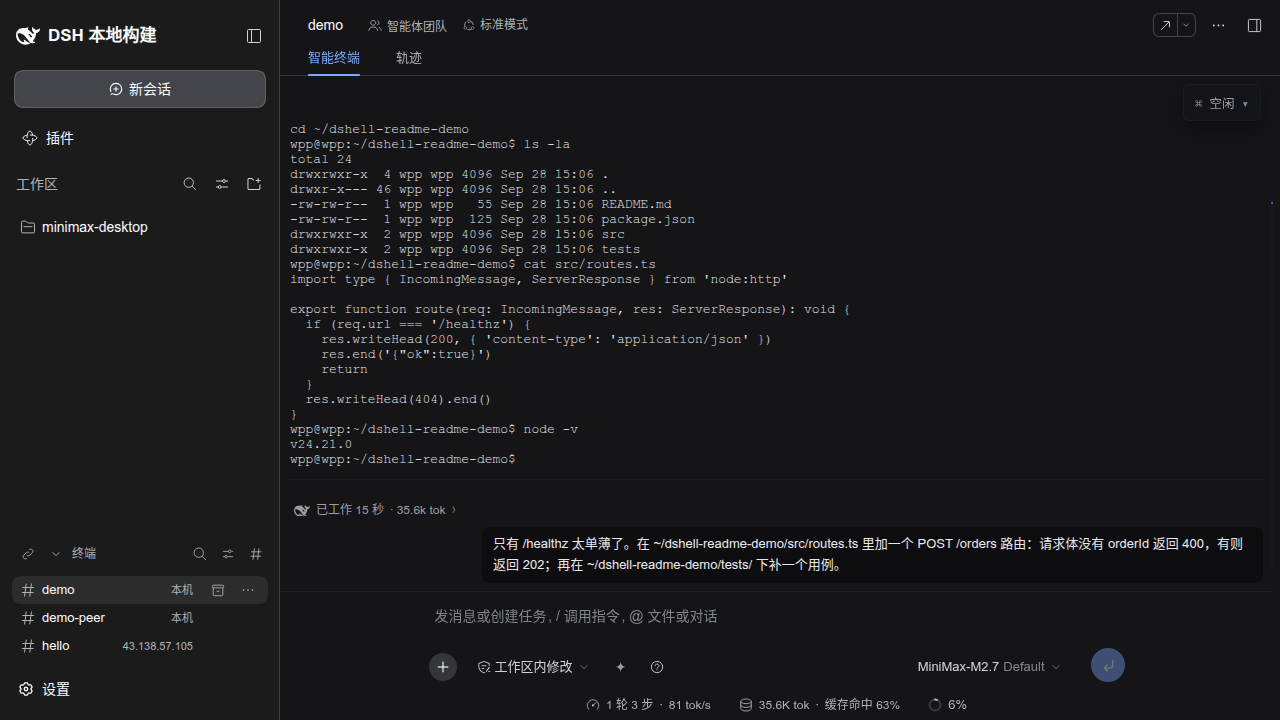
The screenshots show the Chinese interface. dshell follows dsh's own language setting (Settings → General → Language), so every dshell surface is available in English too.
dshell is a set of plugins for dsh (DeepSeek Harness). It does not modify dsh's source: it plugs into dsh's documented extension points, so dsh stays upgradeable with upstream.
$ shell and ✦ agent| What you get | Details |
|---|---|
| A full-bleed terminal | One main shell per session, running real commands — full screen, colours, cursor |
| One merged timeline | Shell output and AI work interleave by time; each AI turn is a collapsible task block |
| Two modes | $ shell makes Enter run a command, ✦ agent makes Enter send to the AI — the $ / ✦ glyph in the input line is the mode, click it to flip |
| The AI's own shell | The AI gets a separate PTY, so it never blocks your foreground program and never steals your terminal |
| Cross-session work | Sessions form pipes to delegate tasks to each other and share files by name (the buffer) — including across SSH devices |
| Device sessions | Open a session directly on a remote machine: commands, files and the visible terminal all run there |
| Context without retelling | Switching to ✦ agent automatically carries your last few commands and their output to the AI |
Two ways in: install the published plugins into a dsh you already have, or build from this checkout.
Prerequisites: dsh 0.2.0-rc.2 — either the desktop app, or the CLI
(npm install -g @deepseek-ai/dsh@next) — and Node 24.21.0 with pnpm 9.15.0 on PATH
(dsh plugin forwards to pnpm). The 0.1.5-rc.2, 0.1.6-alpha.2, 0.1.7-rc.2 and 0.2.0-rc.1 lines
also work; @latest on npm is currently 0.1.7-rc.2.
dsh checks every @deepseek-ai/dsh-* peer a plugin declares against its own version and skips the
whole bundle when one does not match, so a dshell release names the exact dsh versions it supports.
To run one anyway: `dsh plugin --profile
# One package: the bundle is the patch layer, it depends on the other ten dshell
# packages, and dshell-ssh carries the one dsh package a stock profile does not
# ship (`@deepseek-ai/dsh-ssh`, its SSH execution provider).
dsh plugin --profile web add -w @nexus-aethra/dshell-bundle@0.1.13

dsh web
dsh prints a tokenized URL (for example http://127.0.0.1:3080/?token=…). Open it in a browser.
In the desktop app, the same install is available as a window: 设置 → 插件, and give it
@nexus-aethra/dshell-bundle@0.1.13 (it installs from npmjs and pins the version exactly).
Skipping step 2 is not fatal — dsh boots and reports the two rows as
did not activate, and the rest of dshell works. It is listed because the SSH device sessions and the agent's terminal tool both resolve those names from the profile.
The bundle carries every dshell package and its own cordis.patch.yml, so dsh composes the dshell
rows the moment the package is installed: no profile edit, no config file. dsh plugin --profile web list shows the resulting layer stack.
Prerequisites: the same Node and pnpm, plus an upstream dsh/ checkout next to this repository (it
is git-ignored here).
# 1) dsh upstream (once)
cd dsh
pnpm install --no-frozen-lockfile
pnpm run build:lib && pnpm run build:web

# 2) the dshell plugins
cd ..
pnpm install
pnpm --filter "@nexus-aethra/dshell-*" run build

# 3) install into dsh's web profile (once; re-running is safe)
./scripts/install-into-dsh-profile.sh
./scripts/bootstrap-profile-client.sh

# 4) every time
cd dsh && pnpm dsh web
Check either install with
curl -sS -o /dev/null -w "%{http_code}\n" http://127.0.0.1:3080/ — it should answer 401,
which is dsh's cookie auth gate, not a failure.
The details and the troubleshooting (why the versions are pinned, how the profile gets filled in, the module-loader contract for client bundles) live in
docs/dshell-setup.md.
The left sidebar holds your sessions, the middle is the terminal timeline, the status card floats in the top right, and the input line sits at the bottom.
| Area | What you can do |
|---|---|
| Left sidebar | Create and switch sessions; 归档 files one away into the 已归档 group; 多选 then batches 恢复 / 删除; a deleted session first moves to 待删除 · 重启后清除 |
终端 section |
Its own section below the workspace list: the link glyph first in its header opens the cross-session pipe panel (provided by dshell-buffer, and it survives the fold, being the panel's only entry); + mints a terminal session; the pill at the row's end says where that shell runs (本机 or the device name); double-click the title, or use the row's ⋯, for 重命名 / 归档; the section header also carries the search and the archived filter |
| Right sidebar: files | The 文件 tab browses the session's working directory with back/forward; double-clicking a directory makes it the root; drag a directory onto the terminal to cd there; device sessions also get 打开文件传输 |
| Status card | Always in the top right, collapsed to one line; expand it for the AI terminal, subagents, background jobs, buffer transfers and delegation replies |
| Input line | the $ / ✦ glyph is the mode — click to flip, hover for its name; ? names the gestures that are live, on hover |
The timeline is the point: a stretch of shell output occupies one region (a real mini terminal that scrolls horizontally), and one AI turn occupies one task block. The block's header line says what it is doing, for how long, and what it has spent; clicking it folds the block into a two-line summary.
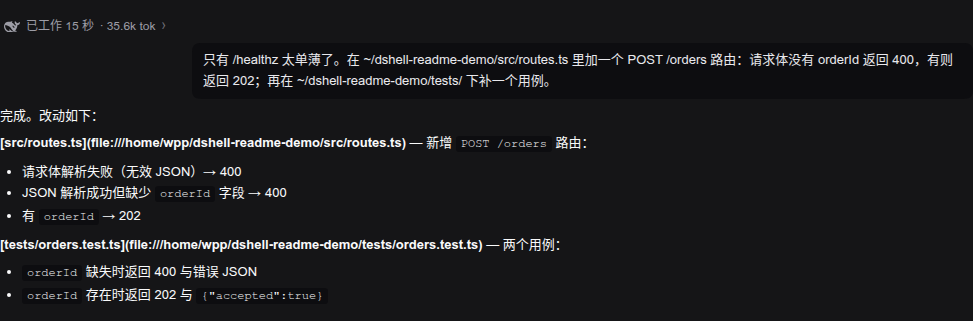
$ shell and ✦ agentThe $ / ✦ glyph at the left of the input line is the mode — click it to flip, hover it to read
which one it is. The same switch is a slash command typed right in the input box:
| Input | Effect |
|---|---|
/shell <command> |
Switch to shell mode and run the command immediately (/terminal is an alias) |
/agent <text> |
Switch to agent mode and send the text to the AI |
/fullscreen |
Hand the whole surface to the program on the terminal (the way in when the reading misses) |
/new |
Create a session that inherits the current session's working directory |
In $ shell mode:
Enter runs the line, into the foreground process of the main shellCtrl+C abandons the line and interrupts the terminalCtrl+Shift+V hands the clipboard to the terminal/ still goes down dsh's command channel (/compact and friends are untouched)In ✦ agent mode Enter simply sends. Switching to agent mode also attaches your last three
commands and their output (2 KiB each, with the agent able to page further on demand), so you never
have to explain "that command I just ran failed".
Every session has two shells:
Neither can take the other's foreground. The AI cannot type into your terminal; it can only read it
(dshell_terminal_read). To watch what it does in its own shell, expand the status card's AI 终端
row: a read-only live view, with 为 AI 开启一个终端 whenever it is not running.
If dsh's bash tool spawns a persistent shell in the same session, dshell claims it as the AI's
terminal, so the model's bash calls, terminal_send, and the panel you are watching all converge on
one PTY — no more "the panel shows one shell while the model ran its command in another".
A program that takes the whole screen — vim, htop, less, a coding TUI such as minimax-code —
gets the surface instead of the timeline. The composer steps aside, the terminal fills the column, and
every key goes straight to the program: the arrows, Tab, Escape, the control chords, and the mouse
reporting it asks for. This is the one case where the composer is not the input line, because a
program that reads the keyboard itself cannot share it with a line editor.
dshell decides this on its own, from two readings of the session's terminal: a foreground program that
is painting the screen (hiding the cursor, opening a synchronized update, enabling mouse reporting),
or the alternate screen that vim and friends switch to. Either one is enough. A long command is not
a full-screen program — npm install and sleep 30 keep their timeline.
| Getting out | the 退出全屏 button on the small bar over the program's own screen — or just quit the program, and the timeline comes back by itself |
| Getting in by hand | /fullscreen, for a program the reading misses |
| While it is on | the transcript is not rendered at all, and the program's output is kept out of the timeline on purpose: its repaints would land there as a wall of half-drawn screens. It is still in the session's raw log, so a reconnect replays the screen |
| A device session | only the alternate screen is read there (the local process is ssh), so the button is the way in for everything else |
All three live in the $ shell input line and each can be switched off independently.
| Gesture | Behaviour |
|---|---|
Tab |
Completes the word under the caret, from what the line says that word is: a command name in the command position (dock + Tab, and equally sudo dock + Tab or pwd; host + Tab), a directory after cd, a path anywhere else (a redirection's target included) — and the subcommands and options the session's own shell knows, so docker r + Tab offers rename/rm/run and apt list -- + Tab offers the long options. Names come from the session's own world — this machine's PATH for a local session, the device's for an SSH session — so the two answer with different names. The comparison folds ASCII case, but the completion carries the real spelling: cd nexus-sh + Tab becomes Nexus-shell/, correcting the line as it completes. A single candidate lands directly; several open a floating list (Tab/↑/↓ to move, Enter to take, Esc to close) |
↑ |
Opens this session's history (↑↓ to move, Enter to take), listing only commands that share a prefix with what you have typed |
→ |
Shows a ghost hint after the caret: the newest command that exactly extends your draft. Each → takes one word of it, and the ghost disappears with the last word |
The ? in the input line shows the same legend for the current state — → 采纳一个词 · 继续 while a
ghost is showing, Tab 下一个 · ↑↓ 选择 · Enter 填入 · Esc 关闭 while a list is open — and names the
mode in force. Hover it (or focus it with the keyboard) to read it. Turn an assist off and its key
reverts to the browser's behaviour (Tab moves focus, → moves the caret).
This is what separates dshell from other terminal workbenches: sessions are not islands.
Two sessions can be joined by a pipe, after which their AIs can delegate tasks to each other and share files. A pipe can span machines — either end may be a session bound to an SSH device.
flowchart LR
  A["Session A · this machine<br/>the window you type in"] -->|"pipe: deploy"| B["Session B · build host<br/>an SSH device session"]
  A -->|"pipe: review"| C["Session C<br/>another local directory"]
  B -->|"the result"| A
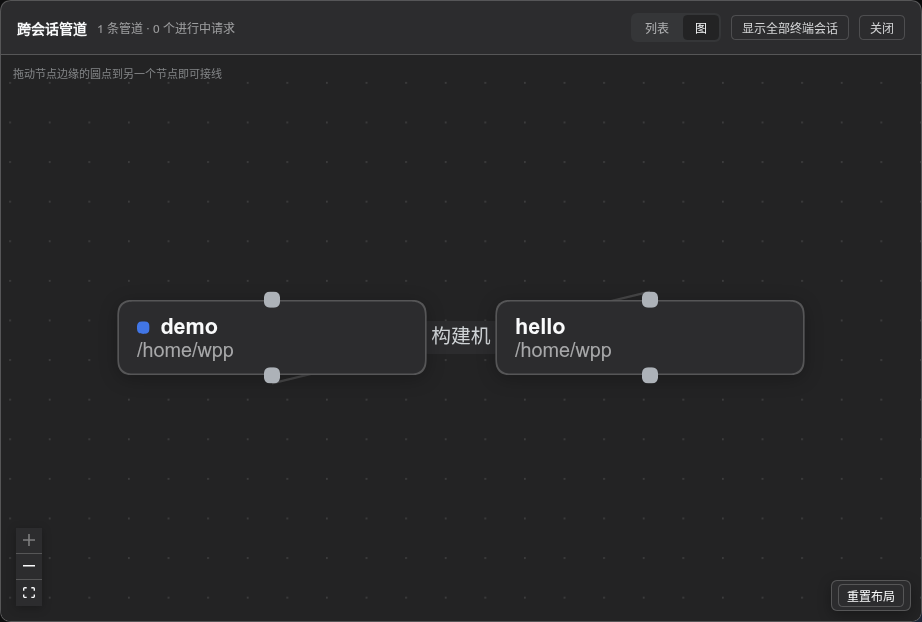
C -->|"the result"| AClick the link glyph at the left of the 终端 section's header (it survives the fold, being the
panel's only entry). The panel has two views:
列表 — + 建立管道, pick two sessions, give it a name (such as "build host") and a
purpose — one line saying what travels over this pipe and why — then 建立管道.图 — sessions are nodes and pipes are edges. Drag from a node's dot onto another node to
create one; click an edge to see its detail or 解除.A pipe joins terminal sessions — the ones the sidebar's 终端 section lists. A plain conversation
is not offered as an endpoint, and the host refuses one: the file pane, the device routing and the
section all key off the terminal identity, so a session that is not a terminal could not serve a
request anyway.
The purpose is the part the other side reads: it travels in the peer's standing prompt next to that
pipe, so a peer's model can tell whether an incoming request belongs there. Either end can write it —
you from the panel, an agent with dshell_buffer action="describe" — and the panel says when the words
are the other session's rather than yours (由 … 填写).
The panel says 只有你能建立管道;agent 没有建连的工具 — connecting is always your move; an AI can only
use pipes that already exist.
Delegation is asynchronous. A busy peer simply queues the request, and the requester does not block: its turn ends, and it is woken up again when the answer comes back.
sequenceDiagram
  participant U as You
  participant A as Session A (local)
  participant B as Session B (build host)
  U->>A: deploy this directory to the build host
  A->>A: check that the pipe is live
  A->>B: delegate the task, granting read on "src"
  Note over A: this turn ends<br/>status card shows ⏸ waiting for B
  B->>B: claim the ticket, read /src/… in its own world
  B->>B: run the build
  B-->>A: finish, report the result
  Note over A: [pipe report] arrives<br/>A wakes up and continues
  A-->>U: reports back to you
The peer sees only what you send it: not your other files, not your other sessions. Tickets have a
deadline; a watchdog settles an unanswered one as 已超时 and tells the requester, who can delegate
again or carry on alone.
flowchart LR
  Q["queued"] --> P["in progress"] --> D["done"]
  P --> F["failed"]
  P --> T["timed out"]
Q --> X["cancelled"]A delegation can open files or directories from your own world to the peer, each with a name and
read and/or write rights. That name becomes the peer's buffer path; the buffer is a tree rooted at
/, one per session:
flowchart LR
  subgraph W["Session A: real disk"]
    D1["/srv/app/README.md"]
    D2["/srv/app/releases/"]
  end
  subgraph B["Session B: the buffer at /"]
    P1["/readme"]
    P2["/app/releases/v0.4.2.tar"]
  end
  D1 -->|"grant as=readme, read-only"| P1
  D2 -->|"grant as=app, read+write"| P2
The holder of a grant works through five actions:
| Action | Effect |
|---|---|
ls |
With no path, lists every mapped area you hold (name, rights, who it came from); with a path, lists a directory |
read |
Reads a text file, paging by line |
edit |
Edits that file in place inside the granter's world — no copy is made |
download |
Copies a buffer file into your own world (at a destination you choose) |
upload |
Pushes a file from your world into the buffer |
Two rules are worth remembering:
.., and symlink escapes are refused. The AI never needs to know your real paths, and cannot touch
anything else.download it. To
receive one, have them grant write and upload it yourself.Grants are reference counted: settling a ticket revokes its grants, and a grant at zero is gone — nobody has to remember to clean up.
Above 32 MiB, download and upload switch to a chunked relay: 16 MiB slices moved one at a
time, then verified end to end by a whole-file sha256. A mismatch is a hard failure and keeps the
intermediate data (1 GiB by default, 4 GiB hard ceiling). Progress shows up live in the status card's
⇅ 缓冲区传输 row, with a percentage and a bar per transfer, even with the panel closed.
Clicking a pipe opens its detail page:
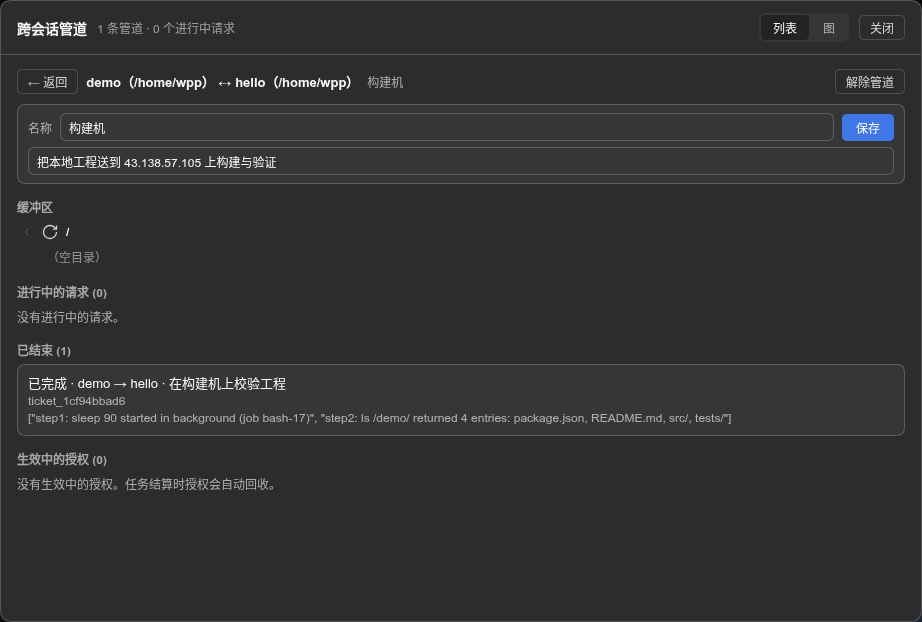
刷新, hover highlight); each row says where it came from and with which rights.The screenshot above is a pipe after its task settled: the grants have already been reclaimed, so the buffer is empty again. That is by design.
In the 新会话 dialog, switch 运行位置 to SSH 设备, pick a device and a remote directory.
Creating the session proves the connection with a real ssh round trip first; if it fails, no session
is created.
Devices themselves are registered on the Plugins panel — 插件 in the sidebar →
@nexus-aethra/dshell-bundle → the dshell-ssh row's 配置 — with a name, host, port, user, remote
working directory, and either 密钥 (an OpenSSH private key; leave it empty to use your local ssh
agent / ~/.ssh/config) or 密码.
IdentitiesOnly=yes, carrying only that device's own key;$DSH_HOME/dshell/ssh/keys/, mode 0600;known_hosts, leaving your personal file alone. A successful
测试 reports 已连接 user@host(system)· N ms and, when a host key is trusted,
主机密钥 SHA256:…(首次信任,请与服务器管理员核对 | 已信任).Once bound to a device, that session's commands, files and terminal all live on the device:
flowchart LR
  subgraph L["Your machine"]
    S["the session's terminal UI"]
    M["a mount stand-in directory<br/>mnt/device/remote-dir"]
  end
  subgraph R["The remote device"]
    T["a real shell<br/>(your visible terminal)"]
    F["the real file tree"]
  end
  S <-->|"ws /dshell/pty"| T
  M -.->|"mirrored view"| F
Such sessions wear an SSH badge in the sidebar. Their right sidebar gains 打开文件传输: two
panes, 本机 and 设备, and dragging a file or folder from one to the other starts the copy — with
per-item progress, chunk counts, skip counts, and an 覆盖 / 移除 question when something already
exists. (32 MB per file, 20 000 entries or 2 GiB per plan.)
Settings → 用量 charts what the models have cost, from an index dshell keeps in its own data
directory:
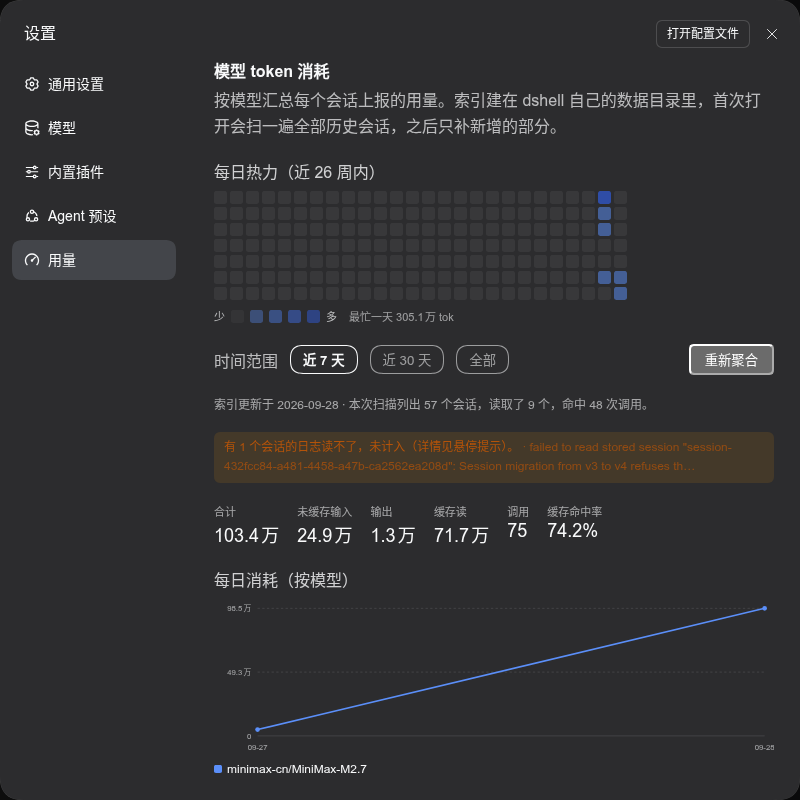
The index is incremental: dsh attaches provider-reported usage to each assistant/message, and a scan
reads only the sessions whose logs have grown since last time. It runs when you open the page, and on
重新聚合. A session whose log dsh cannot decode is reported as skipped — the page shows that the
totals are partial, and why, instead of quietly counting less.
dshell configures itself on dsh's Plugins panel, on the row each setting belongs to: open 插件
in the sidebar, pick @nexus-aethra/dshell-bundle, then use the 配置 control on a row.
| Row | Contents |
|---|---|
dshell-mode |
终端配色 — 午夜 (default), 柔和, 神秘, 森林, applied instantly; 输入辅助 — the Tab 补全, 历史列表, 智能提示, 子命令与选项 switches; 数据目录 — where dshell keeps its own files, moved at the next start |
dshell-ssh |
The device list, each row offering 测试 / 编辑 / 删除 |
用量 (the token-usage page above) is a section of its own in Settings, beside 通用设置 and
模型 — it is a report rather than a plugin setting.
Settings are stored on the host and shared by every browser on it — turn an assist off here and it is off in the other browser too.
Pinned to the top right, collapsed to a single line until you expand it. Rows appear only when they have something to say:
| Row | When it shows |
|---|---|
计划 |
The AI has a todo list; progress and the current step |
AI 终端 |
The AI's shell is up; expand for the read-only live view |
智能体 |
Subagents are running; click one to open it |
后台任务 |
Long-running jobs |
缓冲区传输 |
Files are moving between worlds, with progress bars |
中断点 |
You handed this turn to someone else and are waiting (⏸ 等待 <peer> 回信); reversible with 撤回 |
管道任务 |
Another session delegated work to you; lists the pending tickets |
连接 |
The host websocket dropped; offers 重新连接 |
| Where | Action | What it does |
|---|---|---|
| Input line | click $ / ✦ (or /shell, /agent) |
switch modes |
| Input line | hover ? |
the key legend for the current state |
| Input line | Tab |
completion: commands in the command position, directories after cd, paths elsewhere (case-insensitive match, real spelling applied) |
| Input line | ↑ |
command history list |
| Input line | → |
take one word of the ghost hint |
| Input line | Ctrl+C / Ctrl+Shift+V |
interrupt / paste into the terminal |
| Input line | /fullscreen |
hand the whole surface to a full-screen program |
| Terminal | drag a directory in | cd the terminal there |
| Timeline | click a task block's header | fold / unfold it |
| Timeline | the right-edge bookmark rail | jump to an AI turn |
| Sidebar | 管道 |
open the cross-session pipe panel |
| Sidebar | hover a row | 归档; archived rows also 恢复 / 删除 |
| Status card | click ▾ |
expand the details |
新会话 → 运行位置: SSH 设备 → pick it → remote directory
/srv/order-gateway.demo (the code) and demo-peer (the release notes), and pipe them together
with the label "review".demo, say: "delegate this to demo-peer — map my README.md as readme (read-only), have it
read the file and report a review."demo confirms the pipe, sends delegate (with a read-only grant named readme), and its turn ends.demo-peer wakes up, reads /readme, writes the review, and finishes the ticket.demo receives the [pipe report] and continues on its own. The pipe's detail page shows the
ticket, the full reply, and the grant that was reclaimed once it settled.This is exactly what produced the two screenshots above — the run is real, not staged.
upload it, or have the side that needs it download it, to a
path in the buffer (say /app/releases/v0.4.2.tar).⇅ 缓冲区传输 row tracks it, and both sides clean up their temporary slices when it is done.$DSH_HOME/dshell-pty/, files 0600 in a 0700
directory).cd freely; the session's own root
is fixed. A different directory means /new.删除 it sits in 待删除, and its log is cleared at
the next dsh start; 取消 reverses it until then./fullscreen
there. The reading is Linux's: dsh web on macOS or Windows has the reading and nothing else.| Doc | Read it when |
|---|---|
docs/dshell-design.md |
You want the goal, the non-goals and the eleven design decisions (including why this is not a chat window) |
docs/dshell-architecture.md |
Before writing code: the ws protocol, the Cordis extension points, package layout, CSS conventions |
docs/dshell-packages.md |
You need to know which plugin owns a feature |
docs/dshell-roadmap.md |
The phase plan and each phase's acceptance check |
docs/dshell-setup.md |
Setting up a machine, troubleshooting, build order |
docs/README.md |
The documentation index and its update rules |
Eleven packages (@nexus-aethra/dshell-*), published together: std (contracts), storage (storage
engines), bundle (the single patch layer), conversation, terminal-bridge, mode, commands,
files, ssh, buffer and usage (the token-usage page).
MIT, see LICENSE.
CLASSIFICATION EVIDENCE
系统优先读取 GitHub Topics,再与站内分类词典和词根规则比对。当前命中: 无有效分类标签。
deepseek-ai
DeepSeek Harness: Everything is a Plugin.

anywhere-labs
为 DeepSeek Harness (DSH) 插件生态打造的现代化桌面端解决方案。万物皆「插件」,桌面本身也是「插件」。

walkinglabs
Harness engineering beginner tutorial, from 0 to 1