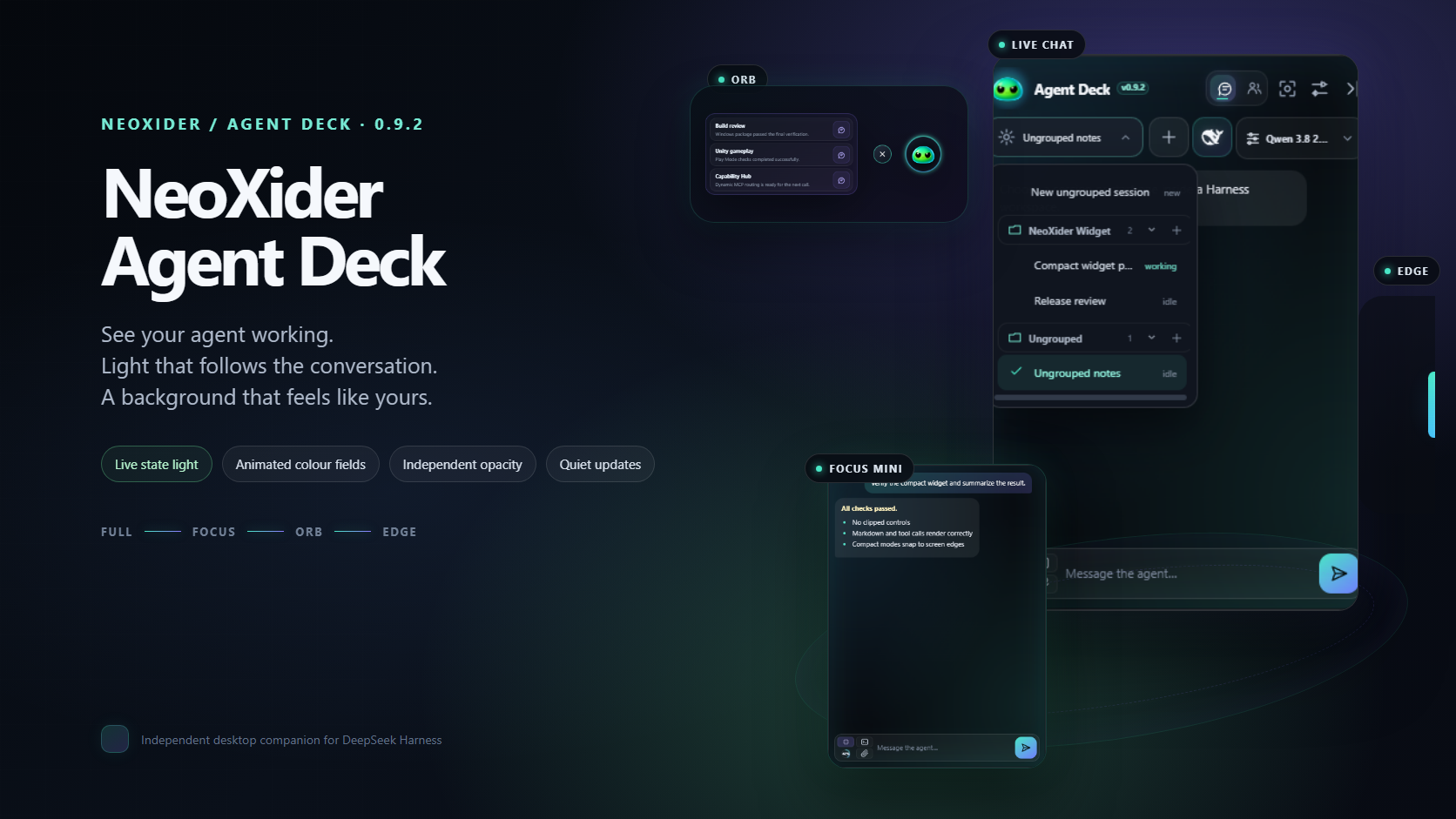
NeoXider Agent Deck
Your agents, alive on the desktop — a glowing companion for DeepSeek Harness sessions, context and chat.






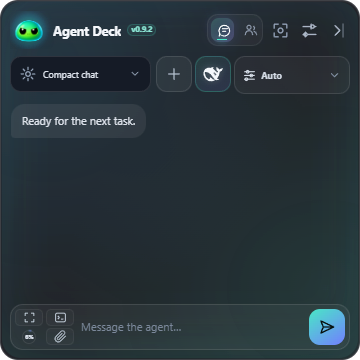
Agent Deck keeps DeepSeek Harness close without keeping the full web interface open. It shows live sessions and subagents, provides a real mini-chat, tracks context pressure, switches models and reasoning effort, runs native Harness commands, changes workspaces, accepts file drops, renders safe Markdown, and keeps tool calls compact.
The NeoXider avatar reacts to agent state: breathing while idle, typing while working, floating while waiting, shaking on errors and celebrating completion. The chat carries its own activity light, including while waiting for the API and when the header is hidden in Focus mode. Its colours match the avatar, Orb and Edge; an idle selected chat stays calm even while another session works. Animated colour fields sit behind the panel, with background opacity saved separately from window opacity and activity glow. Harness offline has a muted disconnected state and a Start action. Everything that moves, from the slow aurora to the strips around the log, respects reduced-motion preferences and Settings → Appearance → Motion effects.
Preview
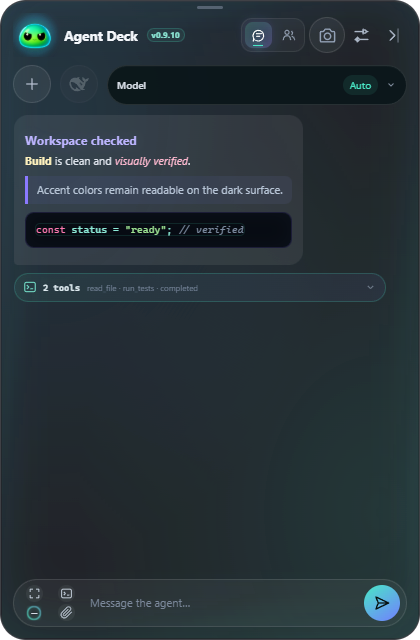
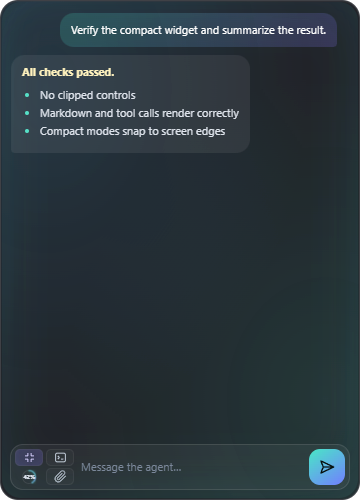
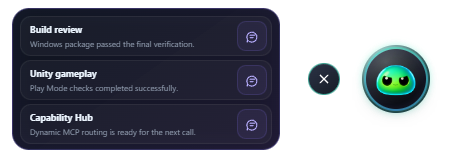
Modes at a glance
 |
 |
 |
 |
 |
| Full |
Focus Mini |
Orb |
Edge |
Minimum 360 px |
Feature gallery
 |
|
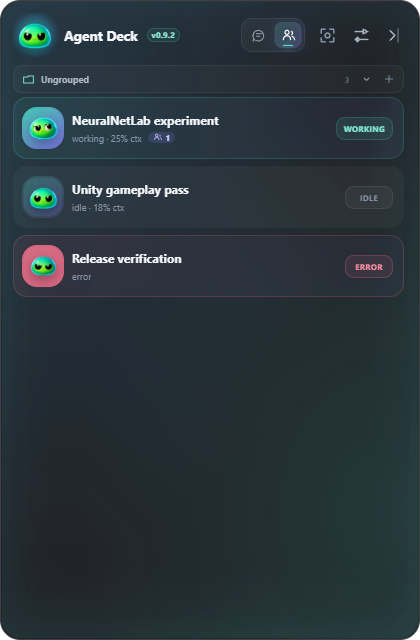
| Live agent overview |
Full Harness mini-chat |
 |
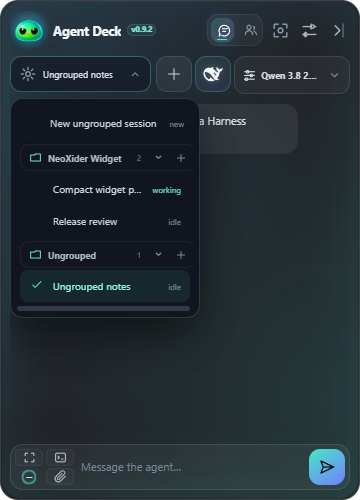 |
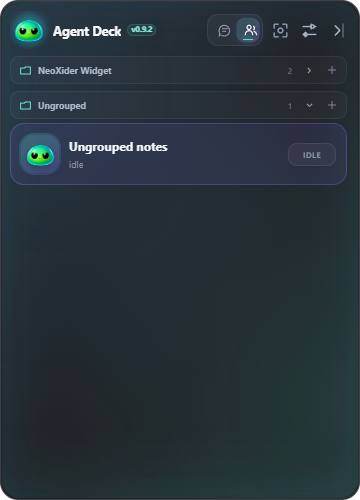
| Exact Workspaces / Ungrouped agent deck |
Start inside a folder or ungrouped |
 |
 |
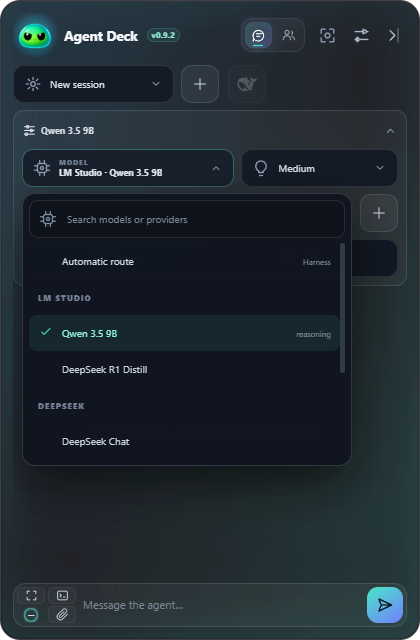
| Searchable provider/model picker |
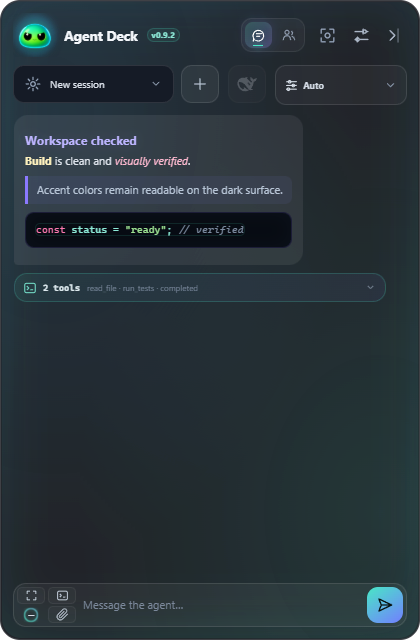
Markdown + collapsed tool calls |
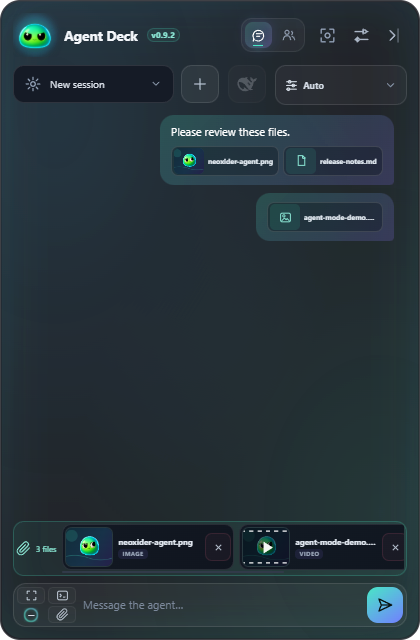 |
| Stable PNG and video attachment previews |
 |
 |
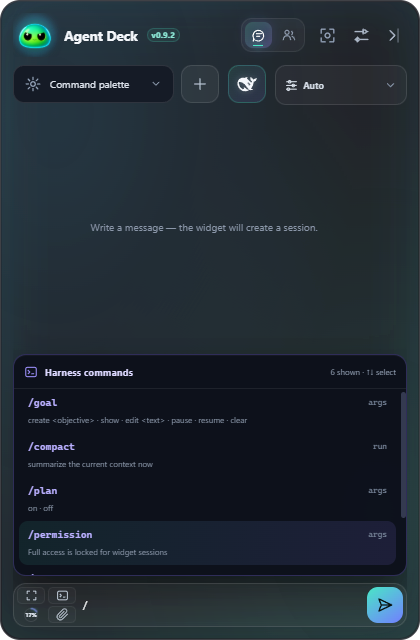
| Compact native command palette |
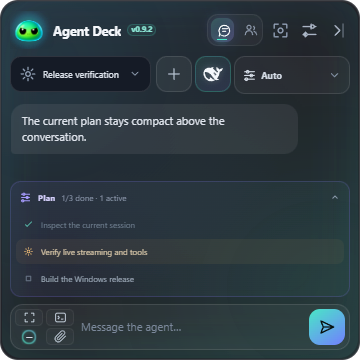
Live Harness TODO plan |
 |
 |
| Readable structured command results |
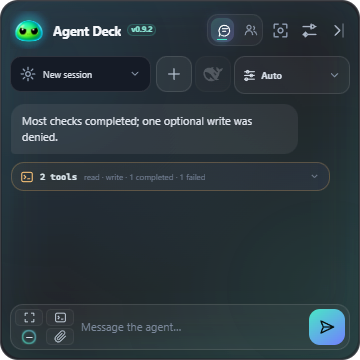
Per-tool status, even in mixed groups |
 |
|
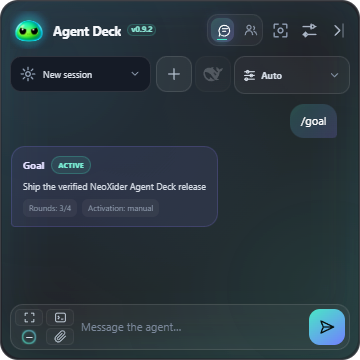
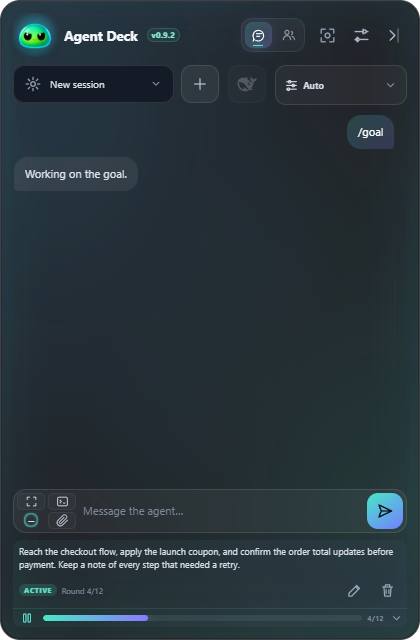
| The goal never scrolls away |
Compact tool groups, opened on demand |
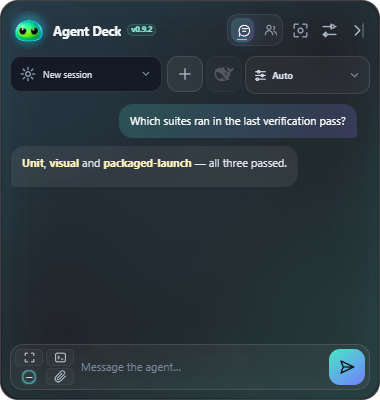 |
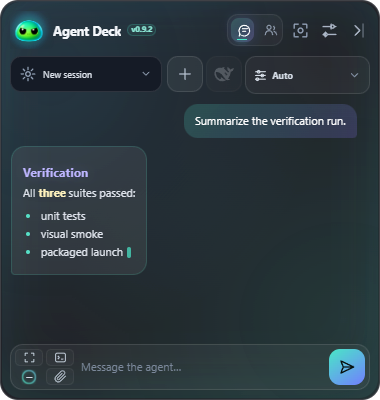 |
| Copy any message, reuse your own |
Formatted while it streams |
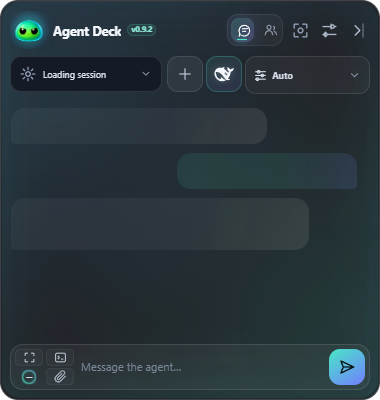 |
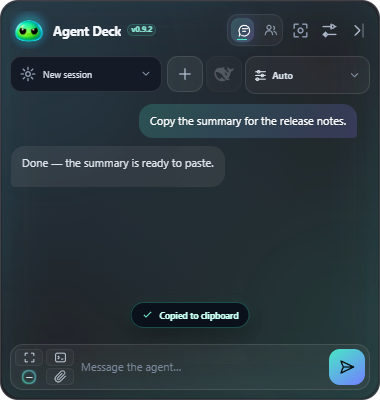 |
| Loading, not empty |
One line of feedback, then gone |
|
 |
| One-click Focus Chat |
Session-aware compact notification |
 |
 |
| Edit, delete or send queued messages now |
Streaming answer grows in place |
 |
 |
| Reading position stays under user control |
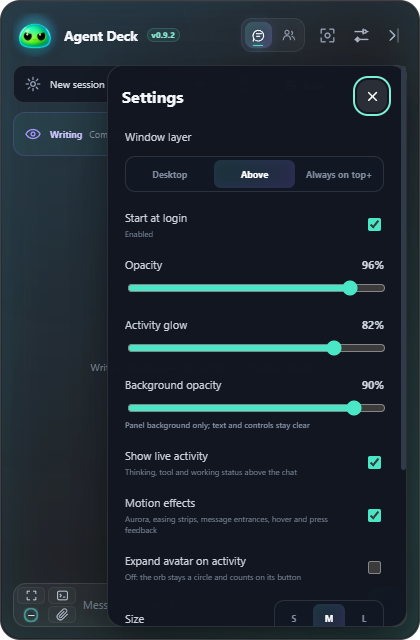
Window layers, background opacity and glow |
 |
 |
| Verified update, one-click restart |
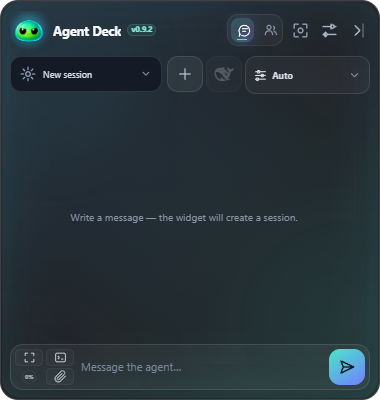
Complete UI before the first session |
 |
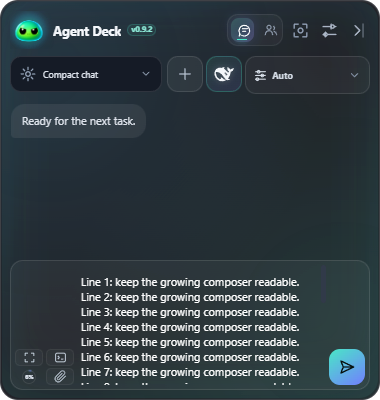 |
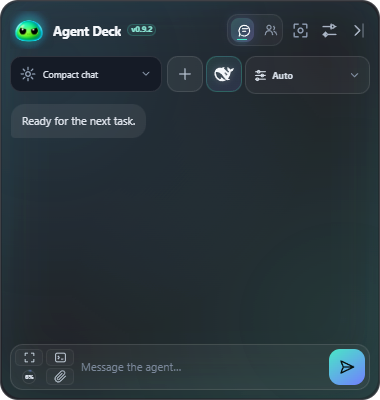
| Compact by default |
Grows to one third, then scrolls |

Highlights
- Chat-first navigation — the real mini-chat is the default first page; the agent deck is one tap away.
- State-aware agent deck — every session card changes its avatar, glow and label for working, idle or error state. Activity is cleared from authoritative turn events, so a completed or failed session does not remain falsely marked as working.
- Real Harness sessions — session titles, running state, subagents and errors come from the live HTTP RPC API.
- Complete long conversations — history follows Harness backward pagination to the first event. The log itself is one continuous Telegram-style window: scrolling up materializes older messages above the reading position while rows far from the viewport unload back into spacers, so even a 10,000-message chat stays responsive with no page buttons and no frozen pages.
- Context pressure — a compact ring shows projected tokens against the model context window and remains a calm
0% ring before the first session exists.
- Model routing — use the searchable dark picker for every provider/model exposed by Harness; the active/local route (including LM Studio) stays first.
- Reasoning control — effort options update dynamically for the selected model.
- Native commands and skills — the vertical
/ palette opens above the composer and merges Harness's two sources: commands/list for /goal, /plan, /compact, /permission and plugin commands, and skill.list for every skill installed in the workspace. Skills are badged as such and sent as ordinary prompts, because a skill is invoked by the model rather than executed by the host.
- Harness session groups — Agents and Chat use exact Harness
Workspaces membership plus Ungrouped, keep each folder collapsible in one line, and offer a compact action for starting a session inside that group or outside every workspace.
- Safe, colorful Markdown — headings, emphasis, links, quotes, tables, inline code and fenced code use a restrained dark palette, with Highlight.js syntax colors for supported languages; executable HTML and unsafe link protocols are blocked.
- Collapsed tool runs — consecutive native
tool/call, tool/result, and nested Code Mode dispatches become one expandable group; each child still exposes input, result, timing, and error state.
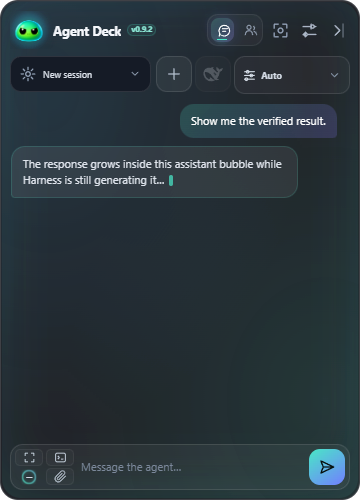
- Live answer bubble — streamed assistant text grows inside the real chat bubble as it arrives, formatted as Markdown while it streams through the same sanitizer as history, so the finished message never reflows; the activity card remains reserved for reasoning and tool state instead of mislabeling an answer as thinking.
- A log that never rebuilds — the transcript is reconciled by key: a poll, a tool result or a new message patches only what changed, the bubble that streamed an answer becomes the message it turns into, and a text selection survives the turn.
- Nothing pops — the activity card, plan, queue, attachments, command palette, error and goal strips ease open and shut, tool cards open like drawers, and a log that was following the conversation keeps following it on every frame of the move, including through a window resize.
- Copy and reuse — hover or focus any message for a Copy glyph beside it, and on your own messages a Reuse glyph that puts the text back in the composer; a one-line toast confirms it, as it does a goal paused or a queued message sent now.
- A composer that remembers — unsent text follows its session through the picker, and from an empty composer the arrow keys walk back through what was sent, like a shell.
- Loading, not empty — a freshly chosen session shows placeholder bubbles until its history arrives instead of claiming for a moment that it is empty.
- Optional live activity — thinking, tool and working status share one compact overlay that floats above the conversation on its own opaque layer, never shifts the reading viewport, and can be hidden persistently with Show live activity. Outcomes — a finished or failed turn — are still announced.
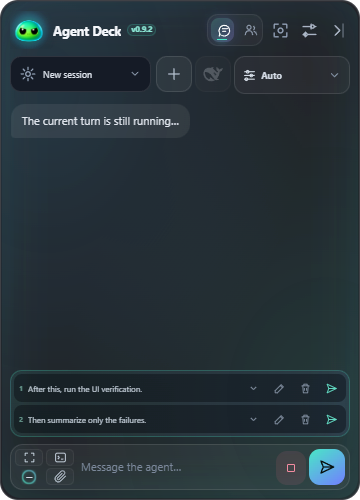
- Authoritative Harness queue — messages sent during a running turn appear as compact one-line queued items from Harness itself, with Edit, Delete and Send now actions. Attachments queue too: an image-only message reads as
1 attachment and refuses in-place text editing, and a file is previewed by name while its full path is preserved for editing.
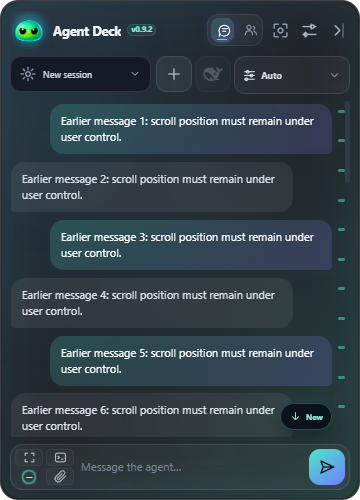
- Respectful scrolling — reading older messages is never interrupted by forced auto-scroll; a compact jump-to-latest pill counts the messages that arrived below the window and returns in one press. Your own messages stay marked on the scroll rail across the whole history.
- Compact 2×2 composer — context/expand and command/attachment actions stay in two vertical pairs, with
/ above the paperclip and a tightly fitted Send button that leaves the input wide.
- Files, paste and drag-and-drop —
Ctrl+V adds copied files or clipboard images for review without auto-sending. PNG, JPEG, WebP and GIF files use official image content blocks; sent messages retain tiny image previews or compact file/video chips, while other files become explicit local @path references.
- Instant screenshots — capture a selected region or the current display from the header or a global shortcut, inspect the PNG preview above the composer, then decide whether to send it.
- Rebindable global shortcuts — show/collapse the deck, create a session, capture a region or display, focus chat, and open Harness; every binding can be disabled, changed, reset, and survives restart.
- Live chat aura — selected-session light distinguishes API waiting, thinking, writing, tools, completion and errors, including in Focus mode. Queueing another message preserves the current phase; stopping clears it. Background agents cannot light an idle selected chat, and a late poll cannot restart the same animation.
- Choose your design — Settings → Appearance offers Aurora, Graphite and Midnight, with immediate preview and saved preferences. Fluid motion gives soft transitions; Subtle removes continuous background sweeps. The system reduced-motion preference is always respected.
- Your background — drifting colour fields and panel transparency have an independent Background opacity slider. Its saved value does not change native window opacity or activity glow intensity; Motion effects can freeze the fields entirely.
- Session-bound attachments — switching sessions clears the composer's reviewed attachment references and cancels any unfinished clipboard preparation, with a brief notice. Original files remain untouched and text drafts still follow their own sessions.
- Connection state — a disconnected Harness gets a muted offline presentation across the chat and compact modes, keeps the conversation visible, and offers Start. A token-gated Harness that is running but locked gets its own state instead: paste the
dsh web: launch URL once with Connect (or Restart it into an owned instance), and the widget re-mints its session cookie after every restart. It is separate from a failed model turn.
- Motion with a switch — a slow aurora drifts behind the widget and brightens while the agent works, the active tab slides, the plane leaves the Send button with the message, the context ring beats when critical, a working session card carries a sweep of light, and new messages slide in. Settings → Appearance → Motion effects takes all of it off at once.
- Focus Chat — one compact composer button hides all chrome and setup surfaces, leaving only messages, optional attachment previews, the input, context and actions; tap it again to restore everything.
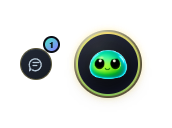
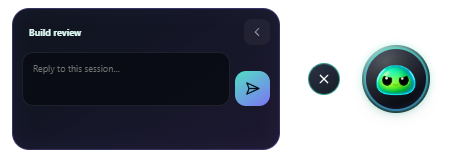
- Three window states — full deck, notification avatar, or an iridescent edge handle.
- Draggable compact modes — drag the avatar by its circle, or the edge handle by its line, with native cursor tracking; release magnetizes it to the nearest screen edge, decided by where the visible element was dropped rather than by the transparent window around it. Both can be parked flush against the top or bottom of the screen.
- Persistent per-mode placement — full, avatar and edge modes remember their own monitor, side and vertical position across restarts; missing displays are handled by safely clamping the window into the current work area.
- Click-through compact modes — on supported native desktops both compact windows forward the mouse through their transparent space: only the 68 px avatar circle and its two controls, or the visible 8 px edge line (each plus a small comfort margin), accept hover, restore, and drag input; hover springs inward with bloom, idle shimmers cyan-green, and active work accelerates in green-yellow. Linux X11 exposes an honestly labeled wider interactive edge, while Wayland disables Edge mode.
- Smooth pet status glow — the collapsed avatar now eases between idle, thinking, writing, tool, waiting, error, and done palettes instead of switching its ring abruptly.
- Classic NeoXider slimes — idle, working, waiting, error, and done now use the original soft-bottom mascot shapes from NeoXider Video Studio instead of the round variants.
- Click-or-drag brand — click the full-size avatar to collapse, click the NeoXider title to open the repository, or drag anywhere across the brand area to move the full widget. Brand text is non-selectable, so a drag cannot turn into a text selection.
- Collapsed by default — Avatar mode stays a circle with a count of working agents on its expand button; the session panel opens only when asked. Expand avatar on activity in settings restores the old always-opening behaviour.
- Background task count — a session card shows how many background tasks (Harness subagents) are running under it right now, and nothing when none are; the roster size, which counted children that had already finished, is gone.
- Elapsed turn time — every session card and the session picker show how long the agent has been on the current turn, ticking live, and how long the last completed turn took. The clock is read from the turn's own events, so it survives a widget restart.
- Exact-session pet reply — collapsed pet mode keeps one useful reply button instead of create/command/attachment clutter; it opens the agent and session that produced the reply.
- Session-aware notifications — a completed reply slides out for about 2.7 seconds with its session name and answer preview; clicking it restores that exact session. The edge handle still bounces when work finishes.
- Three window layers — choose Desktop, where every ordinary window covers the widget; the default Above layer; or Always on top+, the enhanced above-windows mode (previously Game). It raises the desktop window more aggressively but does not guarantee visibility over exclusive fullscreen. Unsupported Linux desktops disable the choice.
- No close button — window close gestures dock the widget to the screen edge. Quit remains available from the tray menu.
- Single-instance launch — repeated shortcut clicks focus the existing widget instead of stacking translucent windows.
- Personal controls — independent window/background opacity, compact/standard/large size, chat glow intensity, window layer and Start at login where the platform supports them.
- Locked-down renderer — a strict Content Security Policy (
default-src 'none', no unsafe-inline, no unsafe-eval), denied window creation, blocked navigation and protocol-checked external links mean model output can render but never execute or navigate.
- Survives a renderer crash — a frameless transparent window that loses its renderer is reloaded automatically instead of lingering as a dead shape that only the task manager can remove.
- Keyboard and screen reader support — every reachable control draws a visible focus ring, dimmed labels hold WCAG AA contrast, and the conversation is exposed as an ARIA log region.
- Reliable portable autostart — Start at login on Windows targets the stable portable launcher instead of Electron's temporary extracted child; existing stale startup entries are migrated automatically. Startup readback handles executable paths containing spaces, so a valid enabled entry remains shown as enabled.
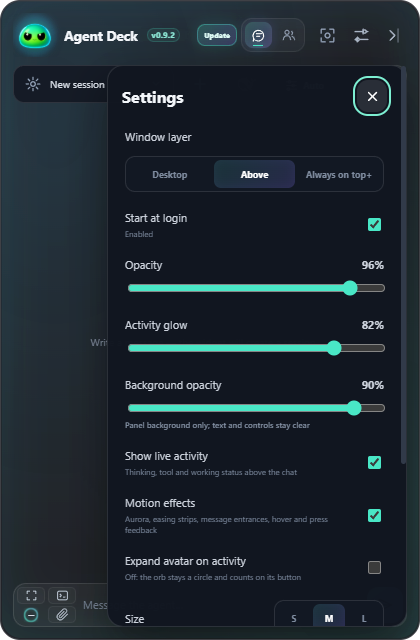
- Quiet background updates — supported builds check and download a stable release without interrupting the chat. Only after the file is fully verified does a compact Update action appear beside the version; installation and restart still require one click.
- Xbox Game Bar bridge — the Windows package includes a bounded native sidecar for the separate Game Bar companion. The protocol authenticates the exact AppContainer package, exposes only snapshot, acknowledge, exact-session open and quick reply, and never injects into a game process.
Install
Portable release
- Download the latest
NeoXider-Agent-Deck-*-windows-x64-portable.exe from Releases.
- Start DeepSeek Harness Web on
http://127.0.0.1:3080, or press Start in the offline banner. The widget prefers an installed official runtime and avoids spawning a duplicate while a previous launch is still starting. If Harness was started outside the widget and its browser index asks for authentication, the banner offers Connect: paste the dsh web: URL from the Harness terminal once and it is remembered.
- Run the portable executable.
To install the latest release under %LOCALAPPDATA%, create a desktop shortcut and launch it:
One-time upgrade note: 0.5.0 is the first release with in-app updating. Version 0.4.3 and earlier cannot update themselves, so install 0.5.0 manually once; later supported releases can use Settings → Updates.
git clone https://github.com/NeoXider/neoxider-agent-deck.git
cd neoxider-agent-deck
powershell -ExecutionPolicy Bypass -File .\scripts\install-desktop.ps1
From source
Requirements: Node.js 22+ and a running DeepSeek Harness Web profile.
git clone https://github.com/NeoXider/neoxider-agent-deck.git
cd neoxider-agent-deck
npm ci
npm test
npm run test:ui
npm start
Set DSH_WIDGET_URL to use a different Harness endpoint.
Controls
| Control |
Action |
| Glowing header tabs |
Switch between the session list and mini-chat |
| Focus icon in the composer |
Hide every surface except chat, attachment previews, input, context and actions; tap again to restore |
| Full-size avatar |
Click to collapse to the animated avatar and quick actions; drag to move the window |
| NeoXider / Agent Deck title |
Click to open this repository; drag to move the window |
| DeepSeek whale beside the session |
Open the selected session directly in Harness Web |
| Edge arrow |
Dock to the iridescent edge handle |
| Terminal button |
Open the live Harness command palette |
| Model chip |
Search providers and models |
| Lightbulb chip |
Select reasoning effort |
| Folder chip |
Choose or add a workspace |
| Agent / Plan switch |
Change the Harness interaction mode |
| Paperclip |
Attach files or open the attachment picker |
| Chat icon beside the collapsed pet |
Expand the avatar panel; its badge counts the agents currently working |
| Jump-to-latest button |
Return to the newest message after reading older chat content |
| Stop beside Send |
Cancel only the current running turn |
| Context ring at the far left |
Show projected context usage |
| Send at the far right |
Submit the current message or attachments |
Click the collapsed avatar or edge handle to restore the full deck. Use the tray menu to quit completely.
Drag the avatar by its circle, or the edge handle by its line, and release it anywhere: it snaps to the nearest left or right screen edge and remembers that side. Everything else in those windows is transparent and belongs to whatever is behind them.
How chat works
The widget does not embed or scrape the Harness web page. It uses the installed Harness RPC contracts directly:
session.list, session.history, session.create, session.prompt, session.cancelsession.updateQueue for authoritative Edit, Delete and Send now queue actionssession.models, session.selectModelworkspace.list, workspace.createcommands/list, commands/execute
This keeps the UI small and avoids coupling it to Harness HTML layout changes. Provider credentials remain inside Harness; the widget never reads API keys.
Every session created or prompted from the widget is explicitly switched to Harness danger-full-access before the prompt runs. This matches the widget's intended trusted-desktop workflow, but it also means the selected agent can read, write, execute, and use configured tools without an additional permission prompt. Use the widget only with models, workspaces, MCP servers, and skills you trust.
Build and verify
npm test
npm run test:platforms
npm run test:input
npm run test:ui
npm audit --audit-level=high
npm run smoke
npm run feature-smoke
npm run chat-smoke
npm run tool-smoke
npm run build
The portable executable is written to release/NeoXider-Agent-Deck-0.9.6-windows-x64-portable.exe.
The test suite verifies the official Harness event shapes, ephemeral reasoning, safe Markdown, tool grouping/correlation, single-instance behavior hooks, compact-window geometry, and UI contracts. test:ui launches Electron in deterministic desktop and minimum-size scenarios and rejects clipped or overflowing layouts. feature-smoke verifies workspace-aware session creation, live command discovery/execution and reasoning-capable model discovery. chat-smoke creates a real Harness session and expects an OK reply from the configured LM Studio route. tool-smoke additionally requires that model to execute a real Harness tool and checks the widget's correlated tool card.
The 0.6.4 acceptance includes an exact local lmstudio/qwen3.8-27b-unleashed Dynamic MCP run through search → inspect → enable → tools → call → skill.load → status → disable → status with zero tool errors and a confirmed stopped Playwright child. During the final repeat, that 27B route failed honestly at LM Studio model startup (Engine protocol startup was aborted), so the same fresh read-only three-tool parity turn was repeated on the available lmstudio/ling-3.0-tiny route: Harness emitted three correlated glob, grep, and read calls/results; the widget produced separate completed cards, cleared live activity on turn/end, and preserved the final Russian answer. Durable receipts: v0.6.4 Dynamic MCP on Qwen 27B, final Tiny multi-tool parity, final Qwen 27B load failure, and the deeper widget streaming parity. The automated acceptance suite additionally covers exact workspace grouping and order, complete 160-to-161-message history pagination, grouped layouts at compact widths, the persistent jump-to-latest affordance, the non-shifting optional Think overlay, 2×2 composer geometry, native compact drag, and every Edge state.
Security
The renderer is sandboxed with contextIsolation enabled and Node.js integration disabled. Local file preparation and Harness requests stay in the main process behind a narrow IPC bridge. Release downloads are bounded and digest-verified before replacement. Current Windows and macOS artifacts are not code-signed, so SmartScreen/Gatekeeper can warn until a signing certificate is configured. See SECURITY.md.
Companion project
Reduce MCP schema overhead with one lazy tool: NeoXider MCP Hub.
For long-running scripts in DSH, the optional background code integration releases the agent after 1.5 seconds and delivers completion through native background jobs, including after a final answer.
Roadmap
Screen capture, configurable global hotkeys, and the three-session pet switcher ship in 0.5.0; clipboard file/image paste ships in 0.6.4. Remaining overlay diagnostics, per-game profiles, and quiet-notification work is tracked in TODO.md.
Changelog
Every release is documented in CHANGELOG.md. Source version 0.9.6 adds device approval for Wi-Fi access, fixes authenticated opening from the tray and hotkey, and shows full-context compaction estimates when history supports them.
Platform support
Windows 10 and 11 are the primary supported target. CI also packages Intel/Apple Silicon
macOS builds and Linux AppImage/deb builds, but those remain experimental. Linux uses
a freedesktop autostart entry; it disables native opacity and enhanced above-windows controls;
Wayland also disables window dragging and Edge mode, while X11 labels its wider interactive
Edge area. When no installed Harness runtime is found, Start Harness relies on npx being
present in the launcher environment, which is not guaranteed for an app started from Finder
or a desktop launcher. Always on top+ targets ordinary and borderless windows;
true exclusive fullscreen can outrank desktop windows, so the repository keeps the native
Xbox Game Bar companion path explicit rather than claiming a guarantee the OS does not give.
Contributing
Focused issues and pull requests are welcome. Please include a screenshot for visual changes and a test or live smoke receipt for behavior changes.
MIT © NeoXider
Open Harness from a phone
Enable Device access on Wi-Fi in the Agent Deck tray menu, then open the Phone address shown there on a device connected to the same trusted network (port 3099). Press Request access and compare the six-digit code with the approval dialog on the computer. Choose Allow or Deny there. No launch token needs to be copied: Deck keeps Harness authentication inside the proxy, and each approved browser receives its own cookie.
Device access is off by default. Keep Deck running; restarting it or disabling access revokes approved devices, and cookies expire after at most 30 days. Port 3080 remains the original Harness endpoint. Open Harness on the computer uses the saved authenticated launch URL. A missing/stale launch URL must be recovered through the normal Harness launcher, not by disabling authentication.
The phone endpoint uses HTTP on the trusted local network. If Windows Firewall blocks it, allow inbound TCP 3099 for the actual Agent Deck executable only from the local subnet. Do not forward this port to the internet. Network addresses are sampled when Deck starts; restart it after an address change. This feature does not change Chrome's debugger notification.


