DeepSeek Harness for VS Code 🐋
[!NOTE]
⭐ Like DSH Sidebar? Give it a Star on GitHub! It helps more people find the project.
Bring DeepSeek Harness into the same place you write code. dsh-vscode gives DSH a Claude Code/Codex-style right sidebar that already understands your project, active file, and selected code.
Ask DeepSeek to inspect, change, and verify code without switching between your editor, terminal, and a separate chat window.
👋 I built this because I wanted DSH right beside my editor. If that sounds useful to you too, give it a try! I'd love to hear how it fits into your workflow.
English | 简体中文 | 日本語
Website · VS Code Marketplace




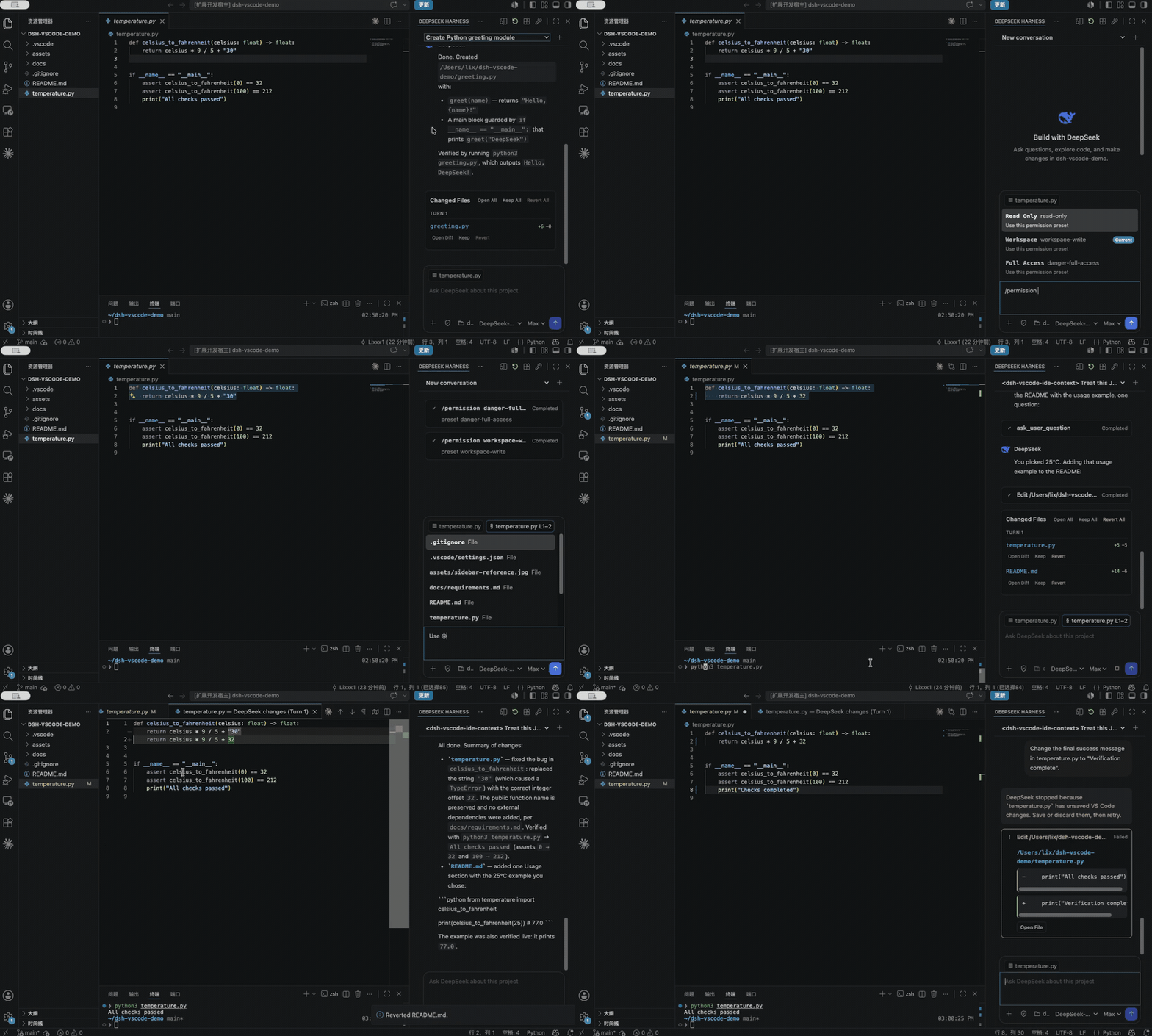
✨ Features
- Autonomous VS Code debugging. Let DeepSeek launch the current project from
.vscode/launch.json, manage breakpoints, step through execution, and inspect stack frames and local variables using VS Code's native debugger.
- Official DSH inside VS Code. Sessions, streaming responses, tool calls, approvals, and follow-up questions run through the official DSH runtime.
- Project-aware editor context. The active file, selected code, and
@file or @folder references travel with your prompt.
- Session controls where you need them. Switch Permission and Plan modes, choose Model and Reasoning Effort, or steer an active task.
- Native review and safe revert. Review changes in VS Code's Diff Editor, Keep or Revert edits, and stop DSH before it overwrites a file with unsaved changes.
- Extend DSH from the sidebar. Discover and manage Tools, Skills, MCP integrations, Memory, and Agent Hooks loaded by DSH.
📦 Install
Install the official DeepSeek Harness CLI:
npm install -g @deepseek-ai/dsh
Then choose the extension channel that fits you:
Published release
Open Extensions in VS Code, search for DSH Sidebar, and select Install. You can also install it from the VS Code Marketplace.
Latest development build
To try features already available on main but not yet published to the Marketplace, build and install the latest VSIX:
git clone https://github.com/Lixxx1/dsh-vscode.git
cd dsh-vscode
pnpm install --frozen-lockfile
pnpm run package
In VS Code, run Extensions: Install from VSIX... from the Command Palette and select dsh-vscode.vsix. Development builds move faster and may be less stable; pull the latest changes and rebuild the VSIX to update.
Requires VS Code 1.100 or newer and Node.js ^22.19 or >=24.
Installing community runtime plugins also requires pnpm on your PATH.
🚀 Use
- Open a trusted project folder in VS Code.
- Select DeepSeek in the right sidebar. If it is hidden, find it under Other Views.
- Use the key button to configure
DEEPSEEK_API_KEY.
- Choose the Permission mode, Model, and Reasoning Effort, then start working. Use the Shield menu for Permission and Plan modes,
/ for official DSH commands, and @ to add files or folders.
- Use the plugins button in the sidebar title to search, install, inspect, or remove community runtime plugins.
Autonomous debugging
Enable DeepSeek Harness: Autonomous Debugging in VS Code Settings and add a debug configuration to .vscode/launch.json.
DeepSeek can then start the debugger, set breakpoints, step through execution, inspect runtime values, fix the code, and verify the result directly from the sidebar.
Requires DeepSeek Harness 0.1.2-rc.1 or a compatible newer release. Tested with 0.1.5-rc.1.
💬 Found a rough edge or have an idea for what should come next? Open an issue. I read every piece of feedback, and contributions are welcome too.
License
MIT