

模型与 MCP
待识别

rea
morluto
Reverse engineer anything with agents, from app behavior down to native binaries.
PROJECT TOPICS
INSTALL REFERENCE
dsh plugin --profile web add github:JKZeng-cell/moki-canvas-for-dsh
该命令指向仓库当前默认分支;尚无绑定当前 commit 的完整验证结果。
PROJECT README
简体中文 · Install with DSH · Import formats · Download · DSH plugin community · Community showcase
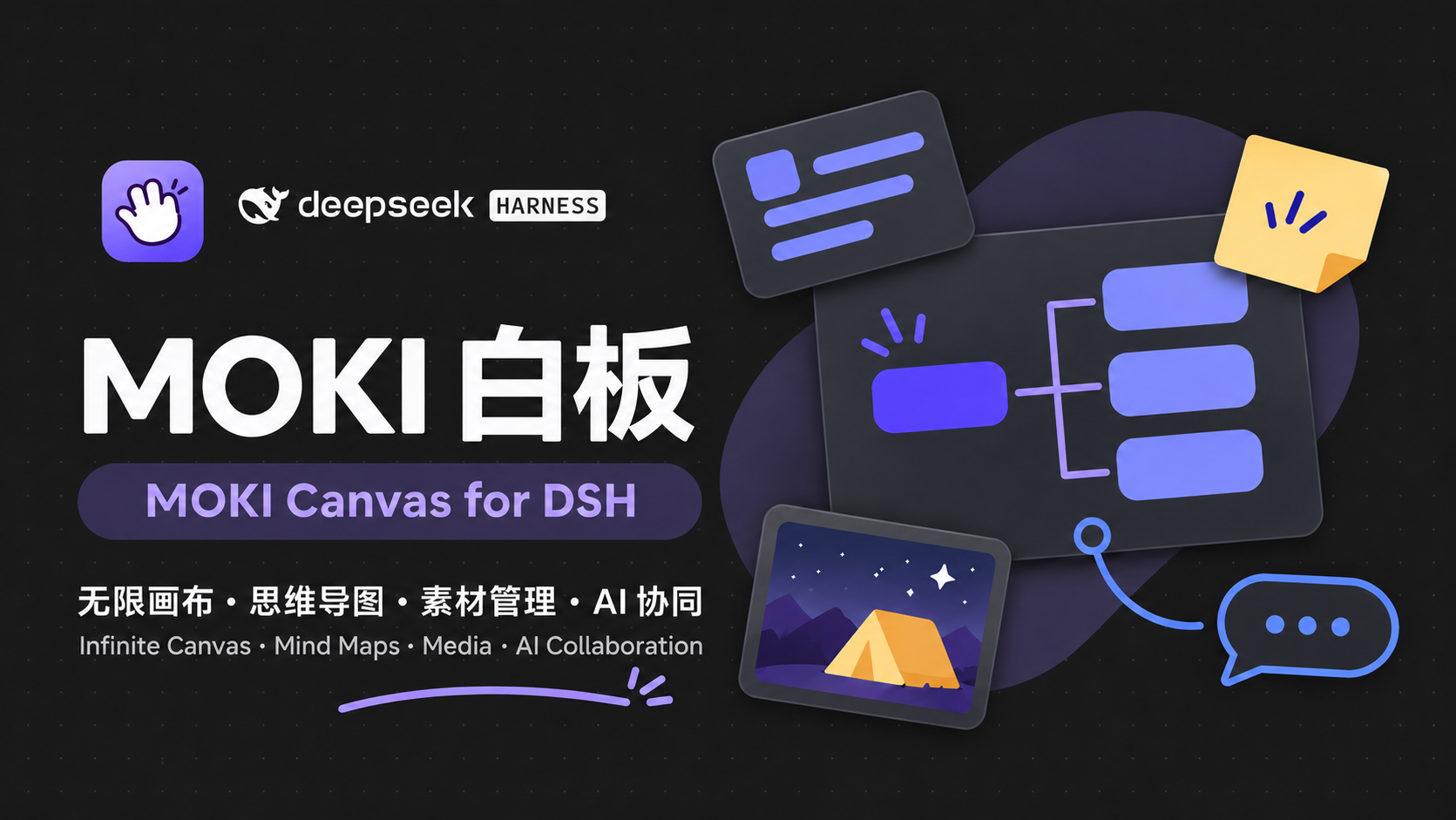
A local-first canvas for thinking, creating, and working with DeepSeek Harness.
MOKI Canvas brings an editable infinite canvas into DSH's side workspace. Sketch an idea, grow it into a mind map, collect references, and keep notes, images, files, audio, and video together. The compact interface follows DSH's light or dark theme and leaves more room for your work.
Work with DSH in both directions: let the agent read and edit your boards, or click the chat icon beside a selection to quote it in the current conversation. Selected objects include their details and a screenshot; highlighting text in the canvas editor quotes only that excerpt. The whale opens a compact input beside the selection, matching MOKI Library. Add an instruction and optional attachments, then press Send to enter the main conversation. Existing DSH draft text and attachments stay intact; failed sends retain the quick input for retry. A six-page, fully editable introduction board lets you explore the tools through a playful camping-film project.
These are real, dark-theme DSH interface captures from a separate demo profile containing the bundled introduction and example content. The sidebar entry, conversation composer and side workspace stay visible, so you can see how the plugin works inside DSH. No personal boards, accounts, chat history, or local paths are included. The visible prompts are unsent demonstration drafts.
New in 1.8.1: write instructions beside your selection. Select one or more canvas objects, or double-click a text element and highlight an excerpt, then click Quote in DSH. The compact input stays inside narrow workspaces, supports file selection, drag-and-drop and pasted images, and sends with Enter (Shift+Enter adds a line). Attachments use DSH’s native pipeline, with a 32 MB limit per file. The existing Add to chat hint beside the composer remains available.
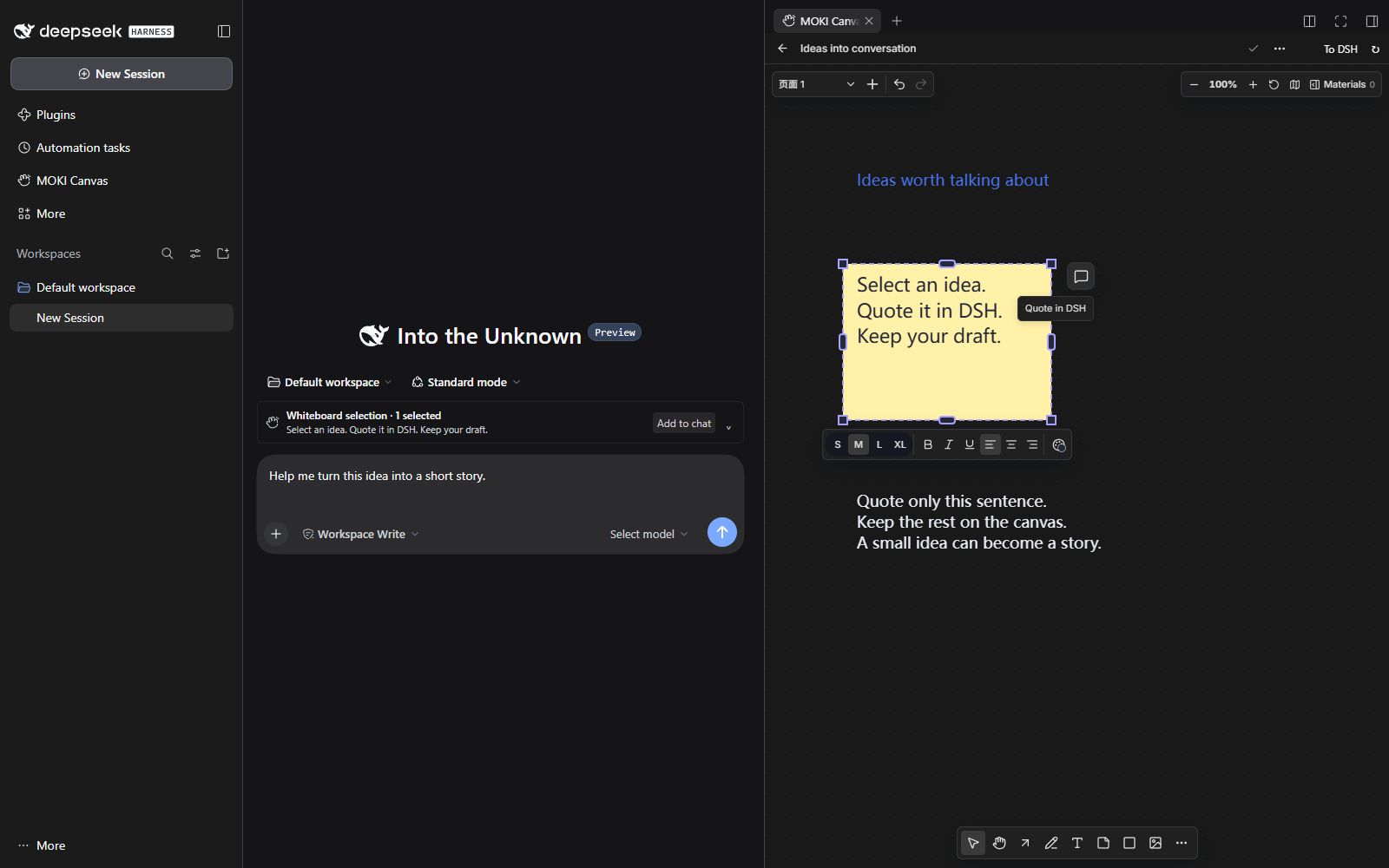
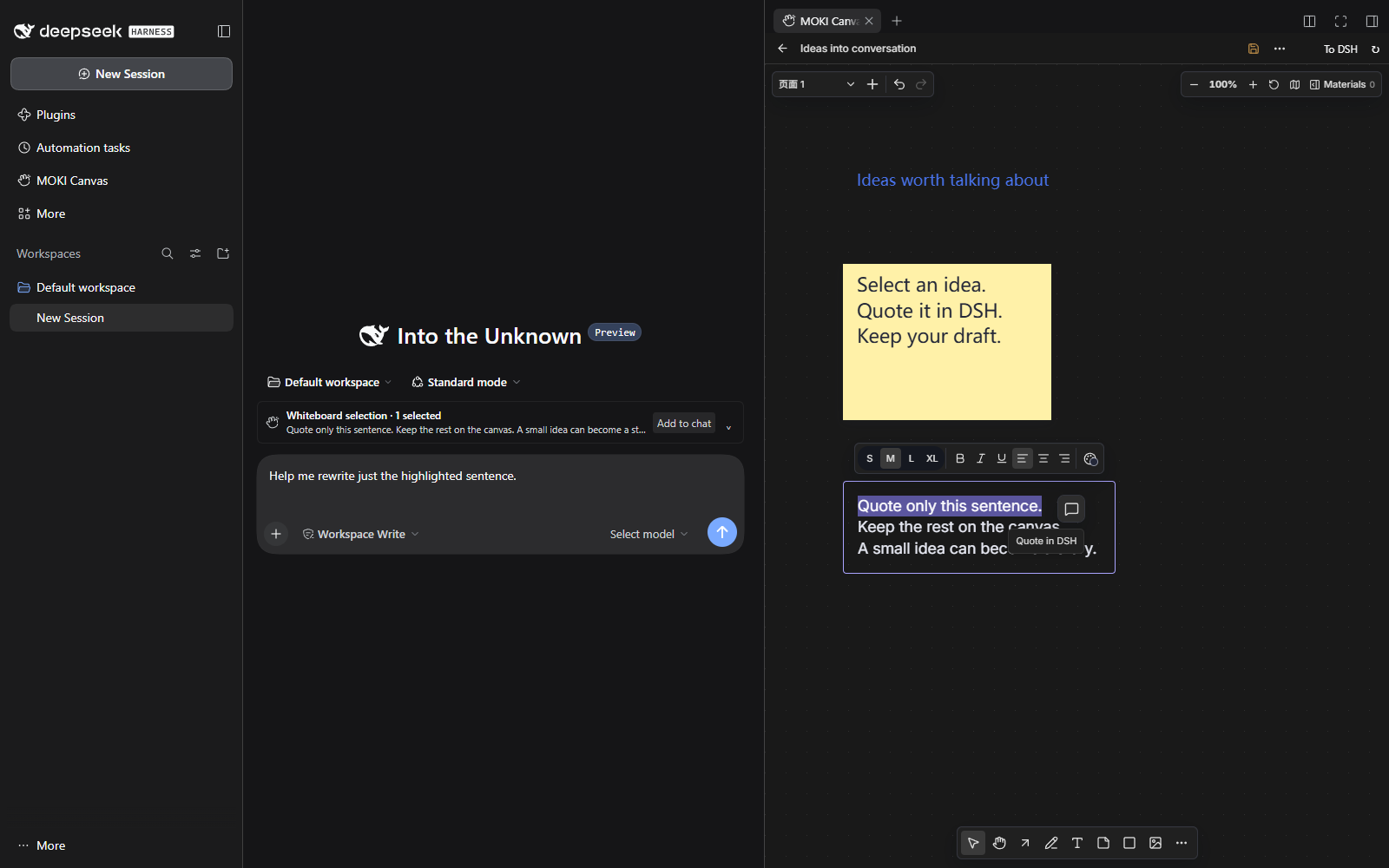
1. Open a canvas beside your conversation.
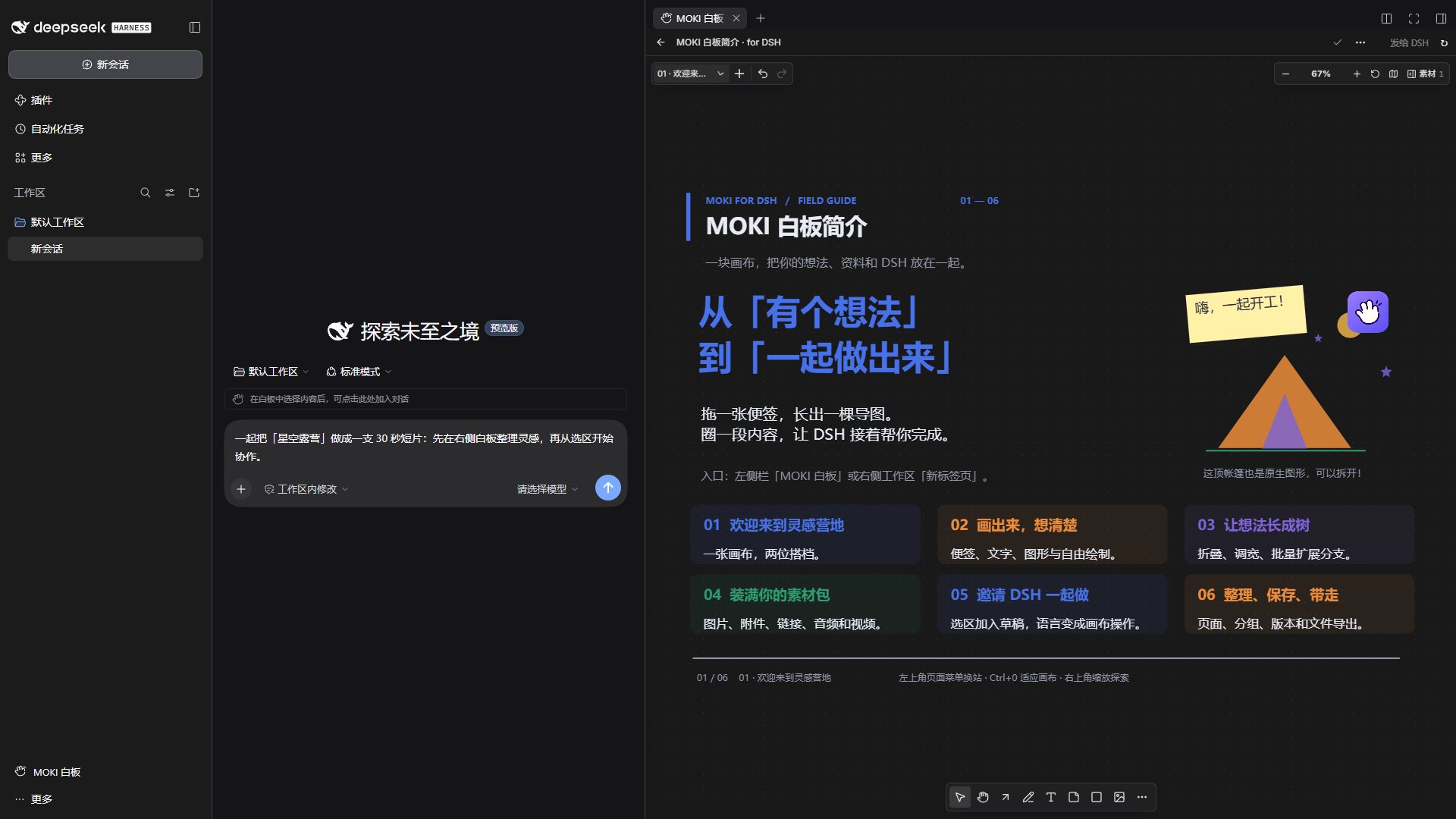
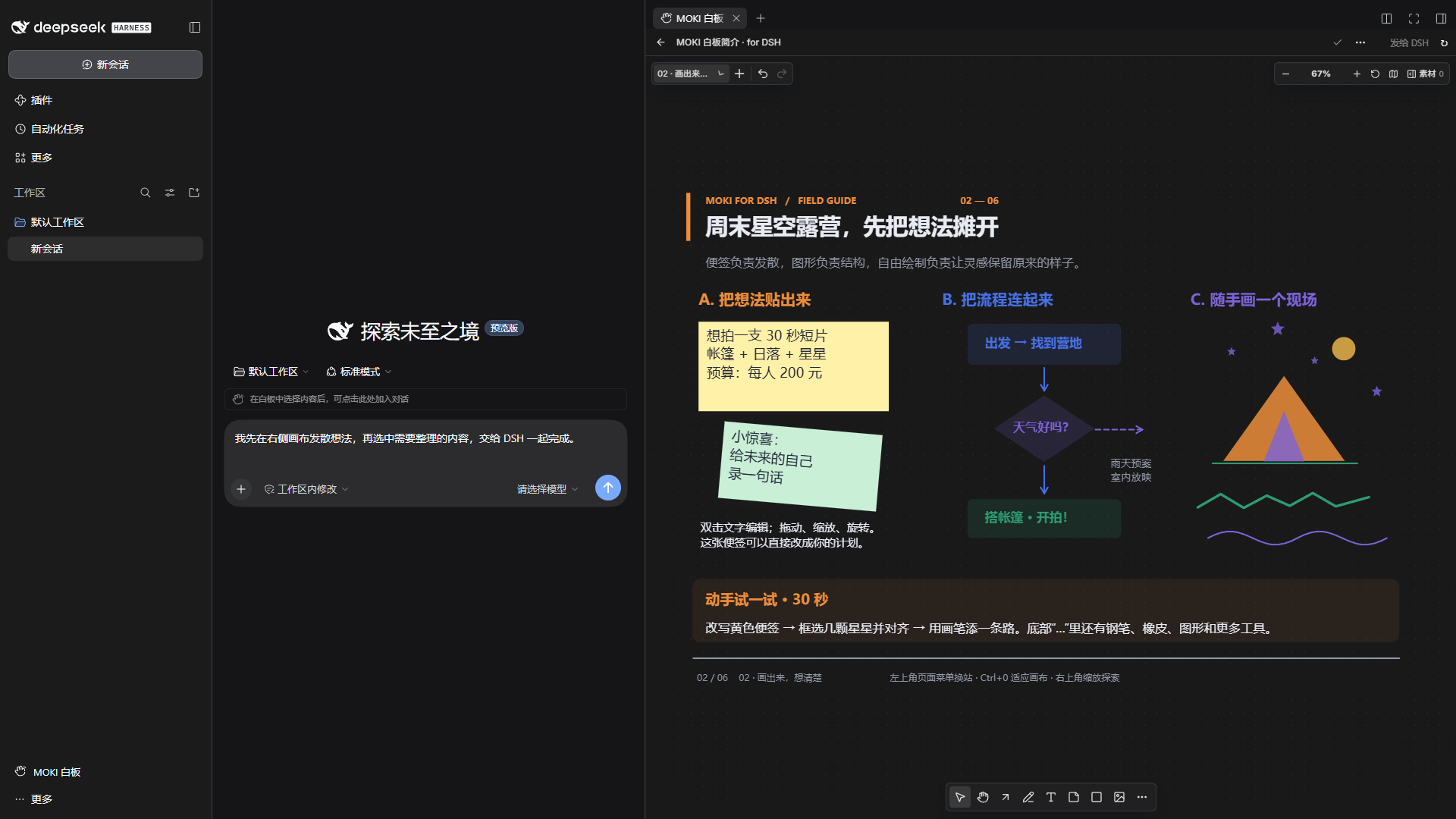
2. Select content on the right. A selection hint appears beside the DSH composer.
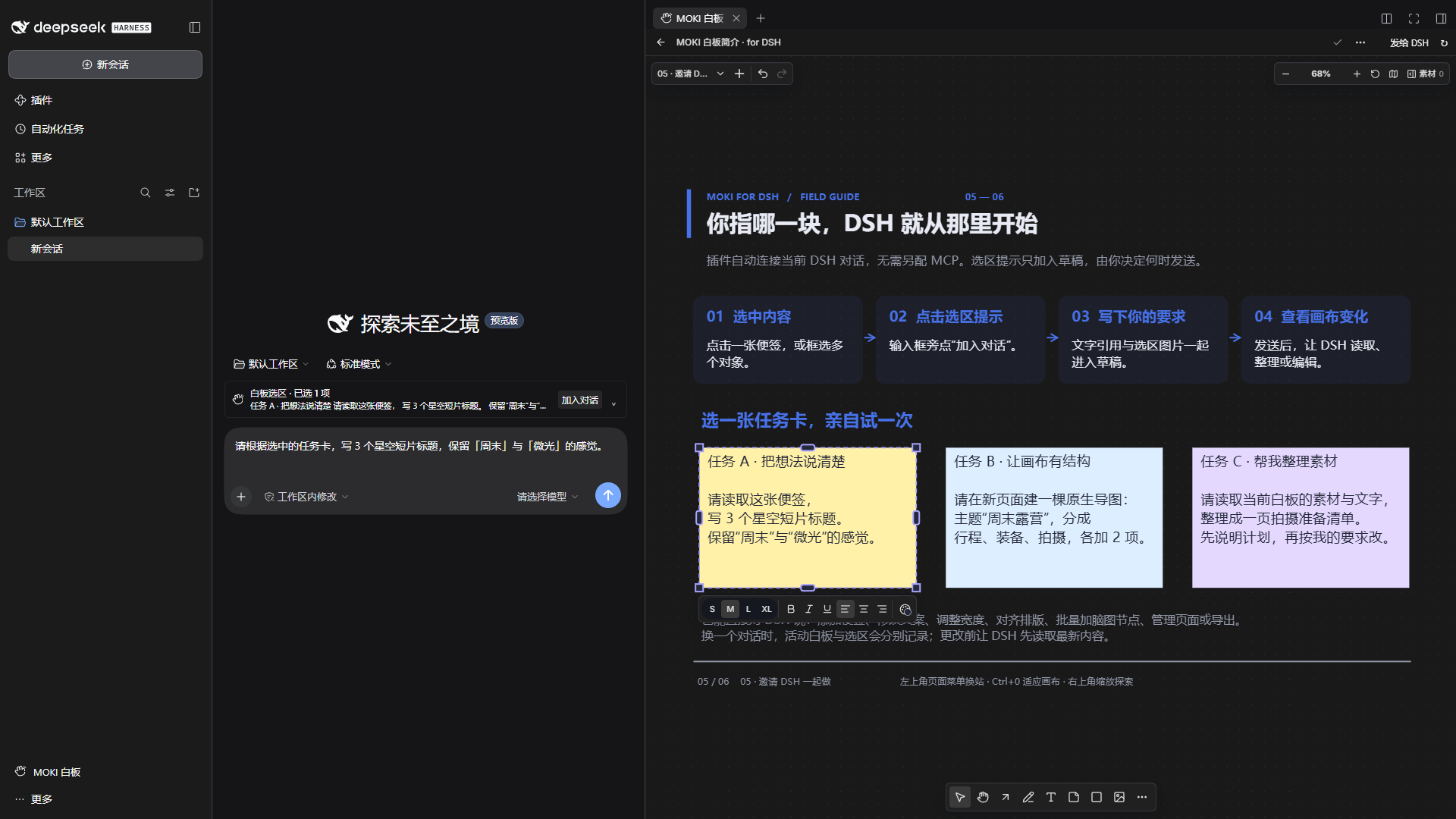
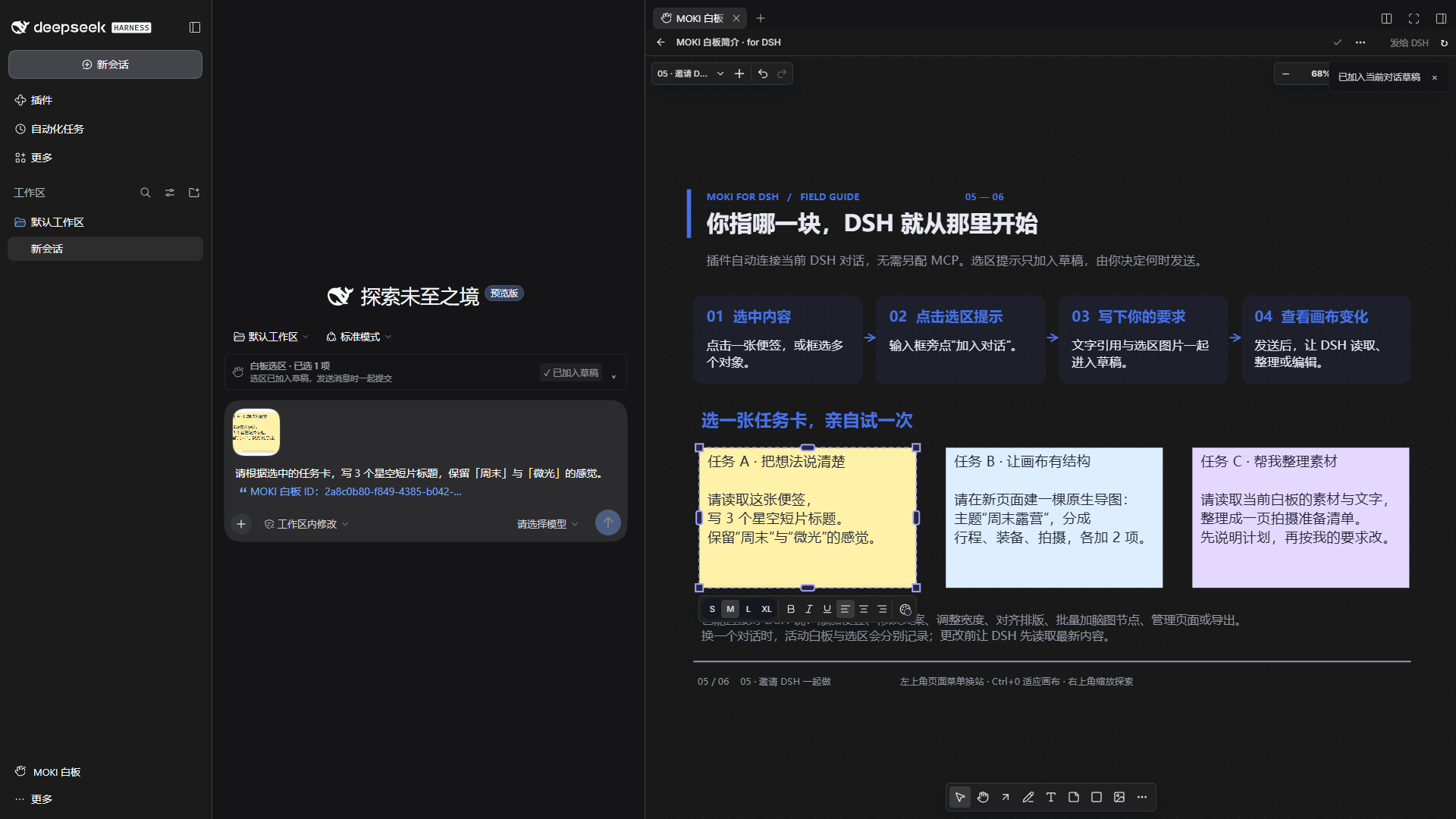
3. Click Add to chat. The text reference and screenshot join your draft; your typed request is preserved.
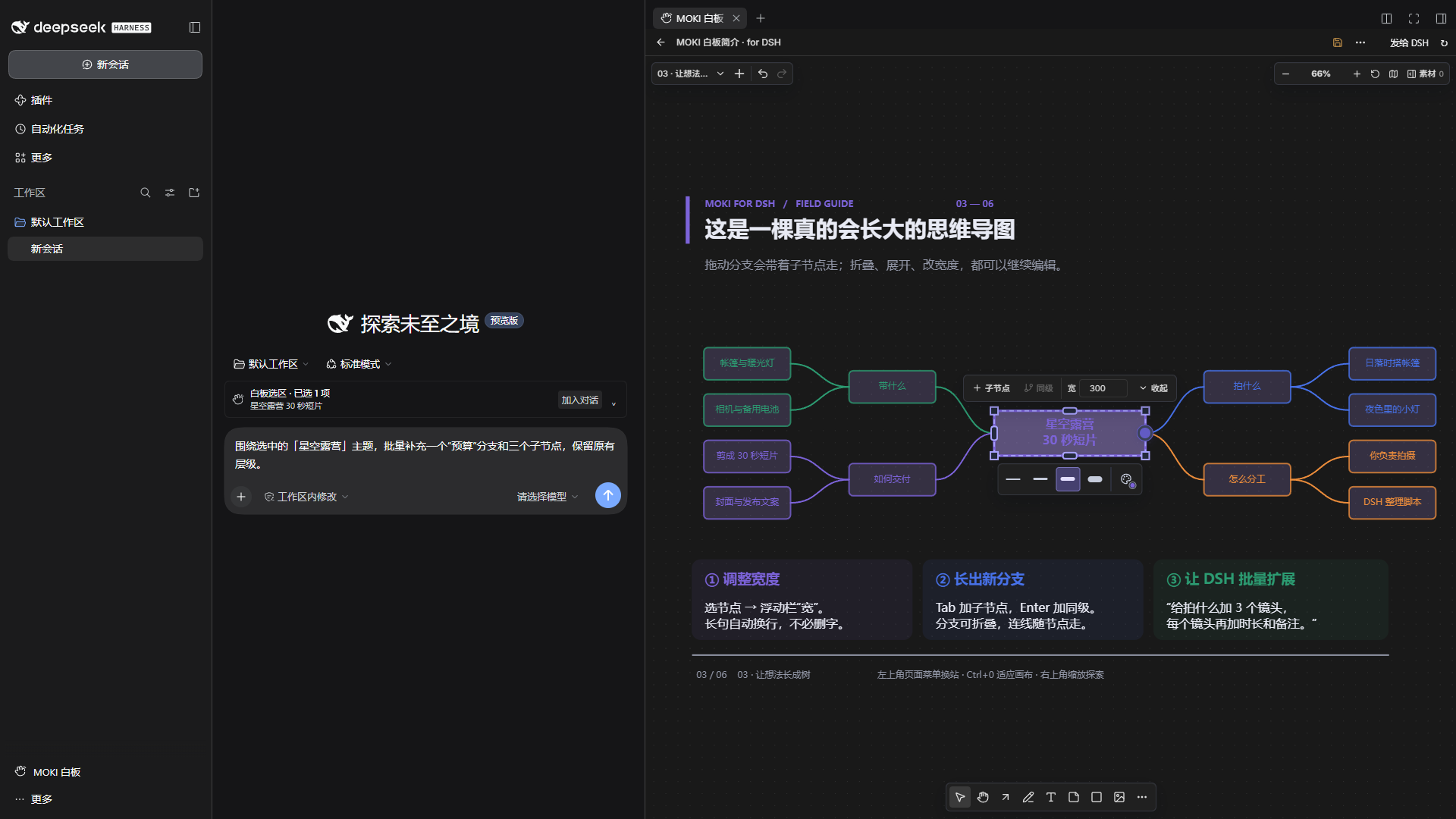
4. Edit the canvas directly, or prepare a request for DSH. Here, a mind-map node is selected and its width is adjusted.
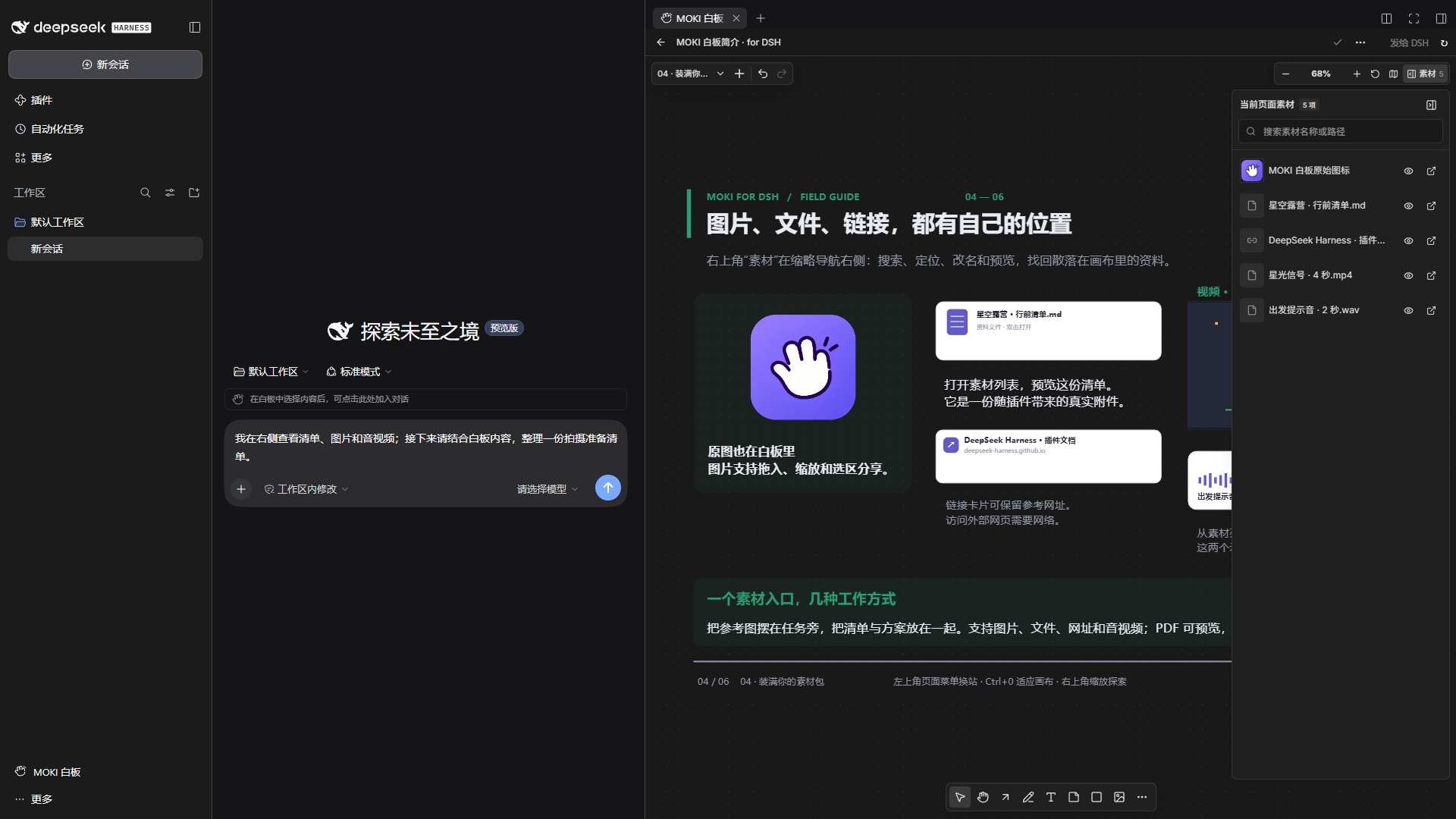
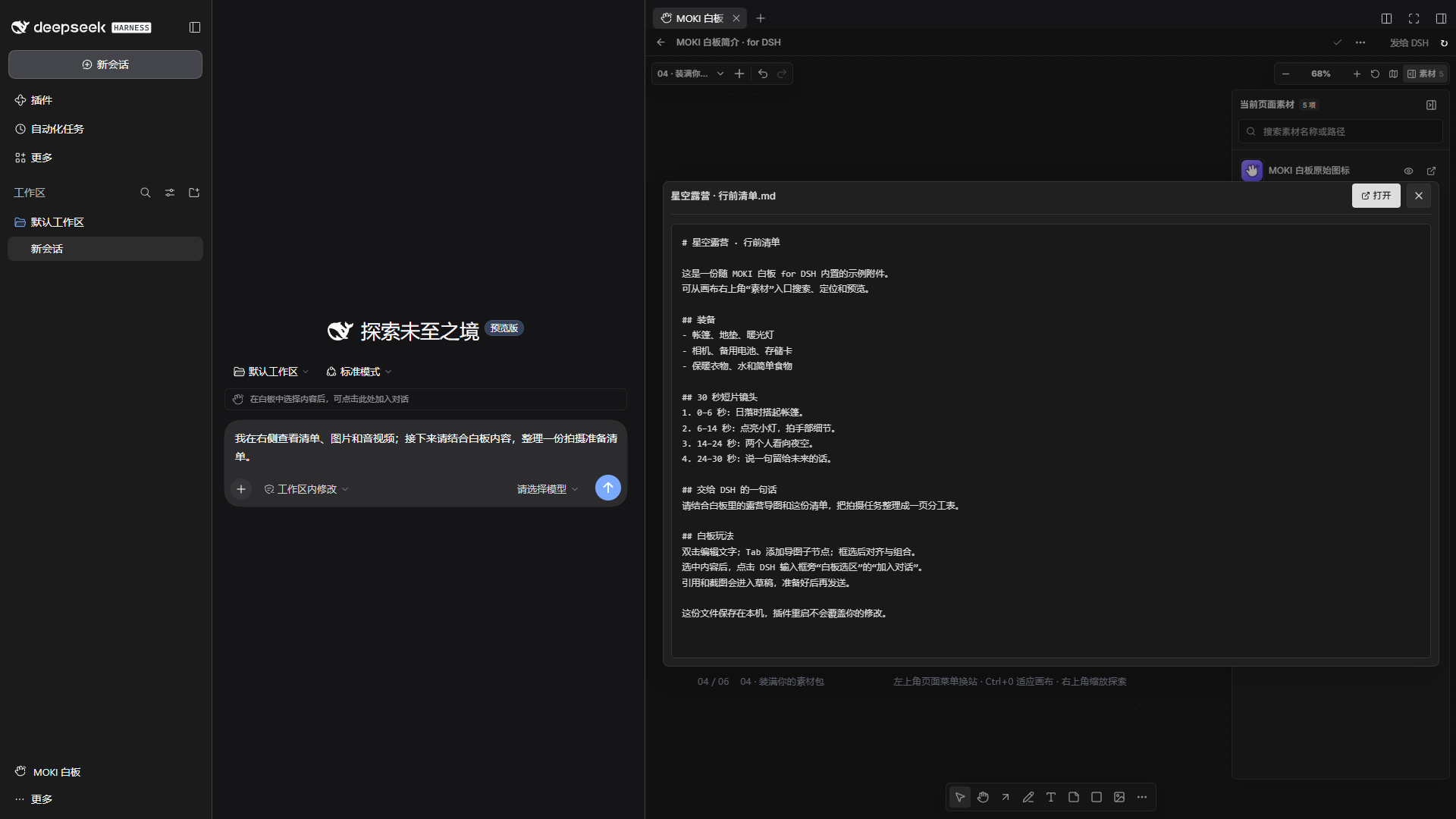
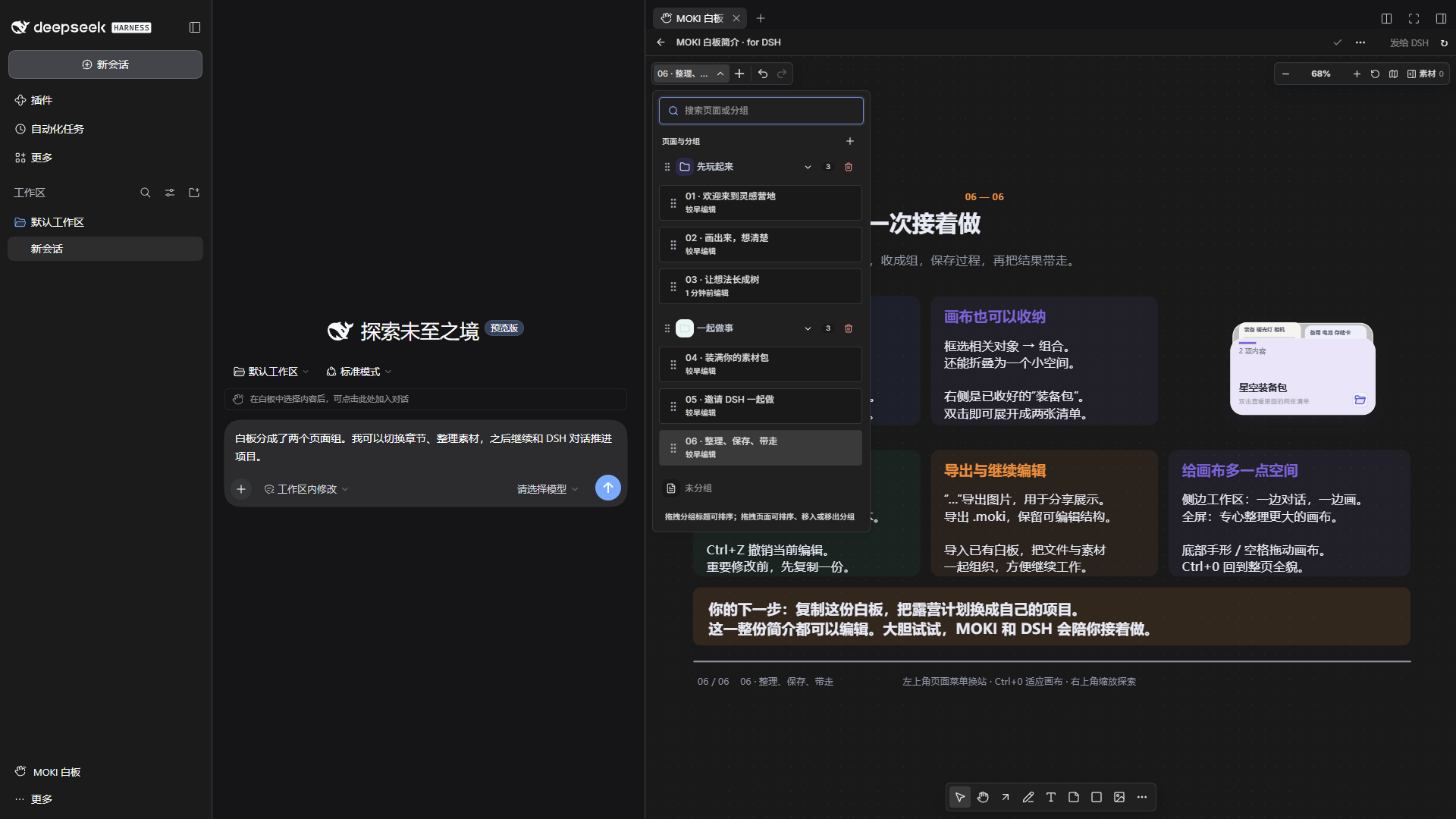
.moki import/export, and image export.Drop files onto the canvas, paste images or URLs, or add materials from the toolbar. The following describes importing and previewing in DSH plugin v1.8.1:
| Type | Formats | Behavior in the canvas |
|---|---|---|
| Images | PNG, JPG / JPEG, WebP, GIF, AVIF, BMP, SVG | Place, move, resize, and view images on the canvas |
| Video | MP4, WebM, M4V, MOV, OGV, MKV, AVI | Recognized as video cards; playback depends on DSH's embedded browser and the file's codecs |
| Audio | MP3, WAV, M4A, AAC, OGG, OGA, Opus, FLAC | Drop as audio cards; playback also depends on browser codec support |
.pdf |
Stored as file cards, with paginated previews in the materials dialog | |
| Text and code | .txt, .md, .markdown, .json, .csv, .tsv, .log, .yaml, .yml, .xml, .css, .js, .ts, .py |
Plain-text preview in the materials dialog, up to 5 MB |
| Office and other attachments | DOC / DOCX, XLS / XLSX, PPT / PPTX, ZIP, RAR, 7Z, and other files | Stored as file cards; use Open to access the original file. These formats currently have no inline preview in the DSH materials dialog |
| Web and image links | HTTP / HTTPS URLs and direct image URLs | Paste as link cards or images; embedded web previews depend on the destination site's embedding policy |
| MOKI board files | .moki, .moki-board, .moki.json, .moki-board.json |
Use Open board file or drag and drop to import editable board content |
Markdown, JSON, CSV, and TSV files are shown as source text in the current DSH materials dialog. Ordinary .json files are text attachments; MOKI board documents use the dedicated board importer.
Tested with DeepSeek Harness 0.2.2-rc.1 on Windows x64. Other operating systems and DSH versions have not been verified for this release.
Open the canvas's More actions → Canvas settings → General → Interface language and choose Follow DSH, 简体中文 or English. From the canvas list, use the Settings button. New installations follow DSH by default; existing manual choices are preserved. In Follow DSH mode, changing DSH's language immediately updates the editor, menus, materials, dialogs and selection controls without reloading the canvas. Chinese DSH locales use Simplified Chinese; other DSH languages use English. Manual choices stay fixed, and all three preferences survive restarts. Your canvas content, page names and files are preserved. The built-in introduction is a Chinese example canvas.
After updating a plugin while DSH is running, fully quit and reopen DSH before saving the language. Refreshing the canvas alone does not load the new plugin service. If the older service is still running, Settings shows a restart instruction; after restarting, select your language again to save it.
Open a DSH conversation with plugin management available. Copy the entire prompt below into the composer and send it:
Please install and enable MOKI Canvas for DSH v1.8.1.

Project: https://github.com/JKZeng-cell/moki-canvas-for-dsh
Read the project's installation instructions, then use plugin_manager in the current DSH environment:
First call list_bundles. If this version is installed, confirm it is enabled or enable it with set_bundle; do not reinstall it.
If it is not installed, call install_bundle with enabled=true and this prebuilt package as the target:
https://github.com/JKZeng-cell/moki-canvas-for-dsh/releases/download/v1.8.1/dsh-moki-canvas-1.8.1.tgz

After installation, check the version and enabled state of dsh-moki-canvas and explain how to open it from the sidebar or side workspace.
If the result is restart-required, tell me to restart DSH. Preserve existing boards, attachments, and other plugins.
This uses the plugin manager in your current DSH environment. If the tool is unavailable, use a preset with plugin management enabled, such as Creator, or enter the same package URL on the sidebar's Plugins page. Check the reported version, enabled state, and any restart instruction. See the DSH plugin-manager reference.
Download dsh-moki-canvas-1.8.1.tgz from Releases.
For Desktop, use Manage dsh Command… in the application menu to install or repair the bundled command. Open a new terminal and run dsh --version to confirm it matches Desktop. Then fully quit DSH from its application or tray menu; closing the window may leave it running.
In the directory containing the downloaded package, run:
dsh plugin --profile desktop add ./dsh-moki-canvas-1.8.1.tgz
dsh plugin --profile desktop list dsh-moki-canvas --depth 0
Reopen DSH. Select MOKI Canvas below Automation tasks in the left sidebar to open the canvas beside your chat. You can also choose MOKI Canvas from a new tab in the right workspace.
Manage the desktop profile with Desktop's bundled CLI; a separately npm-installed dsh cannot manage that profile. For Web or a custom profile, replace desktop with its actual name and use the same DSH_HOME as your running DSH. See the Desktop command reference.
The release contains the built application and host bundle. You do not need the MOKI source repository or a separate MOKI desktop app. DSH downloads the declared runtime dependencies during installation. See the official packaging and installation guide.
If you previously installed the development package @local/dsh-moki-whiteboard, remove that plugin before adding dsh-moki-canvas, so that only one copy runs. Both use the same default board-data directory; removing the plugin package does not delete that directory.
Open MOKI 白板简介 · for DSH, choose a page from the upper-left menu, and press Ctrl+0 to fit the page. Duplicate the guide before experimenting if you want to keep a reference copy.
On page 5, select a task card and click Add to chat / 加入对话. Then ask, for example:
Read the selected notes and turn them into a three-step shooting plan. Update only the selected content.
Create a two-sided mind map for a weekend camping film. Use wider nodes for long text, and add the preparation tasks in one batch.
The introduction is initialized once per data directory. Your edits survive restarts, and deleting it does not cause it to reappear.
Boards and attachments live in $DSH_HOME/whiteboard, or ~/.dsh/whiteboard when DSH_HOME is unset. The embedded service listens on 127.0.0.1 at an automatically assigned port. LAN sharing starts disabled for a new data directory; existing preferences are preserved.
Active canvas context and selection are scoped to the current DSH chat. Tools with an explicit board ID can also access other boards in the same local library. Edits support version checks to prevent stale writes. Content added to a chat is sent through your configured DSH model/provider when you submit the message.
This is a community plugin built on MOKI 白板. It is not an official DeepSeek product.
The repository includes the exact canvas source snapshot in vendor/moki, the plugin source, and prebuilt runtime files. Use Node.js 22.13 or later.
npm ci
npm ci --prefix vendor/moki --ignore-scripts
npm run typecheck
npm run build
npm test
npm run test:canvas
npm pack
src/host.js starts the embedded canvas server and adapts its tools to DSH. client.js provides workspace tabs, sidebar access, theme synchronization, and selection-to-draft controls. src/builtin-intro.js initializes the editable guide without replacing user edits. scripts/build.mjs builds against vendor/moki by default; MOKI_REPO can point to another compatible checkout.
See release validation, bilingual project copy, and the 3:4 portrait cover.
MIT. Third-party software and fonts retain their own licenses; see THIRD_PARTY_NOTICES.md.
CLASSIFICATION EVIDENCE
系统优先读取 GitHub Topics,再与站内分类词典和词根规则比对。当前命中: deepseek-harness。
morluto
Reverse engineer anything with agents, from app behavior down to native binaries.

deepseek-ai
DeepSeek Harness: Everything is a Plugin.

nexu-io
The 1st Collaborative AI Design Agent Workspace. Local-first and open source. Create motion, prototypes, websites, apps, dashboards, presentations, images, and videos with your team and AI agents. Share work, exchange feedback, and iterate together in one workspace.