其他
完整应用

deepseek-harness
deepseek-ai
DeepSeek Harness: Everything is a Plugin.

InterPSS-Project/ipss-agent
InterPSS Agentic Power System Simulation Agent for AC load flow, DC-based contingency analysis, and NERC TPL style reporting. Integrated into Deepseek Harness as a DSH Plugin, one can run power system simulations in the traditional way in a local sandbox or in the native AI env.
PROJECT TOPICS
INSTALL REFERENCE
dsh plugin --profile web add github:InterPSS-Project/ipss-agent
该命令指向仓库当前默认分支;尚无绑定当前 commit 的完整验证结果。
PROJECT README
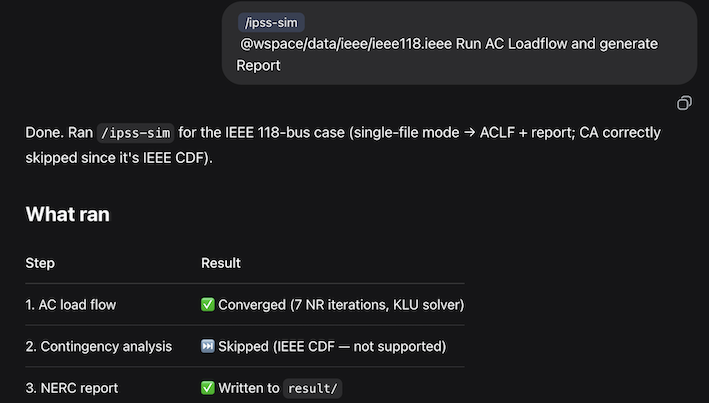
InterPSS Agentic Power System Simulation Agent for AC load flow, DC-based contingency analysis, and report generation, including NERC TPL-001-5 style. This repository ships agent-facing skills for OpenAI Codex Desktop and DeepSeek Harness (build and CLI details in Setup.md; DSH plugin in InstallDSHPlugin.md). The batch run canonical skill is [.agents/skills/ipss-sim/SKILL.md](.agents/skills/ipss-sim/SKILL.md). (see batch chat user guide for details):
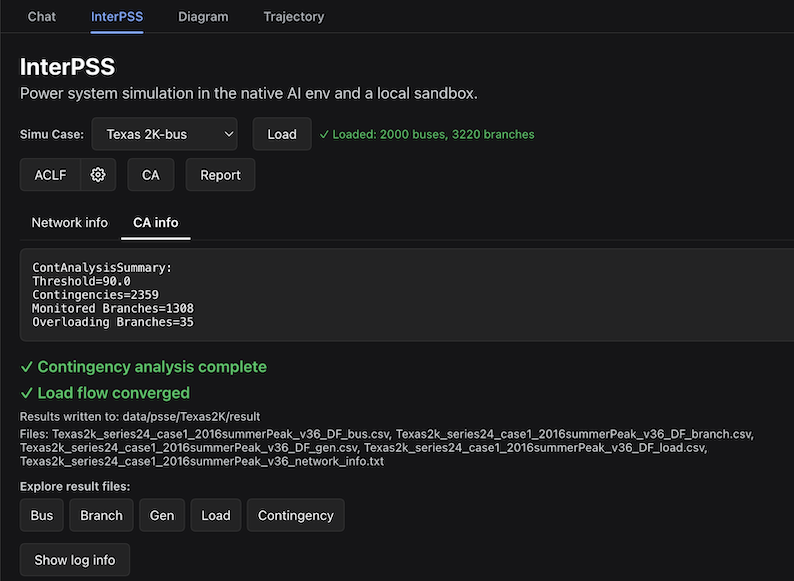
It is also integrated into DeepSeek Harness as a DSH Plugin. You can run power system simulation in the traditional step-by-step way in a local sandbox (DSH plugin user guide):
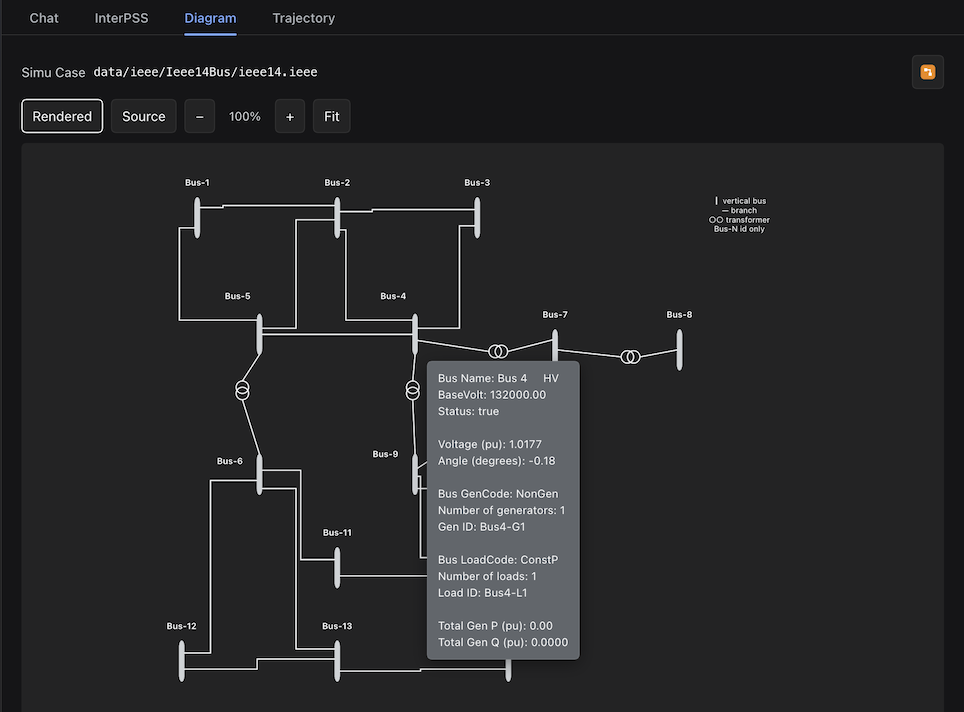
The simulation results can be visualized in a one-line diagram:
Prerequisites: Java JDK 21, Maven (or the included mvnw wrapper).
Prompt Codex, Claude Code, or DeepSeek Harness to clone and build ipss-agent:
Install(Update) and setup ipss-agent from https://github.com/InterPSS-Project/ipss-agentDepending on your network speed, it may take some time to download dependencies and build the CLI.
Build the Java CLI from the project root:
./mvnw -q clean packageThis produces target/ipss-agent-cmd-1.0.0-uber.jar. See Setup.md for the full layout, tests, and configuration.
Test the setup with a sample case directory:
init  # for the first time installation
/ipss-sim data/ieee/Ieee118Bus/ "IEEE 118-Bus Test Case"Install DeepSeek Harness (Desktop version is recommended). Prompt DeepSeek Harness to install InterPSS DSH plugin:
Install(update) InterPSS DSH pluginOpen the iPSS Agent folder as a workspace in DSH. You can then run the power system simulation workflow or chat following the DSH plugin user guide.
@deepseek-ai/dsh-interpss 0.7.0)| Topic | Document |
|---|---|
| Layout, build, JARs, agent skills | Setup.md |
IpssCmd (Java CLI) usage |
IpssCmd.md |
| Markdown report generator | GenReport.md |
| DeepSeek Harness DSH plugin | InstallDSHPlugin.md |
| InterPSS chat tools | docs/interpss-tools.md |
CLASSIFICATION EVIDENCE
系统优先读取 GitHub Topics,再与站内分类词典和词根规则比对。当前命中: 无有效分类标签。
deepseek-ai
DeepSeek Harness: Everything is a Plugin.

anywhere-labs
为 DeepSeek Harness (DSH) 插件生态打造的现代化桌面端解决方案。万物皆「插件」,桌面本身也是「插件」。

walkinglabs
Harness engineering beginner tutorial, from 0 to 1