Prompt pool · 提示池

English | 中文
A prompt staging pool for DeepSeek Harness. Keep a half-written prompt out of the agent's way until it is
ready, line up the prompts you want to run next, and annotate a long reply without losing the sentence you
mean.
It sits in two places: a trigger beside the composer, and a page in the right sidebar.
Screenshots

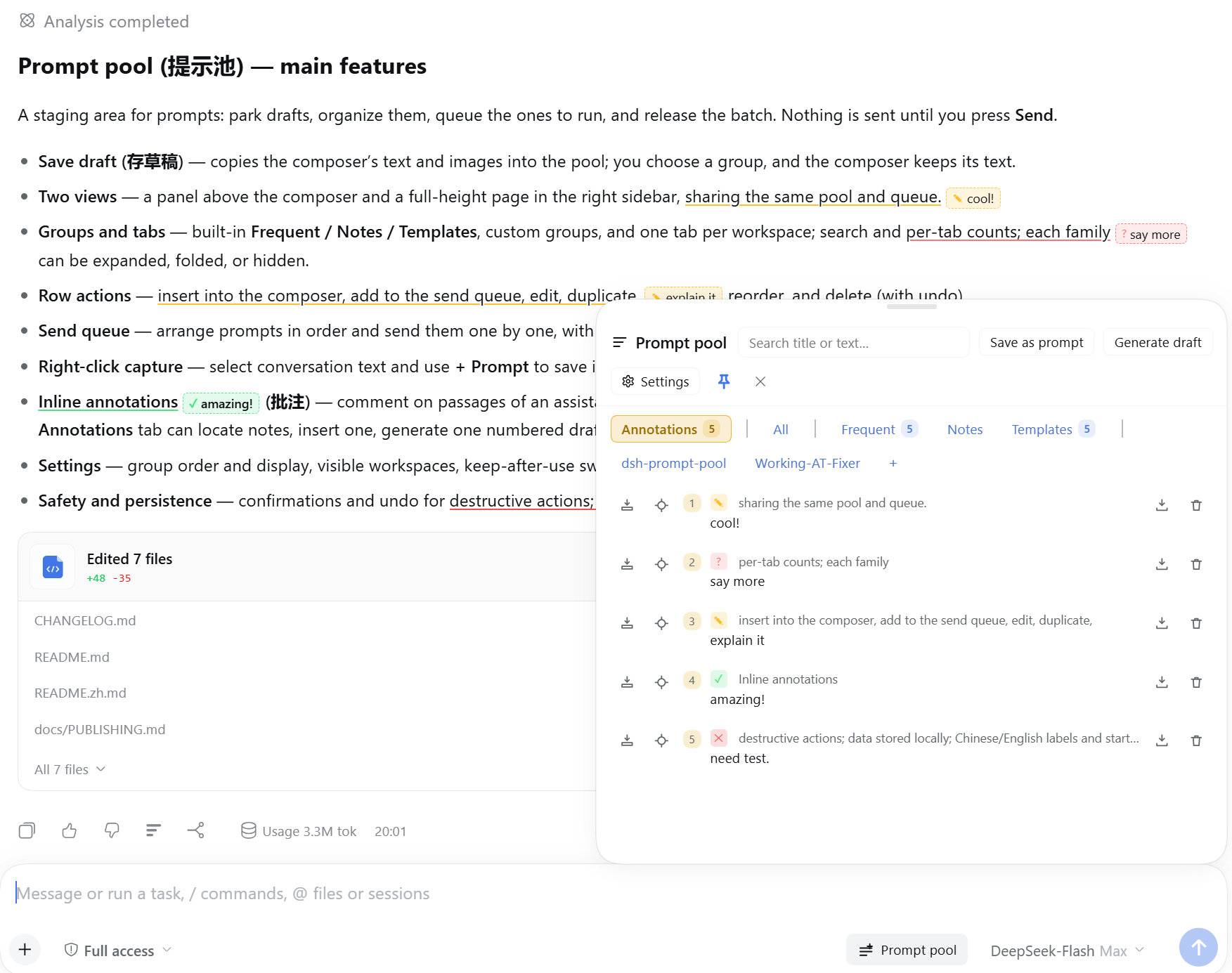
Annotate while you read. Select a passage and add a note right where it belongs, without leaving the
reply; the original wording stays attached, so the context is easy to follow and no key point slips away.
The Annotations tab on the right collects the whole set — locate a passage, insert one note, save it
as a prompt, or turn every note into one quoted draft.
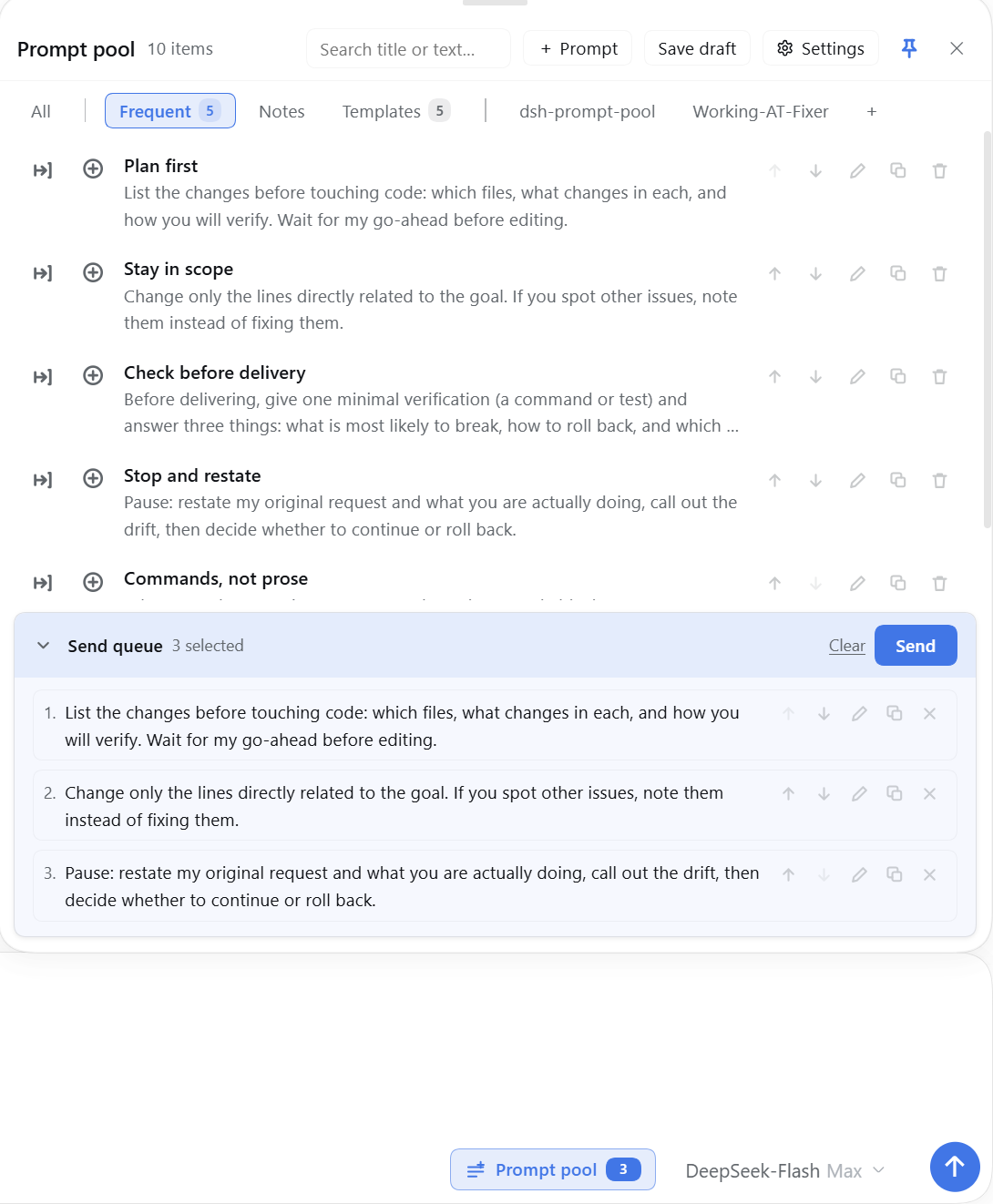
The composer panel: group tabs with their counts, the row actions (insert, queue, edit, duplicate,
delete), and the send queue at the bottom. The trigger beside the composer carries the queued count.
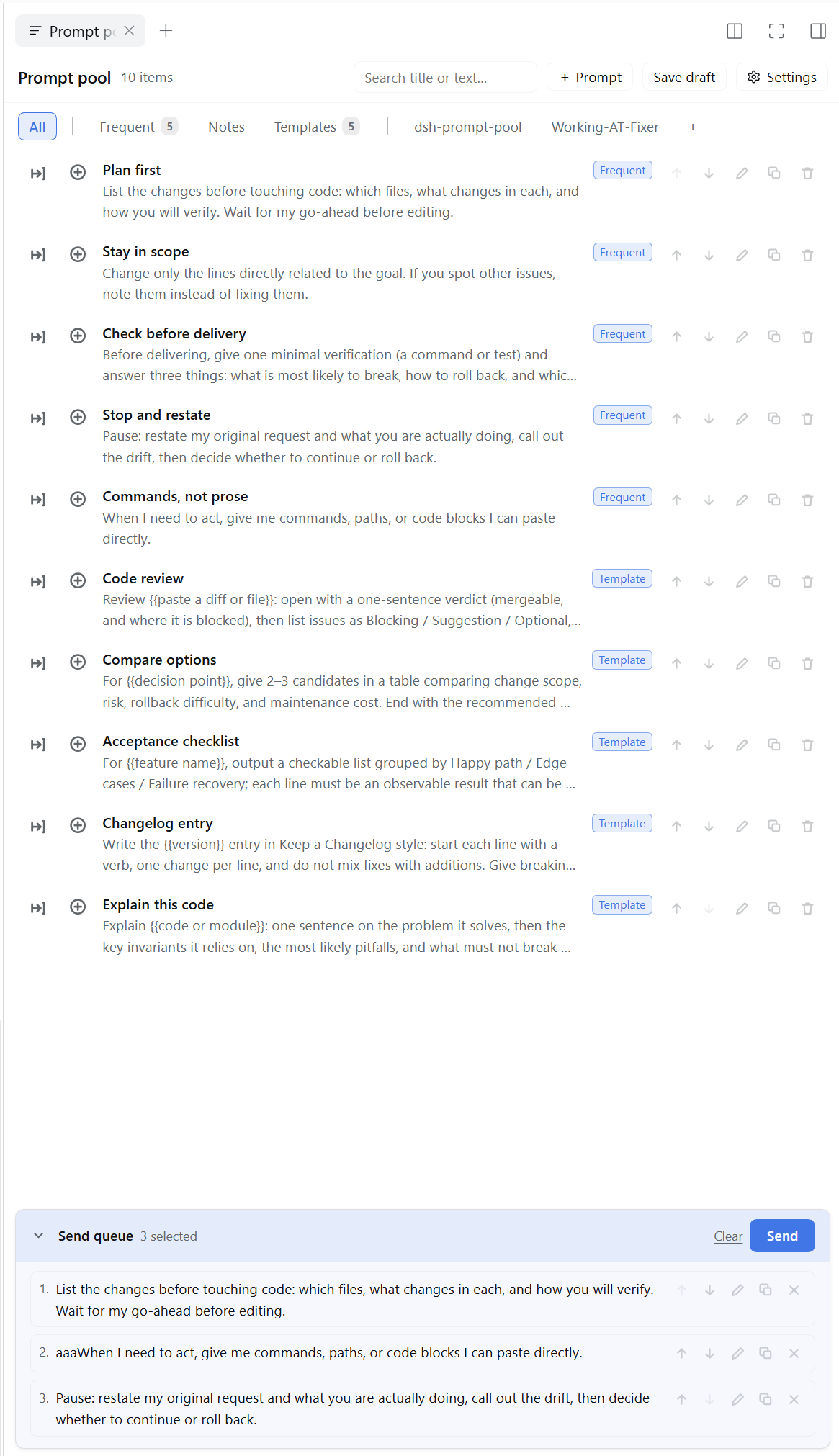
The same pool as a right-sidebar page — a native tab on DSH 0.2+, with the group tabs and one tab per
workspace.
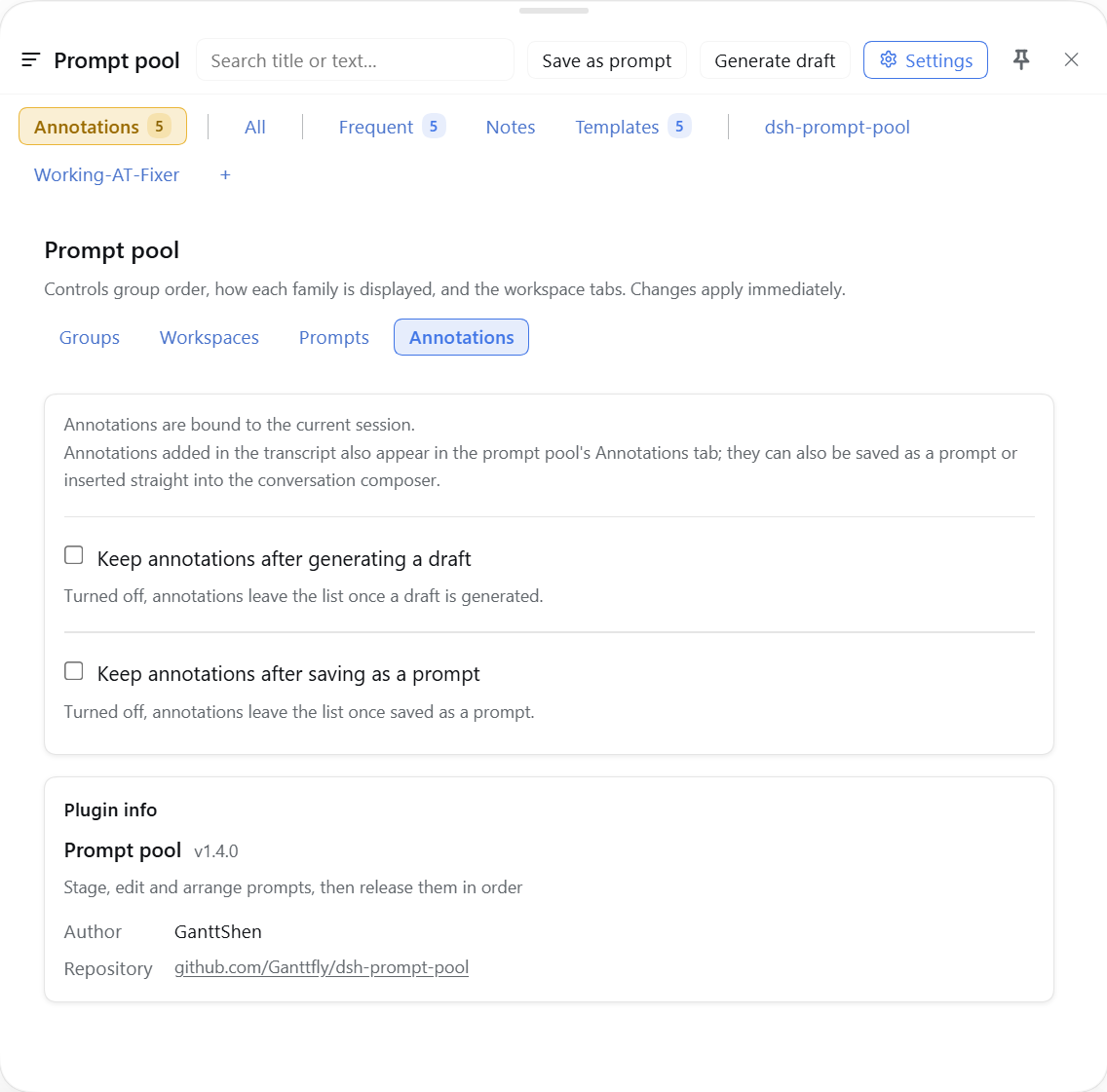
Settings: annotations are bound to the current session; choose whether they stay after generating a
draft or saving as a prompt, plus the plugin info card.
Why a prompt pool?
Working with an agent is rarely one prompt. The friction sits between messages:
| Where it hurts |
What the pool does |
| You are still shaping the prompt, but the send button is one keystroke away. |
Park the draft in a group; nothing runs until you release it. |
| The next prompts are already in your head, and retyping them breaks the sequence. |
Queue them in order and release one by one, with progress and Stop. |
| A long answer needs a precise reply on one sentence, not a vague “looks good”. |
Annotate the passage inline; the note stays on the exact words, and Generate draft turns every note into one quoted message. |
| The constraint lives in an earlier message or another workspace. |
Right-click capture and workspace tabs keep selections and prompts grouped where you can find them. |
The goal is not another notes app. It is to keep the context, the exact wording and the next action next to
the conversation, so the agent gets a precise instruction and you do not lose the thread.
Features
- Staging instead of sending — save a draft into the pool; nothing runs until you release it.
- Ordered release — queue items in the order you want, then send them one by one; each submission
waits for the composer to be accepted before the next starts. On hosts that expose the conversation
queue, items go straight into the queue without touching the composer; otherwise the composer path
is used. While a release runs, both views show progress and a Stop control; the queue is locked
until it finishes.
- Annotate while you read — select a passage in an assistant reply and right-click Annotate:
pick a kind (note / question / agree / disagree / idea / to-do), type up to ten characters (or leave it
empty for a glyph-only badge), and the badge lands right after the passage with a matching underline.
The note stays on the exact wording, so you can keep reading and come back to the context instead of
losing the point in a separate scratchpad; click the badge to edit. The Annotations tab always
exists: Locate scrolls to the passage, Insert writes one note into the composer, Save as
prompt files one note into a pool group (the chooser leads with the session's workspace, then 常用),
and Generate draft composes one numbered message that quotes each passage with its kind. The tab
header can save every note as one prompt or generate that draft as well. Saved notes keep a green
marker; notes are stored per session and survive reloads.
- Composer panel — search, group tabs, per-row insert / queue / edit / duplicate / delete, and the
send-queue card with collapse, clear and send. Drag its top edge to change the height, or its left
edge to change the width; pin it to keep it open over the conversation.
- Sidebar page — the same pool as a full-height page in the right sidebar.
- Right-click to save — select text in a reply or in one of your own messages, then right-click: the
menu offers Copy and Add to the prompt pool, whose submenu lists the groups currently on show;
picking one stores the selection as a new item there. The group used last time leads the submenu;
Shift+F10 opens the same menu, and a right-click without a selection keeps the browser menu.
- Groups — frequent / notes / templates built in, plus your own categories and one tab per workspace.
Each family can be expanded, folded into a single tab, or hidden.
- Localized starter prompts — a new pool is seeded in the host language, and Settings → Prompts
can reset the built-in set in the current interface language. Edited built-ins can be kept as
ordinary items; custom items and the queue are left alone.
- Settings — group order and display, visible workspaces, two switches for post-use retention, a
reset for the built-in prompt set, and an Annotations tab (session binding explained, plus
keep-after-draft and keep-after-save switches).
- Guarded destructive actions — deleting an item, clearing the queue and removing a queued entry all
ask first; deletes and clears can be undone from the toast.
- Chinese and English — every label follows the harness language, including the sidebar tab name.
Install
The package is on npm as dsh-prompt-pool. Once the
community market has indexed it, install it from the plugin market in Settings, or from the CLI:
dsh plugin add dsh-prompt-pool --profile <profile>
A tarball works the same way:
dsh plugin add ./dsh-prompt-pool-<version>.tgz --profile <profile>
Then enable the bundle in Settings → Plugins. The plugin is a bundle; installing the package alone
does not turn it on.
Usage
- Click 提示池 / Prompt pool beside the composer (or open the sidebar page).
- Save draft copies the composer content — text and image attachments — into the pool. A small popup
offers the groups currently shown in the tab bar — built-in, custom, and every displayed
workspace — and the toast names the destination. The composer keeps its text.
- Select text in a conversation and right-click: the menu offers Copy and Add to the prompt
pool; open the submenu and picking a group turns the selection into a new item there.
- To comment on specific passages instead, right-click Annotate: pick a kind, type up to ten
characters, and the badge appears right after the passage. The pool's Annotations tab collects
every note in the session; Locate scrolls to a passage, Insert writes one note into the
composer, Save as prompt files one note into a group, and Generate draft turns the whole list
into one numbered message. The tab header can also save every note as one prompt.
- Add rows to the queue with the ⊕ control, reorder them in the queue card, then press 发送.
- Each queued item is written into the composer and submitted in turn.
Compatibility
- DSH >= 0.2.0-rc.1; verified on 0.2.2-rc.1.
- The right-click menu needs the conversation text-interaction service, present on 0.2.2-rc.1. A host
without it keeps the native menu; the panel, the page and capture are unaffected.
- The sidebar page uses the native right-sidebar tab registry when the host provides it (DSH 0.2+).
On hosts without it the plugin falls back to
dsh-better-sidebar.
With neither, the composer panel and the settings page still work.
Data
- Items and settings:
localStorage["dsh.prompt-pool.v1"].
- Annotations:
localStorage["dsh.prompt-pool.notes.v1"].
- Pool images: IndexedDB
dsh-prompt-pool-images.v1.
- Before a schema upgrade, the previous payload is copied once to
localStorage["dsh.prompt-pool.v1.backup"].
- If a write fails (storage full or blocked), both views say the change was not saved.
- Image bytes that nothing references are deleted on startup; an image removed and saved is deleted
immediately.
Uninstalling the plugin does not delete these stores, so reinstalling later brings the pool back.
Clearing them removes the pool for good.
Known limitations
- Non-image attachments are not captured. The composer's browser files are reachable, but the pool
only stores images; a capture reports how many attachments were left behind.
- Reference chips come back as text. A saved item that referenced a file or a session keeps the
reference text (so the model still sees it), but inserting it back writes plain text rather than a
clickable chip — the host exposes no API to rebuild one.
- The right-click menu covers conversation text only. Replies, your own messages and expanded
reasoning are selectable sources; tool cards, the sidebar and the composer keep their own menus.
- Right-clicking a selection replaces the browser's own menu. The menu carries Copy itself, but the
browser's Search / Translate / Inspect rows are not available from it.
- Annotation cards follow the rendered text. A note on a folded or unmounted reply keeps its row in
the pool's Annotations tab, but has no card, pin or highlight until that text is rendered again; the
composed reply still uses it.
- A card can cover the lines below its passage. It hangs right after the end of the passage, so a
note on a short line may overlap the following lines to its right; the Annotations tab always keeps
the full list.
- A capture does not clear the composer. It copies; use the editor's own clear to remove the text.
Development
npm run check # lint + the whole suite, as CI runs it
npm run lint # syntax, version pin, locale parity and dead keys
npm test # the whole suite through tools/run-tests.js
node tools/smoke.js # module loads, slots register, locale retitle, version pin
node tools/render-smoke.js # every slot renders; panel and settings structure checks
Get-ChildItem tools/verify/*.js | ForEach-Object { node $_.FullName } # behavioural checks
GitHub Actions runs the same npm test on every push and pull request.
The panel's box model is measured in a real browser instead of by eye. It needs playwright on
NODE_PATH and a react/react-dom copy to serve — install those once into %TEMP%\pp-harness, or
point PP_VENDOR at a node_modules that has them:
pnpm --dir "$env:TEMP\pp-harness" add react@18 react-dom@18
$env:NODE_PATH = "$env:DSH_PROFILE_DIR\node_modules"
node tools/panel-geometry/run.js --viewport 1280x760 --composer 0.34 --drag --shot panel-height
node tools/panel-geometry/run.js --viewport 1280x900 --composer 0.9 --tray 6 --shot queue-card
--composer puts the composer partway up the window (a new session). The mock keeps a top bar above a
clipping conversation pane, so the run fails when the panel's header ends up clipped or scrolled out of
its own box. --tray N seeds the send queue, and the run then fails when a short queue already scrolls.
The package lives in plugin/; tools/ is development-only, and _shots/ is a local screenshot
scratch folder that stays out of the repository.
License
MIT