
模型与 MCP
待识别

rea
morluto
Reverse engineer anything with agents, from app behavior down to native binaries.
PROJECT TOPICS
INSTALL REFERENCE
dsh plugin --profile web add github:AliceSaikawa/dsh-webui-m3e
该命令指向仓库当前默认分支;尚无绑定当前 commit 的完整验证结果。
PROJECT README
[!WARNING] This project is archived and will receive no further updates. Please use kuraneko1/dsh-mobile-maxxing instead.
A Material 3 Expressive (M3E) mobile Web UI plugin for DeepSeek Harness (DSH), so you can use DSH comfortably on a phone.
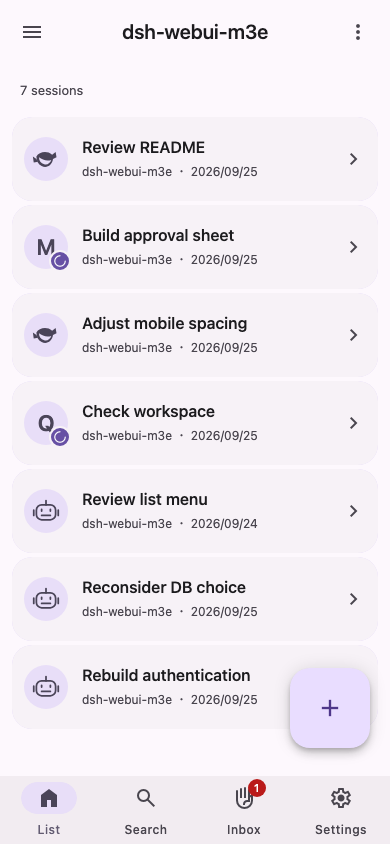
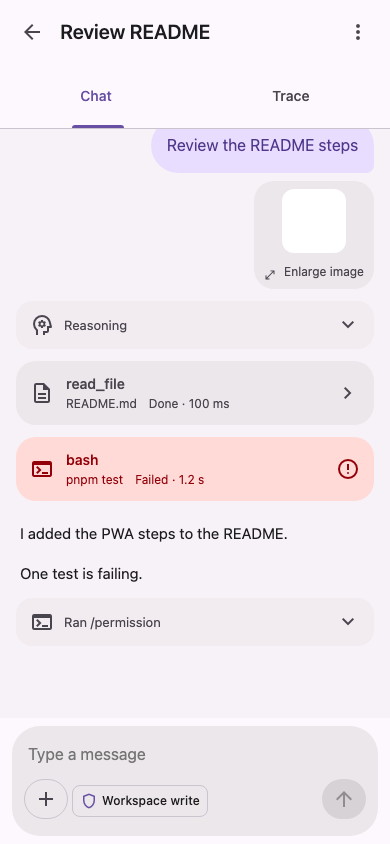
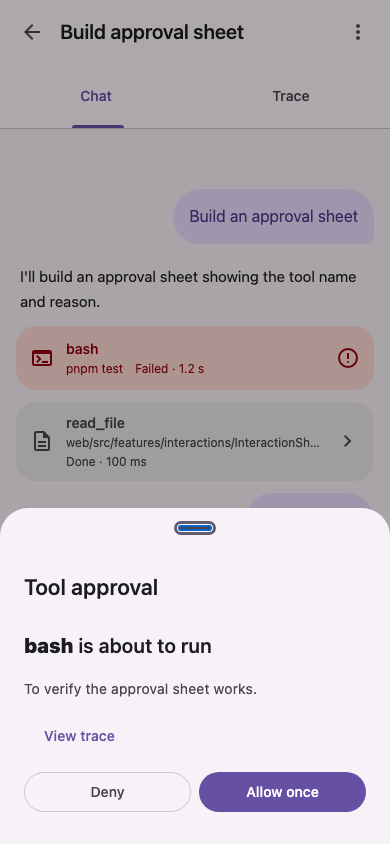
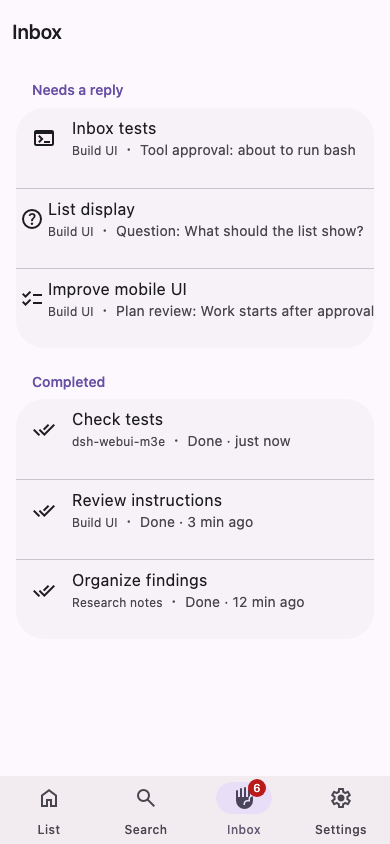
The screenshots show mock screens. The app UI is shown in Japanese, English, or Simplified Chinese.
[!NOTE] This is a personal project and is not an official DeepSeek product. It is under development and may contain bugs. Please use it with care.
[!IMPORTANT] The published release 0.0.9 (GitHub Latest) is built for DSH 0.2.1-rc.2. Install DSH 0.2.1-rc.2 with
npm i -g @deepseek-ai/dsh@0.2.1-rc.2and check it withdsh --version. 0.0.8 is for DSH 0.2.0-rc.2 only and does not run on 0.2.1-rc.2. If you stay on DSH 0.2.0-rc.2, install v0.0.8 instead.
Run this on the machine running DSH:
dsh plugin --profile web add https://github.com/AliceSaikawa/dsh-webui-m3e/releases/download/v0.0.9/dsh-webui-m3e-0.0.9.tgzweb is an example, so select the profile that actually serves your Web UI (a misspelled name still creates a new profile, and a successful install alone does not confirm the target).
Open the sign-in URL printed by dsh web to sign in to the standard interface (DSH's own Web UI).
Open http://<host>/m3e/ on the same address. If it returns 404, restart that profile's Host. Restarting the Host (stop dsh web with Ctrl+C and start it again with the same command) can change the sign-in URL, so repeat from step 2.
M3E is not published to the npm registry, so installing by name with add dsh-webui-m3e is unavailable. M3E has no additional runtime packages to install, and you do not need its source, a local build, or its development dependencies. Always restart the Host after an update or rollback, because that switches the Host code between versions.
[!NOTE] This section describes 0.0.9 and main. 0.0.8 does not have pinning, archived-session display and restore, base color selection, the plugin list, the shared error screens, or the Modes page in Settings.
@, get command suggestions with /, and switch models, reasoning effort, permission presets, and plan mode.The existing DSH interface remains available. You can choose which interface to use on each device.
DeepSeek Harness 0.2.1-rc.2 (published 0.0.9 and this repository's main)
Use 0.0.9 with this version. See Quick Start for installation. Support for the 0.1.5 series has been removed.
See docs/dsh-compatibility.md (Japanese) for results, known differences, and unverified paths.
Install DSH itself with an explicit version. npm dist-tags such as latest and next move over time (on 2026-10-20 both pointed to 0.2.1-rc.2), so pin the version that this repository supports.
npm i -g @deepseek-ai/dsh@0.2.1-rc.2Check your installed version with dsh --version.
DeepSeek Harness 0.2.0-rc.2 (when using 0.0.8)
Node.js that meets DSH's and pnpm's requirements, and pnpm on PATH (used by the regular npm-installed DSH CLI).
>=22.12.0, and pnpm 11.17.0 requires >=22.13. Use Node that meets both DSH's and your pnpm version's requirements.The tested environment is macOS 27.2, Node.js 26.7.0 and pnpm 11.17.0; those dependency declarations do not establish M3E's minimum supported Node version.
The DSH Desktop app has not been verified for this release in this environment. There is an upstream bundled-pnpm path, but keep it separate from the regular CLI results.
Installation, signing in to the standard interface, and opening http://<host>/m3e/ are covered in Quick Start.
On iPhone, choose "Add to Home Screen" from Safari's Share menu to open it like an app. On a real device, only opening it in Safari has been confirmed; behavior as a Web app added to the Home Screen is not verified.
In this README, the "standard interface" is DSH's own Web UI (the URL parameter and the setting call it "classic"). Choose which interface to use on this device with any of the following options. Your choice is saved separately on each device.
Settings → General → Use the M3E interface on this device (the row follows the standard interface's language)Settings → Return to the standard screen?ui=m3e or ?ui=classic to the URLOn a device where you chose M3E, newly opening / on a phone switches to M3E. On a computer (where the main input is a mouse or trackpad), / stays on the standard interface; open /m3e/ directly to use M3E. On devices such as Windows Firefox with a touchscreen, the main input may not be detected as a computer, so / may still move to /m3e/ as on a phone. If you remove /m3e/ from the URL in a tab that was showing M3E and open /, that tab stays on the standard interface. A newly opened tab follows the setting on a phone. In 0.0.8, / also moves to /m3e/ on a computer, and there is no per-tab behavior that keeps a tab on the standard interface.
If either interface fails to load, open http://<host>/?ui=classic to return to the standard interface.
Read dependencies.dsh-webui-m3e.version in the JSON output for the installed version and resolved for its source.
dsh plugin --profile web list dsh-webui-m3e --depth 0 --jsonTo update, choose a compatible version from the release list and add its attached tgz URL. URLs follow https://github.com/AliceSaikawa/dsh-webui-m3e/releases/download/v<version>/dsh-webui-m3e-<version>.tgz. This example migrates to 0.0.9. Local-tgz users use the same command in the same profile, restart the Host, and check the installed version above. No manual version editing is needed.
dsh plugin --profile web add https://github.com/AliceSaikawa/dsh-webui-m3e/releases/download/v0.0.9/dsh-webui-m3e-0.0.9.tgzTo roll back from a future release, choose a verified compatible version's URL from the release list, add it again, and restart the Host. The same pattern returns to 0.0.9 on DSH 0.2.1-rc.2, or to v0.0.8 on DSH 0.2.0-rc.2. Do not use the previously distributed 0.0.7 as a rollback target with DSH 0.2.0-rc.2. A saved compatible tarball can also be selected:
dsh plugin --profile web add file:/path/to/dsh-webui-m3e-<version>.tgzBefore removing M3E, open the standard interface (http://<host>/?ui=classic). After removal, /m3e/ returns 404, so use the standard interface:
dsh plugin --profile web remove dsh-webui-m3eIf something fails, check the following.
/m3e/ without the cookie shows a page that asks you to reopen it from the address bar (from v0.0.9-rc.2; the page follows the browser language: Japanese, English, or Simplified Chinese, and English for any other language). If it does not open in 0.0.8, reopen the sign-in URL printed by dsh web.For source builds, see the development and distribution guide (Japanese).
@deepseek-ai/cordis and @deepseek-ai/dsh-client-store), so it may not work with every DSH version.MIT. See LICENSE.
CLASSIFICATION EVIDENCE
系统优先读取 GitHub Topics,再与站内分类词典和词根规则比对。当前命中: deepseek。
morluto
Reverse engineer anything with agents, from app behavior down to native binaries.

deepseek-ai
DeepSeek Harness: Everything is a Plugin.

nexu-io
The 1st Collaborative AI Design Agent Workspace. Local-first and open source. Create motion, prototypes, websites, apps, dashboards, presentations, images, and videos with your team and AI agents. Share work, exchange feedback, and iterate together in one workspace.